Auditing Third-Party App Access in Google Workspace (Drive & Gmail)
Every OAuth app your users connect holds standing access to Drive and Gmail. Here's how admins audit what's connected, judge the risk, and rein it in.
Overdrive Team//7 min read
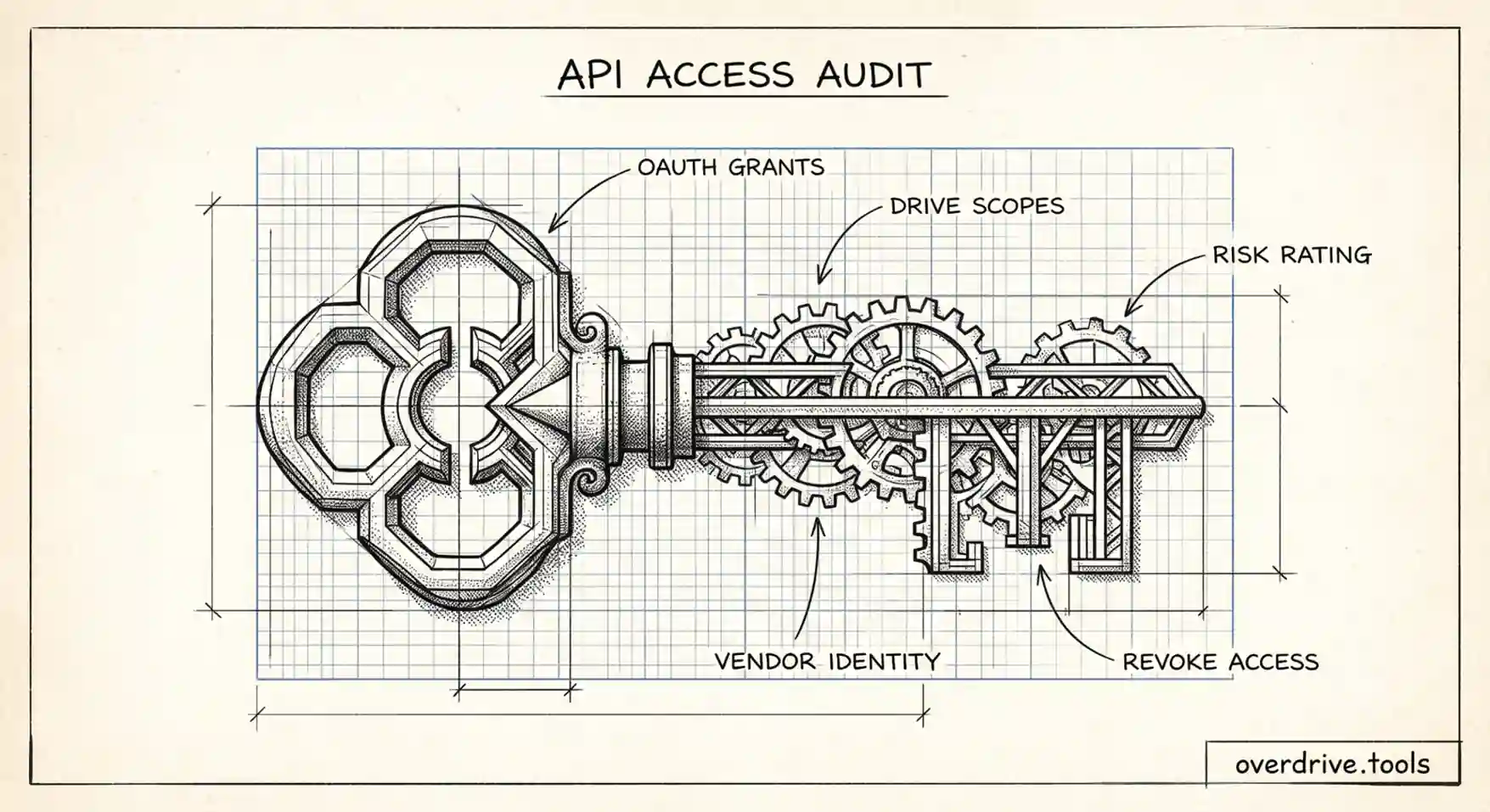
To audit third-party app access in Google Workspace, open the Admin console and go to Security, then Access and data control, then API controls, and review Manage Third-Party App Access. There you'll see which OAuth apps your users have connected and what they can reach. The harder part isn't finding the list. It's judging which of those apps actually matter.
Every time a user clicks "Sign in with Google" or grants an app access to their Drive or Gmail, they hand a third party standing permission to your organization's data. That permission doesn't expire when they stop using the app. Over time, a workspace accumulates dozens or hundreds of these grants, each one a door someone opened once and forgot. For an admin, the connected-apps list is one of the most overlooked parts of the attack surface.
Why OAuth Grants Are Easy to Miss
Third-party app access is quiet in the same way public files are. A user authorizes an app, the app gets a token, and from then on it can reach whatever scopes it was granted, often broad Drive or Gmail access, without any further prompts. There's no ongoing visibility for the user, and unless an admin goes looking, no visibility for the organization either.
The risk isn't hypothetical. Apps get acquired, abandoned, or breached. A note-taking tool or "analytics exporter" that a few employees connected might have read access to every file those users can see. If that vendor is compromised, your data is exposed through a door you didn't know was open. And because the grant persists, the exposure outlives the user's interest in the app, and sometimes the user's employment.
What "Access" Actually Means
Not all app grants are equal, and understanding the difference is the whole point of an audit. When a user authorizes an app, they approve specific OAuth scopes. Some are narrow, like "view your email address" or "see basic profile info." Others are sweeping, like "see, edit, create, and delete all of your Google Drive files," or full Gmail access. An app with a broad Drive scope can reach far more than one that only checks identity.
So the question an audit answers isn't just "which apps are connected?" It's "which apps can actually reach our sensitive data, and do we trust them with it?" An app with read access to all of Drive deserves far more scrutiny than one that only confirms a login.
How to Run the Audit
Here are your options, from a continuously maintained view to a manual review.
Option 1: Monitor app access with Overdrive. The Admin console shows you the apps, but it leaves the judgment to you, scope by scope and app by app. Overdrive for Google Workspace connects read-only and turns that raw list into a ranked view: which third-party apps have Drive and Gmail access, ordered by how much they can actually reach, so the ones worth a second look rise to the top. It monitors new grants continuously from the day you connect, so a freshly authorized app with broad access surfaces as an issue instead of hiding in a list you check once a year. It reads grant metadata only, never the contents of your files or emails, which is the right boundary for a tool auditing access. For admins without the higher-tier security tooling, it turns app sprawl into something reviewable.
Option 2: Review it in the Admin console. Go to Security, then Access and data control, then API controls, and open Manage Third-Party App Access. You'll see "accessed" apps (everything users have connected) and "configured" apps (those you've already set a policy for). For each, you can set access to Trusted, Limited, restricted to specific scopes, or Blocked. Work through the accessed list, look at what each app can reach, and set a policy: block the risky and unknown, trust the vetted. It's thorough, but it's manual triage, and the list grows continuously as users connect new things.
Option 3: Restrict by scope and verification status. You can configure controls so that unconfigured apps requesting sensitive Drive or Gmail scopes are blocked by default, and limit access to apps Google has verified. This is preventative, since it narrows what users can connect going forward, and it pairs well with a periodic review of what's already there.
The end-to-end workflow mirrors any access audit: list the grants, judge each by what it can reach and whether you trust it, and revoke or block what doesn't belong. For the Drive-permissions side of the same picture, see who has access to your Google Drive files.
Deciding What to Block
Once you can see the apps ranked by reach, a few questions sort them quickly. Is the app one your organization vetted and approved, or something an individual connected on their own? Does it need the access it was granted, or far more than its function requires? Is it verified, actively maintained, and from a vendor you'd trust with file access? And how many users have connected it, one curious employee or half the company?
A widely used, verified productivity app with a justified scope is usually fine to trust. A single-user grant from an unknown vendor with full Drive access is exactly the kind of thing to block. The middle ground is where most of the judgment lives: apps that work but ask for more than they need, which is where a ranked view earns its keep.
What a Risky Grant Looks Like in Practice
It helps to picture the patterns that should make you pause. The classic one is an "analytics," "exporter," or "backup" tool granted full Drive access by a handful of users. These are utilities that genuinely need broad read access to function, which is exactly what makes them dangerous if the vendor is small, unverified, or later breached. Another is an AI or productivity add-on that requests Gmail and Drive scopes far beyond what its visible feature set requires; the convenience is real, but so is the standing access. A third is the single-user grant from an unrecognized developer: one employee connected something obscure, and now an unknown third party holds a token into your data.
Contrast those with the low-risk majority, the well-known, Google-verified apps used across the company with scopes that match their purpose. The point of ranking apps by reach is to push the first group to the top so your limited review time goes where the actual exposure is, instead of scrolling past a hundred harmless identity-only sign-ins to find the one tool that can read every file in your organization. Without that ranking, the dangerous grant and the trivial one look identical in a flat list.
Making It Routine
App access isn't a one-time cleanup, because users connect new apps constantly. The durable approach is a default plus a rhythm. Set a sensible default, such as blocking unconfigured apps that request sensitive scopes so nothing broad gets connected silently, and then review the accessed-apps list on a schedule to catch what's slipped through and to re-evaluate older grants. Tie app review into your security routine alongside external-sharing checks, since they're two halves of the same exposure surface.
It also helps to connect app hygiene to offboarding. When someone leaves, the apps they authorized may keep their tokens; suspending or deleting the account is the moment to make sure those grants go with them. The aim is simple: every app with access to your Drive and Gmail is one you can name and have chosen to allow.
Frequently Asked Questions
Where do I see third-party apps connected to Google Workspace?
In the Admin console, go to Security, then Access and data control, then API controls, and open Manage Third-Party App Access. It lists apps users have connected and lets you set access policies.
What's the difference between "accessed" and "configured" apps?
Accessed apps are everything your users have connected that touched Google data. Configured apps are the ones you've already applied a policy to (trusted, limited, or blocked). The accessed list is where you find what still needs review.
Why is broad OAuth scope a security concern?
An app granted access to "all your Drive files" or full Gmail can reach a great deal of data, and that access persists until revoked. If the vendor is breached or abandoned, your data is exposed through that standing grant.
Can I block apps from accessing Drive and Gmail by default?
Yes. You can configure API controls to block unconfigured apps that request sensitive scopes and limit access to verified apps, so users can't silently connect broad-access tools.
Do app grants get removed when an employee leaves?
Not automatically in every case. Authorizations are tied to the user account, so suspending or deleting the account during offboarding is the point to ensure their app grants are revoked too.
Related Articles
- How to Find Every Publicly Shared File in Your Google Workspace
- What Happens to Shared Files When an Employee Leaves Your Workspace
- How to Audit Third-Party Apps With Access to Google Drive