How to Remove Someone's Access to a Google Drive File
Learn how to remove someone's access to your Google Drive files and folders. Step-by-step instructions for single files, folders, and bulk removal.
Overdrive Team//2 min read
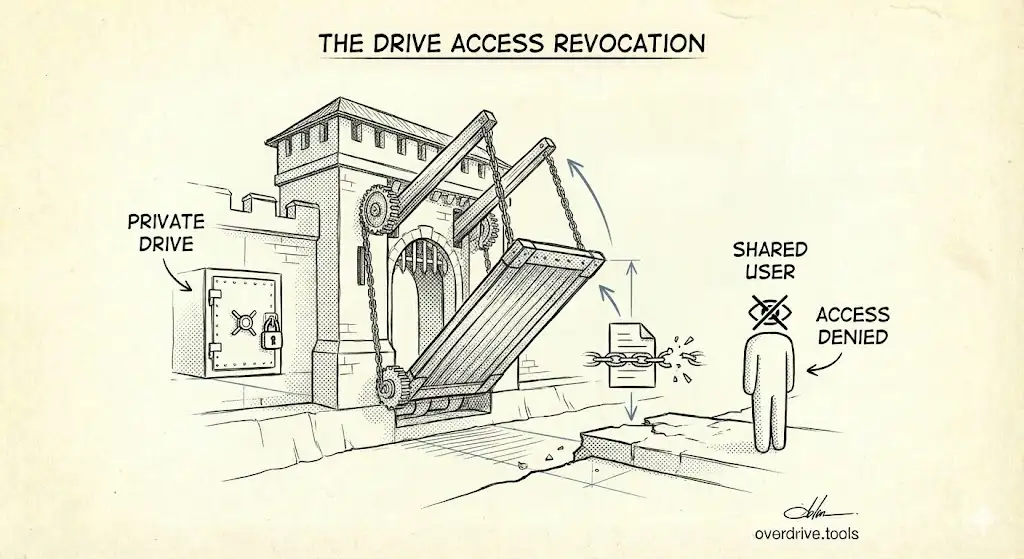
To remove someone's access to a Google Drive file, right-click the file, click "Share," find the person's name in the list, click the dropdown next to their name, and select "Remove access." They'll immediately lose the ability to view or edit the file.
Remove Access on Desktop
- Go to drive.google.com
- Right-click the file or folder
- Click "Share"
- Find the person you want to remove
- Click the dropdown next to their name
- Select "Remove access"
- Click "Save"
The person loses access immediately. They won't receive a notification.
Remove Access on Mobile
- Open the Google Drive app
- Tap the three dots next to the file
- Tap "Share"
- Find the person's name
- Tap the dropdown next to their name
- Tap "Remove access"
Remove Access from a Folder
When you remove someone's access to a folder, they also lose access to all files inside that folder—unless they have direct access to specific files within it.
To fully remove someone from a folder and its contents:
- Remove their access from the folder
- Check individual files if they were shared separately
Remove Access from Multiple Files
Google Drive doesn't have a bulk "remove access" feature. Your options:
Option 1: Move files to a private folder
- Create a new folder (it's private by default)
- Move the shared files into it
- The files inherit the folder's permissions
Option 2: Use Overdrive for bulk cleanup
If you have many files shared with people who shouldn't have access anymore, Overdrive shows you every file by who has access—so you can quickly identify and clean up sharing across your entire Drive.
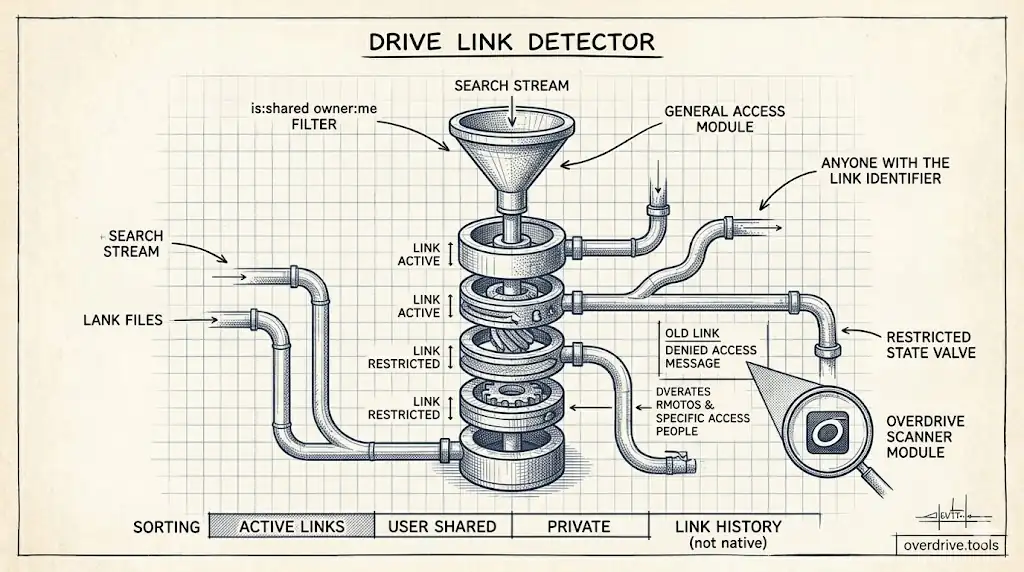
Turn Off Link Sharing
If your file is shared via "Anyone with the link," removing individual people won't help. You need to turn off link sharing:
- Right-click the file → "Share"
- Under "General access," click "Anyone with the link"
- Change it to "Restricted"
- Click "Done"
Now only people explicitly listed can access the file.
What Happens When You Remove Access
- The person can no longer open the file
- The file disappears from their "Shared with me"
- They don't get notified
- If they had the file open, they'll see an error on their next action
- Any copies they made are unaffected (they keep their copies)
When to Audit Access
You should review file access when:
- An employee or contractor leaves
- A project ends
- You find old files shared with people you don't recognize
- You're doing a security cleanup
For a complete walkthrough, see our guide to finding who has access to your Google Drive and our security audit checklist.