The Google Workspace Drive Security Audit: A Recurring Checklist for Admins
Most Workspace security reviews only happen when someone leaves the company. Here's a quarterly checklist that catches exposure the rest of the year.
Overdrive Team//7 min read
Ask most Workspace admins when they last reviewed Drive sharing settings across the organization, and the honest answer is usually "when the last person left." Offboarding forces a review because there's a deadline attached to it, but the exposure that offboarding catches, a departed employee's lingering shares, is only one slice of the risk. External sharing settings drift between offboarding events. New third-party apps get authorized every week. Storage climbs quietly. None of that waits for someone to resign.
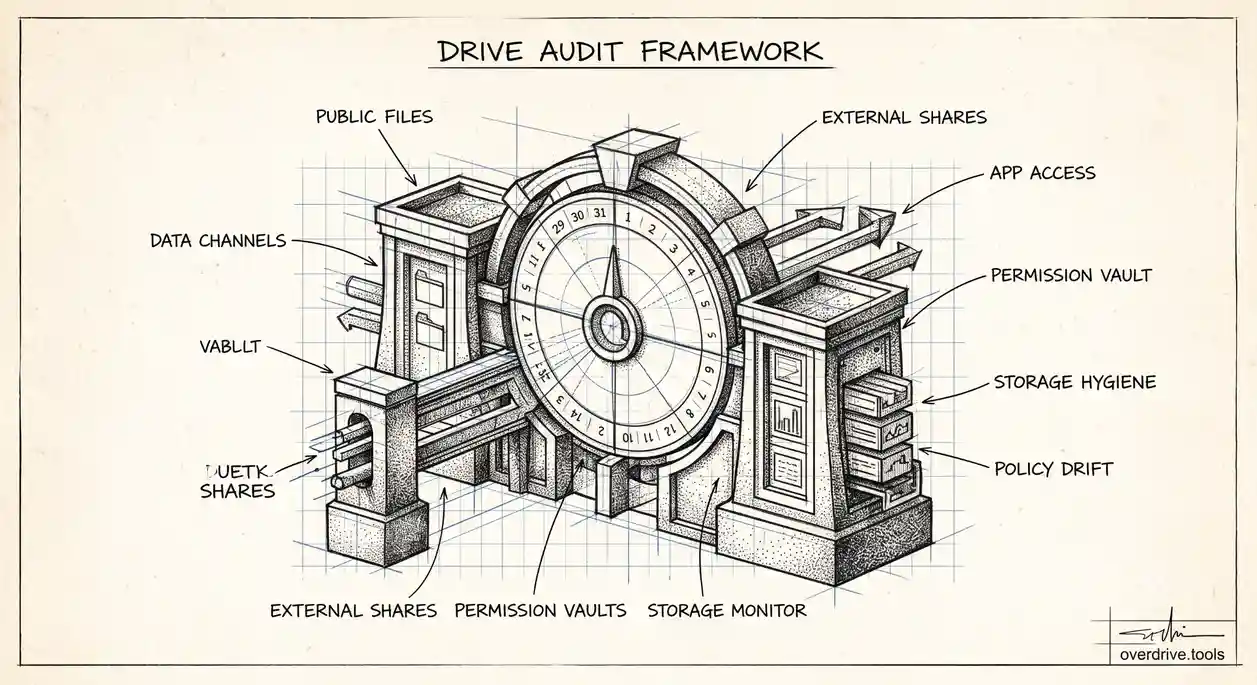
This is a checklist for the review that should happen regardless of who's leaving: a recurring, calendar-driven pass across the three areas that create most Drive security exposure in a Workspace domain. Run it quarterly if your organization is small, monthly if you handle sensitive client data or operate in a regulated industry.
Why a Recurring Cadence Matters More Than a One-Time Audit
A single security audit is a snapshot. It tells you the state of things on the day you ran it, and by the following month, new files have been created, new apps authorized, and new sharing links generated, all outside the window that audit covered. Treating Drive security as a project with a start and end date means the gap between audits is where real exposure accumulates unnoticed. Treating it as a recurring, lightweight process, something closer to a routine maintenance check than a full investigation each time, catches problems while they're still small and easy to fix.
The Recurring Checklist
1. Public and externally shared files
Start with the files that are visible outside intended boundaries. Anyone with the link shares are the most common form of accidental oversharing, and they accumulate because they're convenient in the moment and nobody circles back to turn them off. Review which files are currently public or externally shared, and for each one, confirm that the exposure is still intentional. A shared brief from a client project that wrapped up eight months ago rarely needs to stay externally visible.
2. Third-party app access
Every OAuth connection a user approves for Drive or Gmail is a standing grant that persists until someone revokes it. Apps get authorized for a specific task and then forgotten, and the access doesn't expire on its own. Review the Admin console's list of connected apps, focusing on anything with broad Drive or Gmail scopes, and confirm each one is still in active use by someone who still works there.
3. Storage and account hygiene
Storage growth is a useful proxy for account hygiene generally. A sudden spike from one department, or steady creep from accounts that haven't had any Drive activity in months, are both signals worth investigating before they become either a storage-limit emergency or evidence of an account nobody's paying attention to.
4. External sharing domain settings
Confirm the domain-wide external sharing policy still matches your organization's actual risk tolerance. Settings configured years ago by whoever set up the domain initially don't always reflect current practice, especially if the organization has grown, added contractors, or started working with more external partners since then.
Doing This Without It Becoming a Full-Time Job
Option 1: Continuous monitoring instead of a quarterly scramble
Running all four of these checks manually every quarter is realistic for a small organization and genuinely painful for a larger one. Overdrive is built to make this an ongoing view rather than a periodic project: it continuously scans a Drive account and surfaces publicly shared files, external access, and risky permission patterns in one dashboard, so the quarterly "audit" becomes a five-minute check-in against something that's already been tracked the whole time, rather than a cold start.
Option 2: Running the checklist manually
If you're doing this entirely within Google's native tools, block time on the calendar in advance, because it will not happen otherwise. For public and external files, use the Admin console's reporting tools alongside spot checks of high-risk shared drives. For third-party apps, the Admin console's API controls section under Security lists connected apps and their access tier (trusted, limited, or blocked); review anything in the broader access categories first. For storage, the Storage section of the Admin console ranks users by usage, which is enough to spot anomalies even without deep investigation tooling. For domain sharing settings, the Sharing settings page under Apps > Google Workspace > Drive and Docs shows the current external sharing policy at a glance.
What to Do When You Find Something
Finding an issue during a recurring audit is a very different experience than finding it during an incident response, because there's no pressure and no clock running. Revoke access, tighten a sharing setting, or reach out to a file owner to confirm intent, and move on. The value of the recurring cadence is that these fixes stay small and routine instead of accumulating into a backlog that eventually requires a much larger cleanup effort, usually triggered by something going wrong first.
Assigning Real Ownership of the Recurring Review
A checklist that doesn't have a named owner tends to quietly stop happening after the second or third quarter, once the person who started it gets busy with something more urgent. Assign the recurring audit to a specific role, not just "IT" as a general concept, and put it on a shared calendar with enough advance notice that it doesn't get bumped every time something more pressing comes up. For smaller organizations, this might be a single admin's recurring task. For larger ones, splitting the four checklist areas across different people, security-focused staff for sharing and app access, IT operations for storage and account hygiene, keeps any one person's workload manageable and adds a second set of eyes to the process.
Keeping a Record of What You Find
Documenting findings from each recurring pass, even briefly, turns an isolated cleanup activity into a trend line. If the same category of issue (say, external sharing left on longer than intended) keeps showing up quarter after quarter, that's a signal the underlying process, not just the individual instances, needs fixing: maybe the default sharing setting for new files needs tightening, or maybe a specific team needs direct training on what "anyone with the link" actually exposes. A simple shared doc noting what was found and what was done about it each quarter is enough to spot these patterns without building anything elaborate.
Frequently Asked Questions
How is this different from the employee-offboarding security checklist?
The offboarding checklist is triggered by a specific event, someone leaving, and focuses narrowly on that person's files, shares, and license. This recurring checklist runs regardless of any departures and covers organization-wide sharing, app access, and storage patterns that accumulate independently of who's coming or going. Most organizations need both: offboarding review for departures, and this broader recurring pass for everything else.
What's a reasonable cadence if quarterly feels like too much?
Monthly is better for organizations handling sensitive client data or operating under compliance requirements, since exposure windows matter more in those contexts. For a small team with low sensitivity data, twice a year may be sufficient, though quarterly is a reasonable default that catches most drift before it compounds.
Should this checklist include personal My Drive content, or just shared drives?
Both, though the priority order usually favors shared drives first, since they affect more people per file and tend to have broader membership than an individual's My Drive. Personal Drive content owned by staff still deserves periodic review, particularly for anyone in a role with access to sensitive information.
What tools does Google provide natively for tracking this over time?
The Admin console's Reporting section provides point-in-time views but isn't built for trend tracking across audits specifically. Most organizations either build a simple internal tracking doc, as suggested above, or use a third-party tool that maintains ongoing visibility rather than relying on manually reconstructing the state of things at the start of each new audit cycle.
What if the organization is too small to justify a formal recurring process?
Even a two-person admin team benefits from putting this on a calendar rather than relying on memory, since the value isn't in the formality, it's in the recurrence. A small organization can run a lighter version of the same four checks in under an hour each quarter; the checklist scales down in effort without losing its usefulness, and the habit itself matters more than how elaborate the process looks on paper.
Is it worth involving non-technical staff in any part of this audit?
For the parts that require judgment about whether a specific file or share is still needed, yes. IT can identify what's technically exposed, but only the actual file owner usually knows whether an old external share is still intentional or was simply never turned off. Looping in relevant team leads for that judgment call, rather than IT deciding alone, tends to produce more accurate outcomes and fewer false alarms.
Related Articles
- How to Find Every Publicly Shared File in Your Google Workspace
- Auditing Third-Party App Access in Google Workspace (Drive & Gmail)
- Managing External Sharing in Google Workspace: An Admin's Guide