Why Does My Google Storage Keep Filling Up? (And How to Stop It)
Cleared space last month and it's full again? Here's why your Google storage keeps filling up—and how to break the cycle for good.
Overdrive Team//7 min read
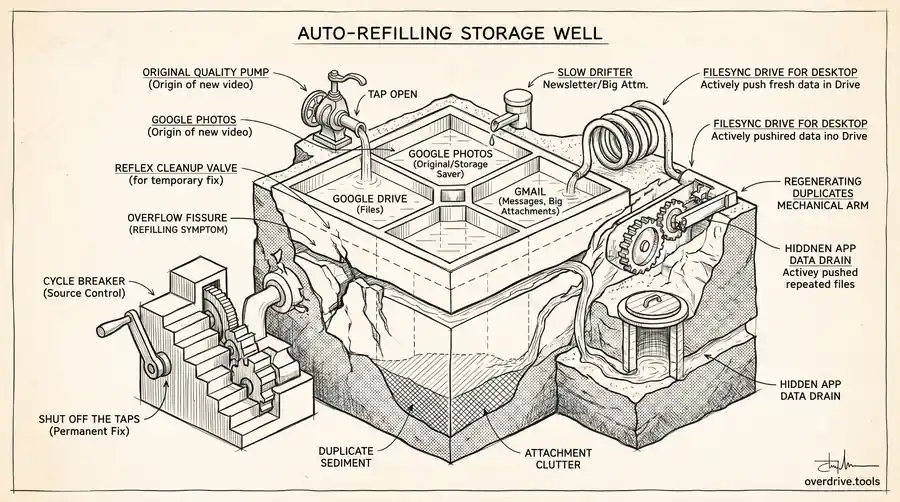
If your Google storage keeps filling up no matter how much you delete, the cause is almost always something refilling it automatically: Google Photos backing up in "Original quality," Gmail collecting attachments, files syncing from your devices, or duplicates being recreated. The real fix isn't another cleanup—it's turning off the taps that keep refilling the bucket.
This is the frustrating part for most people. You spend an afternoon deleting files, get back under your limit, and a few weeks later the warning emails return. It feels like the storage is leaking. It isn't. Something on your account is steadily adding new data in the background, and until you find and adjust it, every cleanup is temporary.
Your Free Storage Is Shared—and Constantly Fed
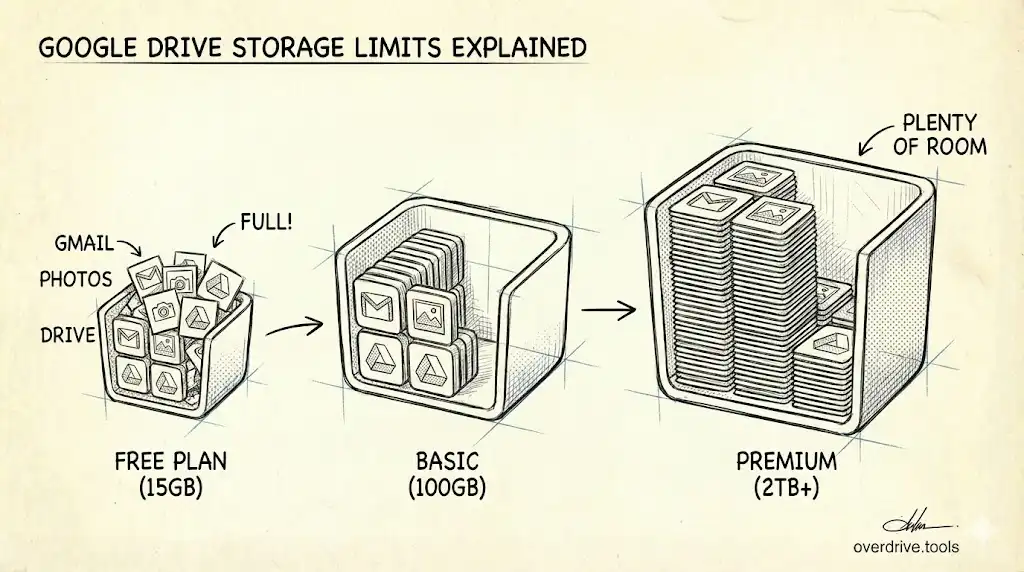
Every Google account includes free storage, 5 GB by default since May 2026, or up to 15 GB once a phone number is verified on the account, shared across Google Drive, Gmail, and Google Photos. The key word is shared. Three services pull from the same pool, and at least two of them—Gmail and Photos—add data on their own, without you uploading anything.
That's why people who barely use Drive still run out of space. The storage isn't filling from the place they're looking. Understanding which service is doing the refilling is the whole game.
The Usual Culprits
Here's what keeps quietly topping up your storage, and why each one is easy to miss.
Google Photos Backing Up in "Original Quality"
This is the number-one cause for most people. If Photos is set to back up in "Original quality," every photo and video from your phone uploads at full size and counts against your allowance. A modern phone produces enormous video files, so a single weekend of recordings can add gigabytes. Because it happens automatically in the background, you never notice until the storage is gone again.
Switching to "Storage saver" mode keeps backing up your memories but compresses them to a fraction of the size—and you can recover space from existing photos too.
Gmail Quietly Collecting Attachments
Email is a slow, steady drip. Newsletters with large images, attachments, calendar invites, and years of conversations accumulate. Most people never delete email, so Gmail's share of the quota only grows. And because attachments are buried inside messages, you don't see them as "files" eating your space—but they count exactly the same as anything in Drive.
Files Syncing From Your Devices
If you use Google Drive for Desktop or back up a phone folder to Drive, new files sync up automatically. That's convenient until a synced folder—camera uploads, a downloads folder, a work directory—starts pushing fresh data into Drive faster than you clear it. The sync is doing exactly what you told it to; it just never stops.
Duplicates Being Recreated
Duplicates aren't only a one-time mess—they regenerate. Syncing the same photos from two devices, re-downloading attachments, or copying folders "just in case" creates fresh copies after every cleanup. If you don't address why duplicates appear, they come back. We cover the mechanics in why Google Drive creates duplicates.
Hidden App Data
Some third-party apps connected to your Drive store their own data in a hidden area that still counts against your quota. You can't see it in the normal Drive view, which makes it one of the sneakiest causes of a Drive that's "full but empty." See hidden app data in Google Drive for how to find it.
How to Break the Cycle
A cleanup clears what's already there. To stop the refilling, you need to find the active source and shut it off. Here are your options.
Option 1: Find the Source With Overdrive
Pinpointing what keeps refilling your storage by hand means checking Photos settings, Gmail attachments, sync folders, and hidden app data separately—and even then, duplicates and large recurring files are hard to spot. Overdrive scans your entire Drive and shows the full picture at once: your largest files, duplicate sets grouped automatically, empty folders, and where your space is concentrated. Seeing it all in one dashboard makes the refilling source obvious—usually a folder full of synced media or a pile of duplicates—so you can clear it and know exactly what to change. The scan is read-only and free.
Option 2: Adjust Each Source Manually
Work through the taps one at a time:
Switch Photos to "Storage saver." Open Photos settings, change the backup quality, and use "Recover storage" to compress existing photos. This alone solves the problem for a large share of people.
Prune Gmail and keep it pruned. Search has:attachment larger:10M, delete what you don't need, and empty Gmail Trash. Unsubscribe from heavy newsletters so they stop arriving.
Review your sync settings. In Drive for Desktop, check which folders are syncing up. Stop syncing folders that don't belong in the cloud, like a downloads or temporary folder.
Empty Trash everywhere. Remember that deleted files linger for 30 days in Drive, Gmail, and Photos, counting the whole time.
How to Tell Which Tap Is Open
Before you change settings, spend thirty seconds identifying the actual source—otherwise you're guessing. Open one.google.com/storage and look at the breakdown across Drive, Gmail, and Photos. Whichever is largest is your prime suspect, and the proportion tells you a lot.
If Photos dominates, the cause is almost certainly Original-quality backup. If Gmail is the biggest slice, it's years of accumulated mail and attachments. If Drive is the largest and it's growing steadily without you uploading much, look for a sync folder quietly feeding it, or a stack of duplicates. The rate matters too: storage that jumps right after you take videos points to Photos; storage that creeps up daily points to sync or email.
This diagnostic step is what separates a permanent fix from a temporary one. People who skip it tend to clean the service they can see rather than the one that's actually filling, which is why the problem returns. Five minutes spent identifying the source saves you from repeating the same cleanup every few weeks.
Set It and Forget It
Once you've shut off the main tap, a little maintenance keeps you clear for good. Switch Photos to "Storage saver" permanently so new uploads stay small. Turn on a habit of emptying Trash monthly across all three services. Unsubscribe from the newsletters that send the heaviest attachments. And if you sync folders from a computer, review periodically that you're only syncing what truly belongs in the cloud. These are one-time decisions that stop the refilling rather than reacting to it—the difference between maintaining a clean account and firefighting a full one.
It also helps to schedule a brief check-in. A calendar reminder every three months to glance at your storage breakdown takes a minute and catches any new source early—a freshly installed app that's syncing, a backup you forgot you turned on, or a folder that's grown faster than expected. Catching it at a gigabyte is far easier than discovering it at ten.
Why This Keeps Happening to Everyone
None of these causes is a mistake on your part—they're the default behavior of a system designed to back things up automatically. Google's tools are built to capture and keep your data, which is great until the 15 GB free tier runs out. The services that refill your storage are doing their job; you just have to decide which of them should keep going at full size and which should be dialed back.
Once you've turned off the biggest tap—usually Original-quality photo backup—and pruned Gmail, your storage stops refilling on its own. From there, a quick cleanup every few months keeps you comfortably under the limit instead of fighting the same battle every few weeks.
Frequently Asked Questions
Why does my Google storage fill up again after I clear it?
Something is adding data automatically—most often Google Photos backing up in "Original quality," Gmail collecting attachments, or device folders syncing to Drive. Adjust those settings, not just the files.
Does Google Photos use my Google Drive storage?
Yes. Photos, Gmail, and Drive all share the same pool. Photos in "Original quality" can consume the bulk of it.
How do I stop Photos from filling my storage?
Switch backup to "Storage saver" in Photos settings and run "Recover storage" to compress existing photos. They stay backed up at a much smaller size.
Why is my Drive full when it looks empty?
Your storage is shared with Gmail and Photos, and some of it may be hidden app data from connected apps. The space is used—just not where you're looking.
Do duplicates really come back?
Yes. If the cause—syncing the same files from multiple devices or re-downloading attachments—isn't addressed, new duplicates appear after each cleanup.
Related Articles
- Google Drive Storage Full? Here's Why (and How to Fix It)
- Hidden App Data Is Eating Your Google Drive Storage
- Why Does Google Drive Create Duplicates?