Does Google Drive Compress Your Files?
Google Drive doesn't compress files you upload, but the preview you see is a lower-quality copy. Here's what's really stored, and where quality is lost.
Overdrive Team//7 min read
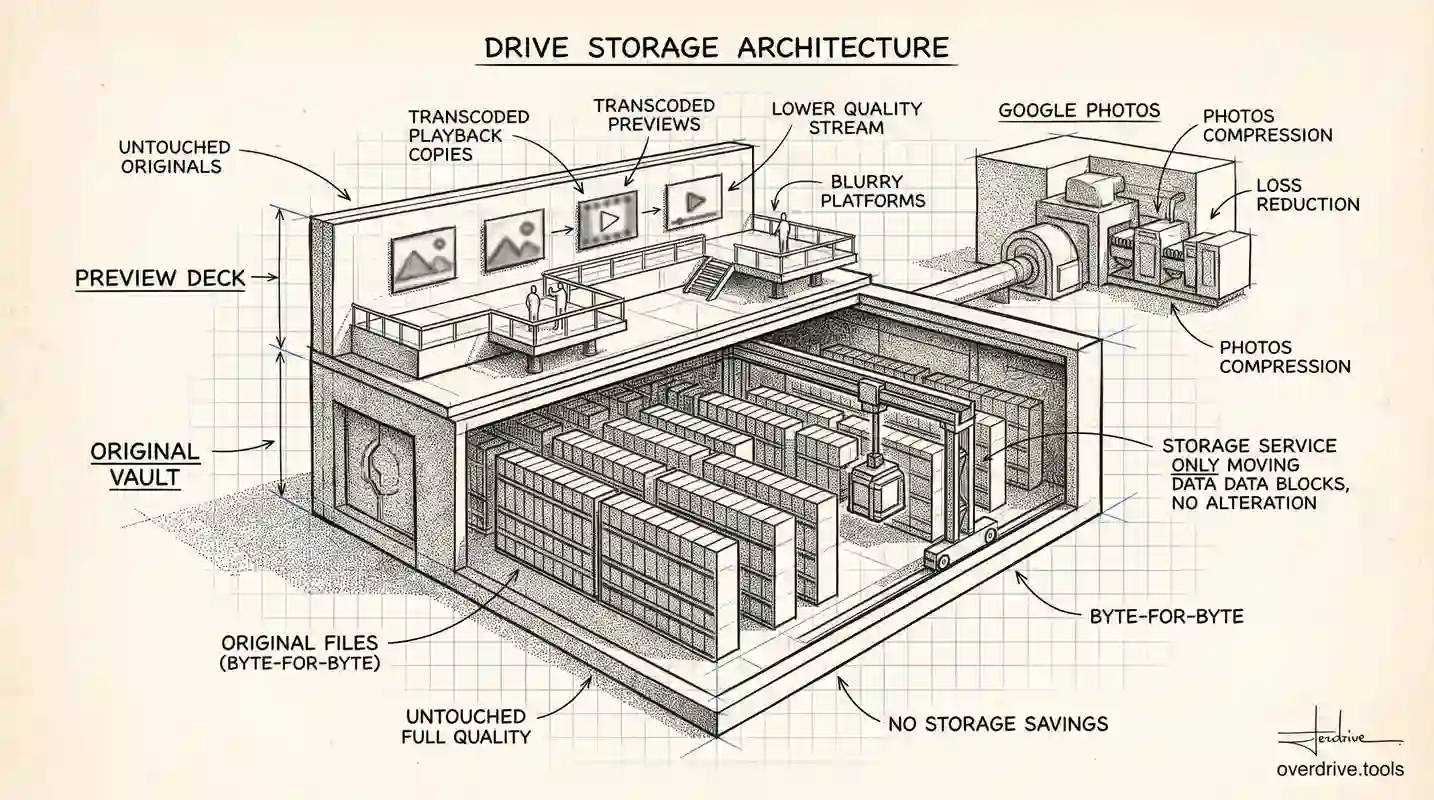
No. When you upload a file to Google Drive, Drive stores it exactly as you sent it. There's no re-encoding, no quality reduction, and no resolution cap. The file you download a year later is byte-for-byte the file you uploaded.
That surprises people, because videos and photos often look noticeably worse when viewed inside Drive. The explanation isn't compression of your file, it's that Drive shows you a separate, lower-quality preview copy while keeping your original safely untouched. Understanding that difference clears up most of the confusion, and it also explains where real compression does happen in the Google ecosystem, which is somewhere else entirely.
Drive stores the original, exactly as uploaded
Google Drive is a storage service, not a media processing service. Its job is to hold your file and give it back on request, so it doesn't alter what you give it. Upload a 4K video, a RAW photo, a layered design file, or a 200 MB PDF, and Drive keeps all of it. The file size shown in Drive matches the file size on your computer, which is itself a useful confirmation that nothing was stripped out.
This is why Drive is a reasonable place to keep originals you care about. If you upload master files and later download them, you get the same data back. Nothing degrades over time, and repeated downloads don't compound any loss, because there is no loss to compound.
So why does my video look blurry in Drive?
Here's the part that generates most of the confusion. When you play a video inside Google Drive's built-in player, you are not watching your original file. Streaming a large original over the web would be slow and unreliable, so Google generates transcoded playback versions at lower resolutions, typically 360p, 480p, 720p, and up to 1080p, and serves you one of those depending on your connection.
Two consequences follow. First, a 4K video will never play back at 4K in the Drive preview, because the highest playback stream tops out lower than that. Second, the preview looking soft tells you nothing about your stored file. Your original is sitting there at full quality regardless of what the player shows.
The same principle applies to images. Drive renders a display-friendly version in the preview pane rather than pushing the full-resolution original to your browser every time you click a thumbnail.
How to verify this for yourself: download the file and open it locally. The downloaded copy is the original, at full resolution and full quality. If the download matches what you uploaded, and it will, then nothing was compressed. Judging quality by the in-browser preview is the mistake.
Worth knowing: those transcoded playback copies do not count against your storage quota. You're only billed for the original.
Where compression actually happens: Google Photos
If you have genuinely lost image quality somewhere in Google's ecosystem, Google Photos is almost always the culprit, not Drive. Photos offers two backup settings, and they behave very differently.
Original quality stores your photos and videos at full resolution, exactly as captured. Nothing is altered.
Storage saver applies real, lossy compression. Photos larger than 16 megapixels are resized down to 16 MP, and videos above 1080p, including 4K footage, are compressed down to 1080p. Images may also be converted to a different format during the process. This is permanent: the discarded data is genuinely gone, and switching the setting to Original quality later protects future uploads but cannot restore anything already compressed.
So if you're comparing a photo on your camera to the same photo in your Google account and seeing a difference, check which Photos backup setting was active when it uploaded. That, not Drive, is where the quality went.
One important note that trips people up: since the 2021 policy change, Storage saver uploads count against your storage quota too. Compressing them makes each file smaller, so you fit more in, but it is no longer a route to free unlimited storage the way it once was.
Converting to Google formats is a different kind of change
There's a third scenario that people sometimes describe as compression, though it's really a conversion. When you upload a Word document, Excel sheet, or PowerPoint file, you can either keep it in its original format or convert it to Google Docs, Sheets, or Slides.
Converting doesn't compress the file, but it does change it. Formatting can shift, and features specific to the original application may not carry across perfectly. The upside is that files converted to Google's native formats don't count against your storage quota at all, which is a meaningful storage saving for text-heavy documents.
If preserving a file exactly matters more than saving space, keep it in its original format and accept the storage cost. If you mainly need the content and want to collaborate, converting is usually the better trade.
What this means for your storage
Because Drive doesn't compress anything, your storage usage is simply the true size of everything you own. There's no hidden efficiency working in your favor, and no way to make an uploaded file smaller after the fact without replacing it with a smaller version yourself.
That has a practical implication. If your storage is filling up, the answer isn't to hope Drive is compressing things behind the scenes, because it isn't. The answer is to find the genuinely large files and decide what to do with them, which is a visibility problem more than a storage problem. Google Drive shows you a total, not a breakdown of what's actually consuming it.
Option 1: See exactly what's taking up space. A tool like Overdrive can scan and visualize your Drive by file type, size, and age, surfacing the large old files and duplicates that make up most of a full account. Since nothing is being compressed for you, knowing precisely which files are big is the fastest route to reclaiming space.
Option 2: Sort by size inside Drive. Drive's storage view lets you sort files by size and work down from the largest. This is slower and doesn't reveal duplicates, but it costs nothing and catches the obvious offenders.
Option 3: Compress files yourself before uploading. For video and images you don't need at full quality, compressing locally before upload genuinely reduces what you store. Since Drive preserves whatever you give it, whatever you save on your computer is saved in your quota permanently.
Situations people mistake for compression
A few specific scenarios come up repeatedly, and none of them involve Drive altering your file.
The preview looks worse than the original, which is the transcoded playback copy described above. The file appears smaller in a different app, which usually means that app is reporting the file differently or you're looking at a converted version. A photo lost detail, which points to Google Photos Storage saver rather than Drive. A document's formatting shifted, which indicates conversion to a Google format rather than compression. And a shared file downloaded at lower quality, which again means the recipient grabbed a preview rather than using the download option.
In every one of these, the original in Drive is intact. Downloading it is the definitive test, and it resolves the question in about ten seconds.
Upload limits are a separate thing entirely
One last distinction worth drawing, because it gets tangled up with compression in people's minds. Google Drive does enforce limits on what you can upload, including a maximum individual file size and daily upload caps. But a limit is not compression. If a file exceeds the maximum size, the upload is refused outright rather than shrunk to fit, so you'll get an error instead of a quietly degraded file.
That distinction matters when you're troubleshooting. A failed upload means you hit a limit and need to reduce the file yourself or split it. A successful upload means the file went up whole, at full quality, with nothing removed. Drive never silently compromises to squeeze something in, which is exactly the behavior you want from a service holding your originals.
The short version
Google Drive does not compress your files. It stores exactly what you upload and returns exactly that on download, with the file size in Drive matching the file size on your computer. The blurry previews people notice come from separate transcoded playback copies that Drive generates for streaming, which top out around 1080p and don't count against your quota. Real compression lives in Google Photos, where the Storage saver setting permanently resizes photos over 16 MP and videos over 1080p, and converting Office files to Google formats changes them without compressing them. Since nothing is shrinking automatically, managing storage comes down to knowing which of your files are genuinely large and deciding what to keep.
Related Articles
- How to Find and Download Your Largest Google Drive Files (Without Paying for More Storage)
- Google Photos Storage: What Shares With Drive
- How Much Free Storage Does Google Drive Give You, and What Counts Against It?