Does Deleting From Google Drive Delete From Computer?
With Drive for Desktop, deleting a synced file from Google Drive also removes it from your computer. Here's when that happens and how to stay safe.
Overdrive Team//6 min read
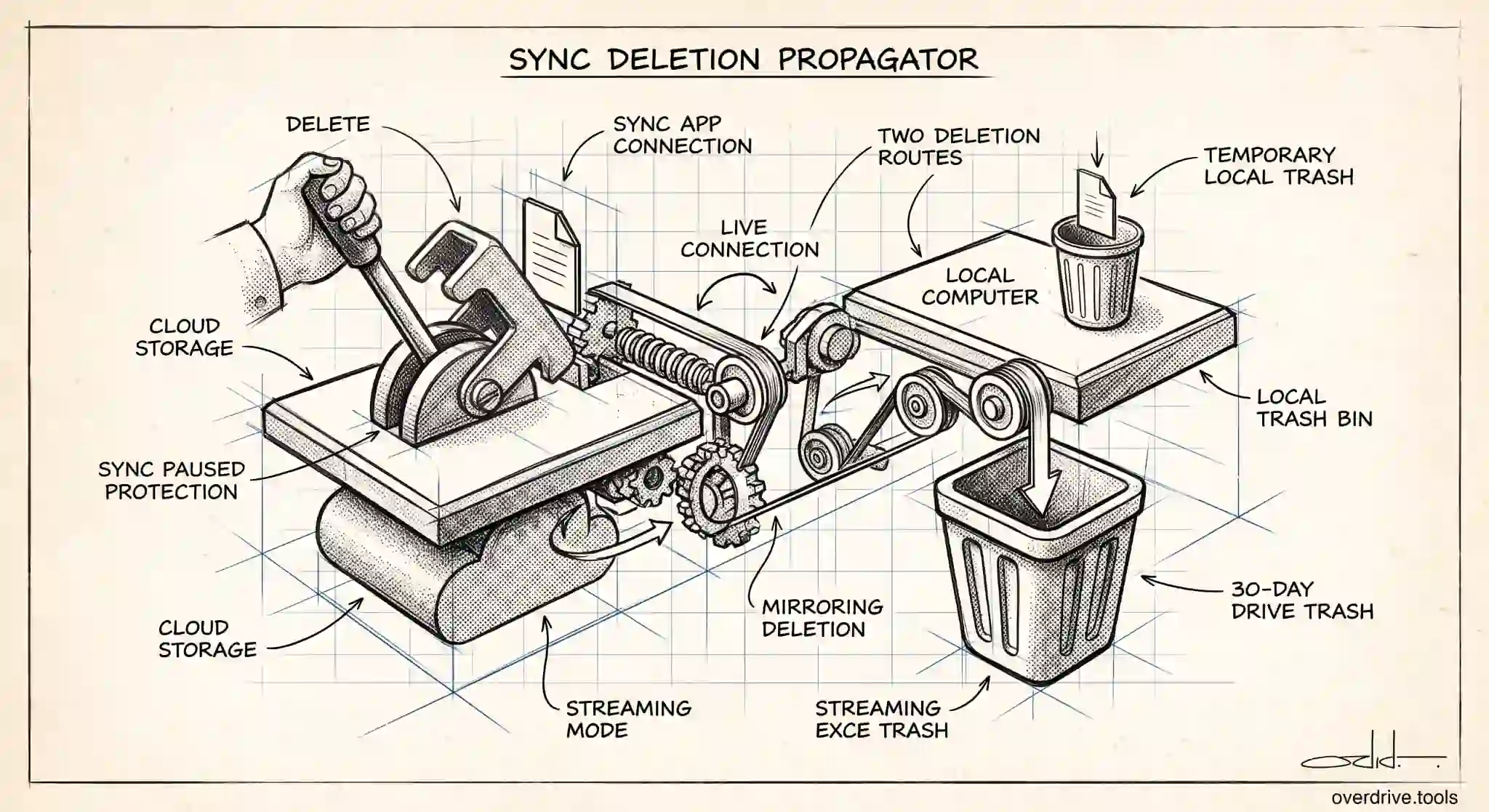
It depends on whether your computer is synced to Google Drive. If you use Drive for Desktop, or the older Backup and Sync, then deleting a file that's synced will remove it from both places, because sync keeps the two copies matched. If you only use Google Drive through a web browser, deleting a file online has no effect on anything stored on your computer, since there's no connection between them.
That single distinction is the whole answer, and getting it wrong is how people accidentally lose files they meant to keep in only one place. Here's exactly how each setup behaves, so you know what will happen before you hit delete.
The key question: are you synced?
Google Drive can work in two very different ways, and which one you use changes everything about deletion.
The first way is browser only. You go to drive.google.com, upload and download files by hand, and nothing about your Drive is automatically mirrored on your computer. In this setup, your online Drive and your computer are two separate worlds. Deleting a file in the web version moves it to the Drive trash and eventually removes it from your Google storage, but any copy sitting in your computer's Downloads folder or Documents folder is completely untouched. They were never linked.
The second way is with a sync app. Google's Drive for Desktop app, and the older Backup and Sync it replaced, create a live connection between a folder on your computer and your Google Drive. The point of sync is that the two stay identical: add a file in one place and it appears in the other, and delete it in one place and it disappears from the other. That mirroring is the feature, but it's also the trap, because a deletion in the cloud can propagate down to your machine and vice versa.
So before you delete anything, the question to ask is simple: is this file part of a synced folder? If yes, deleting it in one location will remove it from both.
How Drive for Desktop handles deletion
Drive for Desktop can present your Google Drive in two modes, and they behave slightly differently.
In streaming mode, your Drive files live in the cloud and appear on your computer as a virtual drive, without taking up local disk space unless you choose to make specific files available offline. If you delete a file here, you're deleting it from Drive, and it's gone from that virtual drive everywhere.
In mirroring mode, a copy of your files is kept fully on your computer's hard drive and synced up to the cloud. Delete a file from the mirrored folder on your computer and it's removed from Google Drive too, and the reverse holds: delete it in the cloud and it vanishes from your computer's folder on the next sync.
Either way, the lesson is the same. When Drive for Desktop is running and a file is synced, a deletion is not a local, reversible little action. It's a change that travels to the other side.
Where deleted files go, and how to get them back
The reassuring part is that deletion usually isn't instant and permanent. A file you delete from Google Drive first goes to the Drive trash, where it stays for 30 days before being removed for good. During that window you can open the trash, right click the file, and restore it, which puts it back in Drive and, if you're synced, back on your computer too.
On the computer side, a file removed by sync often lands in your operating system's trash or recycle bin as well, depending on your setup, giving you a second place to recover it. So a single accidental deletion is normally recoverable if you act reasonably soon. The danger is deletions you don't notice until after the 30 day trash window has passed, at which point the cloud copy is gone permanently.
This is exactly why it pays to understand sync before relying on it, rather than after losing something.
How to delete safely
If you want to clean up your Drive without risking files on your computer, or clean up your computer without gutting your Drive, a few habits keep you safe.
Know which mode you're in. Open Drive for Desktop and check whether your folders are streaming or mirroring, and which folders are actually synced. If you're not sure, assume a deletion will sync until you've confirmed otherwise.
Back up anything important before a big cleanup. If you're about to delete a lot of files, make sure anything you might want is copied somewhere outside the synced folder first, so a sync can't take your only copy.
Check the trash, don't empty it immediately. Leaving files in the Drive trash gives you a 30 day safety net. Only empty it once you're sure you don't need what's inside.
Be especially careful with shared and synced folders. Deleting a file from a synced folder that others rely on can remove it for them too, not just from your own devices.
Cleaning up your Drive without the guesswork
Most people who worry about this are really trying to do one thing: free up space by removing files they no longer need, without accidentally destroying something they do. The hard part is knowing what's safe to delete in the first place, since Drive doesn't make it obvious which files are large, duplicated, or long forgotten.
Option 1: See what's safe to clear before you delete. Rather than deleting blind and hoping sync doesn't bite you, it helps to know exactly what you're removing. A tool like Overdrive can scan and visualize your Drive by size, type, and age, and highlight duplicates and large old files, so you can clean up with confidence, targeting genuine clutter instead of guessing and risking files you actually want.
Option 2: Use the Drive trash as your safety net. Delete in stages, leave items in the trash, and restore anything you realize you still need within the 30 day window before emptying it.
Option 3: Pause or exit sync during a major cleanup. If you're doing a large reorganization and want to avoid deletions propagating instantly, you can pause Drive for Desktop while you work, then let it sync once you're happy with the result.
What about the Google Drive mobile app?
The mobile Google Drive app behaves like the browser version, not like a sync client. When you delete a file in the Drive app on your phone, you're deleting it from your Google Drive in the cloud, which sends it to the Drive trash. You are not deleting anything from your phone's own local storage, such as photos in your camera roll or files in your device's Downloads, because those aren't the same thing as your Drive.
This trips people up because phones blur the line between local files and cloud files. Deleting a photo inside the Google Drive app removes only the copy stored in Drive. If the same photo is also in your camera roll or backed up separately in Google Photos, those copies are untouched, since they live in different places. The reverse holds too: deleting a photo from your camera roll doesn't remove a copy you've uploaded to Drive.
There's one caveat. If you've set the app to make certain files available offline, deleting the file from Drive also removes that offline copy, because the offline version is just a cached mirror of the Drive file. Beyond that, treat the mobile Drive app as a window into your cloud storage. Deleting through it affects your Drive, and if that Drive is synced to a computer the deletion will reach the computer as well, but it won't reach into your phone's separate local storage. In practice, that means you can safely tidy your Drive from your phone without fear of wiping your camera roll, as long as you remember that anything synced to a computer is still fair game for the same deletion to follow.
The short version
Deleting from Google Drive deletes from your computer only if the two are synced through Drive for Desktop or Backup and Sync. If you use Drive purely in a browser, online deletions leave your local files alone. When you are synced, a deletion travels both ways, so treat it seriously, lean on the 30 day Drive trash as your recovery window, and know which of your folders actually sync before you start clearing things out.
Related Articles
- How to Clean Up Google Drive
- How Long Does Google Drive Keep Deleted Files?
- How to Actually Back Up Your Google Drive (Takeout, Sync, and What Neither Covers)