How to Clean Up Google Drive
Cleaning Google Drive is faster than it sounds if you know where to look. Here's how to find what's taking up space and remove it without losing anything important.
Overdrive Team//7 min read
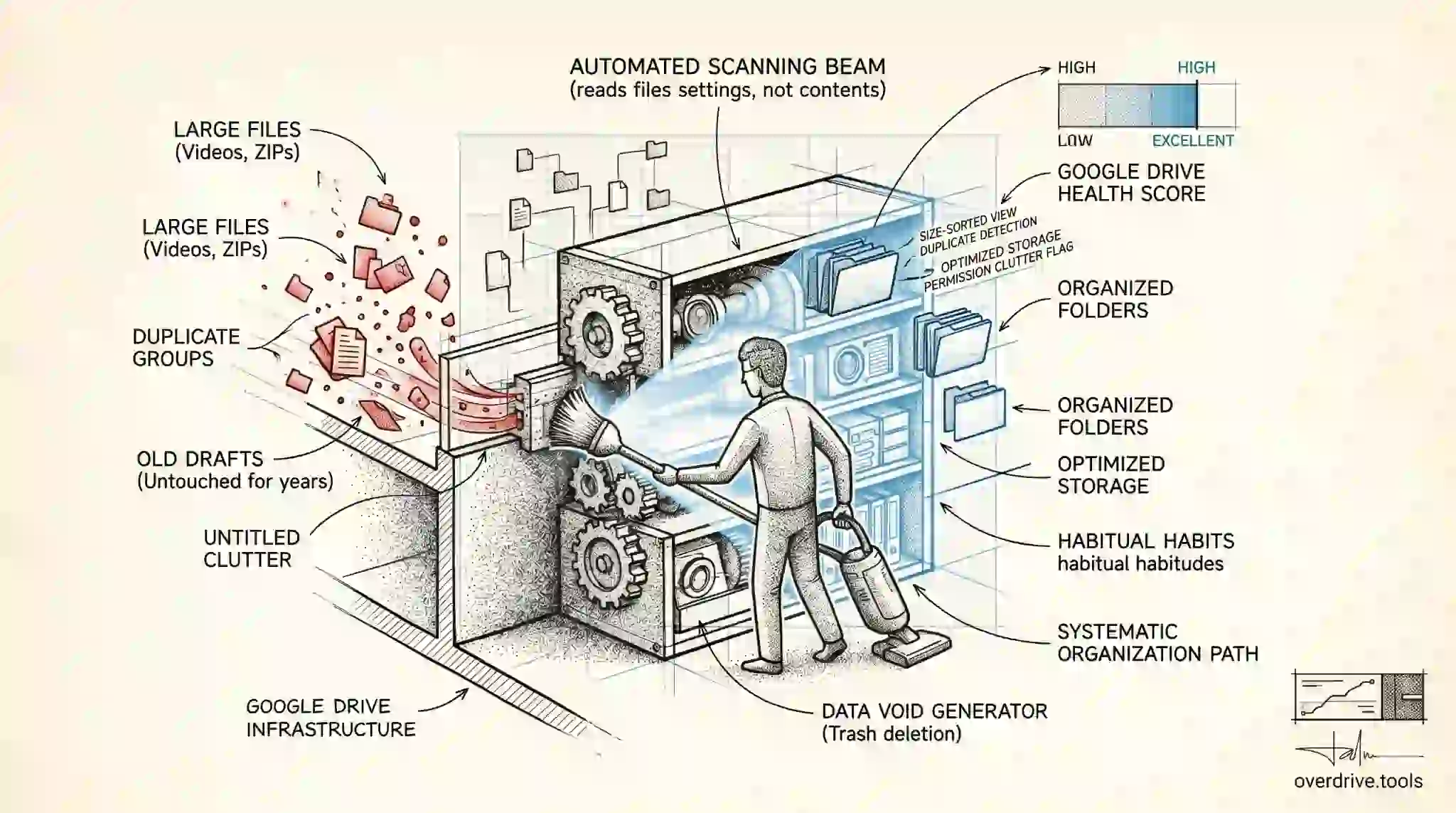
Most people don't clean their Google Drive until they hit the storage limit. By that point, files have been accumulating for years — old project folders, duplicate downloads, videos from past collaborations, untitled documents that were opened once and abandoned. The good news is that cleaning Drive is faster than it sounds, as long as you start in the right places.
What's Actually Taking Up Your Space
Before deleting anything, it's worth understanding where Drive storage goes. Most cluttered Drives fall into a few categories: large files you forgot about (videos, exported archives, backup ZIPs), duplicate files (the same document saved multiple times under slightly different names), and low-value clutter (empty folders, untitled files, old drafts you'll never open again).
The problem is that Google Drive's interface doesn't make any of this visible. There's no "sort by size" in the main file browser, no duplicate detector, and no folder-size overview. You either scroll through everything manually — which is impractical for most Drives — or you use a smarter starting point.
Option 1: Scan First, Then Clean
Overdrive gives you a size-sorted view of your entire Drive before you delete anything, showing which files, folders, and file types are consuming the most space, along with duplicate groups and empty folders in one place. This is the fastest starting point because most people genuinely don't know what's causing their storage problem. Cleaning what doesn't matter wastes time and barely moves the needle.
Starting with a scan means you see the full picture first — then make decisions about what to remove.
Option 2: Use Google Drive's Storage Page
If you want to go manual, the best place to start is drive.google.com/drive/quota. This is Google's own storage management view, and it sorts your files by size — largest first. It's not perfect (it shows individual files, not folders), but it gives you the highest-impact targets immediately.
From there you can click any file to open it or right-click to move it to Trash. Working from the top of this list and deleting the five to ten largest files you no longer need will often free more space than spending an hour cleaning smaller items.
One thing to know: this view only covers your My Drive files. It doesn't show files in Shared Drives, files others have shared with you, or Gmail attachments — all of which can also contribute to your storage total.
How to Find Old and Unused Files
Files you haven't touched in years are usually safe to delete or archive. Use Google Drive's search operators to surface them. In the search bar, type before:2023-01-01 owner:me to find files you own that haven't been modified since before 2023. Adjust the date to match what counts as "old" for your situation.
Adding type:video or type:pdf narrows this further — old videos are often the largest individual files, and old PDFs from past projects are rarely revisited. You can also search type:folder to browse folders that might be entire abandoned project archives worth deleting at once.
Once you have results, you can select multiple files and delete them in a batch rather than one at a time.
How to Find and Delete Duplicate Files
Duplicates are one of the most common sources of wasted storage, and they're particularly hard to find manually. Duplicates often have slightly different names ("Report Final," "Report Final v2," "Report Final REVISED") and end up in different folders after being moved or copied.
The manual approach is to search for a filename pattern you suspect is duplicated, compare the results, keep the most current version, and delete the rest. This works when you know a specific file has been duplicated, but it doesn't help you discover duplicates you don't know about.
For a more thorough approach, duplicate detection tools scan your entire Drive and group identical or near-identical files together so you can review and remove them systematically. This is particularly useful after merging folders, recovering from a sync issue, or working in a Drive that multiple people have contributed files to over time.
How to Remove Empty Folders
Empty folders don't consume storage space on their own, but they clutter your Drive and make navigation slower. Google Drive has no native "find empty folders" tool, so the manual approach is to browse your folder structure and check each one.
A faster workaround: use Drive's search with type:folder to surface all folders, then sort by "Last modified" to find folders you haven't touched in years. Clicking through a folder to confirm it's empty before deleting only takes a second per folder.
For Drives with hundreds of folders created over many years, this takes time. But even clearing your top-level folder structure of obvious empties makes Drive feel noticeably more organized.
Don't Forget Google Drive Trash
This is the step most people skip. When you delete files in Google Drive, they move to Trash — and they count against your storage for 30 days or until you empty Trash manually. If you've done a cleanup and your storage counter hasn't moved much, unchecked Trash is often why.
To empty: click Trash in the left sidebar of Google Drive, then click "Empty trash" at the top of the page. This permanently deletes everything in Trash immediately. You can also right-click individual items in Trash and select "Delete forever" if you want to be selective.
One note: Trash in Shared Drives is separate from Trash in My Drive. If you deleted files from a Shared Drive, check that drive's Trash separately — only Shared Drive managers can permanently delete those files.
Check Gmail and Google Photos Too
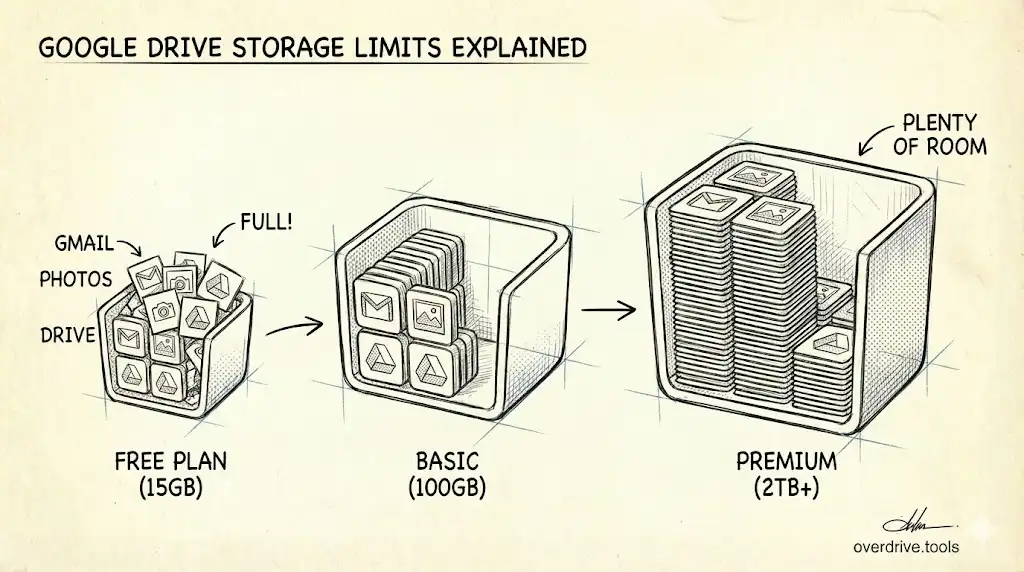
Google Drive, Gmail, and Google Photos all share the same storage pool (5 GB free by default, up to 15 GB with a verified phone number). Cleaning your Drive won't help if Gmail is the actual culprit.
For Gmail: search larger:10M older_than:1y in Gmail to find large old emails. Attachments from old projects, automated report emails, and marketing messages with embedded images accumulate faster than most people expect. Delete the emails you don't need, then empty Gmail's Trash to free the space immediately.
For Google Photos: go to photos.google.com/settings/storage. Google provides a tool there that highlights large videos, blurry photos, screenshots, and other lower-value items worth removing. If you've been backing up phone photos in Original quality for years, Photos is likely consuming more storage than Drive.
What to Keep vs. What to Delete
Not everything old should be deleted. Some files are worth keeping even if you rarely open them: signed contracts, financial documents, project archives you might reference, creative work. The question isn't just "when did I last open this" but "would I miss this if it were gone."
For files where you're not sure, move them to an Archive folder before deleting. Give it 30 days. If you don't go back for anything, delete the folder. This protects against accidental deletion of things that turn out to matter without keeping everything indefinitely.
For files you're confident about — old drafts, duplicate exports, downloaded attachments you've already saved elsewhere, abandoned project folders — delete directly. The archive buffer is for uncertainty, not hesitation.
Building a Habit That Prevents Accumulation
The reason Drives get cluttered is that adding files is effortless and removing them takes deliberate effort. A few habits prevent the problem from recurring:
Review your storage page every quarter. Go to drive.google.com/drive/quota, look at your ten largest files, and delete anything you don't need. Ten minutes, four times a year, prevents the situation where cleanup becomes an hours-long project.
Delete rather than archive by default. Most "archive" folders in Drive are really delay-deletion folders — files put there are rarely revisited. If you're honest about whether you'll use something, deleting it directly keeps accumulation from creeping back.
Empty Trash monthly. Deleted files continue to count against your storage until Trash is emptied. A monthly reminder to clear Trash ensures deleted files actually free space.
Clean up after projects end. When a project is finished, do a quick folder review before archiving it. Delete drafts, duplicates, and working files that only existed to support the project. Keep the final outputs.
Frequently Asked Questions
Does emptying Trash free up storage immediately? Yes. Once files are permanently deleted from Trash — either by emptying Trash or right-clicking and selecting "Delete forever" — the storage is released immediately. Your storage counter will update within a few minutes.
If I delete a file someone shared with me, does it affect them? No. Deleting a file from "Shared with me" only removes it from your view. The original file, owned by the other person, is unaffected. You can also find it again through the sharing settings or by searching in Drive if you need it later.
If I delete a file I own, will collaborators lose access? Yes. If you own a file and delete it, anyone who had access loses access. The file moves to your Trash, where it still exists for 30 days — meaning collaborators technically can't access it during that period either. When permanently deleted, it's gone for everyone.
How can I tell what's in my shared storage breakdown? Go to one.google.com/storage. This page shows a breakdown of how much storage Drive, Gmail, and Photos are each consuming, along with your total across all three.
Is there a way to clean up Drive on mobile? The Google Drive mobile app has limited storage management tools. The storage page and search operators are best used on desktop. For sorting by size and batch deletions, the web interface at drive.google.com is more capable than the app.
Can I recover files after permanently deleting them from Trash? No. Once files are permanently deleted, they cannot be recovered through Google Drive's interface. Google may retain data internally for a period, but this is not accessible to users. If accidental deletion is a concern, use the archive-folder approach rather than deleting directly.
Related Articles
- Why Is My Google Drive Full? (And How to Fix It)
- How to Find Large Files in Google Drive
- Google Drive Storage Limit Explained