Google Drive Permissions: How to Review and Remove Access
Not sure who can see your Google Drive files? Here's how to check every permission across your Drive and remove access you no longer want.
Overdrive Team//4 min read
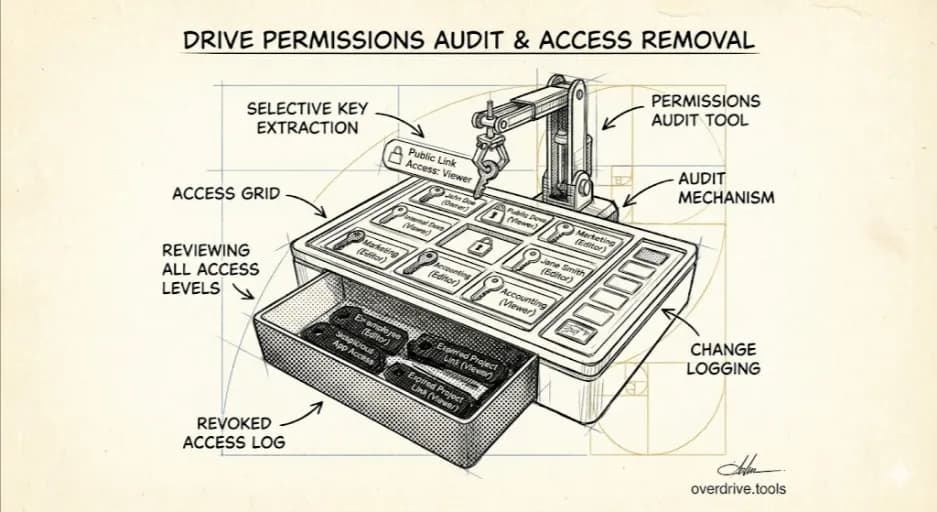
Every time you share a file in Google Drive, you create a permission. A collaborator gets editor access. A client gets viewer access. A link goes out set to "anyone with the link." Each one of those is a permission sitting on your file — and unless you go back and remove it, it stays there indefinitely.
Most people don't go back. Over months and years, permissions pile up: former employees, old freelancers, clients from two years ago, a link you shared in a Slack message that's still technically open to anyone who has it. You almost certainly have files right now that more people can access than you realize.
This article walks you through how to see all of that and clean it up.
Why Permissions Are Hard to Track
Google Drive wasn't built with bulk visibility in mind. You can check who has access to any individual file by right-clicking it and opening the sharing settings — but that only shows you one file at a time. If you have hundreds or thousands of files (most people do), auditing them one by one isn't realistic.
The result is that most Drive users operate on a kind of trust: assuming things are probably fine, rather than actually knowing. That's a problem when sensitive documents are involved — contracts, financial records, internal strategy docs, client information.
How to Review and Remove Permissions
Here are your options, from fastest to most manual:
Option 1: Use Overdrive to Audit Your Entire Drive at Once
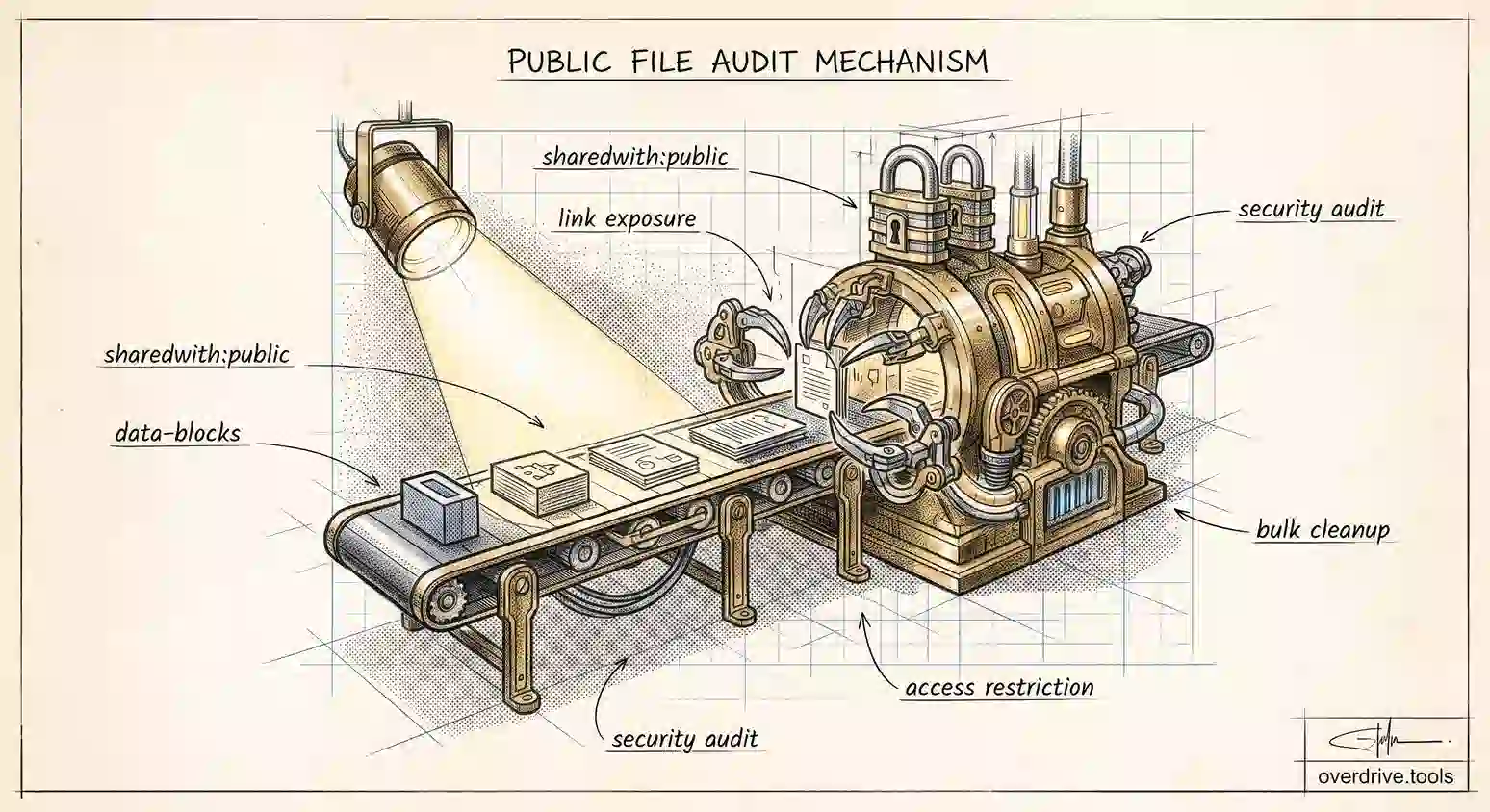
Overdrive scans your entire Google Drive and shows you a complete picture of who has access to what — across every file and folder, all in one dashboard. You can see externally shared files, files set to "anyone with the link," and files shared with specific people whose access you may have forgotten about. From there, you can revoke permissions directly without opening each file individually.
This is the practical path if you have more than a handful of files to review.
Option 2: Review Permissions File by File in Google Drive
If you want to check specific files manually:
- Open Google Drive
- Right-click the file you want to check
- Click Share
- The sharing panel shows everyone with access and their permission level (Viewer, Commenter, Editor)
- To remove someone, click the dropdown next to their name and select Remove access
- Under General access, check if the file is set to "Anyone with the link" — if so, change it to Restricted
- Click Save
Repeat for each file you want to check.
Option 3: Filter by Shared Files in Google Drive
To get a list of files you've shared (rather than checking them randomly):
- In Google Drive, click the search bar
- Open the search filters (click the filter icon on the right)
- Under Shared with, you can narrow results — though this shows files shared with you, not always files you've shared with others
- For files you own that are shared outward, the most reliable view is to sort "My Drive" and look for the sharing icon (the person silhouette) next to file names
This gives you a starting point, but it's still a file-by-file process from there.
What Each Permission Level Actually Means
When you're reviewing access, it helps to know exactly what each level allows:
| Permission | Can view | Can comment | Can edit | Can share with others |
|---|---|---|---|---|
| Viewer | ✓ | — | — | — |
| Commenter | ✓ | ✓ | — | — |
| Editor | ✓ | ✓ | ✓ | ✓ (by default) |
| Owner | ✓ | ✓ | ✓ | ✓ |
Editor access is broader than most people realize — editors can share the file further with others unless you've explicitly disabled that. If you gave editor access to someone and they're no longer on your team, that's worth revisiting.
What Happens When You Remove Someone's Access
A few things to know before you start removing permissions:
They aren't notified. Google Drive does not send a notification when you remove someone's access. They'll simply get an error if they try to open the file after access is gone.
Removing access doesn't delete the file. The file stays exactly where it is in your Drive — only the other person's ability to view or edit it changes.
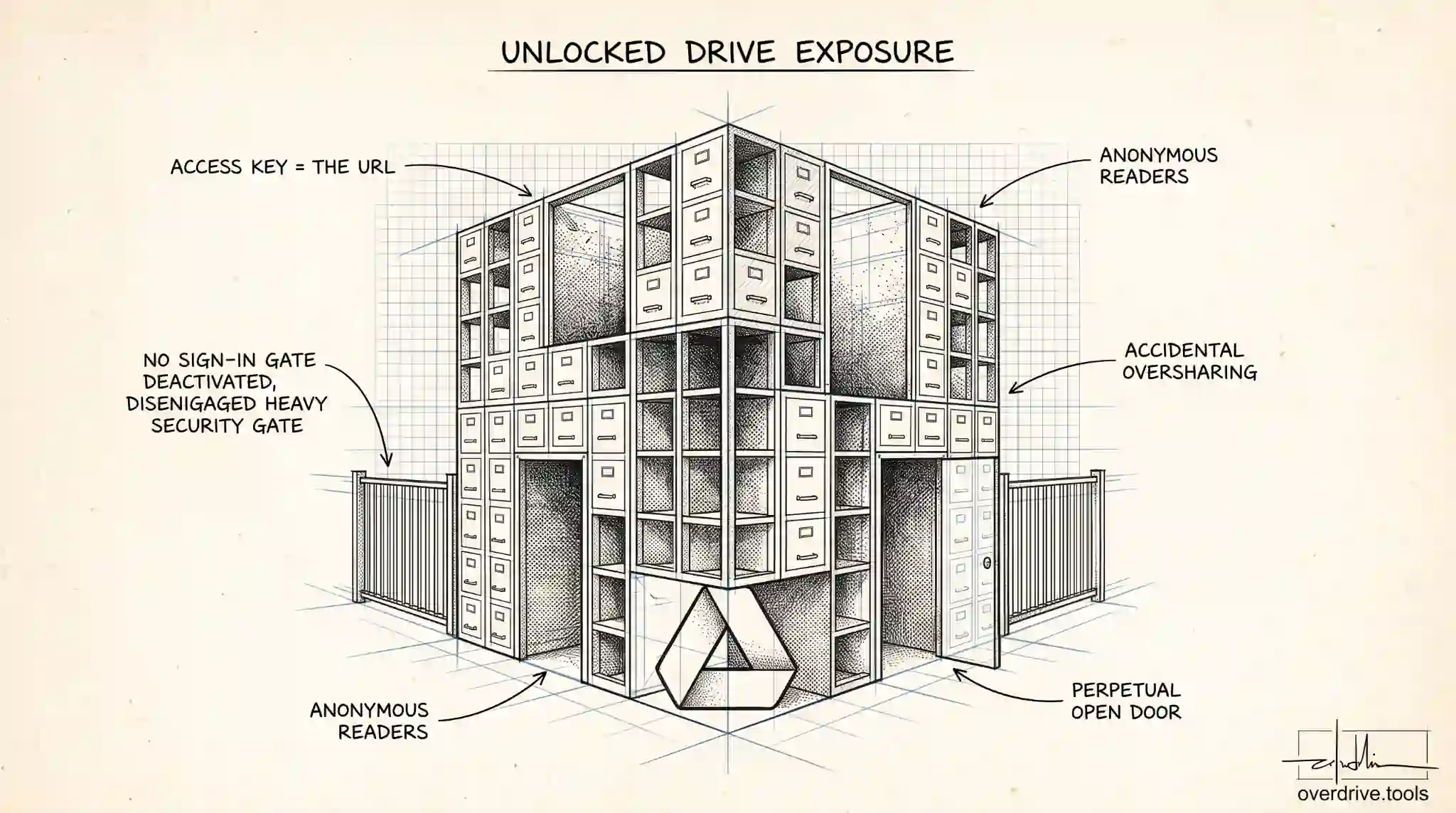
Shared links stay active until you change them. If a file is set to "anyone with the link," removing a specific person's access doesn't close the link. You need to change the General Access setting to "Restricted" separately.
Google Workspace vs. personal accounts. If you're on a Google Workspace account (work or school), your admin may have set organization-wide sharing policies that affect what you can and can't change.
A Good Habit Going Forward
The most effective way to keep permissions under control isn't a big annual audit — it's a small habit at the end of each project. When a collaboration ends, take two minutes to remove access for the people involved. It's much easier to clean up one project at a time than to untangle years of accumulated sharing.
Related Articles
- Who Has Access to Your Google Drive? Here's How to Find Out
- How to Find Externally Shared Files in Google Drive
- Google Drive Permissions Explained: Viewer, Commenter, Editor, Owner