Shared Drive Limits: Files, Members, and Storage
Google shared drives cap out at 500,000 items, 600 members, and 100 folder levels. Here's what each limit means for admins, and how to design around them.
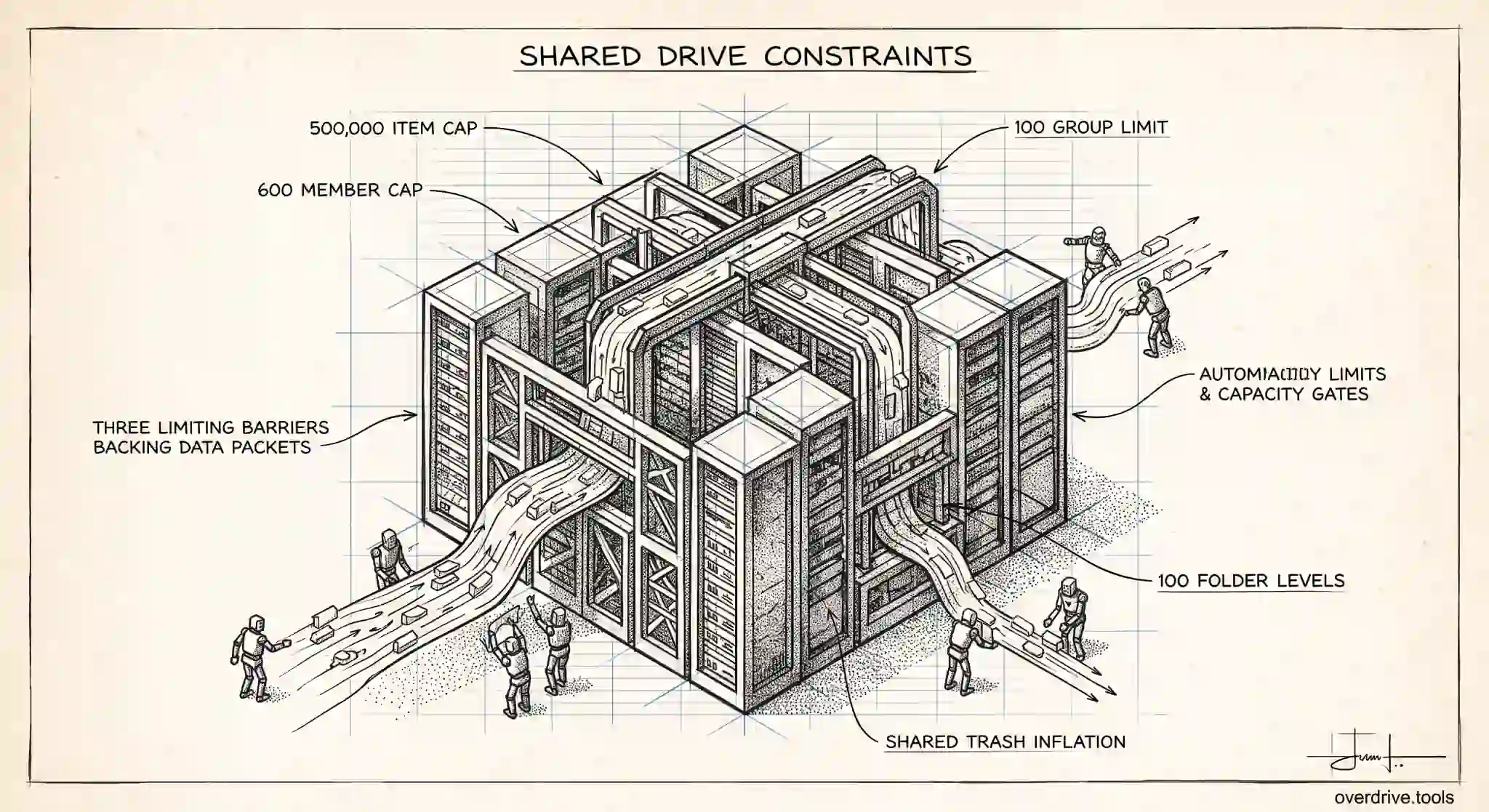
Google shared drives have hard limits, and hitting one usually happens at the worst possible moment, when a team is mid-project and suddenly can't add files or members. The main caps are clear once you know them: a shared drive holds up to 500,000 files and folders, allows up to 600 direct members, and permits folders nested up to 100 levels deep. Knowing these numbers ahead of time lets you design shared drives that never run into them, rather than scrambling to reorganize under pressure.
For a Workspace admin, these limits aren't just trivia. They shape how you split work across shared drives, how you handle access, and how you plan for growth. Here's what each limit actually means in practice and how to build around it.
The 500,000 item limit
A single shared drive can contain a maximum of 500,000 items. That count includes everything: files, folders, and shortcuts, and items sitting in the shared drive's trash count too until they're permanently removed. It's a generous ceiling for most teams, but certain patterns approach it faster than you'd expect.
Automated processes are the usual culprit. A shared drive that receives exports from a system, scans, or generated reports can accumulate hundreds of thousands of small files over time without anyone noticing, since each one is tiny but every one counts. Teams that store years of granular records in a single drive can also creep toward the limit.
The design response is to split by time or category before you get close. If a drive is filling with dated records, separate drives per year keep each one well under the ceiling. If automated output is the driver, plan for periodic archiving so old items move out of the active drive. And remember that emptying the shared drive's trash actually reduces the count, since trashed items keep occupying the item budget until purged.
The 600 member limit
A shared drive can have up to 600 members added directly, where members means the combined total of individual accounts and groups. Within that 600, a maximum of 100 members can be groups. This is where many large teams get tripped up, because adding people one by one burns through 600 slots faster than expected once you include collaborators, adjacent teams, and stakeholders.
The critical detail is that a group counts as a single member no matter how many people it contains. That's the whole reason to manage shared drive access with Google Groups rather than individuals: one group can represent an entire department under a single membership slot, so a shared drive backed by groups can effectively serve far more than 600 people while staying well within the member cap.
So if you anticipate a shared drive needing broad access, design it around groups from the start. Add a handful of team groups rather than hundreds of individuals, and you'll both stay under the limit and make access far easier to manage as people come and go. Relying on direct individual membership is the pattern that eventually hits the wall.
The 100 folder nesting limit
Folders in a shared drive can be nested up to 100 levels deep, meaning a child folder cannot sit beneath a folder that's already more than 99 levels down. In practice, almost no team should ever approach this through deliberate organization, since anything past three or four levels becomes hard to navigate.
Where the nesting limit occasionally bites is through automation or migration. A process that creates deeply nested folder paths, or a bulk import that recreates an existing deep structure, can build toward the limit mechanically. If you're migrating content into shared drives, it's worth checking that the source structure isn't pathologically deep before you move it.
For everyday use, treat the 100-level ceiling as a reason you'll never need to worry about depth, not a target. A shallow, consistent structure is easier to use and stays comfortably clear of the limit.
Storage and other limits to know
Shared drive storage doesn't work like a personal account. Files in a shared drive count against your organization's pooled Workspace storage, not any individual's quota, so a large shared drive draws from the same domain-wide pool every other account shares. That means shared drives factor into your overall storage planning, and a team dumping large media into a shared drive can contribute to a domain-wide storage squeeze.
A few other operational limits are worth keeping in mind. There are daily caps on how many items a single user can move or upload into shared drives, which mainly affect large migrations and bulk operations rather than daily work. Individual file size limits still apply to uploads. And permission and sharing behavior differs from My Drive, since shared drive files are owned by the organization rather than a person, which changes how ownership and access work.
Designing so you never hit a limit
The through-line across all of these is that limits are a design problem, not a runtime problem. You avoid them by structuring shared drives well from the start: split large bodies of work across multiple drives by team, time, or function so no single drive approaches the item cap; manage access through groups so the member limit becomes a non-issue; and keep folder structures shallow so nesting is never a concern.
Staying ahead of the item and storage limits also means knowing what's actually accumulating in your shared drives, which Google doesn't make easy to see across many drives at once. Overdrive for Google Workspace connects with read-only access and visualizes what a Drive holds, surfacing where items and storage are concentrating, where duplicates are inflating the count, and which drives are growing fastest, so an admin can spot a drive heading toward its limits and split or archive it before it becomes a mid-project emergency. It reads metadata only, never file contents.
Combine that visibility with a simple habit of reviewing your largest and busiest shared drives periodically, and the limits stop being something you discover by accident. You design under them, monitor toward them, and act before any drive gets close.
What actually happens when you hit a limit
Knowing how a limit fails helps you plan for it. When a shared drive reaches the 500,000 item cap, users can no longer add new files or folders to it until items are removed, which is disruptive precisely because it arrives without warning mid-work. The member cap behaves similarly: once a drive has 600 members or 100 groups, further additions are refused. These aren't gradual slowdowns, they're hard stops, which is why designing under them beats reacting to them.
Trashed items are the subtle part. Because items in a shared drive's trash still count toward the 500,000 limit until permanently removed, a drive can hit the cap even though it looks like it has fewer live files. Emptying the shared drive trash is often the quickest way to buy room when you're near the item ceiling.
Splitting a drive that has grown too big
When a drive is approaching a limit, the durable fix is usually to split it rather than to keep pruning. Divide the content along a natural line, by year, by client, by project phase, or by team, and move the appropriate portion into a new shared drive. This resets the item count and, if you split by audience, often simplifies membership at the same time.
Do it deliberately: decide the split line, create the new drive, and move content in stages while telling the affected people where things are going, since moving files changes where collaborators find them. Splitting before you're forced to, while you still have headroom, is far less painful than doing it in an emergency after a drive has already stopped accepting new files. In short, the drives that never hit a limit are the ones whose owners split and archive on a schedule, long before any single drive is close enough to the ceiling for it to matter.
The short version
Google shared drives cap at 500,000 items, 600 direct members with at most 100 groups among them, and 100 levels of folder nesting, while their contents draw from your organization's pooled storage. The item limit is best handled by splitting work across drives by time or category, the member limit by managing access through groups so each group counts as one member, and the nesting limit by keeping structures shallow anyway. Treat all of these as design constraints you plan around from the start, and monitor how your busiest drives are growing so you split or archive before hitting a wall.
Related Articles
- Shared Drive Permission Levels Explained: Manager, Content Manager, Contributor & Viewer
- Shared Drive vs My Drive: Key Differences
- How to List All Folders in Google Shared Drives