How to List All Folders in Google Shared Drives
Learn how to view and export a complete list of folders across all your Google Shared Drives. Simple methods that don't require any technical knowledge.
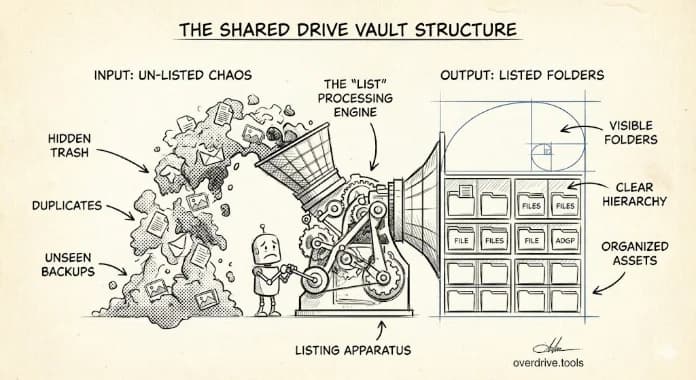
Google doesn't offer a built-in way to list all folders across multiple Shared Drives. You can browse one Shared Drive at a tim.te, but there's no "show me every folder across all my Shared Drives" view. This limitation frustrates Workspace users, team leads, and anyone managing content across several Shared Drives.
Shared Drives are designed as separate containers. Each one functions like its own isolated filing cabinet with its own membership and permissions. Google's interface reflects this: you click into one Shared Drive, see its contents, then back out and click into another. For organizations with many Shared Drives, this creates a visibility problem—you can't easily answer questions like "Where do we store client contracts?" or "Is there duplicate folder structure between Marketing and Sales?"
Here are your options for getting a complete folder view, starting with the easiest.
How to See All Your Shared Drive Folders
Option 1: Use a Visual Mapping Tool (Easiest)
The fastest way to see your complete folder structure is with a tool that maps it visually.
Overdrive connects to your Google account and displays your entire Drive hierarchy—including Shared Drives you have access to—as an interactive map. Instead of clicking through each Shared Drive folder by folder, you see the full structure at a glance.
This lets you:
- Spot duplicate folder structures across drives
- Find empty folders buried in nested hierarchies
- Understand where things live without memorizing paths
- Compare organization patterns between different Shared Drives
The scan takes about two minutes and doesn't require any technical setup—just connect your Google account.
Option 2: Browse Manually in Google Drive
If you prefer to stay within Google's native tools, you can browse manually. This works for small setups but becomes tedious quickly.
On desktop:
- Go to drive.google.com
- Click "Shared drives" in the left sidebar
- Open each Shared Drive and expand folders to see the hierarchy
- Use the search bar within each drive:
type:foldershows only folders
Limitation: This doesn't create a unified list—you're just browsing one drive at a time. There's no way to export what you see or compare structures across drives. If you have more than a few Shared Drives, this method eats up hours.
Option 3: Use the Admin Console (Admins Only)
If you're a Google Workspace administrator, you have access to the Admin Console.
Go to Admin Console → Apps → Google Workspace → Drive and Docs → Manage Shared Drives. This shows all Shared Drives in your organization with basic metadata (name, creation date, member count).
However, it doesn't show folder contents inside each drive—just the drives themselves. For actual folder-level inventory without technical tools, Option 1 remains the most practical approach even for admins.
What You Can Do With a Folder List
Once you have visibility into your complete folder structure, common use cases include:
Finding duplicate structures: Two teams independently created "2024 Projects > Client A > Deliverables" hierarchies. One can be consolidated.
Identifying empty folders: Folders created for projects that never happened or were abandoned. See our guide on finding and deleting empty folders for cleanup steps.
Auditing naming conventions: Inconsistent naming becomes obvious when you see everything together. "Q1 Reports" vs "Q1-Reports" vs "Reports - Q1" vs "2024 Q1 Reports" all need standardization.
Planning migrations: Before restructuring or migrating to a new system, you need to know what exists.
Onboarding documentation: New team members need a map of where things live across Shared Drives.
Shared Drive Limitations to Know
A few constraints affect how you work with Shared Drives:
400,000 item limit: Each Shared Drive can contain up to 400,000 files and folders combined. If you're approaching this limit, a folder inventory helps identify what to archive or split into a new drive.
Nesting limits: Folders can be nested up to 20 levels deep. Deep nesting makes navigation painful and often signals an overly complex structure.
No cross-drive search: Google's search works within one Shared Drive at a time unless you search "everywhere," which includes your My Drive and may return too many results.
Membership is all-or-nothing: Unlike My Drive where you can share individual files, Shared Drive membership grants access to everything in that drive. This affects how you should structure sensitive content.
Preventing the Problem: Better Structure
If you're struggling to track folders across Shared Drives, the underlying issue might be organizational rather than technical. A few principles help:
Fewer, larger Shared Drives are usually easier to manage than many small ones. Consolidate where possible.
Consistent top-level folders across drives (like "Active," "Archive," "Templates") make navigation predictable.
Document your structure somewhere everyone can find—a simple "Where to Find Things" doc linked from each Shared Drive's root folder.
For more on this, see our folder structure best practices guide.
Related Articles
- Google Drive Folder Structure: Best Practices for 2026
- How to Find and Delete Empty Folders in Google Drive
- How to Finally Organize Your Google Drive