Why Google Drive Creates Duplicate Files (And How to Stop It)
Understand why duplicate files appear in Google Drive—sync conflicts, copy operations, email attachments, and more—plus how to prevent them from accumulating.
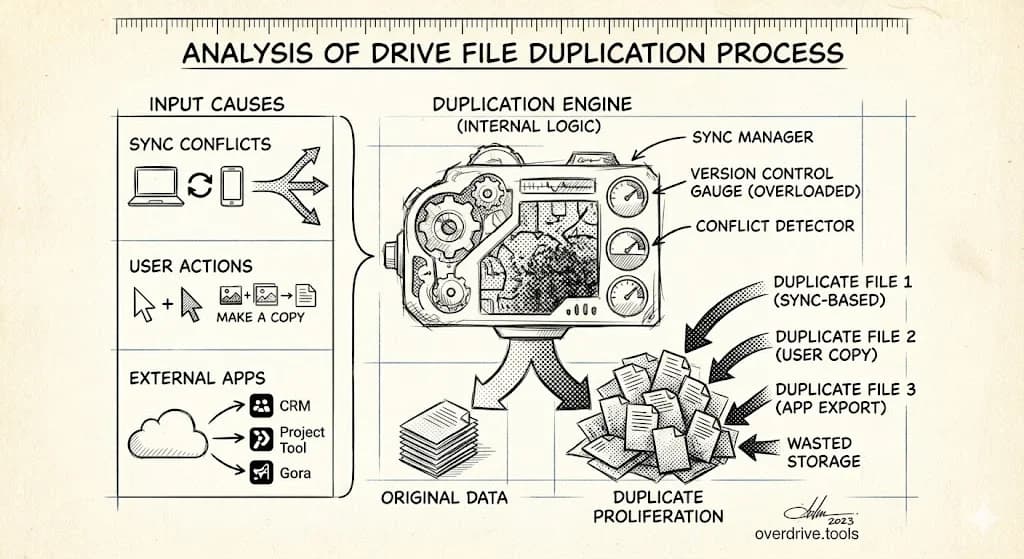
Google Drive creates duplicate files more often than you'd expect. You'll find the same document in multiple folders, files with "(1)" appended to the name, identical photos scattered across your Drive, and copies you don't remember making. This isn't a bug—it's the result of how Google Drive handles syncing, sharing, and file operations.
Understanding why duplicates happen is the first step to preventing them. Here's what causes the duplication and how to stop it.
The Most Common Causes of Duplicate Files
Sync Conflicts from Google Drive for Desktop
When you edit a file offline or on multiple devices simultaneously, Google Drive sometimes can't merge the changes. Instead of risking data loss, it creates a copy.
What you'll see: Files named "Document (1).docx" or "Document - conflict - 2024-03-15.docx" appearing alongside the original.
Why it happens:
- You edited a file while offline, then reconnected
- The same file was open on two devices and both made changes
- A sync error interrupted the upload process
- Your internet connection dropped mid-sync
How to prevent it:
- Wait for sync to complete before switching devices (look for the checkmark icon)
- Avoid editing the same file on multiple devices simultaneously
- Don't work on files while Drive is still syncing after reconnecting to internet
"Make a Copy" Operations
Every time you click "Make a copy" on a file, Google creates a new file named "Copy of [Original Name]." These copies are intentional, but they accumulate when people forget to rename or delete them.
What you'll see: Files starting with "Copy of" throughout your Drive.
Why it happens:
- You made a copy to use as a template
- You wanted to edit a shared file without affecting the original
- You accidentally clicked "Make a copy" instead of another option
How to prevent it:
- Rename copies immediately after creating them
- Delete copies once you're done with them
- Use version history instead of making copies when you want to preserve an earlier state
Email Attachments Saved Multiple Times
When you save the same email attachment to Google Drive multiple times—or save it from different email threads—you get duplicate files.
What you'll see: Multiple copies of the same PDF, image, or document, often in different folders.
Why it happens:
- You saved an attachment, forgot about it, then saved it again later
- The same file was attached to multiple emails you received
- You saved attachments to Drive from both Gmail and the email source
How to prevent it:
- Check if a file already exists before saving attachments
- Create a single "Email Attachments" folder and check it before saving
- Use Gmail's "Save to Drive" icon consistently, then organize files from there
Downloaded Files from Shared Links
When someone shares a Google Drive link with you, you might download or copy the file to your own Drive. If multiple people share the same file, or you access the link multiple times, duplicates accumulate.
What you'll see: Multiple copies of shared files, sometimes with identical names in different folders.
Why it happens:
- You downloaded a shared file to work offline
- Someone reshared a file you already had
- You made a personal copy of a shared file for editing
How to prevent it:
- Use "Add shortcut to Drive" instead of "Make a copy" when you just need access
- Before copying shared files, check if you already have a copy
- Search for the file name before downloading
Photo Backup Duplicates
Google Photos and Google Drive have a complicated relationship. If you've ever enabled photo backup from multiple devices, or used both services to store photos, duplicates appear.
What you'll see: The same photo appearing multiple times, often in different folders or formats.
Why it happens:
- Photos backed up from phone AND uploaded manually
- Same photos synced from both Google Photos and Drive for Desktop
- Screenshots or downloads saved multiple times
- Photos shared with you that you also saved separately
How to prevent it:
- Choose ONE backup method for photos and stick with it
- Don't manually upload photos that are already backing up automatically
- Use Google Photos' built-in duplicate detection (it won't download duplicates when you use Google Takeout)
Version History Confusion
Google Docs, Sheets, and Slides have built-in version history, but this doesn't stop people from creating manual copies as "backups." Additionally, when you download a Google Doc as a Word file, then re-upload it, you've created a duplicate.
What you'll see: Files like "Budget v2," "Budget FINAL," "Budget FINAL v2 (1)" alongside the original "Budget" file.
Why it happens:
- Fear of losing work leads to manual copy "backups"
- Collaborators creating their own versions instead of using suggestions mode
- Downloading, editing locally, then re-uploading instead of editing in Drive
How to prevent it:
- Trust version history—Google saves every change automatically
- Use "Name current version" to mark important milestones instead of making copies
- Edit directly in Google Drive instead of downloading and re-uploading
How to Find Existing Duplicates
If you've been using Google Drive for years, you likely have hundreds of duplicate files already. Finding them manually is nearly impossible.
Overdrive scans your entire Drive and groups identical files together—even if they have different names or are in different folders. It finds duplicates you'd never catch manually, showing you exactly how much storage you're wasting and letting you clean them up in bulk.
For manual methods, see our detailed guide on how to find and delete duplicate files in Google Drive.
Quick Duplicate Prevention Checklist
Before creating or saving a file:
- Search to see if it already exists
- Check the target folder for similar files
- Ask yourself if you really need a copy or if a shortcut would work
When working with shared files:
- Use shortcuts instead of copies when possible
- If you must copy, rename immediately
- Delete your copy when collaboration ends
For sync and backup:
- Let sync complete before switching devices
- Use one backup method per file type
- Check for conflict files weekly
For organization:
- Use version history instead of manual copies
- Delete copies immediately when done
- Clean up "Copy of" files monthly
The Real Cost of Duplicates
Duplicates aren't just a storage problem. They cause:
Confusion: Which version is the current one? Which folder has the right file?
Wasted time: Searching through multiple copies to find what you need.
Outdated information: People editing the wrong copy, missing updates from the real file.
Security risks: Copies of sensitive files sitting in forgotten folders, potentially shared with people who shouldn't have access.
Storage costs: Paying for storage that's 20-30% duplicates.
A few minutes of prevention saves hours of cleanup—and potentially prevents costly mistakes from using the wrong version of an important file.
Related Articles
- How to Find and Delete Duplicate Files in Google Drive
- How to Find and Delete Duplicate Folders in Google Drive
- Google Drive Storage Full? Here's Why (and How to Fix It)