Why Does Google Drive Duplicate Files?
Google Drive duplicates files from re-uploads, sync conflicts, and manual copies. Here's why it happens, and how to find and clear the duplicates for good.
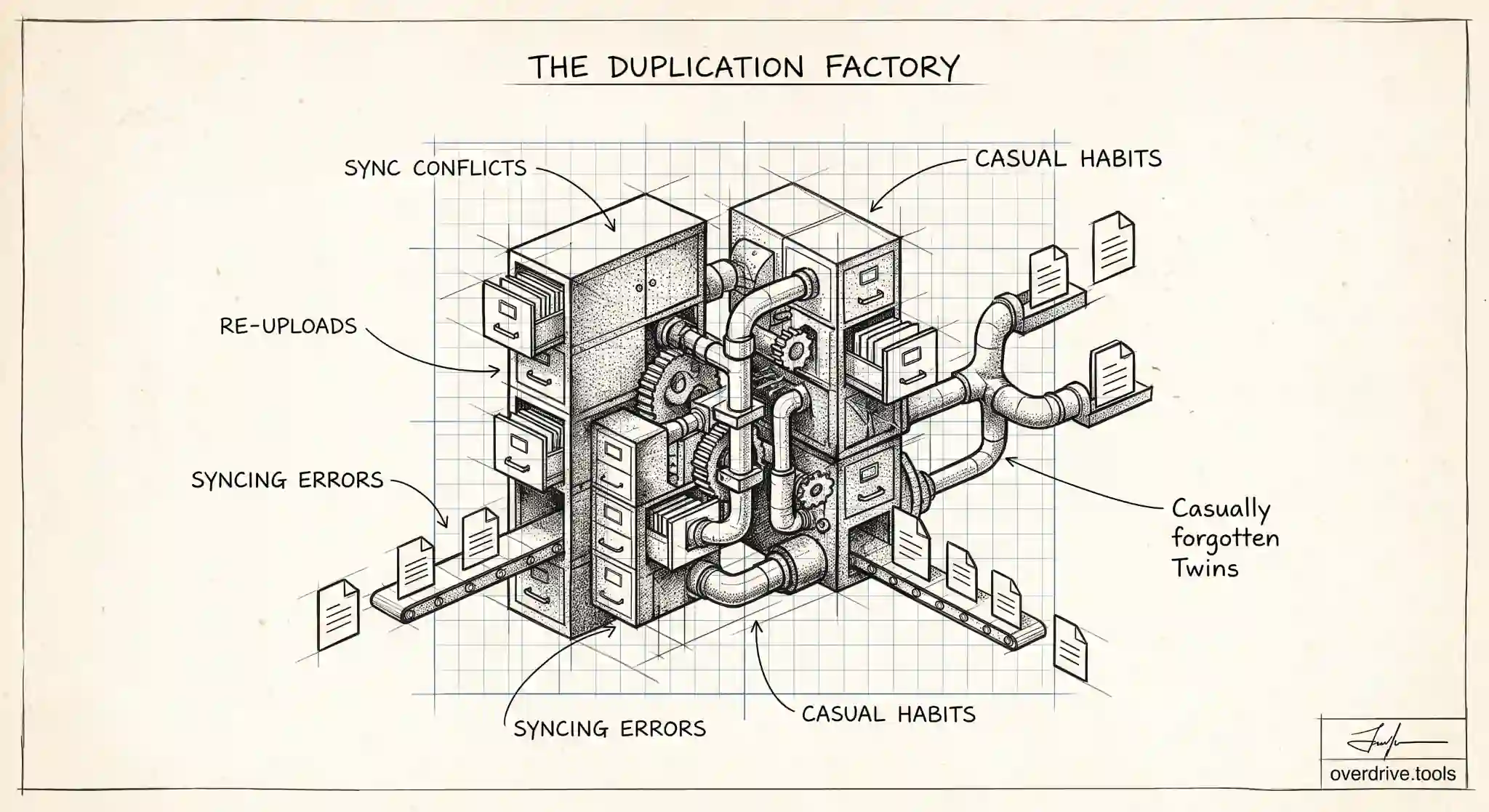
Google Drive duplicates files for a handful of predictable reasons: it lets you upload the same file more than once without warning, sync conflicts create second copies, and everyday habits like "Make a copy" and re-downloading then re-uploading quietly multiply your files. Unlike some storage tools, Drive doesn't automatically detect or block duplicates, so nothing stops the same document from existing five times over.
If your Drive feels bloated and you keep finding two or three versions of the same thing, you're not imagining it, and you didn't necessarily do anything wrong. Duplicates are a natural byproduct of how Drive works. Here's what actually causes them and how to clear them out without deleting the wrong copy.
Drive doesn't stop duplicates in the first place
The root cause behind all of this is a design choice: Google Drive allows duplicate files by default. If you upload a file with the same name and contents as one already in a folder, Drive doesn't merge them or ask if you meant to replace the existing one. It can keep both, sometimes appending a number or version note, sometimes just storing two identically named files side by side.
Because there's no built in duplicate detection, every duplicate you create stays until you remove it manually. That's the backdrop for everything below. The specific triggers differ, but they all slip through because Drive never pushes back.
Re-uploading the same files
The most common source of duplicates is uploading the same files more than once. It happens easily. You upload a folder, aren't sure it finished, and upload it again. You back up the same set of photos from two different devices. You save an email attachment to Drive on Monday and again on Thursday without remembering the first time.
Each upload is treated as a fresh file, even if an identical one already exists. Over months, repeated uploads of the same material, especially photos, documents, and downloads, build up into a significant pile of exact copies eating your storage.
Sync conflicts from Drive for Desktop
If you use Drive for Desktop, or the older Backup and Sync, sync conflicts are a major duplicate generator. When the same file is edited in two places at once, or when sync gets confused about which version is current, Drive resolves it by keeping both, often labeling one as a conflicted copy.
This is especially common when the same account is synced across multiple computers, or when a file is open and being edited on one device while sync is trying to update it from another. Rather than risk losing your changes, sync plays it safe and creates a second copy. Do this across many files and devices and the conflicted copies add up fast.
Manual copies with "Make a copy"
Drive's own Make a copy feature is a duplicate factory when used casually. You duplicate a document to create a new version, to keep a backup before big edits, or to reuse a template, and each time you get a full second file. Those copies are handy in the moment and forgotten soon after, left sitting in your Drive as near identical twins of the original.
Downloading a file and then re-uploading it has the same effect. The re-uploaded file is brand new as far as Drive is concerned, so now you own two, the one you never deleted and the one you just added back.
Copying folders and shared content
Duplicates aren't limited to single files. Copying a folder duplicates everything inside it, which can create dozens of copied files in one action. Saving a shared file into your own Drive with Make a copy does the same thing on a smaller scale, giving you your own owned duplicate of something you already had access to.
Because these actions duplicate in bulk, they're often behind the biggest, most confusing clusters of repeated files, where entire folder structures appear twice.
Why duplicates are worth clearing
Duplicates aren't just untidy. They cost you real storage, since every copy counts against your 15 GB, and duplicated photos and large files can consume gigabytes on their own. They also make your Drive harder to use: when three versions of a document exist, it's never obvious which one is current, so you risk editing the wrong copy or sending an outdated file. Clearing duplicates reclaims space and removes that daily uncertainty about which version is the real one.
How to find and remove duplicates
The challenge is that Drive gives you no duplicate finder of its own. Spotting copies by hand means scrolling, comparing names, and opening files to check contents, which is slow and error prone, particularly for duplicates with slightly different names or ones scattered across folders.
Here are your options.
Option 1: Find and group duplicates automatically. Because Drive won't detect duplicates for you, doing it manually is tedious and easy to get wrong. A tool like Overdrive can scan your entire Drive, identify duplicate files, and group them together so you can review and remove the extra copies in bulk, keeping the version you want and clearing the rest without hunting through folders one by one.
Option 2: Search and sort manually. Inside Drive you can sort a folder by name to bring identically named files next to each other, and use search to look for telltale signs of copies, such as "copy of" in the title or numbered suffixes. This works for obvious duplicates but misses copies with different names or identical contents under unrelated titles.
Option 3: Fix the habits that create them. Prevention beats cleanup. Before uploading, check whether the file is already there. Avoid syncing the same account across devices in conflicting ways. Delete Make a copy versions once you're done with them. And empty your trash after clearing duplicates, since deleted files sit there for 30 days and still count against storage until removed.
Duplicates hide in Google Photos and Gmail too
Drive isn't the only place copies pile up in your Google account, and since Drive, Gmail, and Photos share one storage pool, duplicates anywhere hit the same 15 GB. Google Photos can accumulate near identical shots and repeated uploads of the same images, especially if photos are backed up from more than one device. Gmail collects the same attachment many times over when a file is forwarded around a thread, with each message carrying its own copy.
So if you're chasing storage, it's worth remembering that clearing Drive duplicates is only part of the picture. The same instinct that creates duplicate files in Drive, uploading again to be safe, syncing across devices, keeping copies just in case, produces duplicate photos and repeated attachments elsewhere. A full cleanup looks at all three.
How much storage duplicates really cost
It's easy to underestimate duplicates because each one seems small, but they add up in a way that maps directly to your bill. Every copy of a file counts fully against your storage, so three versions of a 200 MB video occupy 600 MB, not 200. Across a Drive with years of re-uploads and copied folders, duplicates can quietly account for a large share of a full account.
That's what makes them such a satisfying thing to clear. Unlike files you have to agonize over keeping or deleting, a true duplicate is a copy you already have, so removing the extras costs you nothing and frees real space. For many people, clearing duplicates alone drops them back under the free limit and removes any need to buy more storage.
There's a quiet knock-on benefit too. A Drive without duplicate clutter is simply easier to live in: a search returns one clear result instead of three near-identical ones, folders reflect what you actually have, and you stop second-guessing which version is the current one. Reclaiming storage is the headline reason to clear duplicates, but the everyday clarity of a Drive where each file exists exactly once is what most people end up appreciating more.
The short version
Google Drive duplicates files because it allows duplicates by default and never detects them for you. The usual causes are re-uploading the same files, sync conflicts from Drive for Desktop, manual Make a copy actions, and copying folders or shared content in bulk. Duplicates waste storage and create version confusion, so they're worth clearing. Since Drive has no built in duplicate finder, the practical fixes are to scan and group duplicates so you can remove them in bulk, tidy the obvious ones by sorting and searching, and change the habits that spawn them in the first place.
Related Articles
- How to Find and Delete Duplicate Files in Google Drive
- How to Find and Delete Duplicate Folders in Google Drive
- Drive Cleaner & Duplicate Finder for Google Drive