How to Copy a Folder in Google Drive
Learn how to duplicate a folder in Google Drive. Google Drive has no 'Copy Folder' button, but these workarounds let you copy folders with all their contents.
Overdrive Team//2 min read
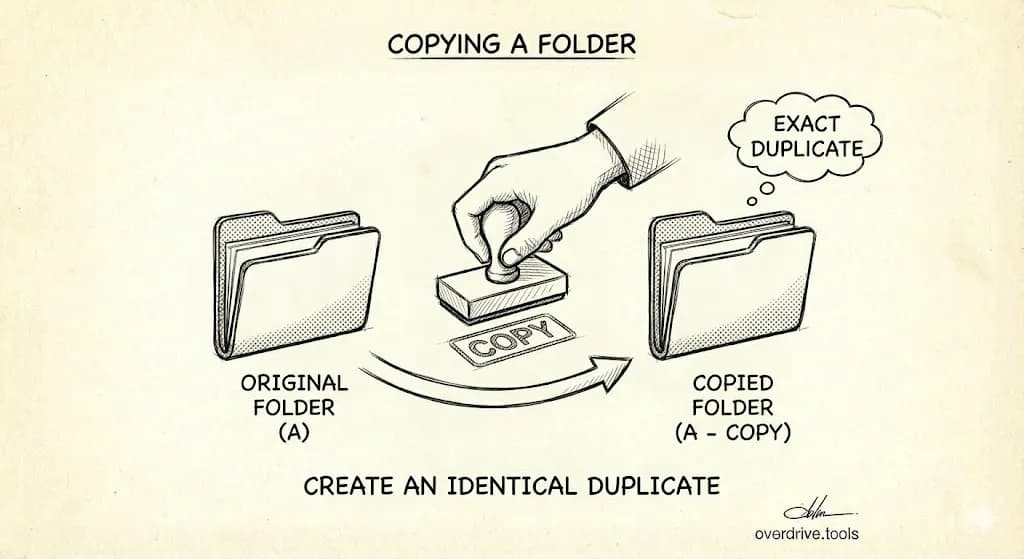
Google Drive has no "Copy Folder" button. To copy a folder, open it, select all files (Ctrl+A or Cmd+A), right-click, and choose "Make a copy." Then move the copies to a new folder. For the easiest method, use Google Drive for Desktop where you can right-click a folder and select "Duplicate."
Method 1: Copy Files Inside the Folder (Web)
- Go to drive.google.com
- Open the folder you want to copy
- Select all files inside (Ctrl+A on Windows, Cmd+A on Mac)
- Right-click → "Make a copy"
- Copies appear in the same folder with "Copy of" prefix
- Select the copies → Right-click → "Organize" → "Move"
- Choose or create a new destination folder
Limitations:
- Subfolders are not copied—only files
- Each file gets "Copy of" added to its name
- You must manually recreate the folder structure
Method 2: Use Google Drive for Desktop (Easiest)
- Install Google Drive for Desktop
- Open the Google Drive folder on your computer (via File Explorer or Finder)
- Navigate to the folder you want to copy
- Right-click the folder → "Duplicate" (Mac) or "Copy" then "Paste" (Windows)
- The duplicate syncs back to Google Drive automatically
Advantages:
- Copies entire folder structure including subfolders
- Only the parent folder gets "Copy" in the name, not every file
- Works with nested folders
Method 3: Download and Re-upload
- Right-click the folder in Google Drive → "Download"
- Wait for the ZIP file to download
- Extract the ZIP on your computer
- In Google Drive, click "New" → "Folder upload"
- Select the extracted folder
Note: Google Docs, Sheets, and Slides download as Microsoft Office formats. They'll need to be converted back after upload.
Copying Shared Folders
You cannot directly copy folders shared with you. Your options:
Option 1: Open the shared folder, select all files, and make copies (files only, no subfolders)
Option 2: Download the folder and re-upload to your Drive
Option 3: Ask the owner to copy the folder and share the copy with you
If the owner has disabled downloading or copying, you cannot duplicate the folder at all.
What Gets Copied
When you copy files:
| Copied | Not Copied |
|---|---|
| File content | Comments |
| File name (with "Copy of") | Version history |
| Your ownership of the copy | Sharing settings |
| Current file state | Original creation date |
The copy is a new, independent file. Changes to the original don't affect the copy.
Use Cases for Copying Folders
Project templates: Copy a template folder structure for each new project
Backups: Create a duplicate before making major changes
Transferring to another account: Copy to your Drive, then share with your other account
Archiving: Copy a working folder to an archive location
Before You Copy: Clean Up First
Copying a messy folder just creates two messy folders. Before duplicating:
- Remove files you don't need
- Delete duplicates inside the folder
- Clear out empty subfolders
Overdrive can scan a specific folder and show you duplicates, empty files, and junk inside—so you only copy what matters.
For more on keeping folders organized, see our folder structure best practices.