How to Find and Delete Duplicate Folders in Google Drive
Learn how to find duplicate folders in Google Drive—folders with identical names, similar contents, or redundant structures—and clean them up without losing important files.
Overdrive Team//4 min read
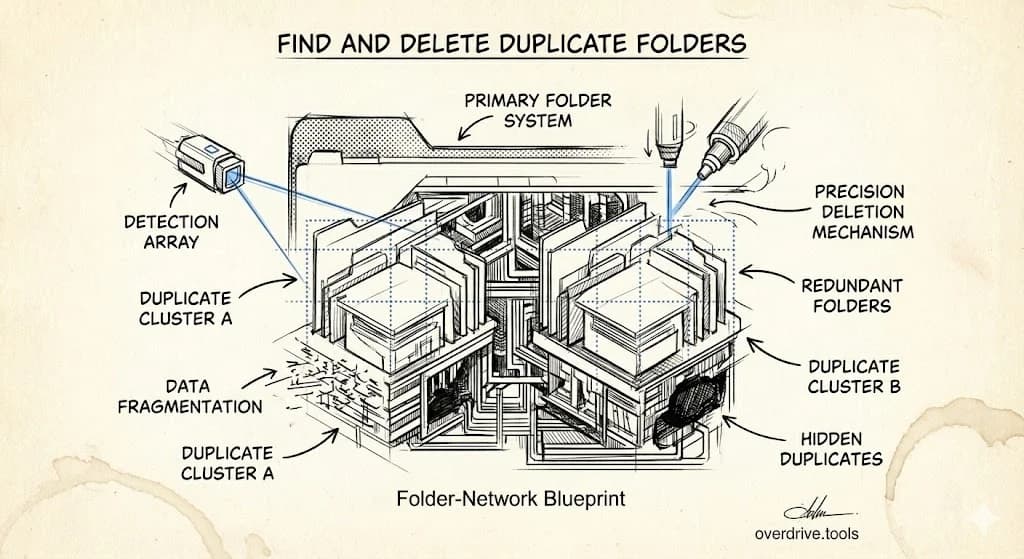
Google Drive doesn't have a built-in way to find duplicate folders. Unlike duplicate files (which can be identical byte-for-byte), duplicate folders are trickier—two folders might have the same name, similar contents, or represent the same project created in different locations. Finding them requires either manual searching or a tool that can visualize your folder structure.
Duplicate folders waste more than storage. They create confusion about which folder is the "real" one, lead to outdated versions being used, and make your Drive harder to navigate. Here's how to find them and clean them up safely.
Why Duplicate Folders Happen
Duplicate folders accumulate through normal use:
Copied folder structures: You duplicate a project folder to start a new project, then forget to rename or delete the template copy.
Multiple people creating the same folder: Two team members both create "Q4 Reports" in different locations because they couldn't find an existing one.
Sync conflicts: Google Drive for Desktop sometimes creates duplicate folders during sync errors, often with names like "Folder Name (1)" or "Folder Name - Copy."
Migration leftovers: Moving from another cloud service or reorganizing your Drive leaves behind folder fragments.
Abandoned reorganizations: You started restructuring your Drive, created new folders, moved some files, then stopped halfway—leaving both old and new structures.
The longer you've used Google Drive, the more duplicate folders you likely have buried in your hierarchy.
How to Find Duplicate Folders
Here are your options, starting with the easiest.
Option 1: Visualize Your Entire Folder Structure (Easiest)
Duplicate folders are hard to find because Google Drive doesn't show your complete hierarchy in one view. You have to click into each folder to see what's inside.
Overdrive displays your entire Drive as a visual map. You can immediately see duplicate folder names across different locations, spot redundant structures, and identify folders with similar contents. This takes about two minutes versus hours of manual clicking.
Option 2: Search for Folder Names
If you suspect specific duplicate folders, search for them by name:
- Go to drive.google.com
- In the search bar, type:
type:folder "Folder Name" - Review the results to see if the same folder exists in multiple locations
Example searches:
type:folder "Projects"— finds all folders named "Projects"type:folder "2024"— finds all folders with "2024" in the nametype:folder "Copy of"— finds folders that are obvious copies
Limitation: This only finds folders with identical or similar names. It won't find folders with different names but duplicate contents (like "Client Work" and "Client Projects" containing the same files).
Option 3: Check Common Duplicate Locations
Duplicate folders tend to appear in predictable places:
Root level of My Drive: Multiple "Projects," "Work," or "Personal" folders created at different times.
Inside shared folders: Team members creating their own versions of folders that already exist.
Recently created: Check your recent activity for folders created in the last few months—these are often duplicates made during reorganization attempts.
Folders ending in (1), (2), or "Copy": These are explicit duplicates created by copying or sync conflicts.
To find sync conflict duplicates:
- Search:
type:folder "(1)"ortype:folder "Copy of"
Before You Delete: What to Check
Deleting the wrong folder can cause serious problems. Before removing any duplicate:
Compare contents: Open both folders and verify which one has the most recent or complete files. Don't assume the newer folder is better—sometimes the original has files that weren't copied.
Check sharing: One folder might be shared with collaborators who depend on it. Deleting it removes their access. Right-click → "Share" to see who has access.
Look at recent activity: Right-click → "View details" → "Activity" shows when files were last modified. The folder with recent activity is probably the one in use.
Check for shortcuts: Other folders or documents might contain shortcuts pointing to one of the duplicate folders. Deleting it breaks those shortcuts.
How to Safely Merge Duplicate Folders
Once you've identified duplicates, you have two options: delete one entirely, or merge them.
To delete a duplicate folder:
- Confirm which folder to keep (check contents, sharing, activity)
- Move any unique files from the duplicate to the folder you're keeping
- Right-click the duplicate → "Move to trash"
- Empty trash to free up space (folders in trash still count against storage)
To merge two folders:
If both folders contain files you need:
- Decide which folder will be the "primary" location
- Open the duplicate folder
- Select all files (Ctrl+A or Cmd+A)
- Right-click → "Move to" → select the primary folder
- Delete the now-empty duplicate folder
Warning: If both folders contain files with the same name, Google Drive keeps both (adding a number to the duplicate). You'll then need to deal with duplicate files inside the merged folder.
Preventing Duplicate Folders
A few habits stop duplicates from accumulating:
Search before creating: Before making a new folder, search to see if one already exists. A five-second search saves cleanup time later.
Use consistent naming conventions: Agree on folder names with collaborators. "Q4 2024 Reports" vs "Q4-2024-Reports" vs "Reports Q4 2024" creates confusion and duplicates.
Create structure once, then use shortcuts: Instead of copying folder structures, create one canonical structure and use shortcuts to reference it from other locations.
Clean up sync conflicts immediately: When you see a folder ending in "(1)" or "Copy of," deal with it right away. Sync conflicts multiply if ignored.
Review folder structure quarterly: Spend 15 minutes every few months looking at your top-level folders. Catch duplicates before they become a bigger problem.
For a complete folder organization system, see our guide on Google Drive folder structure best practices.
Related Articles
- How to Find and Delete Duplicate Files in Google Drive
- How to Find and Delete Empty Folders in Google Drive
- Google Drive Folder Structure: Best Practices for 2026