Why Gmail Is Quietly Eating Your Google Storage
Gmail, Drive, and Photos share one pool: 5 GB free by default, up to 15 GB with a phone number. Here's how Gmail quietly takes more than you'd expect.
Overdrive Team//5 min read

Most people think of Gmail and Google Drive as separate things. You use Drive to store files, and Gmail to send emails — so it seems natural to assume they have their own separate buckets of storage. They don't.
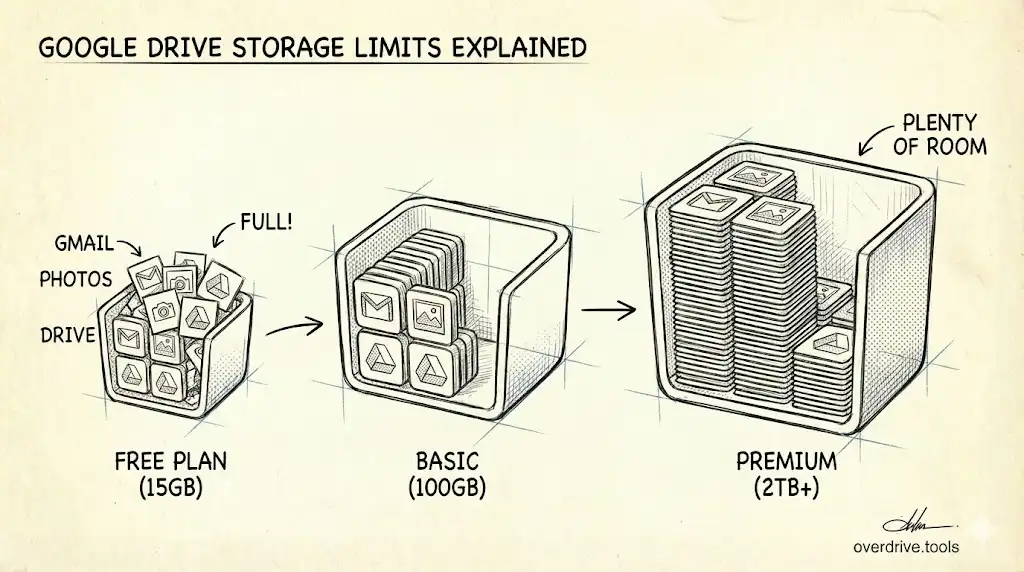
Every Google Account comes with free storage, 5 GB by default since May 2026, or up to 15 GB once a phone number is verified on the account, and that allowance is shared across Gmail, Google Drive, and Google Photos simultaneously. That's one pool, not three. And if you've ever been surprised by a "storage full" warning without uploading much to Drive, there's a good chance Gmail is the culprit.
The Shared Pool Explained
Google's shared storage model means every email you receive, every attachment you send, and every file sitting in your Spam or Trash folder is drawing from the same reserve that your Drive files and Photos backups use.
For many people, Gmail turns out to be the biggest consumer of that pool — not because individual emails are large, but because years of accumulated messages and attachments add up quietly in the background. A decade of email receipts, project files, photo attachments, and PDFs can easily consume several gigabytes without anyone noticing until space suddenly runs out.
What Gmail Actually Counts Against Your Storage
Understanding what does and doesn't count makes a real difference when you're trying to diagnose why your storage is full.
What counts:
Everything in your Gmail inbox counts — including messages in Spam and Trash. Many people assume that deleting an email removes it immediately, but items in Trash continue to count against your quota for 30 days, until they're permanently deleted. Spam is the same: it sits there consuming storage until it's purged.
Attachments count too, and in a way that surprises most people. When you send an email with an attachment, that attachment counts once in your Sent folder. When the recipient receives it, it counts again in their inbox. If you're both on the same Google account (or if you email yourself), you're effectively storing the same file twice.
What doesn't count:
Google Docs, Sheets, Slides, Forms, and other native Google formats do not count against your storage quota, regardless of how many you create. This is an important distinction — a 50-page Google Doc takes up zero storage, while a 50-page Word document uploaded to Drive does.
Files that have been shared with you also don't count against your storage. If a colleague shares a large folder with you and you add it to your Drive, that storage comes out of their quota, not yours. The same applies to files you can view or edit that you don't own.
How to Check How Much Gmail Is Using
Google doesn't make this immediately obvious, but there are two straightforward ways to check.
Option 1: Google One storage page. Go to one.google.com/storage while signed into your Google account. This shows a breakdown of storage by service — Gmail, Drive, and Photos — so you can see at a glance where your storage is going.
Option 2: The storage bar in Gmail settings. In Gmail on desktop, scroll to the very bottom of any page. You'll see a small text line showing how much of your total quota has been used. Clicking it takes you to the full storage management view.
If Gmail is consuming several gigabytes, it's worth investigating before simply upgrading your storage plan.
Where Gmail Storage Bloat Usually Comes From
Most Gmail storage issues come down to a few predictable sources.
Old attachments are the biggest offender. Marketing emails with image-heavy templates, invoices, scanned documents, project files exchanged over email — these build up over years and can be surprisingly large. A single attachment-heavy email thread from an old project can run into hundreds of megabytes.
Spam and Trash are often overlooked. Many people delete emails without ever emptying the Trash, assuming they're gone. They're not — they're still counting against your quota for another 30 days. The same goes for Spam, which can accumulate rapidly if you receive a lot of it and don't regularly purge it.
Sent mail is another blind spot. Every file you've ever emailed to someone is sitting in your Sent folder, taking up space. Large attachments you sent years ago remain there indefinitely unless you actively delete them.
Freeing Up Gmail Storage
The most direct approach is to search for large attachments and delete emails you no longer need. In Gmail, you can search using has:attachment larger:10M to find emails with attachments over 10 MB. Working through these systematically — especially in Sent mail — can reclaim significant space.
After deleting, remember to empty Trash and Spam. Those emails won't be permanently removed (or stop counting against your quota) until those folders are cleared.
If your storage situation is more complicated — a mix of Drive clutter, large files, and Gmail buildup — it helps to see the full picture before deciding what to address first. Overdrive can scan your Drive and show you exactly what's taking up space, broken down by file type, size, and age, so you can make targeted decisions rather than deleting things at random.
When Upgrading Storage Makes Sense
Cleaning up Gmail can recover meaningful space, but it's not always the right answer. If you're a heavy Gmail user who regularly receives large files, runs a business through email, or archives everything as a matter of professional practice, you may simply need more space.
Google One plans start at 100 GB for $1.99/month and 2 TB for $9.99/month. For most individuals, 100 GB is more than enough. For teams or businesses, the 2 TB option is worth considering — especially since a Google One membership covers all three services and can be shared with up to five family members.
That said, it's worth cleaning first. Upgrading storage without addressing the underlying buildup just delays the problem.
The Bigger Picture
Gmail's role in your Google storage is easy to underestimate because email feels lightweight. But years of attachments, threads, and forgotten Spam folders can quietly consume a substantial portion of your allowance without any single obvious cause. Knowing what counts (and what doesn't) gives you the information to actually manage it — rather than just buying more space and hoping for the best.
Related Articles
- Google Drive Storage Limit Explained: Free, Paid Plans & What Counts
- How to Find Large Files in Google Drive (4 Methods)
- What Happens to Shared Files When You Delete Your Google Account