How to Find Large Files in Google Drive (4 Methods)
Find what's eating your Google Drive storage. Four ways to locate large files—scanning your entire Drive, Storage Manager, Google One view, and folder sorting—plus what to do with big files.
Overdrive Team//7 min read
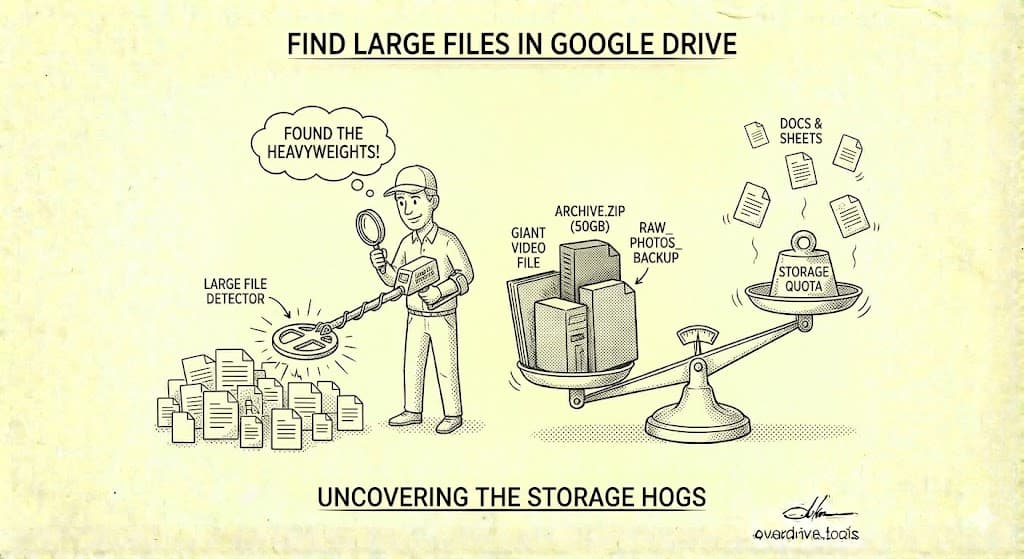
The fastest way to find large files in Google Drive is scanning your entire Drive at once with a tool like Overdrive—it shows all files sorted by size in about two minutes. Alternatively, use Google's built-in Storage Manager at drive.google.com/settings/storage, or check one.google.com/storage for a breakdown by service (Drive, Gmail, Photos). Google Drive's search doesn't support "larger than" filters, so these tools are your best options.
Large files are usually the fastest path to freeing storage. Deleting one 500 MB video reclaims more space than deleting 500 tiny documents. This guide shows you how to find your largest files and decide what to do with them.
Method 1: Scan Your Entire Drive (Fastest)
The quickest way to find large files is scanning everything at once.
Overdrive scans your entire Google Drive in about two minutes and shows all files sorted by size—plus duplicates, old files, and hidden storage consumers. You get a complete picture rather than checking multiple tools separately. The scan is free.
This catches things Google's built-in tools miss: files across all folders, duplicates that are wasting space alongside large files, and storage patterns you wouldn't spot manually.
Method 2: Storage Manager
Google's built-in Storage Manager shows your largest files.
Step-by-Step
- Go to drive.google.com/settings/storage
- You'll see a list of your largest files
- Files are sorted by size (largest first)
- Click any file to see details or open it
- Select files and click the trash icon to delete
What You'll See
The Storage Manager shows:
- File name and type
- File size
- Location (folder path)
- Last modified date
You can scroll through the list to see progressively smaller files.
Limitations
- Only shows files in Google Drive (not Gmail or Photos)
- Doesn't show files in Shared Drives
- Limited filtering options
- Can't search within results
Method 3: Google One Storage View
For a complete picture of what's using your Google storage.
Step-by-Step
- Go to one.google.com/storage
- See total storage used and breakdown by service
- Click on a service (Drive, Gmail, or Photos) to manage it
- For Drive, you'll be taken to the Storage Manager
- For Gmail, you'll see options to delete large attachments
- For Photos, you'll go to quota management
Why This Matters
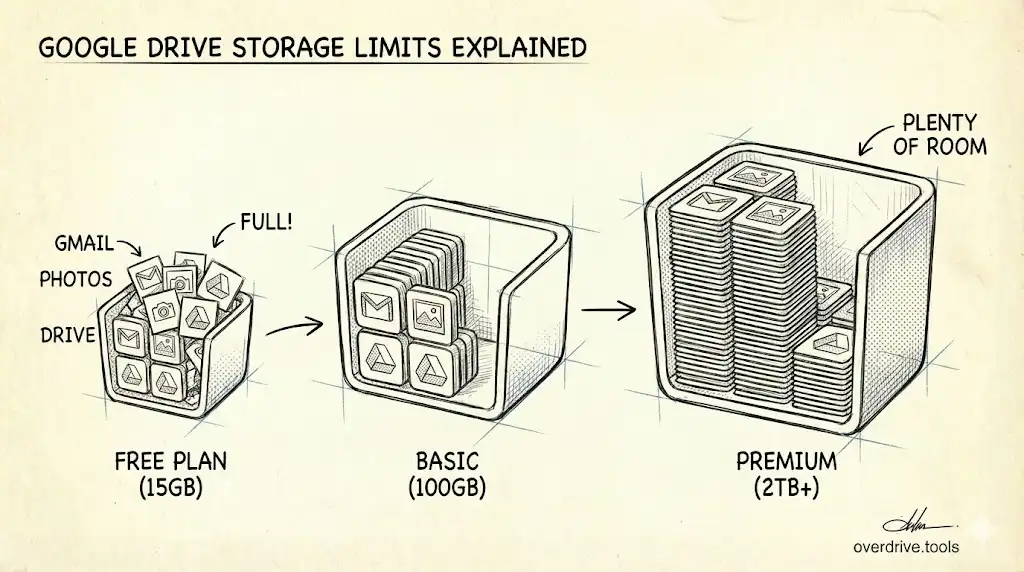
Your 15 GB is shared across Drive, Gmail, and Photos. You might think Drive is the problem when actually:
- Gmail attachments are using 8 GB
- Google Photos has 5 GB of videos
- Drive files are only 2 GB
Start here to identify which service needs attention.
Method 4: List View Sorting
For finding large files within a specific folder.
Step-by-Step
- Navigate to the folder you want to check
- Click the view toggle (top right) to switch to List view
- Click the "Storage used" column header to sort by size
- Largest files appear at the top (or bottom—click again to reverse)
Best For
- Checking specific project folders
- Finding large files within organized folder structures
- Comparing file sizes within a category
Limitations
- Only works folder by folder
- Doesn't aggregate across your entire Drive
- Google Docs/Sheets/Slides may not show accurate sizes in list view
What to Do With Large Files
Finding large files is step one. Step two is deciding what to do with them.
Decision Framework
| File Type | Keep If... | Delete If... |
|---|---|---|
| Videos | You'll watch again, can't find elsewhere | Watched once, available on streaming/YouTube |
| Photos (original) | Important memories, professional work | Duplicates, blurry, screenshots |
| Downloads | Still needed for reference | One-time use, can re-download |
| Backups | Only current backup you have | Old backups, duplicates of local files |
| Project files | Active project, no local copy | Project finished, have local backup |
| Audio | Your own recordings, important | Downloaded music (re-downloadable) |
Options Beyond Deletion
You don't have to delete everything. Consider:
1. Download then delete
- Download important large files to local storage
- Delete from Drive to free cloud space
- Keep local backup on external drive
2. Compress files
- ZIP large folders before archiving
- Compress videos to smaller formats
- Use Google Photos "Storage saver" quality
3. Move to alternative storage
- Move old files to cheaper cloud storage
- Use external hard drives for archives
- Keep Drive for active files only
4. Share ownership
- If a large file should belong to someone else, transfer ownership
- Their storage will be used instead of yours
Large Files by Type
Different file types have different considerations.
Videos
Videos are usually the largest files in any Drive. A single 4K video can be several gigabytes.
Finding videos:
- In Storage Manager, videos typically appear at the top
- They're marked with video icons
- Common formats: .mp4, .mov, .avi, .mkv
What to do:
- Delete videos you've watched and won't rewatch
- Download irreplaceable videos to local storage before deleting
- Consider if the video exists elsewhere (YouTube, streaming service)
- Compress videos if you need to keep them in Drive
Photos (Original Quality)
High-resolution photos, especially RAW files from cameras, consume significant storage.
Finding photos:
- Check Google Photos storage at photos.google.com/quotamanagement
- Look for .raw, .cr2, .nef, .dng files
- Large .jpg and .png files (10+ MB each)
What to do:
- Convert to "Storage saver" quality (compressed, still good quality)
- Delete duplicates, screenshots, blurry photos
- Keep RAW files locally, upload compressed versions
Zip/Archive Files
Compressed archives often sit forgotten after their contents were extracted.
What to do:
- If you extracted the contents, delete the archive
- If you haven't extracted, check what's inside before deleting
- Old backup archives are often safe to remove
Audio Files
Music libraries and podcast downloads add up.
What to do:
- Downloaded music is usually re-downloadable—consider deleting
- Your own recordings may be irreplaceable—keep or backup locally
- Old podcast episodes can likely be deleted
PDF Documents
PDFs are usually small, but scanned documents with images can be large.
What to do:
- Large PDFs are often old and rarely accessed
- Consider if you can re-download or re-scan if needed
- Compress PDFs using online tools if keeping
Application Data
Some apps store large files in Drive—backups, exports, cache files.
Finding hidden app data:
- Go to Drive Settings → Manage apps
- Check storage used by each connected app
- Delete data from apps you no longer use
For more on this, see Hidden App Data Is Eating Your Google Drive Storage.
Gmail Attachments
Large Gmail attachments count against your storage quota. The Storage Manager focuses on Drive, but Gmail often holds significant storage.
Finding Large Attachments
In Gmail, search:
has:attachment larger:10MB
This shows emails with attachments over 10 MB.
For more aggressive cleanup:
has:attachment larger:5MB older_than:1y
This finds attachments over 5 MB that are more than a year old.
Deleting Email to Free Space
When you delete an email, its attachments are also deleted, freeing storage. Remember to empty Gmail's Trash afterward—deleted emails still count until permanently removed.
Google Photos Storage
Photos and videos in Google Photos count against your quota since June 2021.
Managing Photo Storage
- Go to photos.google.com/quotamanagement
- Review "Large photos and videos"
- Review "Blurry photos" and "Screenshots"
- Delete what you don't need
- Consider "Recover storage" to compress existing photos
Storage Saver Quality
If you switch to "Storage saver" quality for uploads, photos are compressed (but still good quality for most uses). You can also compress existing original-quality photos to reclaim space.
Periodic Storage Audits
For ongoing storage management, check in periodically.
Quarterly Review
Every few months:
- Check one.google.com/storage for total usage
- Review Storage Manager for new large files
- Search Gmail for large attachments
- Clean up what you don't need
Building this habit prevents storage from creeping up on you.
Frequently Asked Questions
Why can't I search for files larger than a certain size?
Google Drive's search bar doesn't support size filters like Gmail does. You can search larger:10MB in Gmail, but not in Drive. Use the Storage Manager instead—it's designed for exactly this purpose.
Do Google Docs/Sheets/Slides show accurate sizes?
In list view, Google Workspace files may show small or inconsistent sizes. The actual storage they consume (for files created/edited after June 2021) isn't always reflected in the displayed size. Use Storage Manager for accurate storage impact.
Why do some large files not appear in Storage Manager?
Storage Manager only shows files you own. Files shared with you (but owned by others) don't appear because they don't count against your storage. Shared Drive files also don't appear in your personal Storage Manager.
Can I find large files in Shared Drives?
Storage Manager doesn't include Shared Drives. To find large files in a Shared Drive:
- Open the Shared Drive
- Switch to List view
- Sort by "Storage used"
- This only works within one Shared Drive at a time
How much space will I actually free by deleting a file?
The full file size—eventually. After deletion, files go to Trash and still count for up to 30 days. Empty your Trash to immediately reclaim the space.
What's the largest file I can store in Google Drive?
Individual files can be up to 5 TB (if you have enough storage quota). Most file types have a 5 TB limit, though some have lower limits (e.g., Google Docs converted from other formats have limits on source file size).
Keep Reading
- The Ultimate Google Drive Storage Cleanup Guide — Complete storage cleanup process
- How to Find and Delete Duplicate Files in Google Drive — Duplicates waste as much space as large files
- Why Is My Google Drive Full But Empty? — When large files aren't the problem