Deleting Your Google Account? Here's What Happens to Your Shared Files
If you delete your Google account, files you've shared don't just disappear for others — but what happens depends on where they're stored. Here's what to know first.
Overdrive Team//6 min read
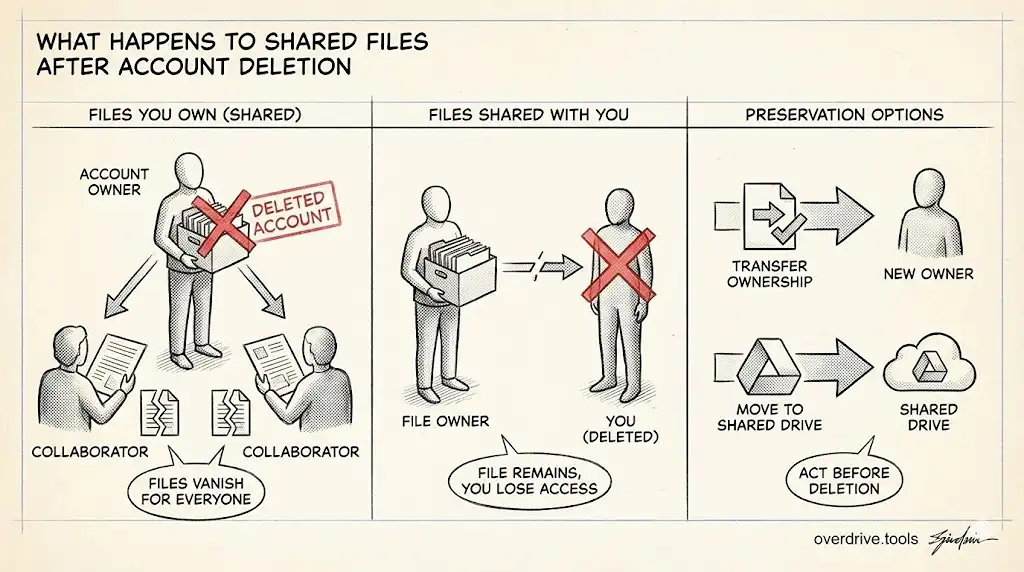
Short answer: If you own a file and delete your Google account, that file is deleted for everyone. If someone else owns a file shared with you and your account is deleted, nothing happens to the file—you just lose access.
The distinction between "files you own" and "files shared with you" is critical. Let's break down exactly what happens in each scenario.
Files You Own (That You've Shared With Others)
When you delete your Google account, every file you own is deleted. This includes:
- Files in your My Drive
- Files in your Trash
- Files you created and shared with others
- Files you uploaded to shared folders (you still own these)
- Google Docs, Sheets, and Slides you created
What collaborators see: When someone tries to open a file you owned, they'll see a message that the file is in the owner's Trash (briefly) and then that it no longer exists. The file disappears from their Shared with Me, though they might still have old links that now lead nowhere.
Critical point: Sharing a file doesn't transfer ownership. Even if 50 people have edit access to your document, you're still the owner. Delete your account, and the document vanishes for all 50 people.
Files Shared With You (That Others Own)
If someone else owns a file and shares it with you, deleting your account has zero effect on that file. You lose access, but the file continues to exist exactly as before for everyone else.
From the file owner's perspective, nothing changes except that you're no longer listed as a collaborator.
Files in Shared Folders: It's Complicated
Here's where things get confusing. Folder sharing and file ownership work independently in Google Drive.
Scenario 1: You create a folder and share it with others. Someone else adds a file to your folder.
- You own the folder
- They own the file they added
- If you delete your account: the folder disappears, but their file becomes "orphaned" (it still exists in their Drive, just without a parent folder)
Scenario 2: Someone else owns a folder and shares it with you. You add a file to their folder.
- They own the folder
- You own the file you added
- If you delete your account: the folder remains, but your file is deleted from it
Scenario 3: Someone else owns a folder. You add a file and then transfer ownership of that file to them.
- They own both the folder and the file
- If you delete your account: nothing happens to the folder or file
The practical takeaway: location in a folder doesn't determine ownership. The person who created or uploaded a file owns it, regardless of where it lives.
Files in Shared Drives (Google Workspace)
Shared Drives work differently. Files in a Shared Drive are owned by the organization, not individual users.
If your Workspace account is deleted:
- Files you added to Shared Drives remain exactly where they are
- Your editing history is preserved
- Other team members retain full access
This is precisely why organizations should use Shared Drives for team content—it eliminates the ownership problem entirely.
What Happens During the 20-Day Grace Period
When a Google account is deleted, there's typically a brief window where the data still exists internally. During this period:
Personal accounts: Google's account recovery process may be able to restore the account, which would restore the files. This window is approximately 2-3 weeks, but Google doesn't guarantee it.
Google Workspace accounts: Admins can restore a deleted user's account within 20 days. After that, all data is permanently erased.
If you've deleted an account and immediately realize you've lost important shared files, try the account recovery process quickly.
Before You Delete: How to Preserve Shared Work
If you're planning to delete your Google account but want to preserve files you've shared with others, you have a few options:
Option 1: Transfer Ownership
For each file you want to preserve, transfer ownership to someone else:
- Right-click the file → Share
- Click the dropdown next to the person's name
- Select "Transfer ownership"
The new owner must have a Google account and must accept the transfer. Once transferred, the file belongs to them—deleting your account won't affect it.
Limitation: You can only transfer ownership to someone within your organization (for Workspace accounts) or to another personal account (for consumer accounts). Cross-organization transfers aren't possible.
Option 2: Have Collaborators Make Copies
Ask people who need the file to make their own copy:
- They open the file
- File → Make a copy
This creates a new file that they own. The downside: it's a separate file, so any future edits won't sync. Also, comments and version history don't transfer to the copy.
Option 3: Download and Re-upload
Download the file, share it with the intended new owner, and have them upload it to their own Drive. This is clunky but works when direct ownership transfer isn't possible.
Option 4: Move to a Shared Drive
If you're in a Google Workspace organization, move the file to a Shared Drive before your account is deleted. Once in a Shared Drive, the file is owned by the organization and will persist regardless of what happens to individual accounts.
What About Links?
Shared links continue to exist briefly after account deletion, but they lead to an error page. Any bookmarks, embedded links in documents, or saved URLs become broken.
If preserving link continuity matters (for example, a document linked from a public website), transfer ownership before deletion. The URL stays the same when ownership transfers.
Google Photos Complications
If you've shared Google Photos albums with others, those albums are deleted when your account is deleted. This catches people off guard—shared family photo albums disappear if the album creator deletes their account.
The only way to preserve shared photo albums is for album members to download the photos before the account is deleted. Google doesn't offer a way to transfer album ownership.
Practical Scenarios
You're leaving a company and want colleagues to keep your work: Transfer ownership of critical files to your manager or team members before your last day. Or better, move files to Shared Drives. If you're a Workspace admin, see our guide on auditing Google Drive when an employee leaves.
You're deleting a personal account but share files with family: Transfer ownership of shared files to family members, or have them make copies. Remember that Google Photos albums will be deleted—download those first.
Someone who shared files with you deleted their account: Unfortunately, if the files are gone, they're gone. You might have cached versions in your browser, or if you downloaded the files previously, you still have those copies. But the cloud versions are unrecoverable.
Audit Before You Delete
Before deleting any Google account, audit what you own and who has access. This is harder than it sounds—you might not remember every file you've shared over the years.
Search your Drive for:
is:owner- shows all files you ownis:shared-by-me- shows everything you've explicitly shared
Review the results and decide what needs to be transferred, copied, or can be safely deleted.
Tools like Overdrive can scan your entire Drive and show you what's shared with whom, making it easier to identify files that need attention before account deletion.
The Bottom Line
- You own it + you delete your account = file is gone for everyone
- Someone else owns it + you delete your account = file is fine, you just lose access
- Transfer ownership or move to Shared Drives before deletion to preserve important work
File ownership is permanent until explicitly transferred. Plan accordingly before deleting any Google account.