Google Drive Keyboard Shortcuts That Actually Save Time
The essential Google Drive keyboard shortcuts for navigation, file management, and creating new documents—updated for 2024's new shortcut system.
Overdrive Team//3 min read
Show all shortcuts: Press Ctrl + / (Windows/Chrome OS) or Cmd + / (Mac) while in Google Drive.
Google updated their keyboard shortcuts in 2024 to enable first-letter navigation (typing a letter jumps to files starting with that letter). Some shortcuts now require a modifier key combination first, then a second key.
Essential Shortcuts Everyone Should Know
| Action | Windows/Chrome OS | Mac |
|---|---|---|
| Search your Drive | / | / |
| Select all visible items | Ctrl + A | Cmd + A |
| Open selected file | Enter | Enter |
| Open in new tab | Ctrl + Enter | Cmd + Enter |
| Preview file | Ctrl + Alt + P | Cmd + Option + P |
| Rename | F2 | F2 |
| Share | Ctrl + Alt + A | Cmd + Option + A |
| Move to folder | Ctrl + Alt + M | Cmd + Option + M |
| Delete | Delete or # | Delete or # |
| Undo | Ctrl + Z | Cmd + Z |
Creating New Items
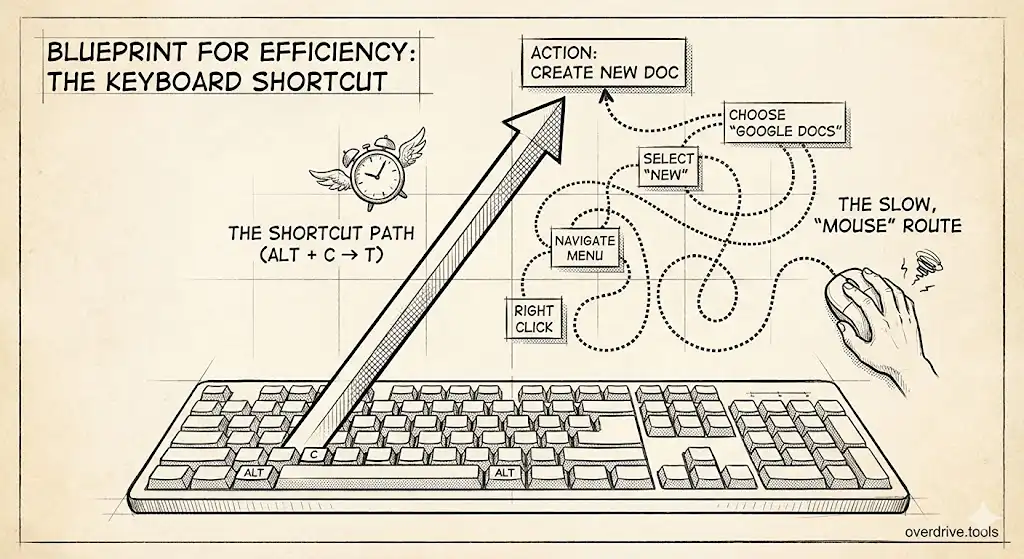
First press the create modifier, then the item key:
| Action | Windows/Chrome OS | Mac |
|---|---|---|
| New Document | Alt + C, then T | Ctrl + C, then T |
| New Spreadsheet | Alt + C, then S | Ctrl + C, then S |
| New Presentation | Alt + C, then P | Ctrl + C, then P |
| New Folder | Alt + C, then F | Ctrl + C, then F |
| New Form | Alt + C, then O | Ctrl + C, then O |
| New Drawing | Alt + C, then D | Ctrl + C, then D |
| Upload file | Alt + C, then U | Ctrl + C, then U |
| Upload folder | Alt + C, then I | Ctrl + C, then I |
Note: Release the first key combination before pressing the second key.
Navigation Shortcuts
These use the "go to" modifier:
| Action | Windows/Chrome OS | Mac |
|---|---|---|
| Go to file list | Alt + G, then I | Option + G, then I |
| Go to folders panel | Alt + G, then N | Option + G, then N |
| Go to details pane | Alt + G, then D | Option + G, then D |
View Options
These use the "view" modifier:
| Action | Windows/Chrome OS | Mac |
|---|---|---|
| Toggle list/grid view | Alt + V, then L | Option + V, then L |
| Show/hide details pane | Alt + V, then D | Option + V, then D |
| Show/hide activity pane | Alt + V, then A | Option + V, then A |
Selection Shortcuts
| Action | Windows/Chrome OS | Mac |
|---|---|---|
| Select/deselect item | Shift + Space | Shift + Space |
| Extend selection down | Shift + ↓ | Shift + ↓ |
| Extend selection up | Shift + ↑ | Shift + ↑ |
| Clear selection | Esc | Esc |
First-Letter Navigation (New in 2024)
When in the file list, simply type the first letter(s) of a file name to jump to it. Press the same letter again to move to the next file starting with that letter.
This is why Google changed the old single-letter shortcuts—they now require modifier keys to avoid conflict with first-letter navigation.
File Actions
| Action | Windows/Chrome OS | Mac |
|---|---|---|
| Star/unstar file | Ctrl + Alt + S | Cmd + Option + S |
| Create shortcut | Ctrl + Alt + R | Cmd + Option + R |
| Copy file URL to clipboard | Ctrl + Alt + L | Cmd + Option + L |
| Copy file title to clipboard | Ctrl + Shift + C | Cmd + Shift + C |
Context Menu
| Action | Windows/Chrome OS | Mac |
|---|---|---|
| Open actions menu | Shift + F10 or Alt + A | Shift + F10 or Ctrl + A |
| Open folder actions | Alt + Shift + A | Ctrl + Shift + A |
Tips for Learning Shortcuts
- Start with search — / is the most useful shortcut. Use it constantly.
- Learn create shortcuts — Alt + C (or Ctrl + C on Mac) followed by T for Doc, S for Sheet is faster than clicking.
- Use preview — Ctrl + Alt + P lets you quickly view files without fully opening them.
- Master selection — Shift + Space to select, arrow keys to navigate, Shift + arrows to select multiple.
For power users managing large Drives, keyboard shortcuts help—but so does keeping your Drive organized. Overdrive can help identify clutter so there's less to navigate through in the first place.
Related Guides
- How to Search Within a Specific Folder
- How to Add a Shortcut in Google Drive
- How to Copy a Folder in Google Drive