Does Google Drive Delete Old Files Automatically?
Google Drive never deletes files just for being old, but five situations can remove them for you. Here's what triggers deletion and how to stay safe.
Overdrive Team//7 min read
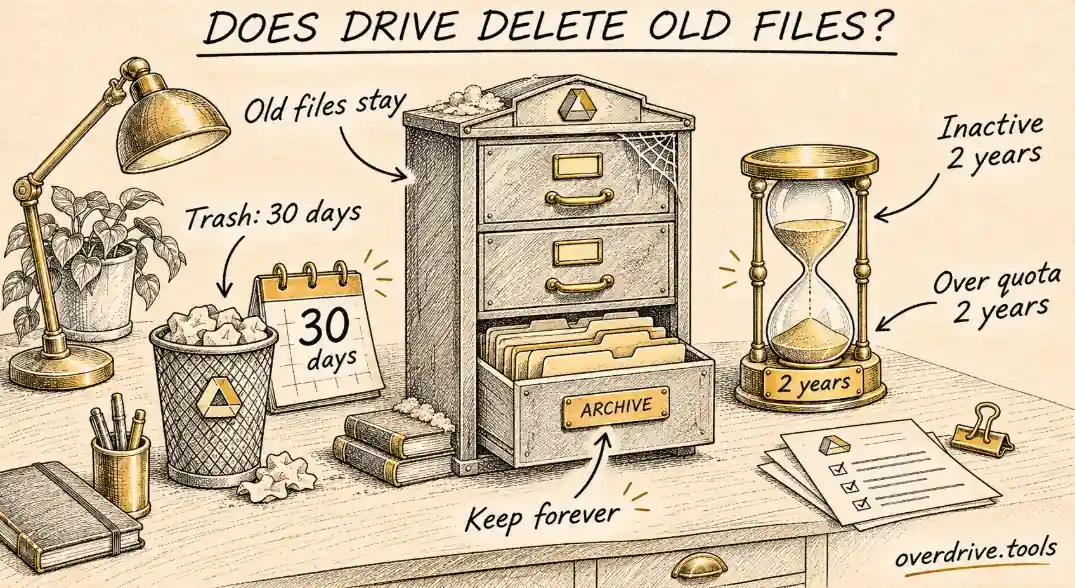
No, Google Drive does not delete files because they're old. A document you uploaded in 2012 and never opened again is just as safe as one you created this morning, as long as your account stays active and within its storage limit.
There are, however, a handful of specific situations where Google, an admin or another person can remove files you assumed were permanent. None of them are about age alone, and almost all of them come with warnings. Here's what each one is, how to tell which applies to you, and what to do about it.
Why this question comes up
People usually ask this after something has gone missing, or before they leave an account alone for a long time. A file that was in a shared folder last year isn't there now. A family member's old account is about to sit untouched. A Google One subscription is about to lapse. Or they've simply read somewhere that Google "cleans up" old data and want to know whether their archive is at risk.
The honest answer is that Drive treats storage as storage. There's no expiry date on a file, no rule that unopened files get purged, and no automatic archiving. What does exist is a set of account-level and sharing-level rules that can remove files as a side effect. Knowing those rules is what keeps an archive safe.
The five situations where files do get deleted
1. Files in the trash, after 30 days
Anything you delete goes to the trash first, and Drive permanently removes items from the trash after 30 days. This is the most common reason people believe Drive "deleted old files": they removed something months ago, forgot, and only noticed once the 30 days had passed. If you're within the window, open Trash in Drive, right-click the file and choose Restore.
2. Accounts inactive for two years
Google's inactive account policy says a personal Google Account that hasn't been used for at least two years can be deleted along with its content, including everything in Drive. Activity counts across Google, so reading email, using Drive, watching YouTube while signed in, using Google Search while signed in or signing in to another app with your Google Account all keep the account active.
Google says it sends emails to the account and to its recovery address before deleting anything. The policy applies to personal accounts, not accounts set up through work, school or another organization. Google also reserves the right to delete data within a single product if you haven't used that product for two years, based on each product's own policy.
3. Accounts over their storage limit for two years
If your account goes over its storage limit, Drive doesn't delete anything straight away. You can still sign in, view, download and delete files, but you can't upload new files, create new Docs, Sheets or Slides, or back up photos, and Gmail may stop sending and receiving. Nobody can edit or copy your affected files until you're back under the limit.
If you stay over the limit for two years or longer, Google may remove content across Gmail, Photos and Drive. Google says it gives at least three months' notice before content becomes eligible for deletion, along with the chance to free up space, buy more storage or download your data.
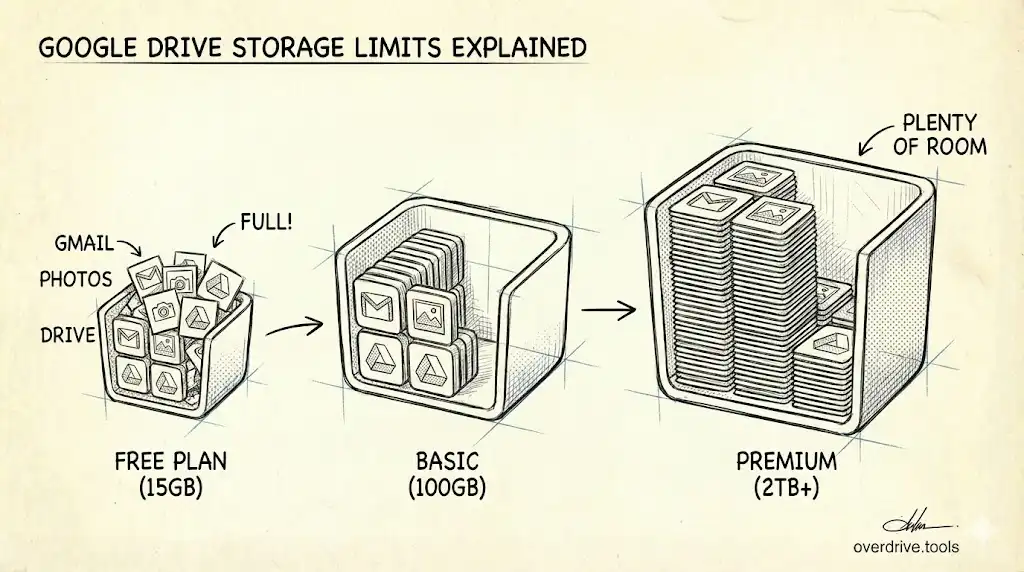
This is the one that catches people whose paid storage ends. If a Google One plan lapses, the account drops back to free storage, which is 5 GB by default and up to 15 GB once you verify a phone number. If you were using more than that, you're over the limit from that day.
4. Old versions of uploaded files
This one is subtle. For files you upload, such as PDFs, images and Office files, Drive keeps earlier versions when you upload a new one. A previous version can be permanently deleted after 30 days or once there are 100 newer versions, unless you mark it "Keep forever" under Manage versions. The current file is never affected, only its older versions.
Google Docs, Sheets and Slides work differently. Their version history doesn't expire on a 30-day timer, though Google notes that revisions can occasionally be merged, so very fine-grained history may not be there forever.
5. Files someone else owns or controls
Files in your "Shared with me" view belong to someone else. If the owner deletes them, moves them somewhere you can't reach, removes your access or has their own account deleted, the files disappear for you. You had access, not ownership.
In Google Workspace there are two more possibilities. Admins can set retention rules in Google Vault that delete content after a set period, and when an admin deletes a user, that user's files are deleted too unless they're transferred to someone else first. A deleted user's files can usually be recovered by an admin for about 20 days.
How to tell which one happened to you
If a file has already gone missing, the cause usually narrows down quickly.
| What you notice | Most likely cause | Where to look |
|---|---|---|
| A file you deleted is gone | 30-day trash window passed | Trash, then contact Google Drive support quickly |
| Shared file vanished from Shared with me | Owner deleted it or removed you | Ask the owner; check their trash |
| Older copies of an uploaded file are missing | 30-day or 100-version limit | Manage versions on that file |
| Many files gone after a job change | Workspace account deleted or retention rule | Your former organization's admin |
| Warning emails about storage or inactivity | Account-level policy | Google One storage page, your inbox |
Protecting files you want to keep for years
Option 1: Know what you're keeping before it becomes a problem
The risk with long-term storage is rarely that Google deletes a file. It's that your Drive slowly fills with years of files you don't need, the account creeps over its limit, and the over-quota rules start applying to everything, including the files you care about.
Overdrive scans your Drive and visualizes it by file type, size and age, so you can see which old files are taking the most space, clear out the ones you don't need, and keep the account comfortably under its limit.
Option 2: Keep the account active
For an account you don't use daily, such as an archive account or one you set up for a family member, sign in at least once a year and do something simple, like opening Drive or reading an email. That alone keeps you well clear of the two-year inactivity rule. Add a recovery email address you actually check, so warnings reach you.
Option 3: Stay under your storage limit
Check your storage regularly, especially before a subscription renewal date. If you plan to cancel paid storage, reduce what you store to below 5 GB first, or 15 GB if your phone number is verified, so the account doesn't go over quota on the day the plan ends.
Option 4: Keep a second copy of anything irreplaceable
No single cloud account should be the only place an irreplaceable file lives. Google Takeout lets you export your Drive, and you can store that export on an external drive or another service. For shared files you rely on, make your own copy with "Make a copy" so your access doesn't depend on someone else keeping theirs.
Common misunderstandings
"Files I haven't opened in years will be archived." Drive has no archive or cold-storage tier. Unopened files stay exactly where they are.
"Shared files count against my storage, so they'll be removed if I'm full." Files in Shared with me only use the owner's storage, never yours, and being over quota doesn't delete anyone else's files.
"Deleting the Drive app deletes my files." Uninstalling the Drive app or Drive for desktop doesn't delete anything in your cloud Drive. Deleting files inside a synced folder on your computer is different, because that deletion syncs to the cloud.
"Google deletes accounts that are inactive in Drive." The main policy is about the whole Google Account. Using any Google service while signed in counts as activity, though Google does reserve the right to apply product-specific inactivity policies.
A simple routine for long-term peace of mind
Once a year, sign in to every Google Account you care about, check that the recovery email is current, look at the storage page and confirm you're under the limit, and empty out what you genuinely don't need. If an account holds family photos, old business records or anything you'd struggle to replace, export a copy with Takeout at the same time. It takes about twenty minutes and covers every deletion scenario above except other people deleting their own files.
The short version
Google Drive never deletes files just because they're old. Files are removed when they've sat in the trash for 30 days, when a personal account has been inactive for two years, when an account has been over its storage limit for two years, when older versions of uploaded files pass the 30-day or 100-version limit, or when someone else who owns or administers the files deletes them. Keep your account active, stay under your storage limit, mark important file versions "Keep forever," and keep a second copy of anything you can't afford to lose.
Related Articles
- How Long Does Google Drive Keep Deleted Files?
- Google Drive Free Storage Limit in 2026: What Changed
- Back Up Google Drive Before Deleting Anything