Are Your Google Drive Files Publicly Searchable?
Most Google Drive files are private by default. But misconfigured sharing settings can make your files findable by anyone online. Here's what to know.
Overdrive Team//6 min read
If you've ever searched online and stumbled across someone's Google Docs or Sheets, you know that Google Drive files can sometimes show up in public search results. The question is: can yours?
The answer depends entirely on how your files are shared. By default, no — your Drive files are private and not indexed by search engines. But one specific sharing setting can change that.
When Google Drive Files Become Publicly Searchable
Google Drive has three levels of general access:
- Restricted — Only people explicitly added to the file can open it. Not searchable.
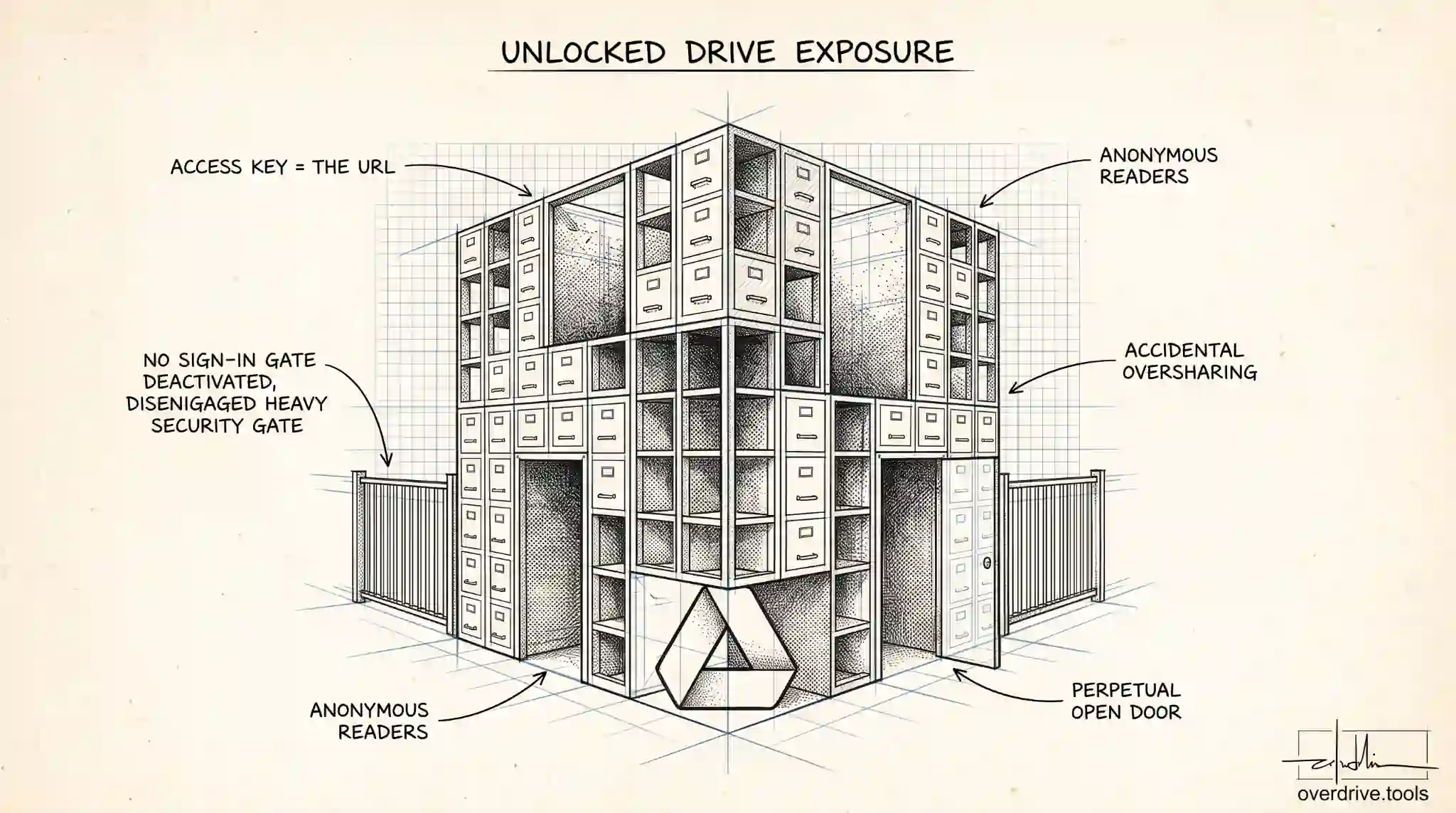
- Anyone with the link — Anyone with the URL can open the file, but it's not indexed by search engines. Not searchable unless someone shares the link publicly.
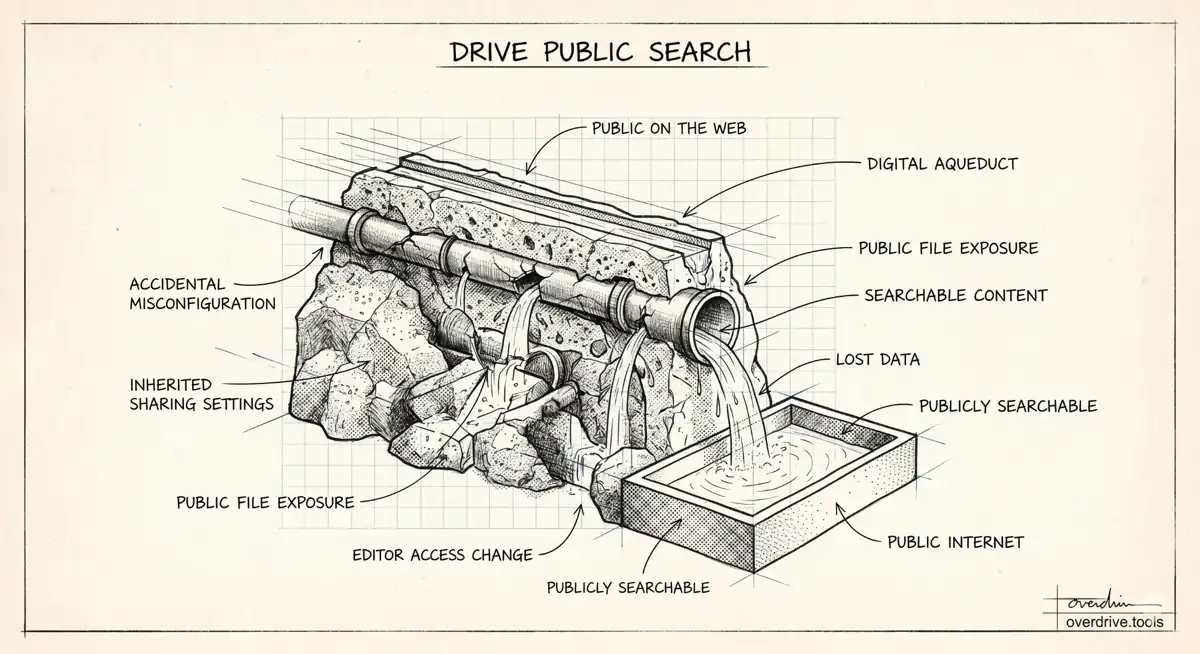
- Public on the web — The file is indexed by Google and other search engines. Anyone can find it through a search. This is the setting that makes files genuinely public and searchable.
The "Public on the web" setting is not the default, and most users never set it intentionally. But it does exist, and if a file has been set to public — by you or by someone else with edit access — it can be found through a search engine.
How Files End Up Publicly Searchable
Intentional publishing. Some users set files to public deliberately — for public-facing documents, resources, or reference material they want anyone to find.
Accidental misconfiguration. The sharing dialog in Google Drive shows "Anyone with the link" as a common option. "Public on the web" is a separate setting, but it's possible to enable it unintentionally, especially in older versions of the sharing interface.
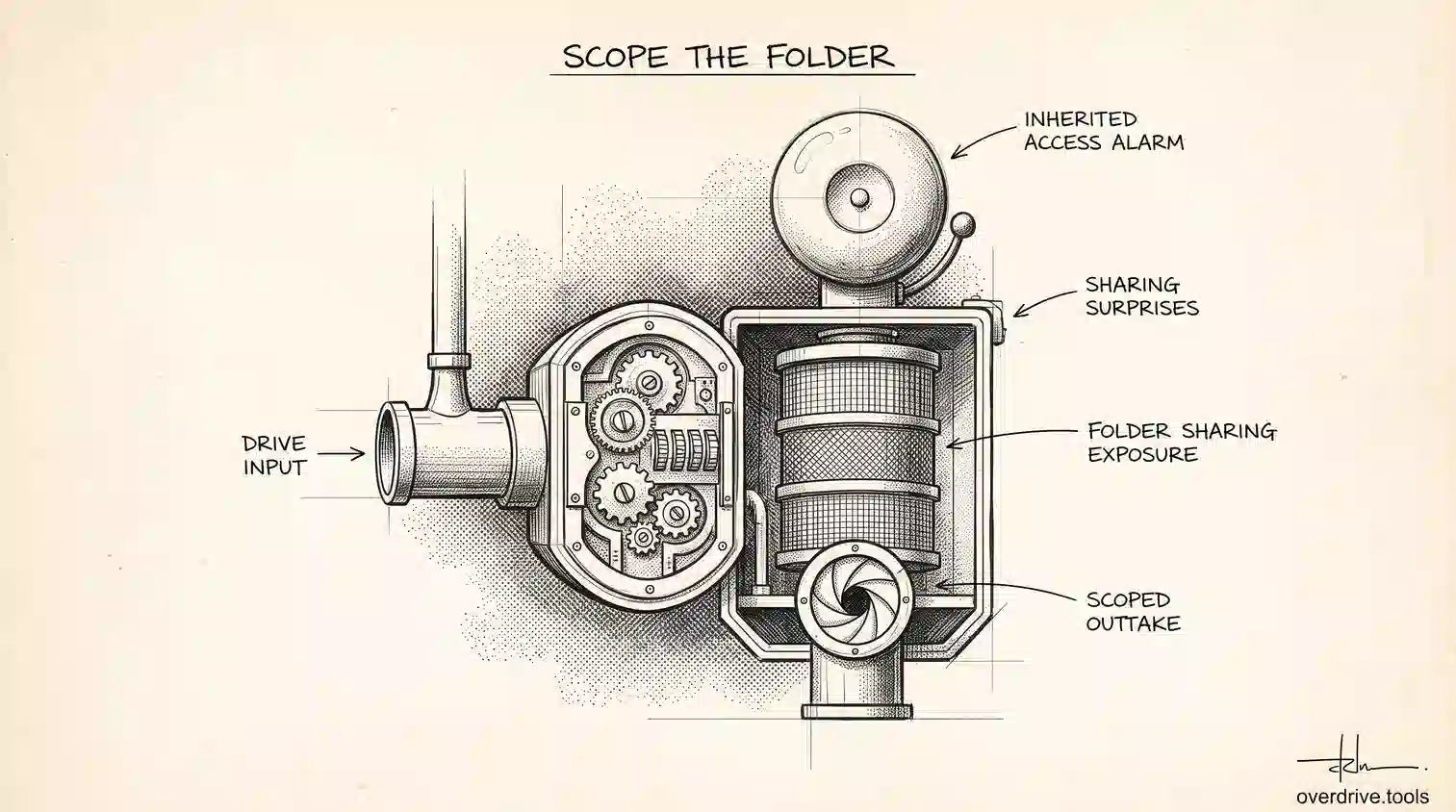
Inherited from a shared folder. If a folder is set to public, all files added to it inherit that setting. A file moved into a public folder becomes publicly searchable without any action on the file itself.
Someone else changed it. If a collaborator with editor access changed the sharing setting on a file you own, your file could be public without you knowing.
How to Check If Your Files Are Publicly Searchable
For any specific file:
- Open Google Drive
- Right-click the file and select Share
- Look at the General access section
- If it says "Public on the web," the file is indexed by search engines
- Change it to Restricted or Anyone with the link to remove it from public search
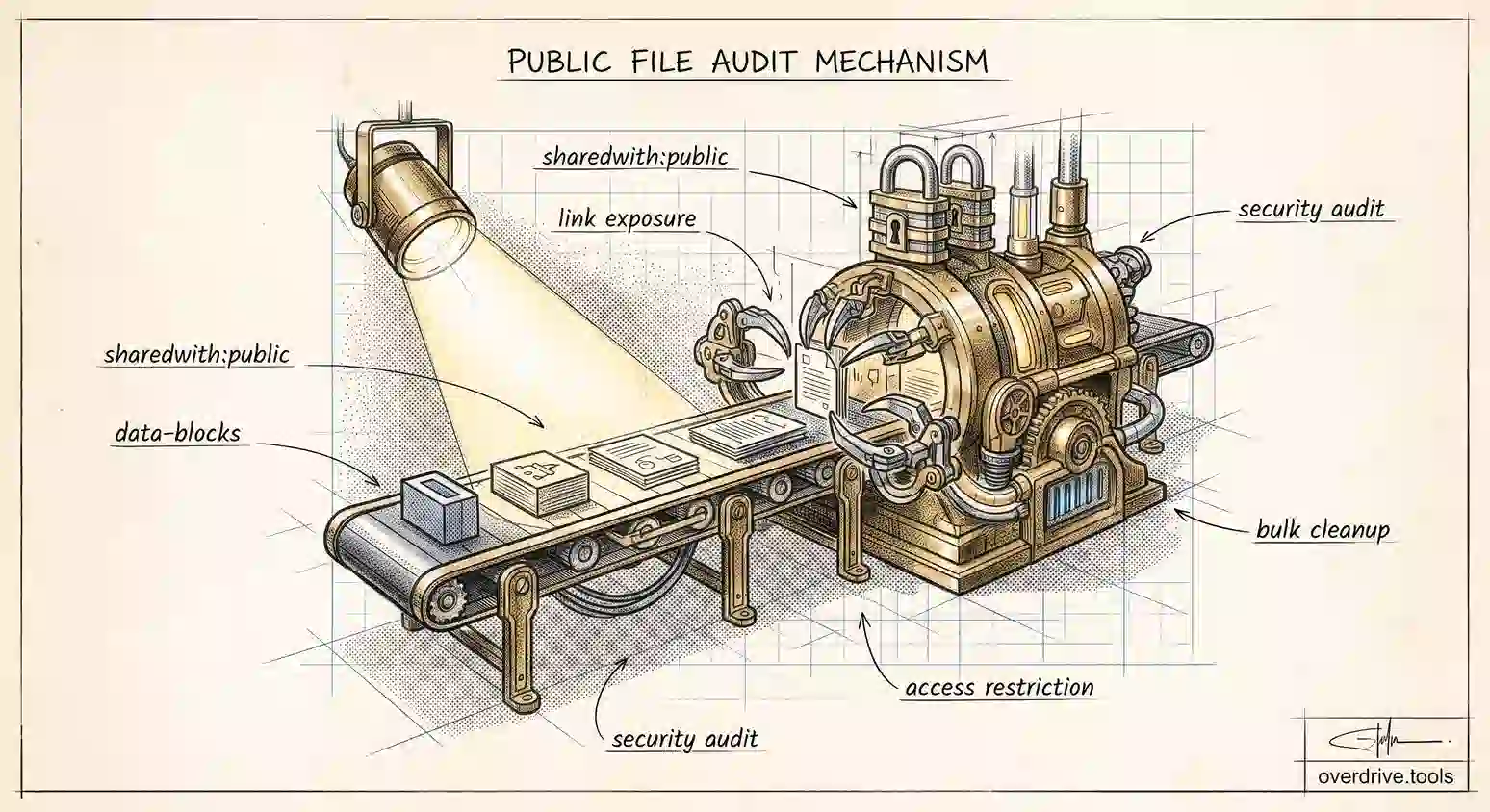
The challenge is doing this across many files at once. Checking file by file isn't practical if you have hundreds of documents. Overdrive scans your entire Drive and surfaces all files with open sharing settings — including any set to public — so you can identify and fix exposure across your whole Drive in one view.
"Anyone With the Link" vs. Public — What's the Difference?
This is worth clarifying because they're often confused:
| Setting | Accessible via direct link | Indexed by search engines |
|---|---|---|
| Restricted | No | No |
| Anyone with the link | Yes | No |
| Public on the web | Yes | Yes |
"Anyone with the link" files are not searchable — they can only be found by someone who already has the URL. Public files, by contrast, can be discovered by anyone running a relevant search query.
If your file contains your name, your business name, specific product details, or any identifiable content, a public file could surface in search results for those terms.
What to Do If You Find a File Set to Public
Change the General Access setting to either Restricted or Anyone with the link, depending on whether you want to keep sharing it. Once changed, search engines will eventually de-index the file — though this can take days to weeks depending on when search engine crawlers next visit the old URL.
If the file contained sensitive information and was public for any period of time, it's worth reviewing whether the content needs to change (for example, if it contained a password, API key, or personal information that may have been cached).
You can also request faster removal through Google's URL removal tool (search.google.com/search-console/remove-outdated-content) if the file is no longer public and you want search engines to stop showing it immediately. This is useful when speed matters — for example, if personal or business-sensitive information was briefly exposed.
How to Prevent Files From Becoming Public Accidentally
A few habits reduce the risk of accidentally publishing Drive files:
Review folder-level sharing before adding files. If you're dropping files into a shared folder, check the folder's sharing settings first. Files inherit the folder's access level, so a public folder makes everything inside it public without any additional action.
Audit your Drive periodically. Sharing settings can accumulate over time — especially if multiple people have edit access on files and folders. A quarterly review of your most sensitive documents keeps things from drifting into unintended or unexpected public access.
Be cautious with editor access. Editors can change sharing settings on files you own, including setting them to public — often without you being notified. If you're sharing editing access on sensitive documents, consider whether you need to restrict sharing permissions so only you (the owner) can change access settings. In the Share dialog → Settings (gear icon), you can turn off "Editors can change permissions and share."
Check new files after importing. When you convert a file from another format (e.g., uploading a Word document and converting it to a Google Doc), the resulting file inherits the folder's settings. If the folder is public, the new file will be too.
What "Anyone With the Link" Files Look Like to Search Engines
There's sometimes concern that "Anyone with the link" files are at risk of being indexed. They're not — Google explicitly does not index files set to "Anyone with the link." The URL must be shared for someone to access the file, and even if a link ends up in a public place (a website, a public forum), Google's crawler does not follow Drive links and index the underlying file unless the file itself is set to public.
The distinction matters because "Anyone with the link" is a practical and widely-used setting for sharing with colleagues, clients, or reviewers without worrying about search exposure. The risk there is human (someone sharing the link who shouldn't) rather than algorithmic.
Frequently Asked Questions
Can Google Drive files show up in image search? Yes, if the file is set to "Public on the web" and contains images — or if it's an image file itself — it can appear in Google Image search results. The same applies to documents that contain photos or screenshots.
Does restricting a file remove it from search results immediately? No. Once a file is restricted, Google will eventually crawl the URL again and stop showing it in search results, but it can take time — anywhere from a few days to several weeks. If urgency matters, use Google's URL removal tool in Search Console to request faster de-indexing.
Can I see all files set to "Public on the web" in one place? Not natively in Google Drive — you'd have to check each file individually. Overdrive scans your entire Drive and flags all files with open access settings including public ones, so you can review and fix them in one place.
If someone bookmarked my public file, can they still access it after I restrict it? No. Restricting the file immediately prevents access for anyone without explicit permission — the bookmark or URL stops working. The file is still de-indexed from search gradually, but the content is inaccessible as soon as you change the sharing setting.
Can files in Shared Drives be set to public? Yes, Shared Drive files can also be set to public, and the same risks apply. Shared Drive admins can configure whether members are allowed to change sharing settings outside the organization, which helps prevent accidental public sharing in team environments. For organizations managing multiple Shared Drives, it's worth reviewing these sharing permissions at the admin level rather than relying on individual members to catch every exposure.
Related Articles
- Can People See My Google Drive?
- How to Remove "Anyone With the Link" in Google Drive
- How to Find Externally Shared Files in Google Drive