Shared Drive Folder Structure: Best Practices for Teams
A good shared drive folder structure keeps team files findable and access simple. Here's how admins design one that scales, and the mistakes to avoid.
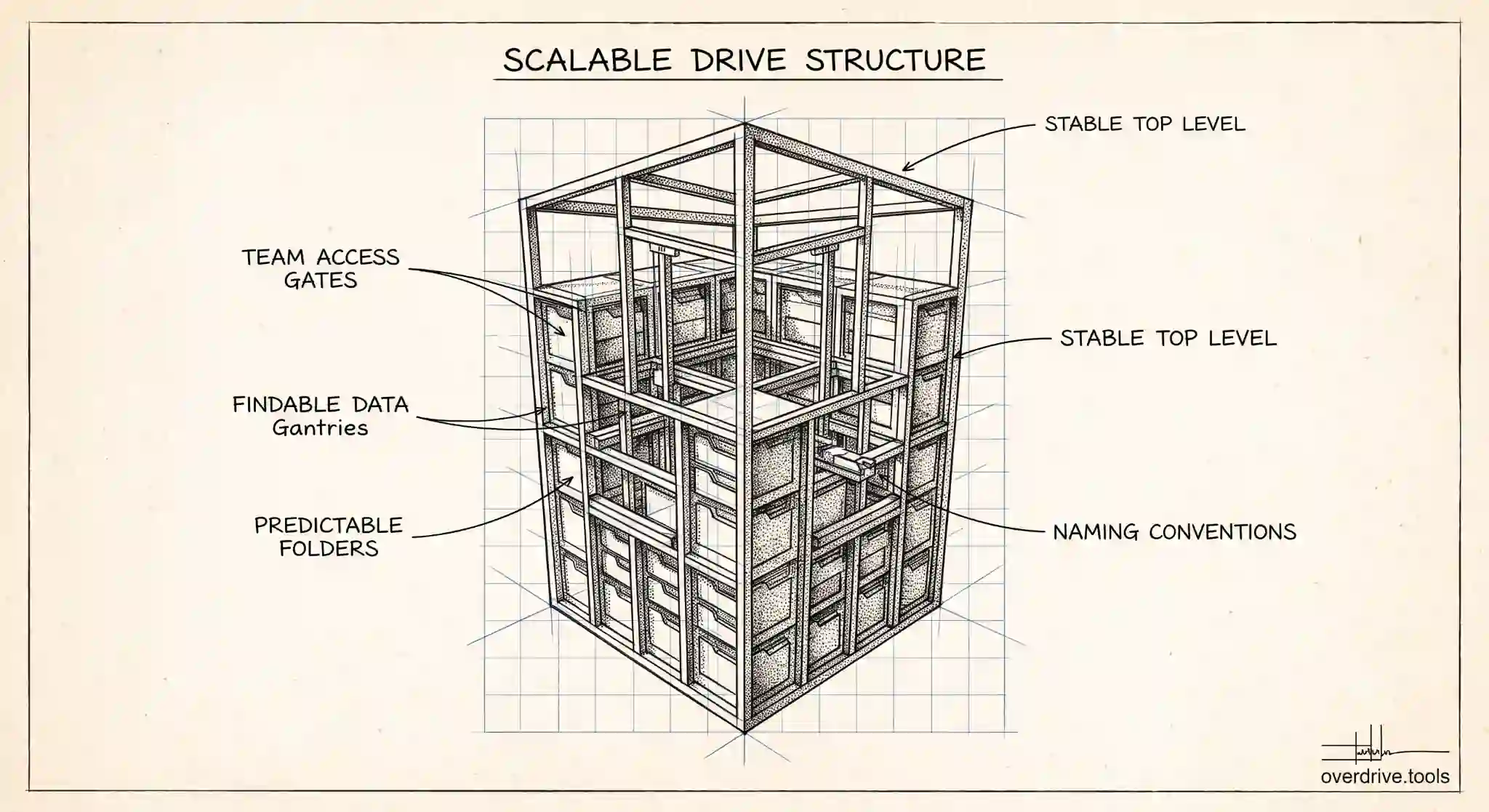
A shared drive's folder structure is not just about tidiness. In a Google Workspace shared drive, the way you organize top-level folders shapes how easy files are to find, how simple access is to manage, and how well the whole thing holds up as the team grows. Get it right and people find what they need without asking. Get it wrong and you end up with duplicate folders, files nobody can locate, and access that's impossible to reason about.
The good news is that a workable structure follows a few clear principles, and they're the same whether you're setting up one shared drive for a small team or standardizing dozens across a large organization. Here's how to design a shared drive folder structure that scales, and the specific pitfalls that trip teams up.
Start with how the team actually works
The most common structural mistake is organizing a shared drive around the org chart when people actually work by project, or around projects when people actually work by function. Before creating a single folder, decide what the primary way of finding things will be for this particular team. For a client services team, that's usually by client. For a product team, by product or initiative. For an operations team, by function or process.
Pick one primary axis and make it the top level. Trying to serve every possible way of slicing the files at the top level is what produces sprawling, overlapping structures. A clear primary axis, even an imperfect one, beats a structure that tries to be everything and ends up navigable by no one.
It's also worth deciding, at the organization level, whether you want one big shared drive with many top-level folders or several smaller shared drives. Because access and some limits apply at the shared drive level, splitting by team or major function into separate shared drives is often cleaner than one enormous drive, and it keeps each drive's membership and structure comprehensible.
Keep the top level short and stable
The top level of a shared drive should be short, meaningful, and rarely changing. Aim for a small number of clearly named top-level folders that represent the big, stable categories of the team's work. If your top level has thirty folders, most people will scroll past what they need, and the structure has failed at its main job.
Under those top-level folders, use a consistent second level. If each client folder contains the same set of subfolders, such as contracts, deliverables, and working files, then anyone can navigate any client folder without relearning it. Consistency at the second level is what makes a structure predictable, and predictability is what makes files findable without a search.
Resist deep nesting. While a shared drive technically allows folders nested up to 100 levels deep, anything beyond three or four levels in daily use becomes a place files go to disappear. If you find yourself burying files five or six folders down, that's usually a sign the top-level categories are wrong, not that you need more depth.
Name folders so they sort and scan well
Naming conventions do a lot of quiet work. Consistent names make folders sort predictably and scan quickly, and they prevent the near-duplicate folders that appear when different people name the same thing differently. A shared drive with folders called Clients, Client Files, and Client Docs, all holding overlapping material, is the natural result of no naming convention.
Agree on a simple, documented pattern and apply it. For date-based folders, lead with the year in a sortable format so they order chronologically. For client or project folders, use a consistent form of the name so there's one obvious place for each. Put the words people will actually scan for at the front of the folder name, since that's what the eye and the search both catch first. The exact convention matters less than having one and sticking to it.
Design the structure around access, not just findability
In a shared drive, structure and access are linked, and ignoring that link creates security problems. Access in a shared drive is granted at the drive level and, with more recent capabilities, can be limited on specific folders, but as a rule everyone with access to a shared drive can see its contents. That means sensitive material shouldn't simply live in a subfolder of a widely shared drive and rely on people not noticing it.
The cleaner pattern is to separate by sensitivity at the drive level. Keep material that only a subset of people should see in its own shared drive with a tighter membership, rather than mixing it into a general one. When you design the structure, ask not only "where will people look for this" but also "who should be able to see this," and let both questions shape whether something is a folder in an existing drive or a drive of its own.
Avoid the common failure modes
A few patterns reliably produce shared drive chaos. Personal-style folders in a team drive, named after individuals rather than the work, turn a shared resource into a set of private silos. Everything-in-the-root, where files pile up at the top level instead of in folders, makes a drive unnavigable within weeks. And structure drift, where the original scheme quietly decays because nobody enforces it, undoes even a well-designed layout over time.
The antidote is ownership and a little maintenance. Someone should own the structure of each shared drive, document the intended layout and naming convention, and periodically check that reality still matches the plan.
Keeping that check realistic across many shared drives is where visibility tools help. Google Drive doesn't give admins an easy map of how a shared drive is actually structured or where clutter and duplication are accumulating. Overdrive for Google Workspace connects read-only and visualizes what a Drive actually contains, surfacing duplicate folders, sprawling structures, and files that have drifted from where they belong, so an admin standardizing shared drives can see the real state of each one rather than assuming it still matches the intended design. It reads metadata only, never file contents.
A starting template you can adapt
If you're standardizing shared drives and want a concrete starting point, a common and durable pattern is to split by major function into separate shared drives, then use a short, consistent top level inside each. For a client-facing team, that might mean a shared drive per major area, with each client folder containing the same fixed subfolders such as contracts, deliverables, and working files. For an internal team, it might mean top-level folders by process, each with a consistent second level.
The template itself matters less than two properties: the top level is short and stable, and the second level is identical across siblings. Those two traits are what let anyone navigate a folder they've never opened, because it looks like every other folder of its kind. Adapt the specific names to your team, but keep those two properties fixed.
Migrating a messy drive into a clean structure
Applying a structure to a drive that's already chaotic is its own task, and doing it carelessly can break links and lose files. Start by understanding what's actually there before moving anything, since a drive that's grown organically usually hides duplicates, near-empty folders, and material that belongs in a different drive entirely. Map the existing content to your intended structure first.
Move in stages rather than all at once, and communicate with the team, because moving files in a shared drive changes where collaborators find them. Watch for duplicate folders that should be merged and for deeply nested paths that should be flattened. And once the structure is in place, assign an owner to maintain it, since a freshly organized drive drifts back into disorder without someone keeping the convention alive. A migration is the moment to establish both the structure and the habit of maintaining it. Done once with care, that pairing keeps a shared drive usable for years instead of months, and it spares you the far larger job of rescuing a drive that nobody has maintained since the day it was created.
The short version
A good shared drive folder structure starts from how the team actually finds things, uses a short and stable top level with a consistent second level, avoids deep nesting, and follows a documented naming convention so folders sort and scan cleanly. Because access in a shared drive is tied to the drive itself, design around who should see what, separating sensitive material into its own drive rather than burying it in a subfolder. Then give each shared drive an owner who maintains the structure, so it stays findable and manageable as the team grows.
Related Articles
- Google Drive Folder Structure: A Simple System That Actually Works
- Shared Drive vs My Drive: Key Differences
- How to List All Folders in Google Shared Drives