How to Add a Shortcut in Google Drive (Without Copying)
Learn how to create shortcuts in Google Drive to access files from multiple folders without making copies. Keep one file, reference it from anywhere.
Overdrive Team//2 min read
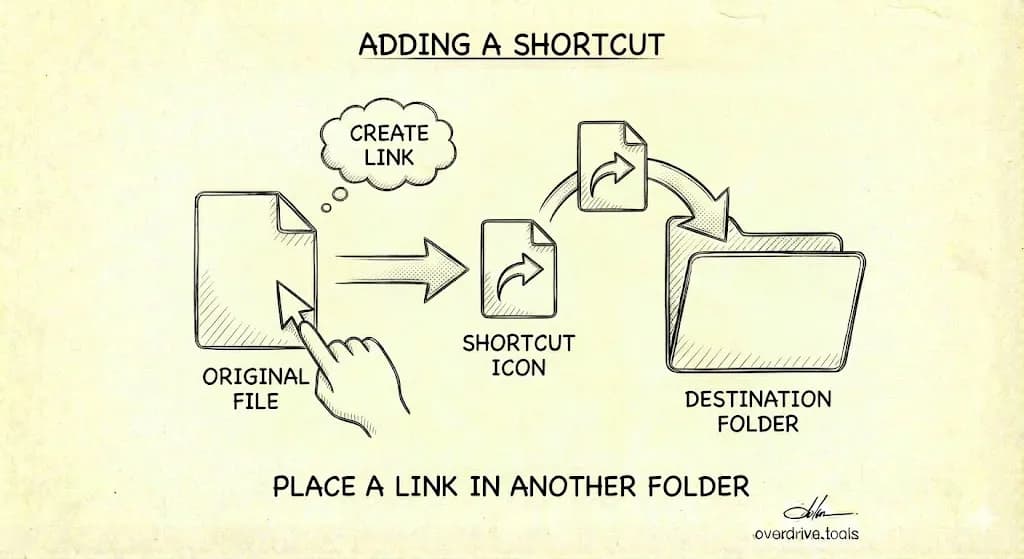
To add a shortcut in Google Drive, right-click any file or folder, select "Organize" → "Add shortcut," choose where you want the shortcut to appear, and click "Add shortcut." The shortcut links to the original file—no duplicate created, no extra storage used.
Add a Shortcut on Desktop
- Go to drive.google.com
- Right-click the file or folder you want to create a shortcut to
- Click "Organize" → "Add shortcut"
- Navigate to the folder where you want the shortcut
- Click "Add shortcut"
The shortcut appears in your chosen location with a small arrow icon overlay.
Keyboard shortcut (Chrome only):
- Select the file and press Ctrl+C (Cmd+C on Mac)
- Navigate to the destination folder
- Press Ctrl+Shift+V (Cmd+Shift+V on Mac) to paste as shortcut
Add a Shortcut on Android
- Open the Google Drive app
- Find the file or folder
- Tap the three dots next to it
- Tap "Add shortcut to Drive"
- Choose the destination folder
- Tap "Add shortcut"
Add a Shortcut on iPhone/iPad
- Open the Google Drive app
- Find the file or folder
- Tap the three dots next to it
- Tap "Add shortcut to Drive"
- Select the destination
- Tap "Add shortcut"
Shortcut vs. Copy: What's the Difference?
| Shortcut | Copy | |
|---|---|---|
| Storage used | None | Full file size |
| Stays in sync | ✅ Always current | ❌ Separate file |
| Edits affect original | ✅ Yes | ❌ No |
| Can exist in multiple folders | ✅ Yes | ✅ Yes |
Use shortcuts when you want one file accessible from multiple places. Use copies when you need independent versions.
Add Shortcuts to Shared Files
You can create shortcuts to files shared with you:
- Go to "Shared with me"
- Right-click the file
- Click "Organize" → "Add shortcut"
- Choose a folder in your My Drive
This keeps the file organized in your Drive without creating a copy (which would use your storage).
Shortcut Limitations
Can't shortcut a shortcut. You can only create shortcuts to original files, not to other shortcuts. You can copy a shortcut, though.
Permissions don't transfer. Creating a shortcut doesn't give you more access. If you only have View permission on the original, you still only have View through the shortcut.
Shortcuts break if the original is deleted. If the owner deletes the original file or removes your access, the shortcut stops working.
500 shortcuts per file. You can create up to 500 shortcuts to a single file yourself. Total limit across all users is 5,000 shortcuts per file.
Can't delete shortcuts in others' folders. If you create a shortcut inside someone else's shared folder, you can't delete it—only the folder owner can.
When to Use Shortcuts
Shortcuts are ideal for:
- Accessing shared files from your own folder structure
- Referencing the same document in multiple project folders
- Keeping "Shared with me" organized without duplicating files
- Creating quick access to frequently used files
For better overall Drive organization, see our guide on how to organize Google Drive and folder structure best practices.
Find All Your Shortcuts
To see all shortcuts in your Drive, search for:
type:shortcut
This shows every shortcut you've created, making it easy to audit and clean up broken or outdated ones.
If you want a complete picture of your Drive organization—including shortcuts, duplicates, and files scattered across folders—Overdrive scans everything and shows you what's where.