Which Outside Domains Can Access Your Company Drive?
Most Workspace admins can't name every outside company with access to their Drive files. Here's how to build that list and decide which domains to trust.
Overdrive Team//7 min read
Ask most Google Workspace admins which outside organizations can open their company's Drive files and you'll get an educated guess: the main agency, a couple of big clients, the accountants. The real list is almost always longer. Sharing happens one file at a time, by hundreds of people, over years, and nothing in Google Workspace adds it up into a single list of outside domains.
That list matters because it's the clearest view of where your data actually goes. It turns thousands of individual sharing decisions into a few dozen relationships you can reason about: which are expected, which are finished, and which nobody recognizes. Here's how to build it and what to do with it.
Why domains are the right unit
Looking at external sharing file by file is overwhelming. A mid-sized company can easily have thousands of files shared outside the organization, and reviewing each one is never going to happen.
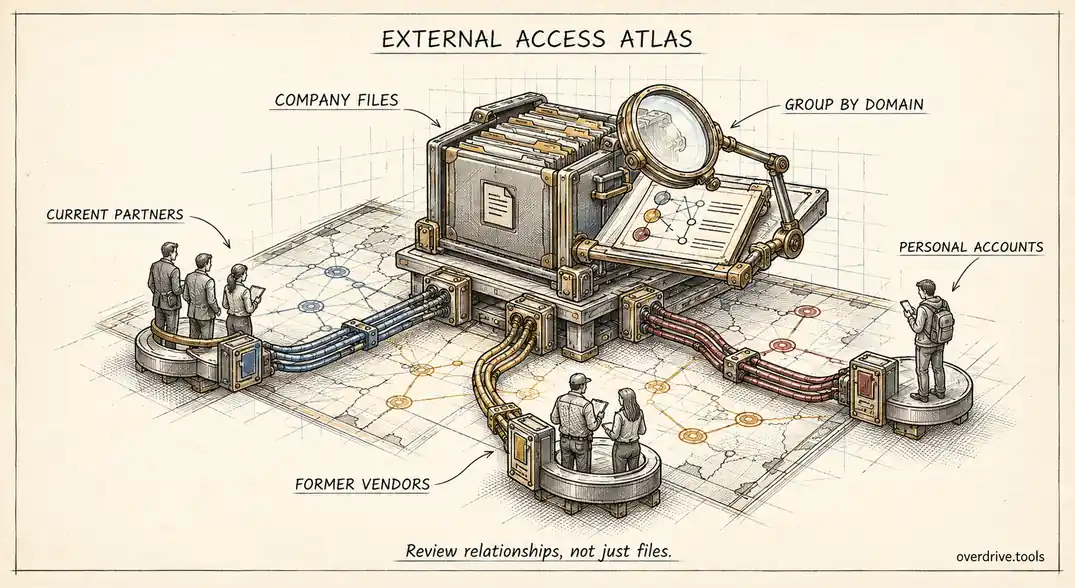
Grouping by outside domain changes the scale. Those thousands of files might belong to forty domains, and a handful of those domains account for most of the volume. Suddenly the question isn't "is each of these files appropriate?" but "should we still be sharing with this company?" That's a question a manager can answer in seconds.
Domains also separate two very different kinds of outsider. A business domain like a partner's company address is backed by another organization that manages its own accounts. A consumer domain like gmail.com, outlook.com, or yahoo.com is a collection of personal accounts nobody manages at all. Lumping both together as "external" hides the riskier group.
What Google gives you
Google Workspace provides the raw material but not the summary.
The Drive audit log, under Reporting, then Audit and investigation, then Drive log events, records sharing changes, including the outside addresses that were granted access. Exporting those events and grouping recipients by domain gives you the domains that received access during the log's six-month window. It won't show older shares, and for long-running relationships that's most of the history.
The sharing settings show what's allowed rather than what exists. Under Apps, then Google Workspace, then Drive and Docs, you can see whether sharing outside the organization is open, limited to allowlisted domains, or off. If you use allowlisting, the allowlist is your list of approved domains, but it doesn't tell you which of them are actually in use, or whether sharing happened before the allowlist existed.
Trust rules, if your organization uses them, let you express sharing permissions per domain and per group, which is powerful, but again describes policy rather than current exposure.
Building the list
Here are your options, from fastest to slowest.
Option 1: Use a domain-level view of external access
Overdrive for Google Workspace connects with read-only access and lists every external person with access to your organization's files, with their domain, whether it's a personal or business account, how many files they can reach, their highest role, and when they were last seen. Sorting by domain gives you the list this article is about, and you can mark a domain as trusted directly from the same view. It reads metadata only, never file contents.
Option 2: Export and group the audit log
Export sharing-related Drive log events for the full six-month window, extract the recipient addresses, and group them by the part after the @ sign. Count files and distinct recipients per domain. It's a solid afternoon's work in a spreadsheet, and it covers recent sharing only.
Option 3: Survey team leads
Asking each department which outside organizations they work with gives you the expected list. It won't reveal the unexpected ones, which are the reason to do this, but it's a useful comparison once you have real data.
Sorting what you find
Once you have the domains, most fall quickly into a few groups.
| Group | What it looks like | What to do |
|---|---|---|
| Core partners | Many files, many internal sharers, active recently | Mark as trusted, review yearly |
| Finished relationships | Former agencies, past clients, old vendors | Remove external access |
| Consumer domains | gmail.com, outlook.com, yahoo.com, icloud.com | Review individually, these carry the most risk |
| One-off shares | A single file to a single address | Review the file, usually remove |
| Unknown | Nobody recognizes the company | Investigate before anything else |
The unknown domains are the most interesting. Usually there's a harmless explanation: a contractor's own company, a client's parent organization, a typo in an address. Occasionally there isn't, and finding out early is the point of the exercise.
Two patterns deserve extra weight. A domain with access to many files but shared by only one internal person often reflects one employee's private arrangement rather than a company relationship. And a domain with edit access across many files has more ability to change or reshare your data than one with view access.
Handling consumer domains
Consumer email domains need a different approach from business ones, because you can't evaluate gmail.com as a relationship. It isn't a company, it's millions of unrelated individuals. Never mark a consumer domain as trusted, since doing so would treat every personal account on the internet as a partner.
Instead, review consumer-domain access person by person. Some will be legitimate: freelancers without a business address, clients who use personal email for work, or family-business contacts. Many will be the riskiest shares in the whole list, including employees who shared company files with their own personal accounts and former staff who still have access. Those self-shares and former-employee shares should be removed first, before anything else on the domain list.
Where a personal account represents an ongoing working relationship, consider giving that person a better route in, such as a guest arrangement or a dedicated shared drive, so their access is deliberate and easy to remove when the work ends.
Trusting domains deliberately
Marking a domain as trusted shouldn't be a formality. It's a statement that this organization is a known, current partner, and that sharing with it is expected.
A useful rule of thumb is that a domain earns trust when several people across the company share with it regularly and the relationship is current. Ten files shared by five different employees with a long-standing agency is a real partnership. Ten files shared by one employee with a domain nobody else recognizes is not, even if the count is the same.
Trust also needs an expiry. Relationships end, and a trusted label that outlives the contract quietly keeps the door open. Review trusted domains at least once a year and remove any you no longer work with.
Turning the list into policy
The domain list is also the best input for tightening sharing rules.
If most external sharing goes to a small, stable set of partners, consider restricting outside sharing to allowlisted domains for the teams handling sensitive work. The allowlist then becomes your trusted list, maintained in one place.
If your organization uses trust rules, you can go further: allow specific groups to share with specific domains, so finance can share with the auditors and legal with outside counsel, while everyone else is limited.
Either way, turn on the warning for sharing outside the organization. It doesn't block anything, but it prompts people to confirm before a file leaves, which cuts down on accidental shares to the wrong address.
Who should review the list
The admin who builds the domain list usually can't judge every relationship on it. A practical split is for IT to produce the list and group it, and for team leads to confirm their own partners. Send each department lead the domains their team shares with, ask them to mark each as current or finished, and set a short deadline. Relationships with no clear owner are worth a closer look in their own right, since they often belong to people who have left.
Keeping the list current
Run the domain review quarterly. Compare against the previous list and look at what's new: domains that appeared this quarter, domains whose file count jumped, and consumer accounts that weren't there before. New entries are far easier to evaluate while the reason for them is still fresh in someone's memory.
The short version
Google Workspace doesn't give you a single list of outside domains with access to your Drive, but building one turns thousands of sharing decisions into a few dozen relationships you can actually review. Use a domain-level view or group six months of Drive audit log events by recipient domain, then sort domains into core partners, finished relationships, consumer accounts, one-off shares, and unknowns. Investigate unknowns first, remove finished relationships, and treat consumer domains individually. Trust domains only when several people share with them for a current relationship, review that trust yearly, and use the list to shape allowlists or trust rules.
Related Articles
- Google Drive Trust Rules Explained
- Managing External Sharing in Google Workspace: An Admin's Guide
- Google Workspace Sharing Settings by OU: Admin Guide