Google Workspace Sharing Settings by OU: Admin Guide
Google Workspace lets admins set Drive sharing rules per organizational unit. Here's how to configure sharing by OU without creating security gaps.
Overdrive Team//7 min read
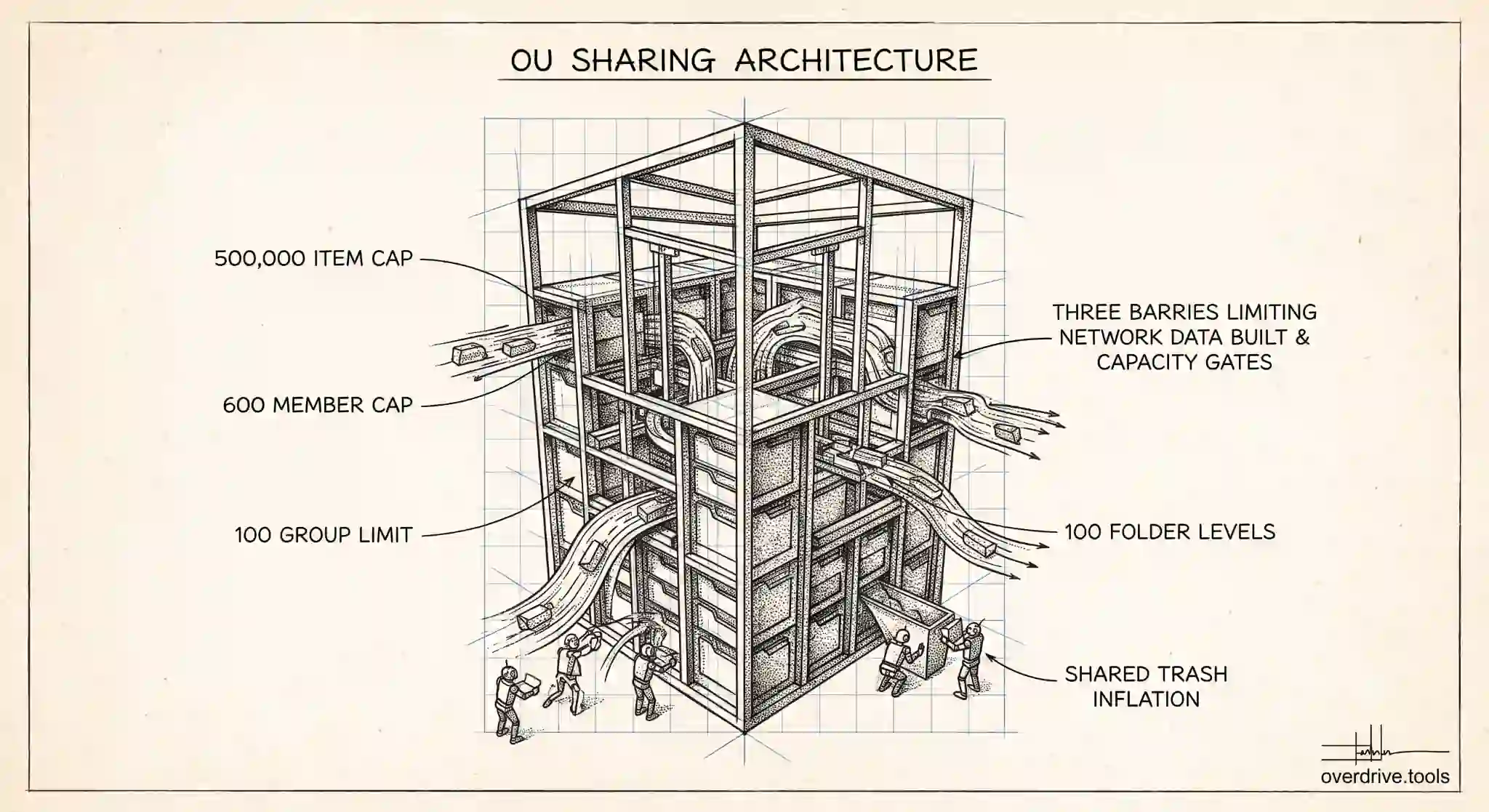
Not every team in an organization should share Drive files the same way. Your marketing team may need to collaborate freely with outside agencies, while your finance and HR teams should almost never share externally. Google Workspace supports exactly this through organizational units, letting you apply different Drive sharing settings to different OUs rather than forcing one policy on everyone. Used well, it means each team gets sharing rules that fit its work. Used carelessly, it creates gaps where sensitive teams inherit loose settings nobody intended.
For admins, configuring sharing by OU is one of the highest-leverage security controls available, because it maps policy onto how the organization is actually structured. Here's how the model works, how to configure it, and the pitfalls that turn a good idea into a hidden exposure.
How OU-based sharing works
An organizational unit is a container in your Workspace directory that holds a subset of users, usually mirroring departments or teams. Settings applied to an OU affect the users in it, and OUs are hierarchical: a child OU inherits its parent's settings unless you override them at the child level. That inheritance model is the key thing to understand, because it's both the convenience and the trap.
For Drive sharing specifically, settings that can vary by OU include whether users can share files outside the organization at all, whether they can share with anyone via link or only with named people, whether external recipients need to be warned, and related controls over how broadly files can travel. By placing a team in its own OU, you can give that team a sharing posture different from the rest of the domain.
The practical model is a sensible default at the top and deliberate exceptions below. You set a baseline sharing policy at the root or a top-level OU, then override it for the specific teams that need something tighter or looser. A finance OU might disable external sharing entirely while the organization default allows it with warnings.
Configuring it in the Admin console
Sharing settings live in the Admin console under the Drive and Docs sharing settings, and the OU you select determines who the settings apply to. The workflow is to choose the organizational unit, then set that unit's sharing behavior.
Start by getting the top-level default right, since every OU inherits from it unless overridden. Decide what sharing posture makes sense for the majority of the organization and set it at the root. Then, for each team that needs different rules, select its OU and configure the override explicitly. When you tighten settings for a sensitive OU, confirm the change actually applies to that unit and isn't being undone by inheritance from somewhere else.
A crucial companion step is making sure the right people are in the right OUs. OU-based sharing policy is only as accurate as your OU membership. If someone in a sensitive role sits in a general OU, they inherit the general, looser policy regardless of what their role should require. Reviewing who is in which OU is part of getting sharing settings right, not a separate task.
The pitfalls that create gaps
The most common failure is inheritance surprises. Because child OUs inherit parent settings, an admin who tightens a parent OU can unintentionally change children, or conversely, a child OU that should be locked down quietly inherits a loose parent setting nobody re-checked. Whenever you change a setting, it's worth confirming what actually resolved for the OUs beneath it, not just the one you edited.
A second pitfall is stale OU placement. Reorganizations move people between teams, but OU membership doesn't always keep up, so someone can end up governed by the sharing policy of a team they no longer belong to. That's how a person handling sensitive data ends up with permissive external sharing: not because anyone set it for them, but because their OU no longer matches their role.
A third is assuming settings equal reality. Configuring a restrictive sharing policy for an OU controls what those users can newly do, but it doesn't retroactively undo sharing that already happened under looser settings. A team you just locked down may still have a backlog of externally shared files from before the change.
Verify what your policy actually produced
That last point is the one admins most often miss. Sharing settings are forward-looking controls. They shape future sharing behavior per OU, but they don't tell you the current state of exposure, and they don't clean up what predates them. You can have a perfectly configured OU policy and still carry significant existing exposure from before it was in place, or from a period when an OU was misconfigured.
This is where verifying reality against policy matters, and Google's native tools make it hard to see current exposure across OUs at a glance. Overdrive for Google Workspace connects with read-only access and turns Google's sharing signals into a present-tense inventory of what's actually shared externally or publicly across your Drive, along with who owns each exposed file. So after you set sharing policy by OU, you can check whether the reality matches the intent, catching a supposedly locked-down team that still has public files, or exposure left over from before the policy existed. It reads metadata only, never file contents, which is the right posture for a tool with this level of visibility.
Pairing configuration with verification is what turns OU sharing settings from a policy you hope is working into one you can confirm is working.
A worked example: finance, marketing, and everyone else
A concrete example shows how the pieces fit. Suppose you want most of the organization to share externally with a warning, the marketing team to collaborate freely with outside agencies, and the finance team never to share externally at all. You'd set the organization default at a top-level organizational unit to allow external sharing with warnings. Then you'd place the finance team in its own OU and override the setting there to disable external sharing entirely. And you'd confirm the marketing OU either inherits the permissive default or gets its own explicitly permissive setting, depending on how your hierarchy is arranged.
The result is three distinct sharing postures mapped cleanly onto three parts of the organization, each getting rules that fit its work. The important discipline is verifying what actually resolved for each OU after you make the changes, since inheritance can produce a setting you didn't intend on a child OU you weren't directly editing.
Keeping OU membership accurate
OU-based policy is only as good as OU membership, and membership is where these setups quietly break. When people change roles, reorganizations move them between teams, but their OU placement doesn't always follow, so someone handling sensitive data can end up governed by a permissive policy meant for a different team. The policy didn't fail; the person simply sits in the wrong container.
Make OU membership review part of keeping sharing settings correct, not a separate chore. Tie OU placement to your onboarding and role-change processes so it updates automatically where possible, and periodically confirm that the people in each sensitive OU are the people who should be there. A perfectly designed OU sharing policy applied to stale membership gives you a false sense of control, which is more dangerous than knowing you have a gap.
The reassuring part is that once membership and policy are aligned, OU-based sharing is remarkably low-maintenance. The structure does the work, applying the right rules to the right people automatically as long as everyone lands in the right OU. That is exactly why the small, recurring discipline of checking placement pays off so well: a few minutes confirming that sensitive OUs contain only the right people preserves a control that would otherwise take constant manual effort to enforce file by file. Configuration plus accurate membership is what turns per-OU sharing from a good idea into a durable one you can rely on. The configuration is a one-time effort; the membership check is the small habit that keeps it true.
The short version
Google Workspace lets you apply different Drive sharing settings per organizational unit, so each team gets rules that fit its work, with a sensible default at the top and deliberate overrides below. Configure it by setting the root policy first, then overriding specific OUs, and make sure OU membership actually matches people's roles. Watch for inheritance surprises, stale OU placement, and the assumption that a new policy fixes old exposure. Because sharing settings only govern future behavior, verify current exposure against your intent so a locked-down OU is actually locked down, not just configured to be.
Related Articles
- Managing External Sharing in Google Workspace: An Admin's Guide
- The Google Workspace Drive Security Audit: A Recurring Checklist for Admins
- How to Find Every Publicly Shared File in Your Google Workspace