What Can a Commenter Do in Google Drive?
A commenter in Google Drive can view and comment on a file but can't edit or delete it. Here's what commenter access allows, and where its limits are.
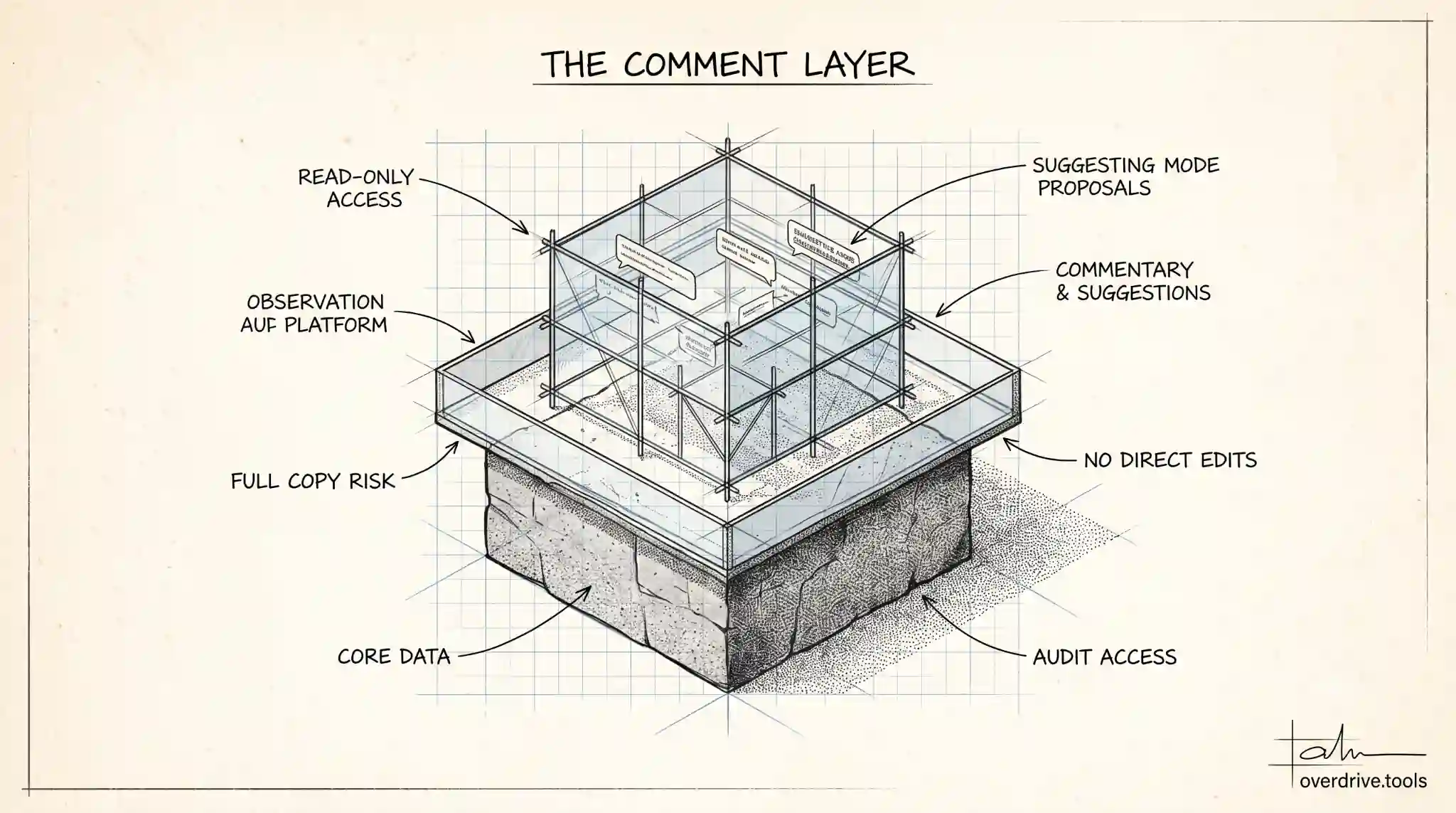
A commenter in Google Drive can open a file, read it, and leave comments or suggestions, but they cannot change the actual content, rename the file, move it, or delete it. It sits one step above a viewer and one step below an editor. If you want someone to give feedback without letting them alter your work, commenter is the role built for exactly that.
The trouble is that "comment" sounds harmless, so people grant it without thinking through what it really allows. In Google Docs, Sheets, and Slides a commenter can do more than scribble notes in the margin, and in plain files like PDFs the role behaves differently again. Here's the full picture of what commenter access covers, what it blocks, and when it's the right choice.
What a commenter can do
Commenter access is designed around one idea: let people weigh in on a file without changing it. Within that boundary, a commenter has a fair amount of room.
They can open and read the file in full, the same as a viewer. On Google Docs, Sheets, and Slides they can add comments anywhere in the document, reply to existing comment threads, and resolve or reopen threads. They can also add suggestions using suggesting mode, which proposes edits the owner or an editor can later accept or reject. Those suggestions look like changes, but they are not applied until someone with edit rights approves them, so the original content stays intact until you say otherwise.
By default, a commenter can also download, print, and copy the file, exactly like a viewer. That is the part most people overlook. Unless the owner turns off that option in the sharing settings, anyone with comment access can save a full copy to their own device or make a duplicate in their own Drive. Comment access is not a way to stop someone from keeping the file.
Commenters can also see other people's comments and, in Docs, Sheets, and Slides, generally see who else has access to the file through the sharing panel. So comment access is not a private side channel. It is a collaborative layer on top of full read access.
What a commenter cannot do
The limits are where the role earns its place. A commenter cannot edit the content of the file. They cannot type into a document, change a cell in a spreadsheet, rearrange slides, or alter anything in the body of the file directly. Their suggestions are proposals, not changes.
They cannot delete the file, move it out of a folder, or rename it. They cannot change who else has access, add new collaborators, or adjust anyone's permission level. They cannot transfer ownership. And they cannot accept or reject suggestions, including their own, because resolving a suggested edit requires edit rights.
In short, a commenter can influence the file through feedback but cannot touch its structure, its content, or its sharing. Everything they do stays in the comment and suggestion layer, which the people with edit access remain in control of.
Commenter versus viewer versus editor
It helps to see the three shareable roles next to each other, because the differences are easy to blur.
| Action | Viewer | Commenter | Editor |
|---|---|---|---|
| Open and read the file | Yes | Yes | Yes |
| Download, print, copy (by default) | Yes | Yes | Yes |
| Add comments and suggestions | No | Yes | Yes |
| Edit the content directly | No | No | Yes |
| Rename, move, or delete the file | No | No | Yes |
| Change sharing and permissions | No | No | Sometimes |
The jump from viewer to commenter adds the ability to give feedback. The jump from commenter to editor is much bigger: it hands over control of the content itself. That middle position is what makes commenter useful. You get engagement without exposure to accidental or unwanted edits.
How comment access behaves on different file types
Not every file in Drive supports comments the same way. Google's own formats, meaning Docs, Sheets, and Slides, are built for collaboration, so the commenter role works fully there, with inline comments and suggesting mode.
For non-Google files such as PDFs, images, or Microsoft Office files that haven't been converted, commenting is more limited or unavailable depending on the file type and how it's opened. In those cases, granting comment access often behaves much like view access, because the file simply doesn't support the same commenting tools. If your goal is to collect feedback on a document, keeping it in Google's native format will give commenters the full set of tools.
When to use commenter access
Commenter is the right role whenever you want input but not edits. A manager reviewing a proposal, a client marking up a draft, a teammate suggesting wording changes, a reviewer flagging errors in a report: all of these are ideal commenter situations. They can point at exactly what they mean, in context, without any risk of them overwriting your work or breaking the formatting.
It's also a safer default than editor for anyone outside your immediate team. If you're not sure whether someone needs to change a file or just respond to it, comment access lets them participate while keeping you in control of what actually lands in the document.
One thing to remember: because commenters can download and copy by default, comment access is not the setting to use for confidential material you don't want leaving your hands. If that's your concern, set the file to viewer or commenter and then turn off downloading, printing, and copying in the advanced sharing options. That closes the easy copy route, though anyone who can read a file can still capture its contents in some form.
Keeping track of who can comment on your files
Comment access tends to pile up quietly. You share a document for review, the feedback comes in, the project wraps, and the access stays. Across a busy Drive you can end up with dozens of people holding comment or edit rights on files you'd forgotten you shared, including former colleagues and one-off collaborators.
Here are your options for staying on top of it.
Option 1: Audit access across your whole Drive at once. Google Drive makes you check permissions one file at a time, which is why stale access goes unnoticed. A tool like Overdrive can scan your entire Drive and show every file along with who can view, comment, or edit it, so you can spot access that no longer belongs and remove it in bulk rather than opening files individually.
Option 2: Check a file's access manually. Open the file, click Share, and review the People with access list. Each person's role is shown next to their name. To change someone from commenter to viewer, or to remove them, click the dropdown by their name and choose the new role or Remove access, then save.
Option 3: Downgrade rather than remove when collaboration is ongoing. If someone still needs to see a file but no longer needs to comment on it, switch them to viewer instead of cutting them off entirely. That keeps the file available to them while closing the feedback layer.
A quick habit of reviewing who can comment on and edit your important files, every few months, keeps your sharing tidy and prevents old feedback access from turning into a quiet liability.
Do commenters get notified, and can they stay anonymous?
Two practical questions come up a lot once comment access is in play: whether commenters get notified, and whether you'll always know who they are.
On notifications, it depends on how the comment activity happens. When you share a file and leave the notification box checked, the people you add get an email letting them know. Inside a document, if a commenter or editor mentions someone by typing an @ followed by their email in a comment, that person receives an email pointing them straight to the thread, even if they weren't already active in the file. Routine comments that don't mention anyone don't flood everyone with access, so people generally notice ordinary comment activity when they open the file rather than in their inbox.
On anonymity, it comes down to sign-in. If a file is comment-shared to specific people by email, every commenter shows up under their name, so feedback is always attributable. But if the file's general access is set to anyone with the link, someone who opens it without signing in to a Google account appears as an anonymous animal, and any comment they leave is attributed to that anonymous identity. That can make a review confusing, because you can't tell who said what. If clear attribution matters, share with named people rather than a link, so every comment carries a real name.
The short version
A commenter in Google Drive can read a file, comment on it, suggest edits, and by default download or copy it, but cannot change the content, rename or delete the file, or alter its sharing. It's the role for feedback without control, which makes it the smart default whenever you want a response to your work rather than changes to it. Just remember that comment access still includes full read and copy rights, so treat it as read access with a feedback layer, not as a lock.
Related Articles
- What Can a Viewer Do in Google Drive?
- Google Drive Permission Levels: What Viewer, Commenter, Editor, and Owner Can Actually Do
- Can Viewers Download Files in Google Drive?