How to Change Google Drive Sharing Permissions
Learn how to change someone's permission level in Google Drive—upgrade a Viewer to Editor, downgrade an Editor to Commenter, or modify access for multiple files at once.
Overdrive Team//4 min read
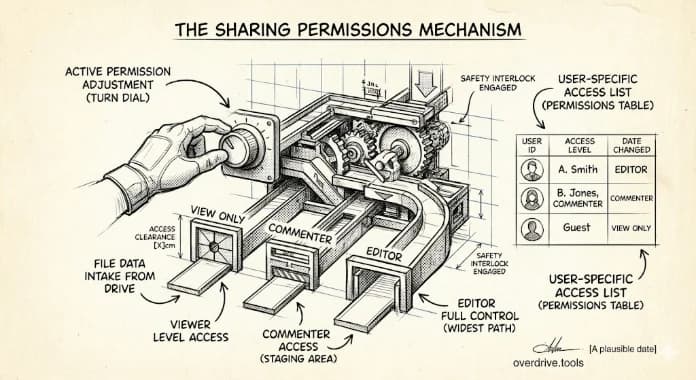
To change someone's permission level in Google Drive, right-click the file, click "Share," find the person's name, click the dropdown next to their name (it shows their current permission like "Editor"), and select the new permission level. The change takes effect immediately.
This works for upgrading access (Viewer → Editor), downgrading access (Editor → Viewer), or any other permission change. The person won't receive a notification—they'll simply have different capabilities the next time they open the file.
Why Permission Changes Matter
Permissions accumulate over time. Someone who needed Editor access for a one-week project still has it two years later. A contractor who finished their work months ago can still edit your files. A client who should only view final deliverables has been able to edit them all along.
Most people set permissions once and never revisit them. The result is "permission creep"—access levels that made sense at one point but no longer match reality. An Editor who should now be a Viewer. A Viewer who actually needs to edit. External collaborators with more access than they need.
Changing permissions isn't just about fixing mistakes. It's about maintaining the principle of least privilege: people should have exactly the access they need, nothing more. This reduces risk, prevents accidental changes, and keeps your files secure.
Understanding Permission Levels
Before changing permissions, know what each level allows:
| Permission | Can View | Can Comment | Can Edit | Can Share | Can Delete |
|---|---|---|---|---|---|
| Viewer | Yes | No | No | No* | No |
| Commenter | Yes | Yes | No | No* | No |
| Editor | Yes | Yes | Yes | Yes** | Yes*** |
| Owner | Yes | Yes | Yes | Yes | Yes |
*Viewers and Commenters can share only if you've enabled "Editors can change permissions and share" (which despite the name, affects all permission levels when enabled).
**Editors can share by default. You can restrict this in the share settings.
***Editors can move files to Trash, but only the Owner can permanently delete.
For a deeper explanation of each level, see our guide on Google Drive permissions explained.
How to Change Permissions
Here are your options, starting with the easiest for managing multiple files.
Option 1: See All Permissions Across Your Drive (Easiest for Multiple Files)
If you need to change permissions across many files—or you're not sure which files someone has access to—checking them one by one takes hours.
Overdrive scans your entire Drive and shows you who has access to what in one dashboard. You can see all files where a specific person has Editor access, for example, and identify which ones should be downgraded to Viewer. This is especially useful when cleaning up after a project ends or when an employee leaves.
Option 2: Change Permission on a Single File
On desktop:
- Go to drive.google.com
- Right-click the file
- Click "Share"
- Find the person whose permission you want to change
- Click the dropdown next to their name (shows "Viewer," "Commenter," or "Editor")
- Select the new permission level
- Click "Done"
On mobile (Google Drive app):
- Tap the three dots next to the file
- Tap "Share"
- Tap the person's name
- Select the new permission level
- Tap the back arrow or "Done"
The change applies instantly. There's no save button—selecting a new level commits the change.
Option 3: Change Permission on a Folder
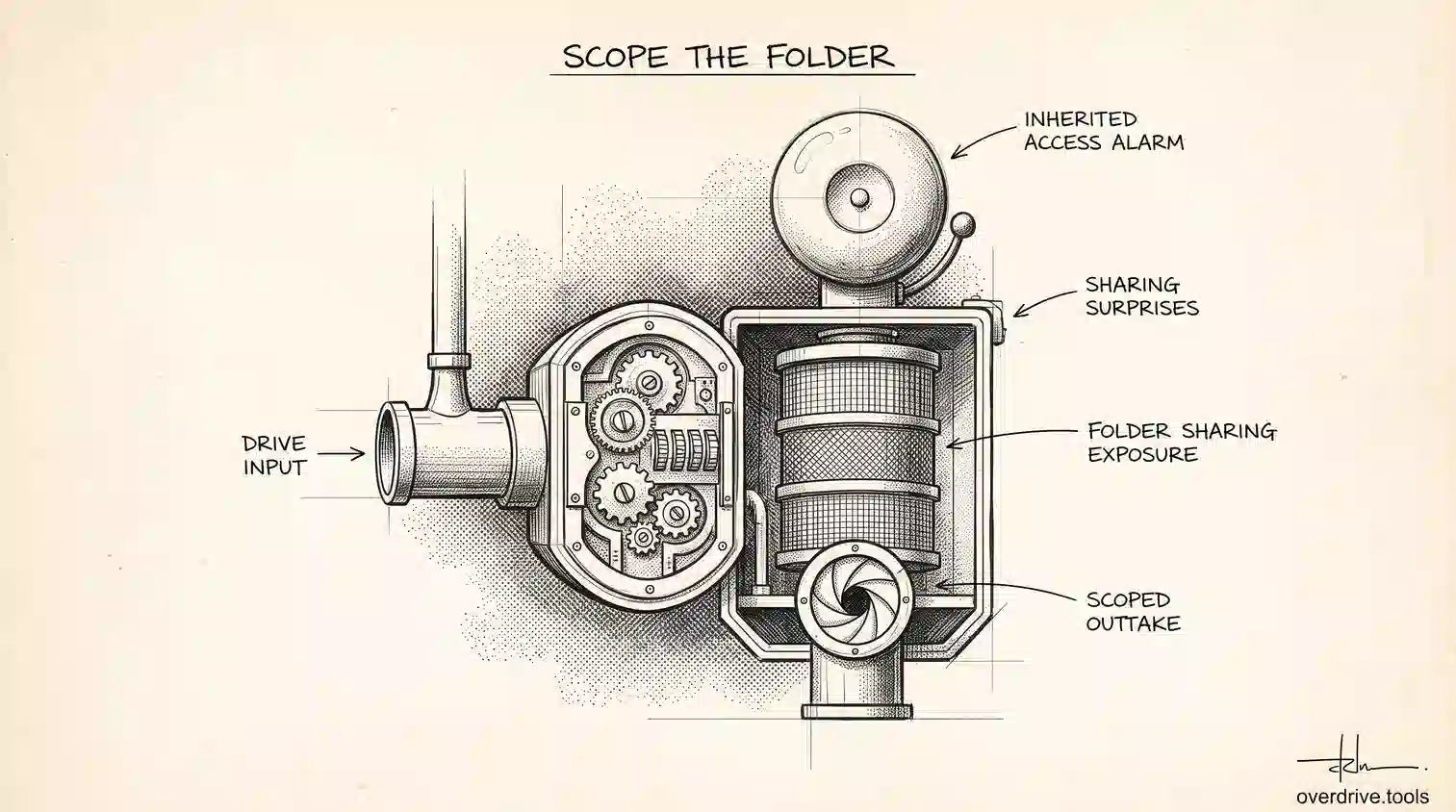
When you change someone's permission on a folder, that change applies to all files and subfolders inside—unless individual items have their own direct sharing settings.
- Right-click the folder
- Click "Share"
- Change the permission level as described above
Important: If you previously shared individual files inside the folder with different permissions, those direct permissions remain. The folder permission change won't override them. This is a common source of confusion—someone might still have Editor access to specific files even after you downgrade them to Viewer on the parent folder.
Common Permission Change Scenarios
Project ended, collaborators should only view: Change external collaborators from Editor to Viewer so they can reference the work but not modify it.
New team member needs edit access: Upgrade them from Viewer (where they started for onboarding) to Editor.
Someone is making unwanted changes: Downgrade from Editor to Commenter—they can still provide feedback, but can't directly edit.
Preparing to transfer ownership: Before transferring, you might change others to Viewer to prevent conflicts during the transition.
Contractor finished their work: Downgrade from Editor to Viewer, or remove access entirely using our guide to removing access.
What You Can't Do
Change your own permission: You can't change your own access level. If you're the Owner, you stay the Owner until you transfer ownership.
Upgrade someone beyond your level: If you're an Editor, you can't make someone else an Owner. Only the current Owner can transfer ownership.
Downgrade the Owner: The Owner can only be changed through ownership transfer, not permission changes.
Change permissions on files you don't own or edit: You need at least Editor access to change other people's permissions (unless the owner has restricted this).
Bulk change across many files natively: Google Drive doesn't have a "change this person's permission on all files" feature. You need to do it file by file, folder by folder—or use a tool that shows you all their access in one place.
Preventing Permission Creep
A few habits keep permissions from spiraling out of control:
Start with the minimum access needed. Give Viewer or Commenter access first. Upgrade only when someone actually needs to edit.
Review permissions when projects end. Downgrade collaborators who no longer need edit access.
Use folders strategically. If you share a folder, everyone inside gets the same access. Be intentional about what goes in shared folders.
Audit periodically. At least quarterly, check who has access to sensitive files and whether that access is still appropriate.
For a complete audit process, see our Google Drive security audit checklist.
Related Articles
- Google Drive Permissions Explained: Viewer, Commenter, Editor, and Owner
- Who Has Access to Your Google Drive?
- How to Revoke Google Drive Access When Employees Leave