Does Android Backup Use Google Drive Storage?
Yes, Android device backups count against your Google storage, shared with Drive, Gmail, and Photos. Here's what they include and how to control the space.
Overdrive Team//7 min read
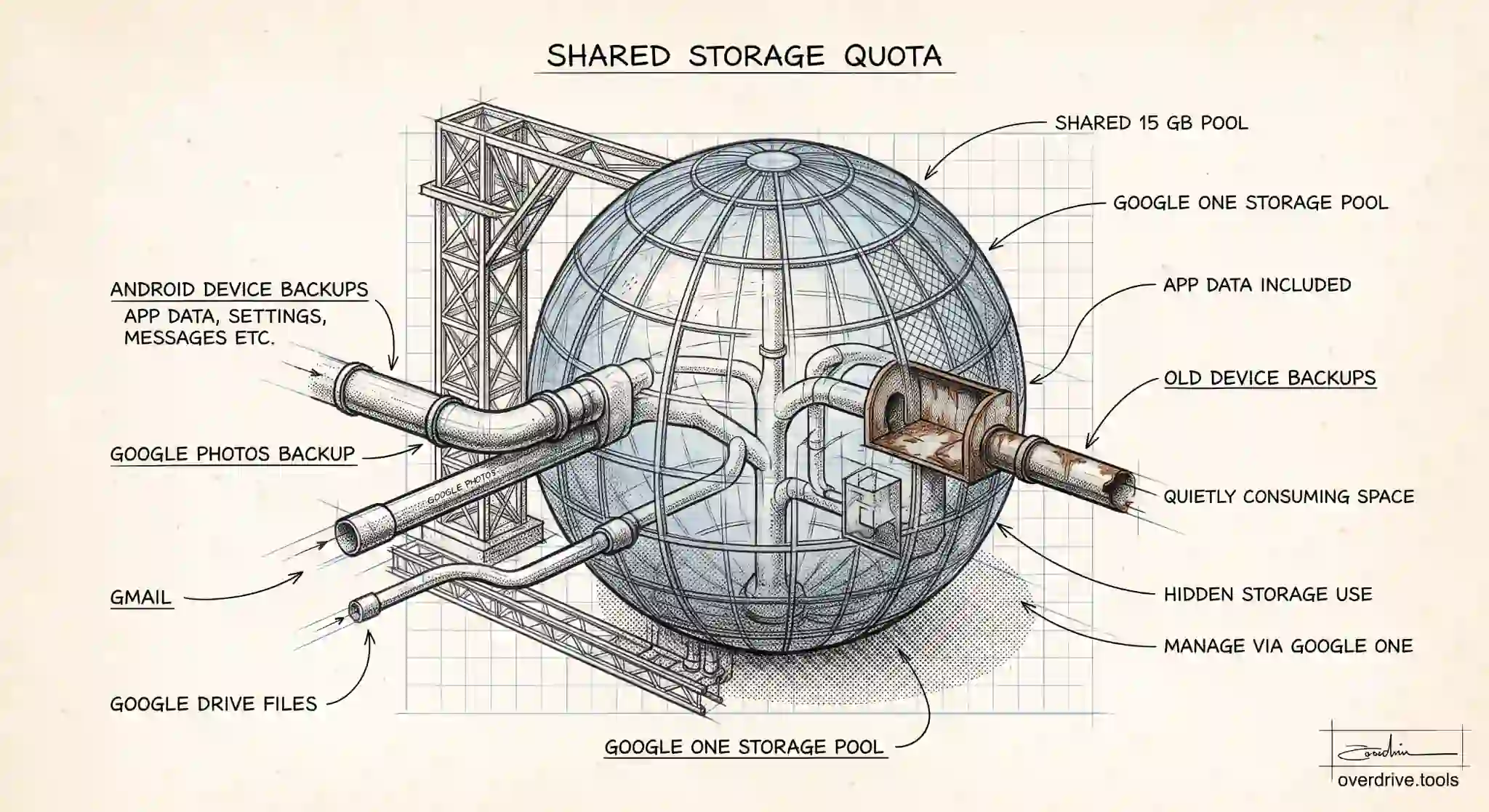
Yes. When your Android phone backs itself up to Google, that backup counts against the same storage quota shared by Google Drive, Gmail, and Google Photos. It doesn't get a separate allowance. So if your storage keeps creeping toward full and you can't find the culprit in Drive or Gmail, an Android device backup is one of the first hidden places to look.
Most people never think about it because the backup happens automatically in the background. You set up a phone, tap through the prompts, and Google quietly starts storing your app data, settings, and more. Here's exactly what that backup includes, how much room it takes, and how to keep it from eating space you'd rather use for other things.
How Android backup and Google storage fit together
Every personal Google account comes with free storage: 5 GB by default since May 2026, or up to 15 GB once a phone number is verified on the account. That allowance is not per service. It is one shared pool split across Google Drive, Gmail, and Google Photos, and Android device backups draw from the same pool. When you back up your phone, the backup is stored in Google Drive's back end, even though you won't see it sitting among your normal files.
This is why the math can feel confusing. You might have only a few files in Drive and a tidy inbox, yet still see your storage filling up. The backup is counted, but it's tucked away in a part of Drive most people never open, so it stays invisible until you go looking for it.
What an Android backup actually includes
An Android backup is broader than most people expect. Depending on your phone and settings, it can cover app data, meaning the saved state and files many of your installed apps keep, along with your call history, device settings such as Wi-Fi passwords and preferences, SMS text messages, and the list of apps you have installed so they can be restored later.
What it does not include is your photos and videos, at least not through the device backup itself. Those are handled separately by Google Photos, which has its own backup process but still counts against the same shared pool. So between the Android device backup and Photos backup, two different systems can both be quietly consuming your storage at once.
App data is usually the heaviest part of a device backup. A single app with large saved data, such as a messaging app storing lots of media, can push a backup to several gigabytes on its own. Multiply that across many apps and a phone backup can occupy a meaningful chunk of your free storage.
Why your backup might be bigger than you think
A few things make Android backups grow. The first is simply having many apps with large local data. Games, messaging apps, and anything that caches media locally tend to produce big backups.
The second is old backups from phones you no longer use. When you replace a device, the backup from the old one doesn't always disappear right away. It can linger in your account, holding space for a phone that's sitting in a drawer. If you've upgraded phones a few times, you may be storing backups for devices you got rid of long ago.
The third is the overlap with Google Photos. People often assume "backup" is one thing, when in reality your device settings and your photo library are backed up by two separate mechanisms that both bill to the same storage account. Clearing one doesn't touch the other.
How to see and manage your Android backups
If your storage is filling up and you suspect a backup is involved, here's how to check and take control.
Option 1: Get a clear picture of what's using your storage. The hardest part of this problem is that Google splits storage across Drive, Gmail, Photos, and device backups, with no single friendly view of what's really taking up room. A tool like Overdrive can scan and visualize your Drive storage by type, size, and age, so you can see where your space is actually going and clean up the largest offenders instead of guessing. For device backups specifically, you'll still manage those in Google's own settings, but knowing the rest of your Drive is tidy tells you whether backups are the real problem.
Option 2: Review backups in Google One. Your device backups are managed through the Google One app or the Google One website, under the storage or backup section. There you can see which devices have backups stored and how much space each one uses. Old backups from devices you no longer own can be deleted here, which frees that space immediately.
Option 3: Adjust what gets backed up on the phone. On your Android device, open Settings, find the Google or backup section, and review the backup options. You can turn device backup on or off, and in some cases control which categories are included. Turning off backup entirely stops it consuming storage, though you lose the safety net it provides, so weigh that trade carefully.
Option 4: Manage Google Photos separately. Because Photos is the other half of the backup story, check its storage use too. Reducing your photo and video backup, or clearing items you no longer need, often frees far more space than the device backup itself.
Should you turn Android backup off?
For most people, no. A device backup is a genuine safety net. If your phone is lost, stolen, or broken, that backup is what lets you restore your apps, messages, and settings onto a new device with minimal hassle. Turning it off to save a gigabyte or two usually isn't worth the risk.
The better move is to manage it rather than disable it. Delete backups for old devices you no longer use, keep an eye on which apps generate the largest data, and treat your Photos backup as the bigger storage lever, since your photo library almost always outweighs your device settings. That way you keep the protection a backup provides while stopping it from quietly filling your account.
How to check exactly what your backup is using
If you want a precise number rather than a guess, the Google One app and website break your storage down by service, showing how much is used by Drive, Gmail, Photos, and device backups separately. That backups line is the one people rarely look at, and it's where an old phone's data can be quietly parked. Open the storage breakdown, find the backups or devices section, and you'll see each stored device backup and its size. From there you can decide what to keep and what to clear.
Seeing the split also settles the common argument with yourself about where the space went. If backups are small and Photos is huge, you know to focus on Photos. If an old device backup is sitting at several gigabytes, you've found an easy win. Either way, you're working from real numbers instead of assumptions.
Does turning off backup delete existing backups?
Turning off backup on your phone stops future backups, but it does not automatically delete the backup already stored in your account. That existing backup can linger, still counting against your storage, until you remove it manually through Google One. So if your goal is to reclaim space, switching the setting off is only half the job. You also need to delete the stored backup itself.
The reverse is worth knowing too. If you delete a device's backup while that device is still set to back up, it will simply create a fresh backup the next time it runs. To actually keep the space free, turn the backup off on the device and delete the stored backup, so nothing regenerates it. It's a small bit of housekeeping, but it's the difference between a setting that merely looks disabled and space that's genuinely reclaimed. Check the stored backups list once, remove the ones tied to devices you no longer use, and you've likely freed more room in a minute than an afternoon of deleting individual files would.
The short version
Android device backups do count against your Google storage, sharing the same pool as Drive, Gmail, and Photos (5 GB by default, up to 15 GB with a verified phone number). They cover app data, settings, call history, and messages, with app data usually the heaviest part, while photos are handled separately by Google Photos on the same quota. If your storage is filling mysteriously, check Google One for old device backups you can delete, keep your Photos backup in check, and get a clear view of the rest of your Drive so you know exactly where your space is going.
Related Articles
- Does Google Photos Use Google Drive Storage?
- How Much Free Storage Does Google Drive Give You, and What Counts Against It?
- Why Is My Google Drive Full But Empty? (Solved)