How to Clean Up Google Forms, Sites, and Other Drive File Types Cluttering Your Storage
Most cleanup advice focuses on Docs, Sheets, and duplicates. Here's what to do about the Forms, Sites, and file uploads that quietly build up alongside them.
Overdrive Team//6 min read
Most Google Drive cleanup guides walk through the same handful of file types: big video files, duplicate documents, forgotten PDFs. Forms and Sites rarely come up, partly because they don't behave like normal files and partly because their storage impact is genuinely inconsistent. One of them counts against your quota under specific conditions. The other doesn't count at all. Knowing which is which changes where you should actually spend cleanup effort.
Google Forms: It Depends on the Uploads, Not the Form Itself
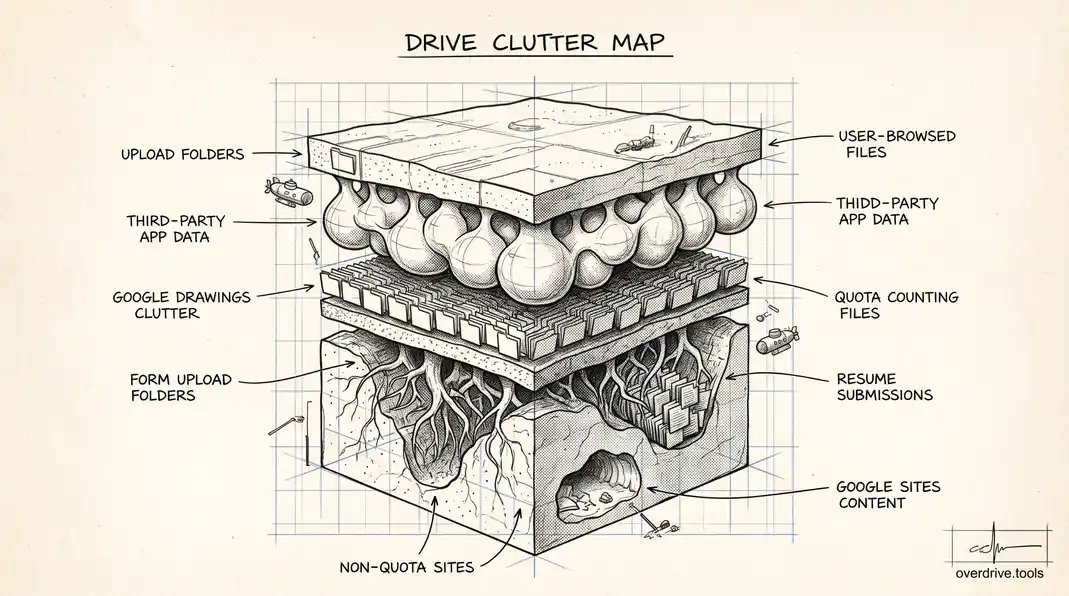
A Google Form by itself is a small, lightweight file, similar in size to a Doc or a Sheet. The real storage cost comes from what respondents upload through it. If your form includes a file upload question, every file a respondent submits gets stored in your Google Drive, not theirs, and it counts against your quota provided it was created or edited after June 1, 2021 (files last edited before that date are grandfathered out of quota counting). For a form collecting resumes, portfolio samples, or project files from dozens or hundreds of respondents, this adds up fast and usually invisibly, since the files land in a Drive folder that isn't part of anyone's regular browsing habits.
Each form has a configurable storage cap for uploads, defaulting to 1 GB but adjustable up to 1 TB depending on your overall Drive storage. If you've run a form with file uploads and never gone back to check what accumulated, that's often one of the more concentrated, easy-to-recover chunks of space in an organization's Drive: a single folder, created once, holding every submission from every respondent since the form launched.
Finding and cleaning up Form-linked storage
Locate the response destination for each active or past form (Responses tab within the form, linked to a specific Sheet or folder), and check the associated file storage folder directly. For forms tied to old, closed collection periods, projects, or events, the uploaded files are usually safe to archive elsewhere and remove from Drive once the collection period has genuinely ended and nobody needs live access to the submissions anymore.
Google Sites: Not a Storage Problem at All
This is the one that surprises people: Google Sites content does not count against your Google Drive storage quota. If you built an internal wiki, a project site, or a public-facing page using Google Sites, none of that space shows up in your Drive usage numbers, regardless of how much content or how many pages it contains. If you're trying to free up storage and considering deleting an old Google Site to reclaim space, that effort won't move the needle on your quota at all. The only reason to clean up an old Site is organizational clarity, removing something outdated or no longer accurate, not storage recovery.
Other Overlooked File Types
Beyond Forms and Sites, a few other file types tend to escape normal cleanup attention because they don't look like typical "big files" when scanning a folder visually:
- Google Drawings: small individually, but accumulate in shared drives used for design or diagramming work, often duplicated across multiple project folders.
- Old Google Groups-linked files: files shared to a Group rather than individuals sometimes persist with broad access long after the Group itself stopped being actively used.
- Third-party app-created files: apps connected through the Workspace Marketplace can create their own files and folders in your Drive, sometimes storing data you don't interact with directly but that still counts against your quota.
- Hidden app data: some connected apps store data in a hidden app-data space attached to your Drive, invisible in the normal file browser but counted against your storage.
Finding This Clutter Efficiently
Option 1: A visual map instead of folder-by-folder guessing
Hunting for Form upload folders, hidden app data, and scattered Drawings one at a time is slow, and it's easy to miss things that aren't in an obviously named folder. Overdrive visualizes your entire Drive by file type, size, and age in one view, which surfaces exactly this kind of overlooked clutter, upload folders from old forms, forgotten Drawings, hidden app data, without requiring you to already know where to look.
Option 2: Manual review, file type by file type
Within Drive's search bar, using a type filter (type:form, type:site among others) lets you pull up everything of a specific type across your entire Drive at once, rather than hunting through folders. Cross-reference this against your active projects and forms to identify what's genuinely stale versus what's still in use before deleting anything.
The Practical Priority Order
If storage space is the actual goal, prioritize checking Form-linked upload folders first, since that's the file type in this group that both counts against quota and tends to accumulate the fastest without anyone noticing. Sites can be cleaned up for organizational reasons but won't recover any space. Everything else, Drawings, third-party app files, hidden app data, is worth a periodic look but is rarely where the bulk of reclaimable storage actually sits.
Auditing Marketplace Apps Before Blaming File Types
Since third-party apps connected through the Workspace Marketplace can create their own files and hidden app data inside your Drive, a storage spike that doesn't trace back to Forms, Sites, Drawings, or ordinary documents is often actually an app you approved once and forgot about. Reviewing connected apps periodically, not just for security reasons but for storage impact, closes a gap that pure file-type cleanup misses entirely. An app that syncs large media files, generates automated reports, or maintains its own cache inside your Drive can account for a meaningful chunk of usage that never shows up when you're only thinking in terms of Docs, Sheets, and PDFs.
Why This Clutter Gets Missed Even During Regular Cleanup
Most cleanup routines are built around what's visually obvious when scanning a folder: large video files, duplicate-looking documents, anything with a big file-size number next to it. Form upload folders, hidden app data, and scattered Drawings don't announce themselves the same way. A folder holding two years of resume submissions from a hiring form looks, at a glance, like any other folder with a reasonable number of files in it, nothing about its icon or file count signals that it's actually a forgotten collection point still counting against your quota. This is exactly why a file-type-aware pass, done deliberately and separately from a general cleanup, catches things that routine folder-by-folder tidying consistently misses.
Frequently Asked Questions
Do Google Forms responses themselves (not file uploads) count against storage?
The response data captured in the linked Google Sheet counts the same as any other Sheet, which is typically small. The real storage weight comes specifically from file upload questions, not from standard multiple-choice or text responses.
If I delete a Google Form, do the uploaded files get deleted too?
Not automatically. Deleting the form itself doesn't necessarily delete the separate folder holding uploaded files, since that folder exists as its own Drive location. Check the response destination folder directly and handle it as its own cleanup step rather than assuming form deletion covers it.
Does converting a Google Site to a different format free up storage?
Since Sites never counted against your Drive quota in the first place, converting or exporting one to a different format won't recover any space either. Any Site cleanup should be motivated by accuracy or organizational tidiness, not storage.
How do I find hidden app data specifically?
Hidden app data isn't visible in Drive's normal file browser by design. Third-party storage visualization tools, including Overdrive, can surface it as a distinct category, since Google's own interface doesn't expose a straightforward built-in view for browsing it directly.
Should file-type cleanup happen before or after a general duplicate and large-file cleanup?
Either order works, but doing a general cleanup first often makes the file-type-specific pass faster, since removing obvious clutter first narrows down what's left to review with fresh eyes. Some teams prefer the reverse, clearing out the less obvious file-type clutter first so that a subsequent general cleanup isn't distracted by folders that turn out to be old form-upload collections rather than genuinely active project files.
Are there other Google Workspace apps besides Forms and Sites worth checking for hidden storage impact?
Google Sheets add-ons, Google Apps Script projects, and connected Chat apps can all create supporting files or data stores inside a Drive account beyond what's immediately visible in normal browsing. None of these are typically large individually, but an organization that's been using Workspace for years and connecting apps steadily over that time can accumulate a surprising amount of this secondary clutter, worth a periodic review alongside the more common file types covered here.
Related Articles
- Hidden App Data Is Eating Your Google Drive Storage
- How to Clean Up Google Drive
- Google Drive Storage Full? Here's Why (and How to Fix It)