Why You Keep Getting Google Drive Sharing Notification Emails (and How to Stop Them)
Every comment, share, and access request in Google Drive can trigger an email. Here's how to turn off the ones you don't need without losing the ones that matter.
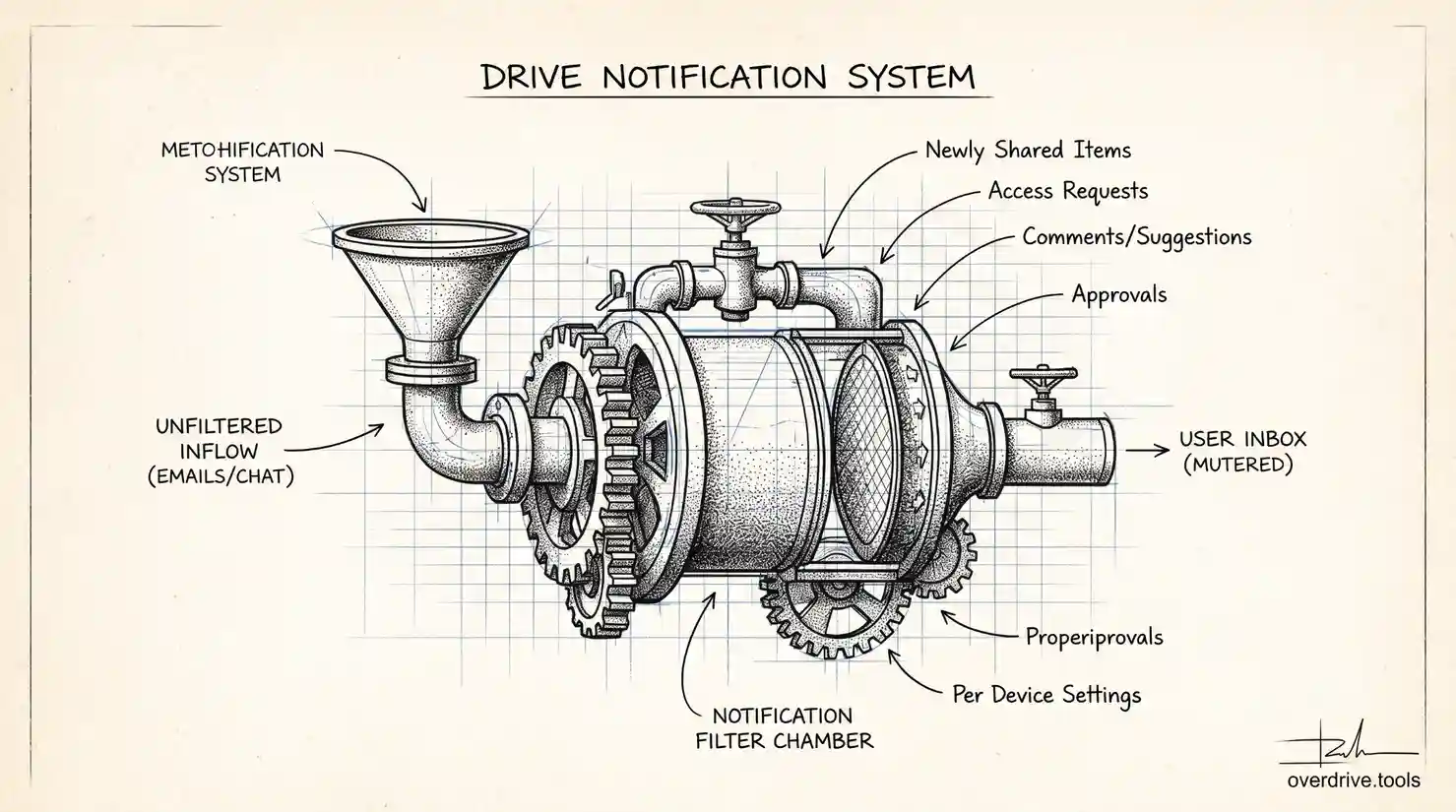
Every comment, share, and access request in Google Drive can trigger an email, and most people assume that's just how Drive works rather than something with a dedicated settings page. It isn't fixed: drive.google.com has a Notifications panel under Settings where each type of alert can be turned off individually, which most people never realize is an option because the emails feel automatic rather than something you actually control.
Why the Notifications Happen in the First Place
Google Drive treats sharing activity as something worth alerting you about by default, on the assumption that you'd rather know immediately than miss something important. Every time a file gets newly shared with you, someone requests access to something you own, a comment or suggestion gets added, or an approval workflow moves forward, that can generate an email. For someone who owns or collaborates on a handful of files, this is genuinely useful. For someone whose Drive is heavily shared across a large team, or who's a member of shared drives with a lot of ongoing activity, the same default settings turn into a steady stream of emails that mostly aren't worth interrupting your day for.
The volume problem tends to compound with how broadly your files are shared. A folder shared with a large team, or a shared drive with many active members, generates far more notification-worthy events than a personal, lightly shared Drive. If you're getting flooded, it's often a sign that sharing across your files is broader than it needs to be, not just that your notification settings are too permissive.
Turning Off Individual Notification Types
Open drive.google.com, click the gear icon for Settings, and select Notifications. The page breaks things down into specific categories rather than a single all-or-nothing switch, which is the important part: you can trim the ones that don't matter to you without losing the ones that do.
- Newly shared items: notifies you when someone shares a new file or folder with you.
- Requests for access: notifies you when someone asks for access to something you own.
- Comments, suggestions, and action items: notifies you about activity inside documents.
- Approvals: notifies you when an approval workflow needs your attention or has been resolved.
Uncheck the boxes for whichever categories you don't need to hear about via email. A common middle ground is keeping access requests on, since those often need a timely response, while turning off comment and newly-shared-item notifications, which are easier to check inside Drive itself when you have time.
The All-or-Nothing Option
If you want to stop all of it at once rather than picking through categories, unchecking "Get all updates about Google Drive items via email" at the top of the settings page turns off the entire notification stream in one step. This is a reasonable choice if you check Drive directly often enough that email alerts aren't adding real value, but it does mean access requests and other time-sensitive events won't reach your inbox either, so weigh that tradeoff before going all-or-nothing.
The Setting Is Per Device
This trips people up more than anything else about Drive notifications: the settings live per browser or per device, not on your account globally. If you use Drive on a work laptop and a home computer, turning off notifications on one doesn't affect the other, and you'll need to repeat the process on each device where you access Drive through a browser.
Option 1: Fix the Root Cause, Not Just the Symptom
Turning off notifications treats the symptom. If the actual problem is that dozens of files are shared more broadly than necessary, generating a constant stream of comment and access activity, the notifications are just surfacing a sharing structure that's worth reviewing on its own. Overdrive can scan your entire Drive and show you exactly what's shared with whom, which makes it much easier to see whether the notification flood is a settings problem or a sharing problem, and to trim access at the source rather than just muting the alerts about it.
Option 2: Filter Instead of Disabling
If you don't want to lose notifications entirely but want them out of your main inbox, a Gmail filter targeting Drive's notification sender address can automatically archive or label these emails, keeping them searchable without cluttering your inbox. This works well for people who occasionally want to check what happened but don't need a real-time alert for every event.
What Doesn't Change
Turning off email notifications doesn't affect in-app activity. Comments, share history, and access changes still show up inside Drive and inside individual documents' activity views; you're only changing whether Drive proactively emails you about them. If you rely on notifications as your only way of knowing when something happens to your files, turning them off means you'll need to check in on shared files directly instead, rather than waiting for an alert.
Notifications in Google Chat vs. Email
If your organization uses Google Chat alongside Drive, some sharing and comment activity can surface there too, separate from the email notification settings described above. Turning off email notifications doesn't touch Chat notifications, and the reverse is also true, so if you're still getting pinged despite disabling email alerts, check whether the interruption is actually coming through Chat rather than your inbox. The two systems are configured independently, which catches people off guard when they assume one settings change covers everything.
Managing This Across a Whole Team
For a Workspace admin fielding complaints from multiple employees about notification volume, there's no domain-wide switch that overrides individual notification preferences; these settings are personal to each user's account and browser, not centrally administered. What an admin can influence is the underlying cause: if broad sharing structures across the organization are generating excess notification volume for everyone, tightening default sharing settings or running a permissions cleanup addresses the root cause for the whole team at once, rather than asking each person to individually adjust their own settings on every device they use.
Frequently Asked Questions
Will turning off notifications make me miss something important?
It depends which categories you disable. Turning off comment notifications rarely causes real problems since comments are easy to check inside the document itself. Turning off access-request notifications is riskier if you're the owner of frequently-requested files, since those often need a timely response and are less likely to be caught by simply browsing Drive later.
Do notification settings sync if I use the same Google account on multiple browsers on the same computer?
No, the setting is tied to the browser session, not just the device. Using both Chrome and a different browser on the same laptop, for instance, requires setting notification preferences separately in each one.
Can I get a daily digest instead of individual emails for every event?
Google Drive's native settings don't currently offer a digest option, only on or off per category. A Gmail filter that batches these into a labeled folder you check once a day is the closest practical equivalent without relying on a third-party tool.
Does disabling notifications affect what shows up in the Drive activity feed itself?
No. The in-app activity feed and each document's own activity history remain fully intact regardless of your email notification settings; you're only changing whether Drive proactively emails you, not what gets recorded or is visible when you check manually.
If I'm the one sharing files with a large team, is there anything I can do to reduce notification volume for everyone else?
Yes, and this often has more impact than each individual recipient adjusting their own settings. Sharing a folder once at the appropriate access level, rather than sharing individual files repeatedly, generates far fewer discrete notification events across a team than the same content shared file by file over time. Batching updates, adding several files to an already-shared folder in one sitting rather than sharing each one the moment it's created, also reduces how often collaborators get pinged for the same ongoing project.
Does leaving a shared document or folder stop its notifications permanently?
Removing yourself from a file or folder's collaborator list stops future notifications tied to that specific item, but it also means losing access entirely, which isn't always the outcome you actually want if you still need to reference the content occasionally. Adjusting notification category settings is usually the better fit when you want to keep access but reduce interruption, reserving removal for content you genuinely no longer need.
Related Articles
- How to Bulk Remove Sharing Permissions in Google Drive
- How to Change Google Drive Sharing Permissions
- Gmail Search Operators: Find Any Email Fast