How to Bulk Remove Sharing Permissions in Google Drive
Google Drive has no 'remove all' button. Here's how to remove sharing permissions from many files at once — and the fastest way to do it.
Overdrive Team//3 min read
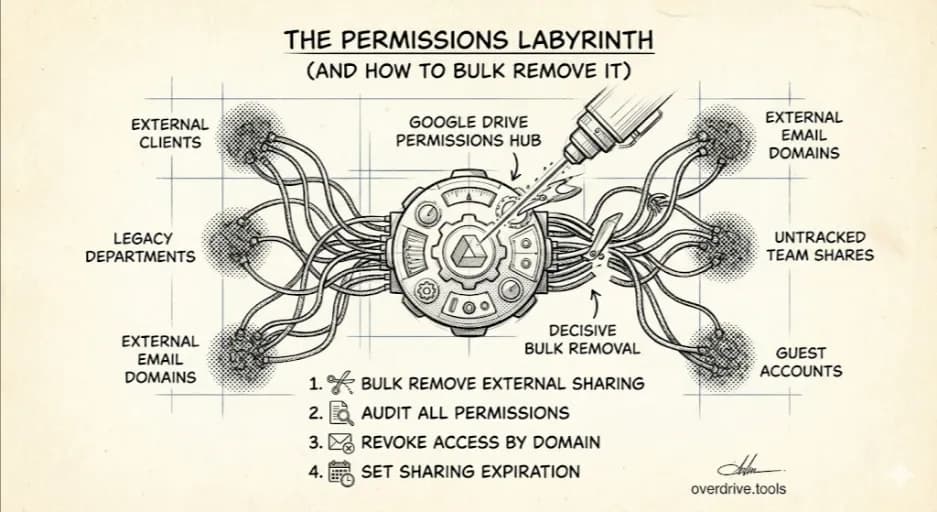
Google Drive makes it easy to share files. Removing that access later — especially across many files at once — is a different story.
There's no native "remove all sharing permissions" button in Google Drive. If you want to revoke access from multiple files, the built-in tools require you to open each file, find the sharing panel, and remove people one by one. For a handful of files that's manageable. For dozens or hundreds, it's not.
This is the problem most people run into when they leave a job, finish a client project, do a security cleanup, or realize they've been more generous with sharing access than they intended.
Here are your options.
How to Bulk Remove Sharing Permissions
Option 1: Use Overdrive for True Bulk Control
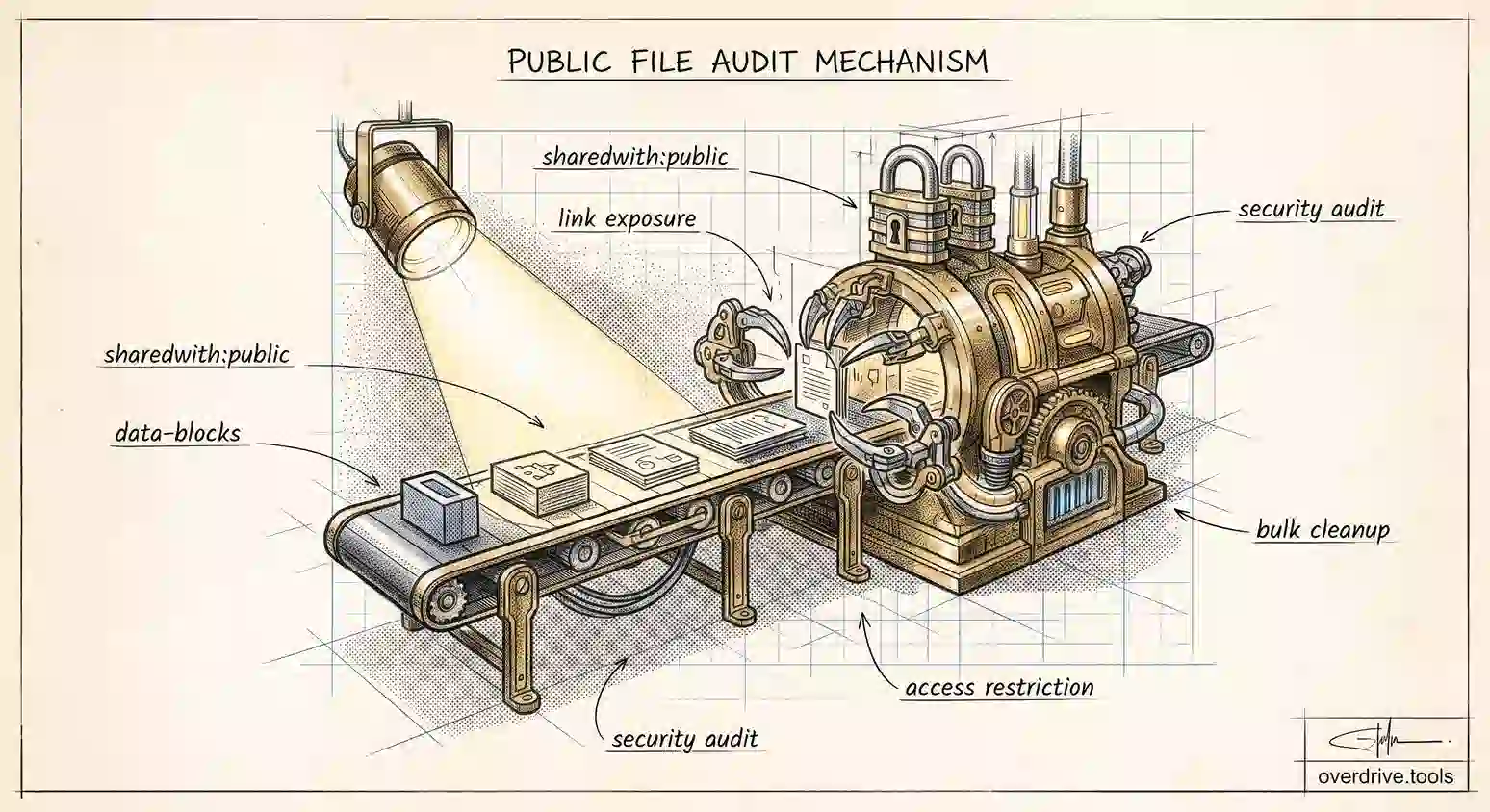
Overdrive is built specifically for this. It scans your entire Google Drive and surfaces every file with active sharing permissions — showing you who has access, what level of access they have, and whether files are shared via link or directly with specific people. You can then select multiple files and revoke permissions in bulk, without opening each file individually.
This is the only practical option if you're dealing with more than a small number of files, or if you're not sure which files are shared in the first place.
Option 2: Batch-Select and Edit in Google Drive
Google Drive does allow a limited form of batch editing for permissions:
- Open Google Drive
- Select multiple files by holding Cmd (Mac) or Ctrl (Windows) while clicking, or use Shift+click to select a range
- Right-click the selection and choose Share
- The sharing panel opens — but note: it shows a combined view and changes you make here apply to all selected files
- Remove specific people or change the general access setting
- Click Save
There are limitations to this approach. It only works well when you know exactly which files you want to change and they're visible in the same folder view. It doesn't help you find shared files scattered across your Drive, and it can't easily target all files shared with a specific person across different folders.
Option 3: Work Folder by Folder
If your files are organized and you want to remove permissions from everything inside a specific folder:
- Open the folder in Google Drive
- Select all files with Cmd+A or Ctrl+A
- Right-click and choose Share
- Remove the people or links you want to revoke
- Confirm the changes apply to all selected items
This is reasonable for targeted cleanup when your files are well-organized, but falls apart if sharing permissions are spread across many folders.
When Bulk Removal Is Most Useful
A few situations where this comes up regularly:
Leaving a job. Before you lose access to your own account, you may want to remove personal files from shared workspaces, or verify that your personal Drive doesn't contain anything you've left open to former colleagues.
Ending a client engagement. Files shared with a client during a project don't automatically become private when the project ends. Bulk removal lets you close that access cleanly.
Post-security audit. After reviewing who has access across your Drive, bulk removal is how you act on what you find — revoking many permissions efficiently rather than file by file.
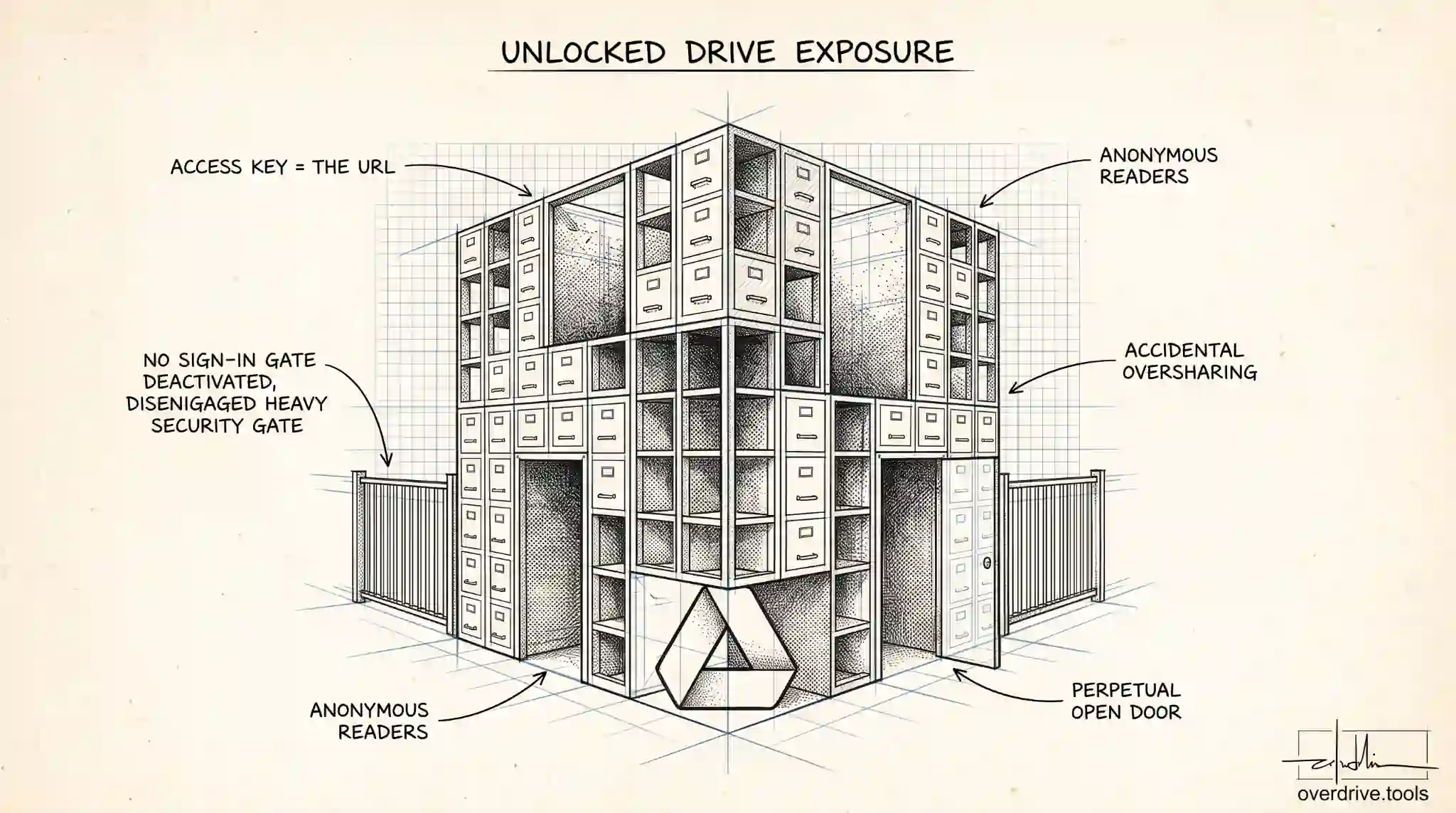
Cleaning up "anyone with the link" shares. If you've sent out shareable links over time, many files may be set to public-ish access without you remembering. Finding and closing all of those at once is a form of bulk removal.
What to Know Before You Remove Permissions
Removing access is immediate. The moment you revoke access, the person can no longer open the file. There's no grace period.
People aren't notified. Google Drive doesn't send an email when access is removed. If the removal might be unexpected, it's worth a heads-up outside of Drive.
Link sharing is separate from people sharing. If a file is set to "anyone with the link," removing a named person's access doesn't close the link. You need to explicitly change General Access to "Restricted" to close public link access.
You can only remove access to files you own or have editor access to. For files owned by someone else, you can remove yourself but not others.
Related Articles
- Google Drive Permissions: How to Review and Remove Access
- How to Find Externally Shared Files in Google Drive
- How to Revoke Google Drive Access for Former Employees