How to Find Google Drive Files You've Shared (Using Gmail)
Every Drive link you ever sent lives in your Gmail. Here's how to use Gmail's search operators to surface your entire sharing history — and what to do with it.
Overdrive Team//3 min read
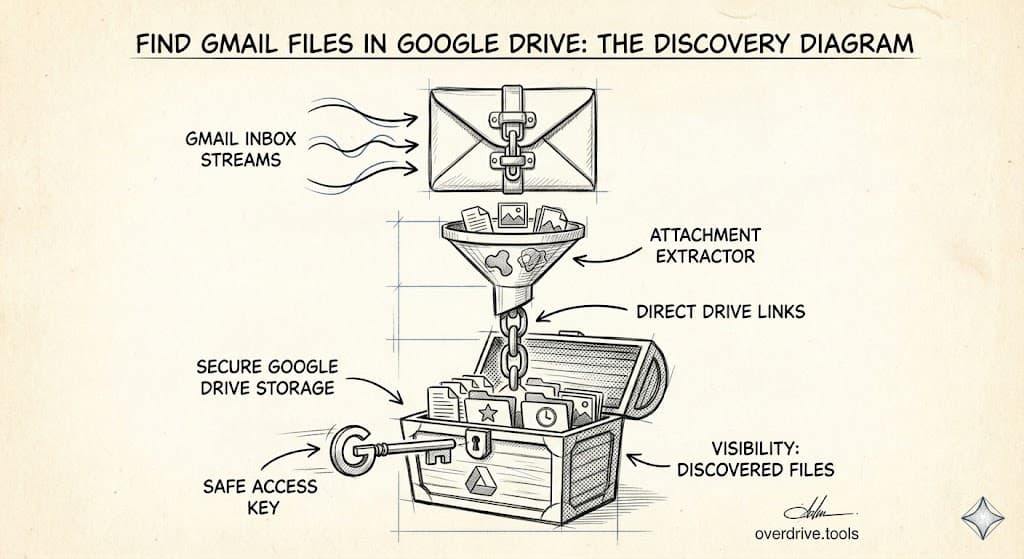
Every Google Drive link you've ever shared by email left a trace in your Gmail. Most people don't think to look there — but your inbox is actually one of the best places to audit your Drive sharing history, because it shows you exactly which files you sent out, to whom, and when.
This is especially useful if you're trying to figure out what you've shared over the years and with whom — before going in to revoke access or clean things up.
How to Search Gmail for Drive Sharing History
Gmail has a powerful search operator called has:link that finds emails containing links. Combine it with drive.google.com and you have a targeted search for every email you've sent or received containing a Drive link.
Find all emails you sent with Drive links
Type this into the Gmail search bar:
from:me has:link drive.google.com
This returns every email you sent that contained a Google Drive link. Each result is a share you made — a file or folder you linked to someone.
Find Drive sharing notifications
When someone shares a file with you directly (by adding your email), Google sends a notification from drive-shares-noreply@google.com. To see all files that have ever been shared with you this way:
from:drive-shares-noreply@google.com
Find shares sent to a specific person
If you want to see every Drive link you've sent to one person:
from:me to:their@email.com has:link drive.google.com
Find older shares
To narrow down shares from a specific period, add a date range:
from:me has:link drive.google.com before:2024/01/01
This surfaces older shares that are easy to forget about — and often still have active permissions.
What to Do With What You Find
Going through your Gmail sharing history shows you the scope of what you've shared and to whom. The next step is verifying whether those files still have active permissions — because sending the link doesn't always mean access was ever revoked.
For each Drive link you find in Gmail, you can open the file and check its sharing settings manually. But if the list is long, doing that file by file isn't practical. Overdrive lets you see all active permissions across your entire Drive in one view — so instead of cross-referencing emails with individual files, you can see everything that's currently shared and revoke what you no longer want from a single dashboard.
Limitations of the Gmail Approach
A few things to keep in mind:
It only shows email shares. If you shared a Drive link via Slack, a document, a website, or any channel other than email, it won't show up here. Gmail only knows what went through Gmail.
Deleted emails won't appear. If you deleted the email thread, the share history is gone from this view — though the file permission may still be active.
It shows the share, not the current state. Finding an email where you shared a file doesn't mean the file is still shared. The permission may have been revoked already. You'll need to check the file itself to confirm.
It doesn't capture direct permission grants. When you add someone to a file using the Share dialog (without emailing them a link), there may not be an email trail unless you chose to notify them.
Why This Is Worth Doing
Most sharing audits start from the Drive side — looking at files and checking who has access. Starting from Gmail gives you a different angle: the history of your own sharing actions, organized chronologically and by recipient. It's a useful complement to a Drive-side review, especially if you're trying to answer "what did I share with this person?" rather than "who has access to this file?"
Together, the two approaches give you a complete picture.
Related Articles
- How to Bulk Remove Sharing Permissions in Google Drive
- Google Drive Permissions: How to Review and Remove Access
- How to Remove "Anyone With the Link" in Google Drive