Can You See Who Viewed a Google Drive File?
Google Drive doesn't show a viewer log by default. Here's exactly what you can and can't see — and when Workspace accounts give you more visibility.
Overdrive Team//7 min read

The short answer is no — Google Drive does not show you a list of everyone who has opened a file you shared. There is no "viewer log" in the standard interface. But the situation is more nuanced than a flat no, because what Google tracks and surfaces depends on your account type, how the file is shared, and what you mean by "viewed."
What Google Drive Actually Shows You
When you share a Google Drive file, you do not receive a notification when someone opens it. There is no timestamp list, no name-by-name view history, and no indicator in the file itself that says "opened by 3 people."
What you can see is limited to two things: who currently has access (their name or email is listed in the sharing dialog), and activity in the file itself for Google-native formats like Docs, Sheets, and Slides. Neither of these tells you whether someone actually opened the file. Knowing a person has access is not the same as knowing they used it.
This surprises most people. The assumption is that Google controls both the file storage and the accounts, so they must be tracking who opens what. They do collect this data internally — but they don't surface individual viewer identities to file owners on personal accounts.
Files Shared Via Link: Completely Anonymous
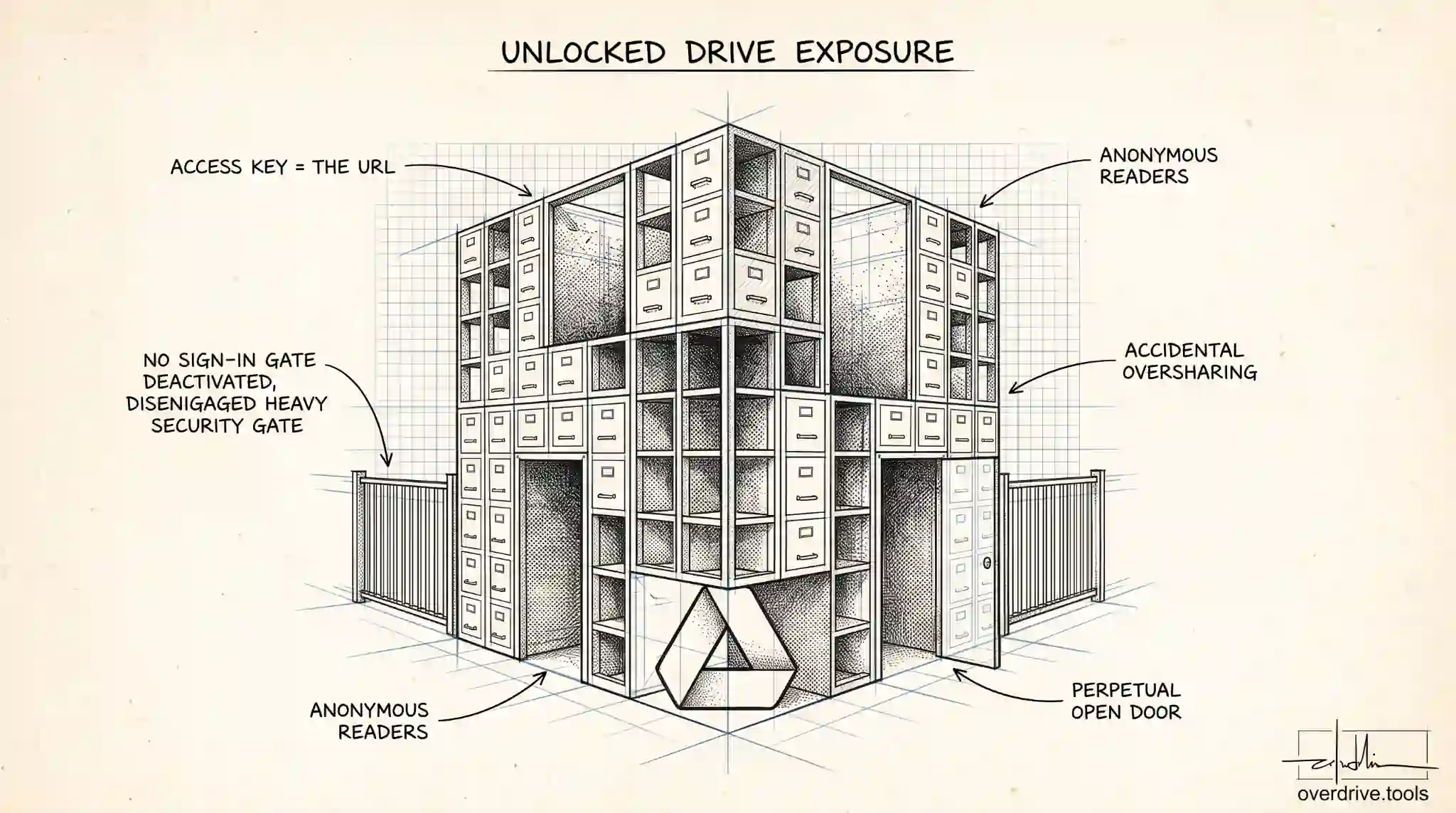
If you shared a file using "Anyone with the link," your visibility is even more limited. You can see that the link setting is active, but you cannot see who has used that link. Google does not associate anonymous link access with identities. If someone without a Google account opens your linked file, there's nothing to identify them. Even for signed-in Google users, that access is not shown to the file owner.
This is the most common scenario where people want to track who viewed their file — sending a proposal to a client, sharing a reference document, distributing a link in an email or message. It's also the scenario with the least visibility. A document you shared via link could have been opened by one person or a hundred, and you'd have no way to know from Google Drive's native tools.
The Activity Dashboard: What It Does and Doesn't Tell You
For Google Docs, Sheets, and Slides, there is a feature called the Activity Dashboard. To access it, open the document and click the graph icon near the top-right corner (or go to Tools → Activity dashboard, if available in your account).
The Activity Dashboard shows a few things: when the document was last edited and by whom, a trend line of total viewing activity over time, and — for files shared with specific named users — whether each person has viewed the document and approximately when.
That last part is meaningful. If you share a file directly with someone via their email address, the Activity Dashboard may show whether they've opened it. "May" is the operative word — this only works for directly invited collaborators, not for anyone-with-the-link access. And it only shows a binary result: viewed or not viewed. You don't get time-on-page, what they scrolled to, or whether they actually read anything.
There's also a privacy override that complicates this further. Any Google user can turn off their view history in their account settings. If a collaborator has opted out, you'll see their name in the sharing list but their viewing status will appear as private. You'll know they've hidden it, but not whether they opened the file.
The Critical Difference: Personal vs. Workspace Accounts
Whether you can see viewing information at all depends heavily on your account type.
Personal Google accounts (gmail.com): The Activity Dashboard is either unavailable or shows minimal data. There is no audit log. File owners have no way to see individual viewer names through Google's tools. The viewing trend chart may appear, but named viewer data is not shown.
Google Workspace accounts (business and school accounts like name@company.com): The Activity Dashboard is more consistently available and shows whether each named collaborator has viewed the document and when. For organization-wide visibility, Workspace admins can access Drive audit logs through the Admin Console, which logs file access events across the organization — though this is admin-level, not something individual file owners can pull themselves.
If you're on a personal Gmail account trying to confirm whether someone read your document, Google's built-in tools won't give you that answer. If you're on a Workspace account and shared with specific named collaborators, you have at least a partial view.
How to Check the Activity Dashboard on Workspace
If you have a Google Workspace account and shared a file with specific users:
- Open the Google Doc, Sheet, or Slide in question
- Click the activity icon in the top-right corner — it looks like a small bar chart — or go to Tools → Activity dashboard
- Under "Viewers," you'll see a list of people with access and their viewing status
- The timeline tab shows when views occurred in aggregate
Keep in mind that "viewed" means the file was opened — nothing more. It doesn't tell you whether someone read it carefully, skimmed it, or closed it within seconds. And it doesn't work for uploaded files like PDFs or Word documents — only Google-native file types.
Tracking Links: A Workaround With Limits
If you need to know whether a specific shared link has been clicked — not who opened it, just whether it was used — one workaround is to use a URL shortener or link tracker before the Google Drive URL. Services like Bitly log link clicks. You'd share the shortened URL rather than the Drive link directly, and clicks would show up in the tracker's dashboard.
This tells you the link was clicked, not that the file was opened. It doesn't give you identity. And it adds friction for recipients who may be wary of following shortened links. It's a partial signal at best.
For actual read receipts — knowing not just that a document was opened but how long each section was read — Google Drive is not the right tool. Dedicated document platforms like DocSend, PandaDoc, or Notion offer viewer analytics that Google doesn't. If that level of tracking matters for your workflow, those tools are worth considering alongside Drive.
Workspace Audit Logs: What Admins Can See
For organizations on Google Workspace, admins have access to Drive audit logs through the Admin Console. These logs record events including file access, with timestamps and user identities, across the entire organization.
This is not something individual file owners can access. It requires admin-level access to the Admin Console, and the logs are typically used for compliance and security purposes rather than day-to-day tracking. But if you're a Workspace admin and need to know who accessed a specific sensitive document, the audit log is where that information lives.
The audit log only covers users within your Workspace organization. External collaborators who access files through a link or via a personal Gmail account may not appear in the same way.
What This Means for Practical Situations
If you're trying to confirm a client reviewed a proposal, Google Drive will give you a fuzzy answer at best. If you shared via link, you'll know nothing. If you shared directly and you're on a Workspace account, you'll know whether they opened it — not whether they read it.
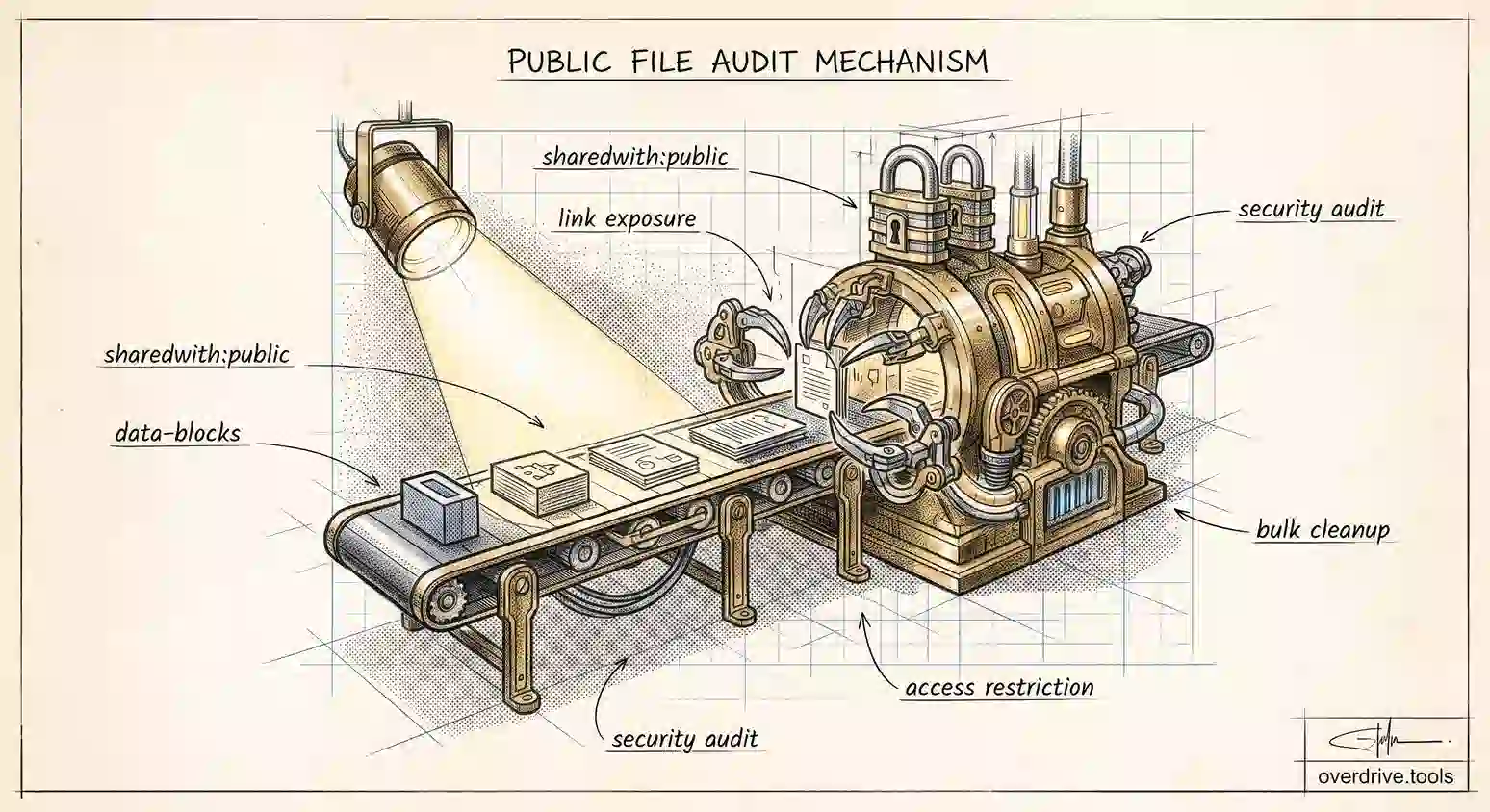
If you're trying to audit who has access to sensitive files — not who viewed them, but who could view them — that's a more answerable question. Overdrive can scan your entire Drive and surface all active sharing permissions: who has access to what, which files are shared with external accounts, and which old collaborators still have access they shouldn't. That's a different question than "who viewed this" but often more actionable from a security standpoint.
If you need genuine read receipts for documents shared outside your organization, the honest answer is to use a tool built for that purpose rather than trying to build tracking onto Google Drive.
Frequently Asked Questions
If someone views my file in the Activity Dashboard, does that confirm they read it? No. It confirms the file was opened. The Activity Dashboard has no way to track time spent, scroll depth, or engagement. An "opened" status means the file was accessed, not that it was read.
Can someone see that I viewed their Google Drive file? Potentially, for the same reasons. If you viewed a file shared with you from a Workspace account, the owner may see you in their Activity Dashboard — unless you've opted out of view tracking. To opt out: open any Google Doc, click the activity chart icon, and toggle off "Show your view history."
Does Google notify the owner when I open their file? No. There are no real-time notifications for file views. Notifications exist for comments and edits, but not for someone opening a file.
Can I see who viewed a Google Drive folder? No. The Activity Dashboard applies only to individual Google-native files, not folders. Folders have no view tracking — only sharing settings that show who has access.
Is there a way to get notified when someone views my file? Not natively. You can turn on notifications for edits and comments, but not views. Some third-party browser extensions claim to add this, but they're not officially supported and often require invasive permissions to work.
What's the difference between "viewed" and "accessed" in the Activity Dashboard? Google uses these terms somewhat interchangeably in the dashboard context. Both typically refer to the file being opened in a browser or app. There's no separate distinction between viewing and accessing in the standard dashboard.
Related Articles
- Who Has Access to My Google Drive?
- Are Your Google Drive Files Publicly Searchable?
- Google Drive Activity Log: What It Tracks and How to Use It