Google Drive Activity Log: Track File Changes
Google Drive logs who edits, moves, and shares your files. Here's how to read that activity log — and what you can and can't see on a personal account.
Overdrive Team//6 min read
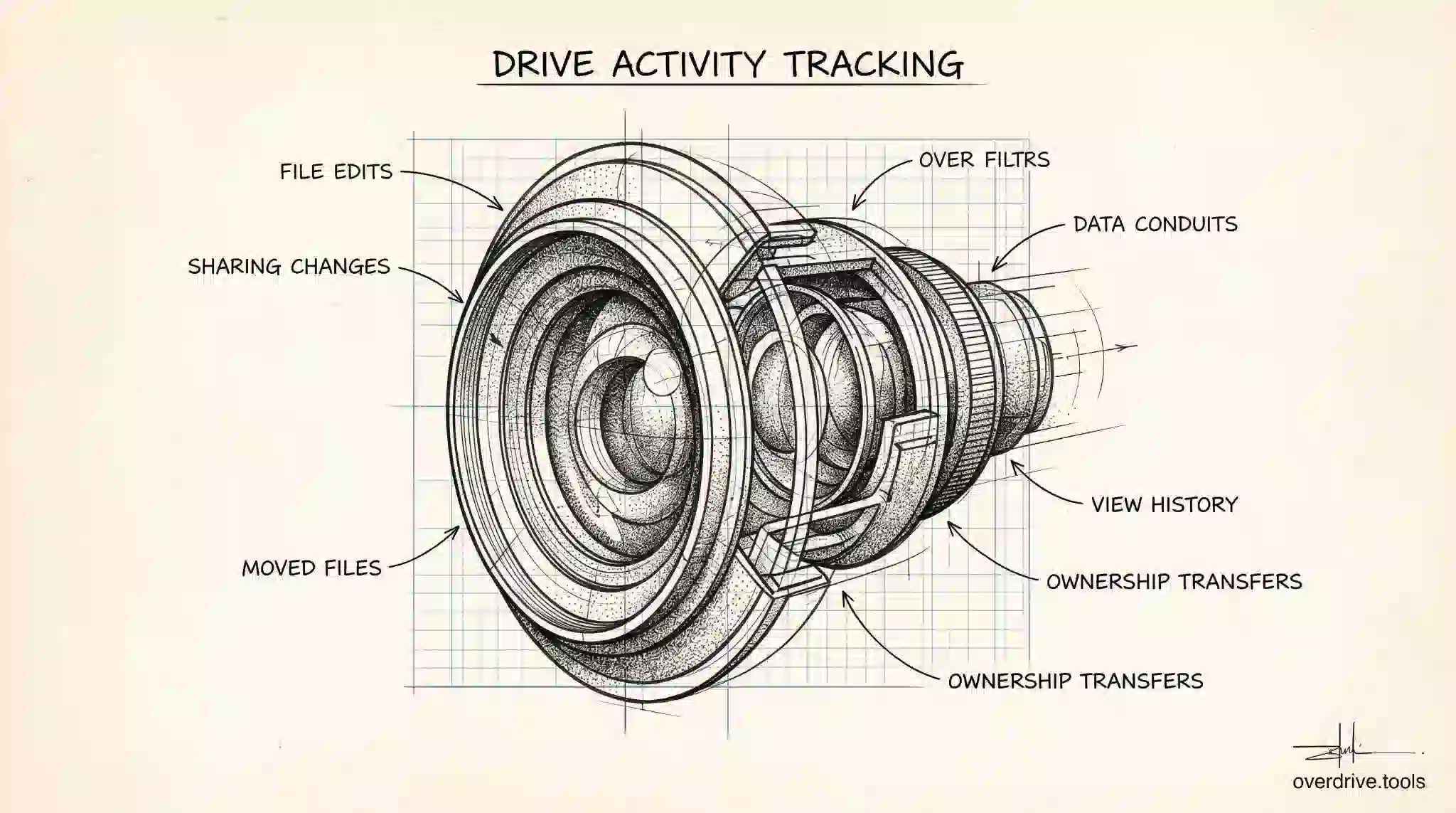
Google Drive maintains a log of activity for every file and folder you own: who edited it, who moved it, who shared it, and when. This log is available to you through the Drive interface, and it's more detailed than most people realize — though how much you can see depends on your account type and what the other person's privacy settings allow.
Where to Find the Activity Log
The activity panel is available for any file or folder in Google Drive. To access it, right-click the file and select View details, or select the file and click the information icon (ⓘ) in the top-right corner of the Drive interface. This opens a panel on the right side with two tabs: Details and Activity.
The Activity tab shows a reverse-chronological log of everything that's happened to that file: edits, comments, sharing changes, moves, renames, and uploads. Each entry shows the name of the person who took the action and when it happened.
You can also view activity for a folder, which shows all actions across everything inside that folder — useful for monitoring changes to a shared project directory.
What the Activity Log Tracks
The activity log records a broad range of actions. Edits to Google Docs, Sheets, and Slides are logged, though the log shows that an edit happened rather than exactly what changed — for the specific content of changes, you need version history. Other actions that appear include: moving a file to a different folder, renaming a file, sharing or unsharing a file, changing sharing settings, uploading a new version of a file, adding or resolving comments, and transferring ownership.
For most collaborative work, this gives you a clear picture of who has been touching a file and what kind of action they took.
The Activity Dashboard: Who Viewed Your Files
Separate from the standard activity log is the Activity dashboard, which shows who has viewed a Google Docs, Sheets, or Slides file. To access it, open the file and go to Tools > Activity dashboard.
The dashboard shows a chart of view activity over time and a list of people who have viewed the file, along with the date of their most recent view.
There are two important caveats. First, the Activity dashboard only shows view data for people in your Google Workspace organization — it does not show view data for external users or people outside your domain, even if they have access to the file. Second, users can opt out of having their view history visible to others. If someone has enabled this privacy setting, their name won't appear in the Activity dashboard even if they've viewed the file.
This means the Activity dashboard gives you a useful but incomplete picture. If you share a file widely and nobody appears to have viewed it, that doesn't necessarily mean nobody has — some viewers may have their view history hidden.
Personal Google Accounts vs. Workspace
The standard activity panel (who edited, moved, or shared a file) is available on all Google accounts, including free personal accounts. The Activity dashboard showing viewer identity is a Google Workspace feature.
On personal Gmail accounts, you can see what actions were taken on your files and by whom, but you cannot access the viewer list that Workspace provides. You also don't have access to admin-level audit logs.
Workspace Admin Audit Logs
For Google Workspace administrators, a much more detailed audit log is available through the Admin Console under Reports > Audit > Drive. This log captures organization-wide Drive activity: every time any user views, edits, downloads, shares, or deletes a file across the entire organization. Admins can filter by user, date range, file, or action type.
This admin-level log is useful for security investigations, compliance requirements, and understanding how sensitive files have been accessed across the organization — without relying on individual file owners to monitor their own files.
What the Activity Log Doesn't Show
The activity log has real gaps worth knowing about. It doesn't show view activity on personal accounts — only Workspace accounts with the Activity dashboard can see who has viewed a file. It doesn't record when someone downloads a file without opening it first in the browser. It doesn't track what changes were made during an editing session, only that an edit occurred — for that level of detail, version history is the right tool. And it doesn't show activity on files owned by others that are shared with you; you can only see the activity log for files you own.
For Workspace users, the admin audit log is more comprehensive, but individual file owners working in a personal or small team context are working with a narrower picture.
Filtering and Searching the Activity Log
The activity panel within Drive's file view doesn't offer filtering — you see everything in reverse chronological order. For more targeted searching, the Workspace Admin Console audit log provides filters by user, date range, action type, and file. For personal accounts, there's no native filter; you scroll through the activity list manually.
If you need to understand activity across a large number of files — say, everything that happened to a project folder over the past month — the individual file activity panel doesn't scale well. The admin audit log or a third-party tool better serves that kind of cross-file investigation.
Using the Activity Log for Security and Compliance
The most practically valuable use of the activity log is security triage. If a file was shared externally and you're not sure whether it was accessed, the activity log gives you a timeline of what happened and when. If a file's content changed unexpectedly, the log tells you who made edits and at what time — pointing you to the right version in version history to investigate further.
For teams with compliance requirements — particularly in regulated industries where audit trails matter — Google Workspace's admin-level audit log can export Drive activity data. This export can be fed into security information and event management (SIEM) systems or retained as evidence for audits.
Frequently Asked Questions
How far back does the activity log go? For Google Workspace, the audit log retains data based on your plan — typically 180 days for standard plans, up to 400 days for Enterprise tiers. The individual file activity panel in Drive doesn't display a specific cutoff, but older events may not be visible depending on the plan.
Can you see when someone downloaded a file? Downloads are visible in the Workspace Admin Console audit log when the user downloaded the file via the browser interface. Downloads that happen through the Drive sync app (Google Drive for Desktop) may not appear the same way. This is a known limitation of Drive's visibility into file access.
Does the activity log show if someone forwarded a shared link? No. Drive has no way to track what someone does with a link after it's been opened. If you shared a link and someone forwarded it to others, those additional viewers may show up in the Activity dashboard (if they're in your Workspace), but the forwarding action itself isn't logged.
Can editors see the activity log? Yes. Anyone with at least Commenter access to a file can view its activity log through the Details panel. The Activity dashboard (viewer identity) requires Workspace and is visible to anyone with access to the file — not just the owner. The file owner always retains full visibility into all logged activity, including any actions that predate when other collaborators were added.
Monitoring Who Has Access Across Many Files
The activity log works well for tracking what happened to specific files. What it doesn't do is give you a consolidated view of sharing permissions across your entire Drive — who currently has access to what. Those are two different questions.
If you're trying to answer the second one — especially after someone has left your organization, or before a sensitive project launches — Overdrive can scan your Drive and show you the current access state across all your files in one place, rather than checking them individually through the activity panel.
Related Articles
- Who Has Access to My Google Drive?
- Google Drive Security Audit Checklist
- How to Find All Externally Shared Files in Google Drive