Who Can See Your Google Drive? How to Check (and Revoke Access)
Google Drive doesn't always make it obvious who has access to your files. Here's how to see every person with access — and remove them in seconds.
Overdrive Team//8 min read
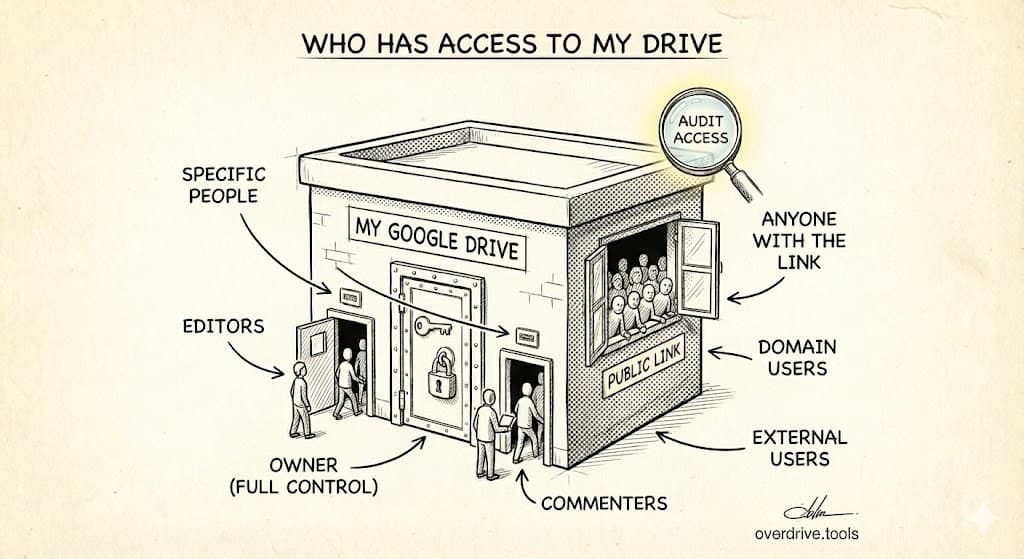
To see who has access to a Google Drive file, right-click the file and select "Share" (or click the share icon). This opens the sharing panel showing every person and group with access, along with their permission level—Owner, Editor, Commenter, or Viewer. For "anyone with the link" files, you'll see that setting displayed instead of specific names.
That's the quick answer for a single file. But if you want to see everyone with access across your entire Drive—every file, every folder, every forgotten share from three years ago—Google doesn't make that easy. This guide covers both: checking individual files and finding all users with access anywhere in your Drive.
How to Check Access on Individual Files
The sharing panel is your primary tool for checking who can access a specific file or folder.
Step-by-Step: View File Permissions
- Open Google Drive in your browser
- Right-click on any file or folder
- Select Share from the menu (or click the person-with-plus icon)
- The sharing dialog opens, showing all users with access
What you'll see in the sharing panel:
- People with access: A list of email addresses with access to this specific item
- Permission level: The dropdown next to each name shows their access type
- General access: At the bottom, this shows if the file is "Restricted" (only specific people) or has link sharing enabled
Understanding Permission Levels
Google Drive has four permission levels:
| Permission | Can View | Can Comment | Can Edit | Can Share | Can Delete |
|---|---|---|---|---|---|
| Viewer | ✓ | ✗ | ✗ | ✗ | ✗ |
| Commenter | ✓ | ✓ | ✗ | ✗ | ✗ |
| Editor | ✓ | ✓ | ✓ | ✓* | ✗ |
| Owner | ✓ | ✓ | ✓ | ✓ | ✓ |
*Editors can share by default, but owners can disable this in sharing settings.
Important nuance: When someone has Editor access, they can also change who else has access—they can add new people or remove existing ones (unless restricted). If you want someone to edit but not manage access, click the gear icon in the share dialog and uncheck "Editors can change permissions and share."
General Access Settings
Below the list of specific people, you'll see "General access" which controls link sharing:
- Restricted: Only people explicitly added can access the file
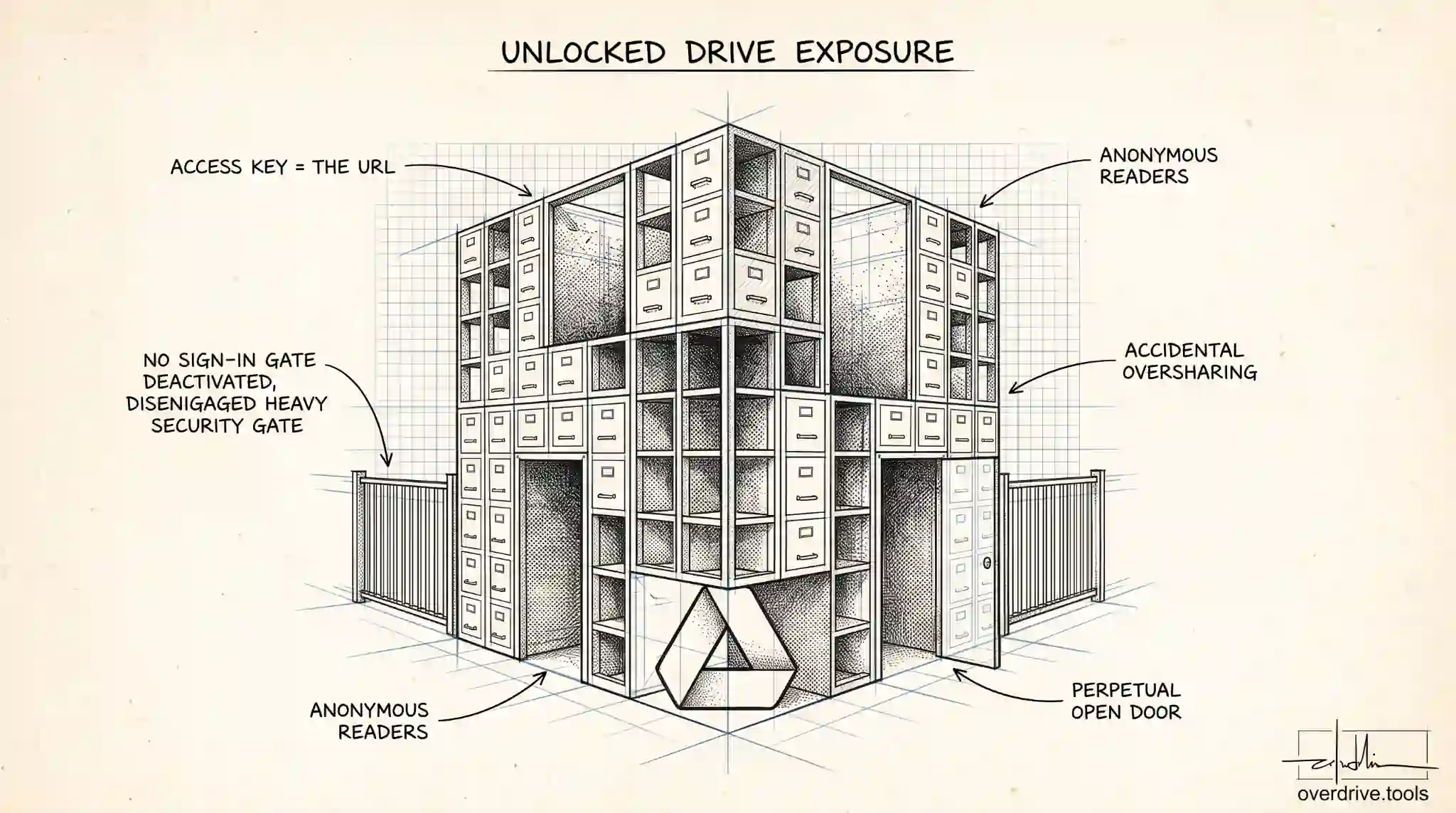
- Anyone with the link: Anyone who has or gets the URL can access it (but search engines won't index it)
- Anyone: The file is publicly discoverable and indexed by search engines
If you see "Anyone with the link," that file is essentially public to anyone who obtains the URL. This is often the source of security problems—files set to link sharing for a quick share that were never changed back.
How to Find Everyone With Access Across Your Entire Drive
Checking files one by one works for a handful of documents. But most people have hundreds or thousands of files, and shared permissions accumulate over years. You need a way to see the full picture.
Google Drive doesn't offer a single view showing "all users with access to anything." You have to work around this limitation.
Method 1: Use Search Operators
Google Drive's search bar accepts special operators that filter by sharing status.
Find files shared with a specific person:
to:email@example.com
This shows all files you've shared with that email address. Note: This only finds files shared after February 2021.
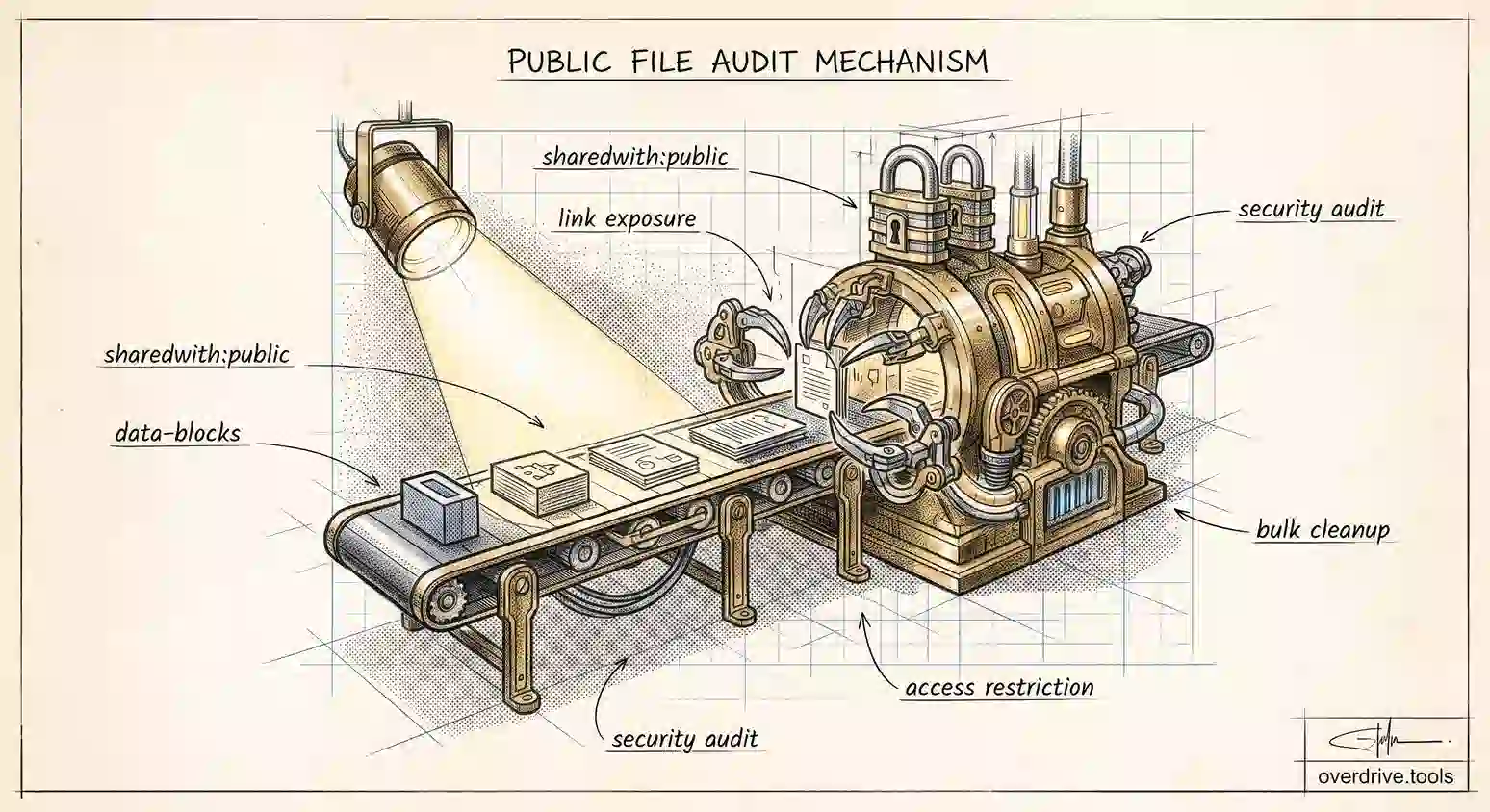
Find all files with link sharing enabled:
sharedwith:public
This reveals every file set to "anyone with the link" or public—your highest-risk items.
Find files shared outside your organization (Workspace):
sharedwith:external
This shows files shared with people outside your domain.
Method 2: Check the "Shared with Me" Section
The "Shared with me" section in the left sidebar shows files others have shared with you—but that's the opposite direction. For files YOU'VE shared with others, you need the search operators above or a tool that provides this view.
Method 3: Use Google Drive's Storage Manager
Google Drive's Storage Manager helps you review large files:
- Go to drive.google.com/settings/storage
- This shows your largest files—you can check sharing on each
- Click any file to see its details and sharing settings
This isn't comprehensive for finding shared files, but it helps you prioritize high-value files to audit.
Method 4: Use Overdrive (Fastest Option)
The manual methods above work, but they're slow and easy to miss things—especially if you have years of files and dozens of people you've shared with.
Overdrive scans your entire Drive in about two minutes and shows you:
- Every user with access to any file in your Drive
- Exactly which files each person can see
- All files with "anyone with the link" enabled
- Permission levels and sharing settings at a glance
The scan is free, and you'll see things the manual searches miss. Then you can decide what to clean up.
Building Your Access Roster
Once you've gathered information using the methods above, compile a list of everyone with access to anything in your Drive. This becomes your audit roster.
Categorize Each User
For every person on your list, determine their category:
| Category | Examples | Typical Action |
|---|---|---|
| Current team | Active employees, current partners | Verify appropriate access level |
| Active external | Current clients, active contractors | Confirm project is ongoing |
| Former team | Ex-employees, past partners | Review and likely remove |
| Former external | Past clients, finished contractors | Remove unless ongoing relationship |
| Unknown | Don't recognize the email | Investigate, then likely remove |
| Link sharing | "Anyone with the link" | Evaluate each file individually |
Red Flags to Look For
When reviewing your access roster, watch for:
- Personal emails of former employees: They left the company but still access files via their personal Gmail
- Contractor emails from finished projects: The project ended months ago, access remains
- Client emails with broad access: They needed one folder, but have access to many
- Domains you don't recognize: Who is this, and why do they have access?
- Too many Editors: Most people need Viewer access, not Editor
Document What You Find
Keep a simple record:
Audit Date: [Date]
Total users with access: [Number]
  - Current team: [Number]
  - Active external: [Number]
  - Former/unknown (need removal): [Number]
Files with link sharing: [Number]
This baseline helps you measure improvement and maintain security over time.
Special Cases: Folders, Shared Drives, and Inheritance
Access in Google Drive isn't always straightforward. Understanding inheritance prevents surprises.
Folder Permissions
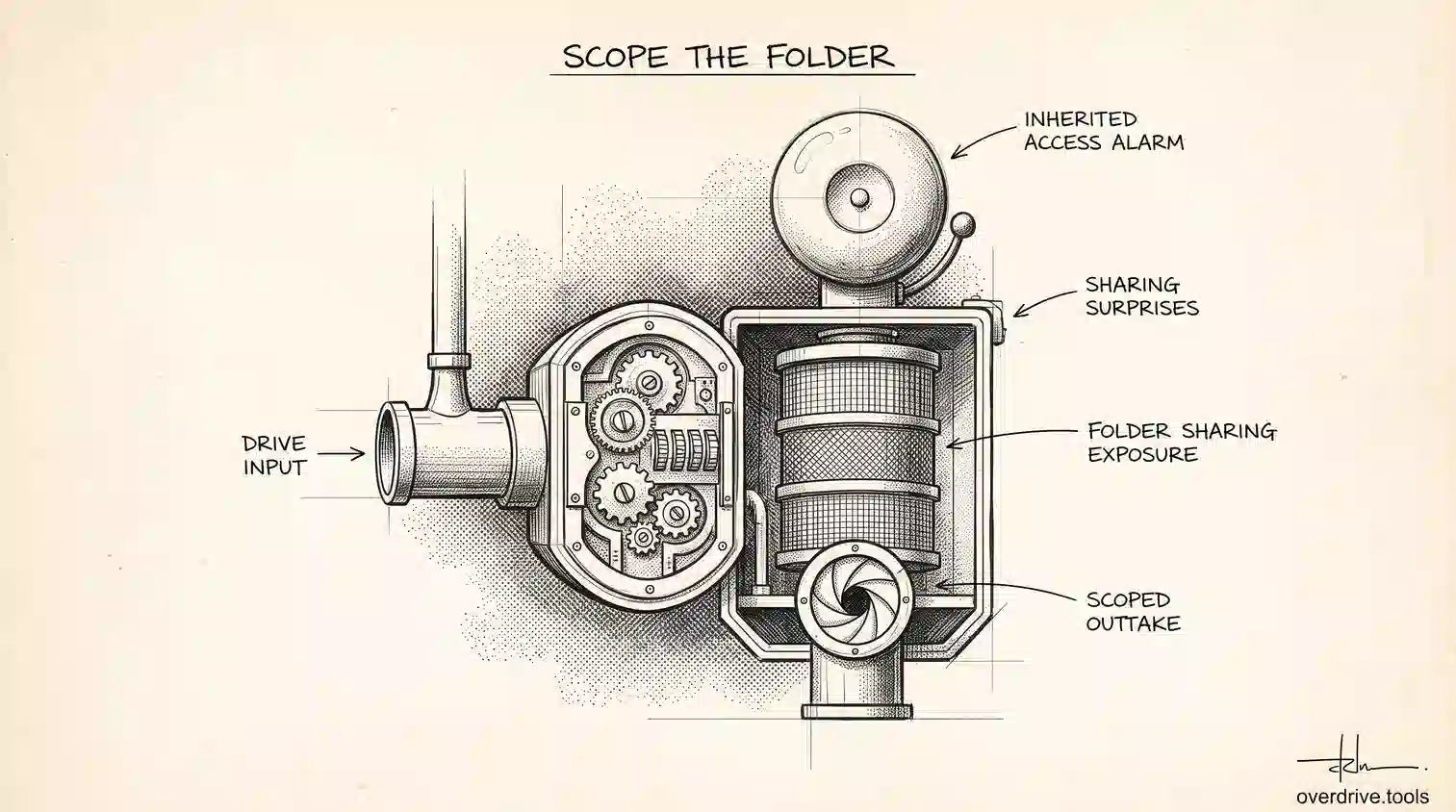
When you share a folder, everyone with access can see everything inside it—including files added later. This is powerful but dangerous:
- Good: Share a project folder once, all team members can access new files automatically
- Bad: Add a sensitive file to a shared folder and everyone sees it immediately
To check if a file inherited its access from a parent folder:
- Open the sharing panel for the file
- Look for "Inherited from [folder name]" next to user names
- These permissions come from the folder, not the file directly
Important: If you remove someone's access to a folder, they lose access to everything inside—unless individual files have their own direct sharing settings that override the folder.
Shared Drives (Google Workspace)
Shared Drives work differently from "My Drive":
- The organization owns the files, not individuals
- Membership is managed at the Shared Drive level
- Individual file sharing within a Shared Drive is still possible (and can create confusion)
To see who has access to a Shared Drive:
- Right-click on the Shared Drive name
- Select "Manage members"
- View all members and their permission levels
Shared Drive permission levels differ from My Drive:
- Manager: Full control, can delete the Shared Drive itself
- Content Manager: Can add, edit, move, delete files
- Contributor: Can add and edit, but not move or delete
- Commenter: View and comment only
- Viewer: View only
Files With Multiple Access Paths
A user might have access to the same file through multiple paths:
- Direct access to the file itself
- Access via a parent folder
- Access via a Shared Drive membership
- Access via "anyone with the link"
When you remove one access path, they might still have access through another. This is why comprehensive auditing matters—you need to see all access paths, not just one. Overdrive shows you this complete picture automatically.
What to Do With What You Find
Finding out who has access is step one. Step two is deciding what to do about it.
Immediate Actions
For files with access that's clearly wrong:
- Former employees with personal email access: Remove immediately
- "Anyone with the link" on sensitive files: Restrict to specific people
- Unknown email addresses: Investigate, then remove if unexplained
We cover the removal process in detail in How to Revoke Google Drive Access When Employees Leave.
Access to Review
For access that might be wrong:
- Old client/contractor access: Confirm project status before removing
- Broad access (many files): Verify they need everything or restrict to subset
- Editor access: Consider downgrading to Viewer where appropriate
Access That's Probably Fine
Some sharing is intentional and appropriate:
- Current team members on active projects
- Active clients on their project folders
- Public resources intentionally shared via link
Document these as "reviewed and approved" so future audits go faster.
Frequently Asked Questions
Can I see who has viewed my Google Drive files?
For Google Docs, Sheets, and Slides, you can see view history: open the file, go to Tools > Activity dashboard. This shows who opened the file and when. For other file types (PDFs, images, etc.), Google Drive doesn't track who has viewed them.
Does removing someone from a folder remove them from all files inside?
Yes—unless those files have their own direct sharing permissions. If you shared a folder with someone AND shared individual files inside that folder separately, removing folder access doesn't remove the individual file access.
Can people with link access see who else has access?
No. If someone accesses a file via "anyone with the link," they can't see the list of other people with access. They only see the content (and can see who else is currently viewing if it's a Google Doc/Sheet/Slide).
How do I see files that were shared with me and then the sharing was removed?
You can't. Once someone removes your access, the file disappears from your Drive. You might still have a copy if you downloaded it or made your own copy, but the original is no longer accessible.
Can I get notified when someone shares my files with others?
Not directly in personal Google Drive. In Google Workspace, admins can set up alerts for external sharing through the Admin Console. Individual users can see sharing activity in the Activity dashboard for specific files.
Why do some users show "Inherited" access?
This means their access comes from a parent folder, not the file directly. If you want to remove their access to this specific file while keeping their folder access, you need to adjust the file's sharing settings to override the inheritance (or move the file out of the shared folder).
Keep Reading
- The Complete Google Drive Security Audit Checklist — Full framework for auditing your Drive security
- How to Revoke Google Drive Access When Employees Leave — Step-by-step access removal for offboarding.