Can Others See Version History in Google Docs?
Only people with edit access can see a Google Doc's version history. Here's what editors see, what viewers can't, and how to share without your history.
Overdrive Team//7 min read
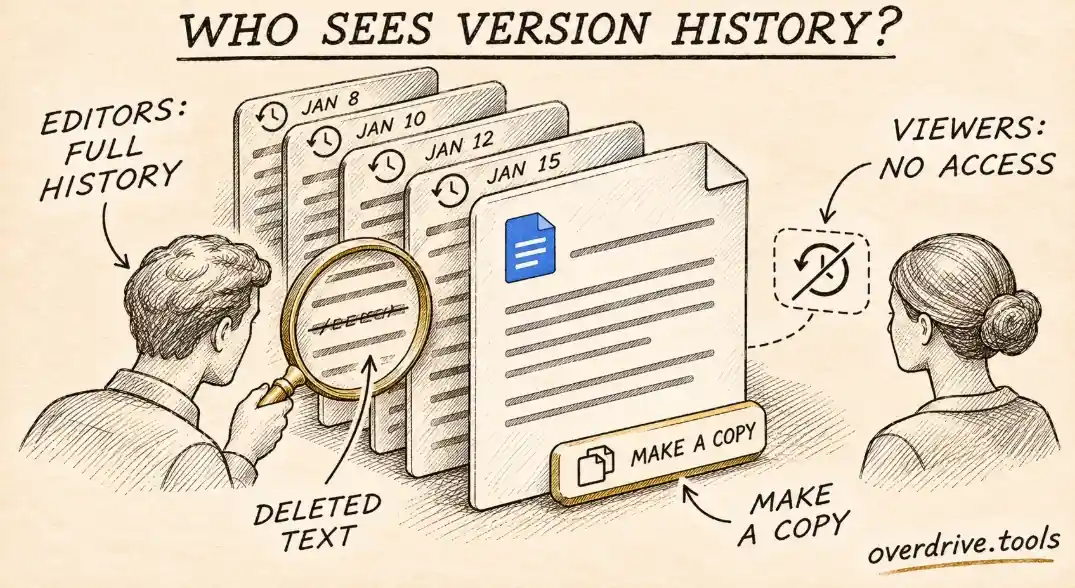
Only if they have edit access. Google's rule is simple: to browse earlier versions of a Google Doc, Sheet or Slides file, you need permission to edit it. Viewers and commenters can't open version history at all.
Editors, on the other hand, can see everything: every saved version since the file was created, including text you deleted, earlier drafts and the names of the people who made each change. Here's what that means in practice and how to share a document without handing over its whole past.
Why this catches people out
Version history is one of the most useful features in Google Docs, and also one of the easiest to forget about. You write a rough first draft, rework it over a week, cut a paragraph you'd rather nobody saw, then share the polished result. It feels like you're sharing the final version. If you share it as an editor, you're actually sharing every version.
The situations where this matters are familiar. A cover letter that started life addressed to a different company. A proposal where the first draft had a much lower price. A contract template with the last client's name still in the history. Internal comments about a colleague that were deleted before the document went out. None of it is visible on the page, and all of it is visible in File > Version history to anyone with edit rights.
What each role can see
| Role | Can open version history? | Can see who made each edit? |
|---|---|---|
| Owner | Yes | Yes |
| Editor | Yes | Yes |
| Commenter | No | No |
| Viewer | No | No |
This applies whether the person was given access directly, through a folder, through a group or through link sharing. An "Anyone with the link can edit" setting gives every person with the link full access to the history too, which is one more reason to keep edit links restricted.
What editors can actually see
When an editor opens version history, they see a timeline of versions down the right side with dates, times and the names of the people who made changes. Clicking a version shows the whole document as it was at that moment, with changes highlighted by author.
That includes text that no longer exists in the current version, earlier titles, comments and suggestions that were made directly in the text, and any named versions you created. In Google Sheets, editors can also right-click a cell and choose "Show edit history" to see past values of that cell. In Google Docs, some Workspace editions (Business Standard, Business Plus, Enterprise Standard, Enterprise Plus and Education Plus) add a "Show editors" option that reveals who changed a selected passage.
Editors see history from before they were added. Being added last week doesn't limit them to last week's changes.
Uploaded files work differently
For uploaded files like PDFs, Word documents and images, Drive keeps file versions rather than a Docs-style history. Each time someone uploads a new version, the previous one is kept under Manage versions. People with edit access can see and download those earlier versions. Older versions can be removed automatically after 30 days or once there are 100 newer ones, unless someone marks them "Keep forever."
So if you replaced a draft PDF with a final one using "Upload new version," editors can still retrieve the draft until it ages out.
How to share without your version history
Option 1: Check who already has edit access
Before worrying about a single document, it's worth knowing how many of your files are editable by other people. Edit access granted years ago, or through an "anyone with the link can edit" setting, means old drafts are visible to people you may have forgotten about.
Overdrive scans your Drive's sharing metadata and lists who has access to each file and at what level, including link-shared files, so you can spot editors who should really be viewers and change them in bulk.
Option 2: Share as Viewer or Commenter
If the other person only needs to read or give feedback, don't give them edit access. Viewers and commenters can't open version history, and commenters can still suggest wording through comments. This is the single most effective fix and the one most people skip because "Editor" feels friendlier.
Option 3: Make a clean copy
If someone genuinely needs to edit, share a copy instead of the original. Open the document, choose File > Make a copy, give it a new name and share that. The copy starts fresh, without the earlier version history of the original, so the other person sees only what's on the page at the moment you copied it. Keep working in your original privately if you want to retain your own history.
Option 4: Delete the history (personal accounts only)
Google now lets the owner of a file in a personal Google Account delete version history. Open the file, click Last edit at the top right, then use the More menu in the version history panel to choose "Delete history," or pick a version and choose "Delete this and older versions." Named versions are kept, so remove their names first if you want those gone too.
Two cautions. This is permanent and can't be undone, so you lose the ability to roll back as well. And it isn't available for Google Workspace accounts, where history is often retained for business and compliance reasons.
Option 5: Send a file, not a link
If the recipient doesn't need to collaborate at all, download the document as a PDF or Word file and send that. Exported files carry only the current content, not the Docs version history. Do a quick check of tracked changes or comments in Word files before sending, since those are separate from Google's history.
Choosing the right method
The right method depends on what the other person needs to do. If they're reading or reviewing, share as Viewer or Commenter. If they need to edit something you started, give them a clean copy. If you're handing over a finished document, send a PDF. Deleting history makes sense for a personal document you want to keep using and sharing as an editor, where you're comfortable giving up the ability to restore older drafts.
Common mistakes
The first is assuming that deleting text deletes it. In Google Docs, removed text stays in the version history indefinitely unless you delete the history or the revisions get merged over time.
The second is making a document "Anyone with the link can edit" for convenience. That gives everyone with the link full history access, and links travel further than you expect.
The third is forgetting about older collaborators. Someone who helped on a document two years ago and still has edit access can open today's version history, including everything written since they last worked on it.
The fourth is treating suggestion mode as private. Accepted and rejected suggestions become part of the document's history, and editors can see the versions where they appeared.
If you're on the receiving end
The same rules apply in reverse. If someone shares a document with you as a viewer or commenter, the version history option simply won't be available to you, and there's no setting on your side that changes that. You'll see the current content and, as a commenter, the comment threads, but not the drafts behind them.
If you're upgraded to editor later, the whole history opens up at that point, including everything written before you joined. That's worth keeping in mind on team documents: when a colleague asks for edit access to fix a typo, they're also getting a full view of every earlier draft. For a one-off fix, it can be simpler to leave a comment or suggestion and let an existing editor make the change.
A quick pre-sharing checklist
Before you share a document that went through several drafts, ask three questions. Does this person need to edit, or just read? If they need to edit, is there anything in the earlier drafts I wouldn't want them to see? And does anyone else still have edit access from an earlier stage? If the answers point to risk, make a clean copy or share as a viewer. It takes less than a minute and closes the gap completely.
The short version
Other people can see a Google Doc's version history only if they have edit access. Viewers and commenters can't open it. Editors can see every earlier version, deleted text and who made each change, including changes from before they joined. To share without your history, share as Viewer or Commenter, share a fresh copy made with File > Make a copy, send a PDF, or, in a personal account, delete the history as the owner. Review who already has edit access across your Drive, because old editors can see new drafts too.
Related Articles
- Google Drive Version History: How It Works
- What Can a Commenter Do in Google Drive?
- What Can a Viewer Do in Google Drive?