Google Drive Version History: How It Works
Google Drive saves previous versions of your files automatically. Here's how long they're kept, where to find them, and what to do before they're gone.
Overdrive Team//6 min read
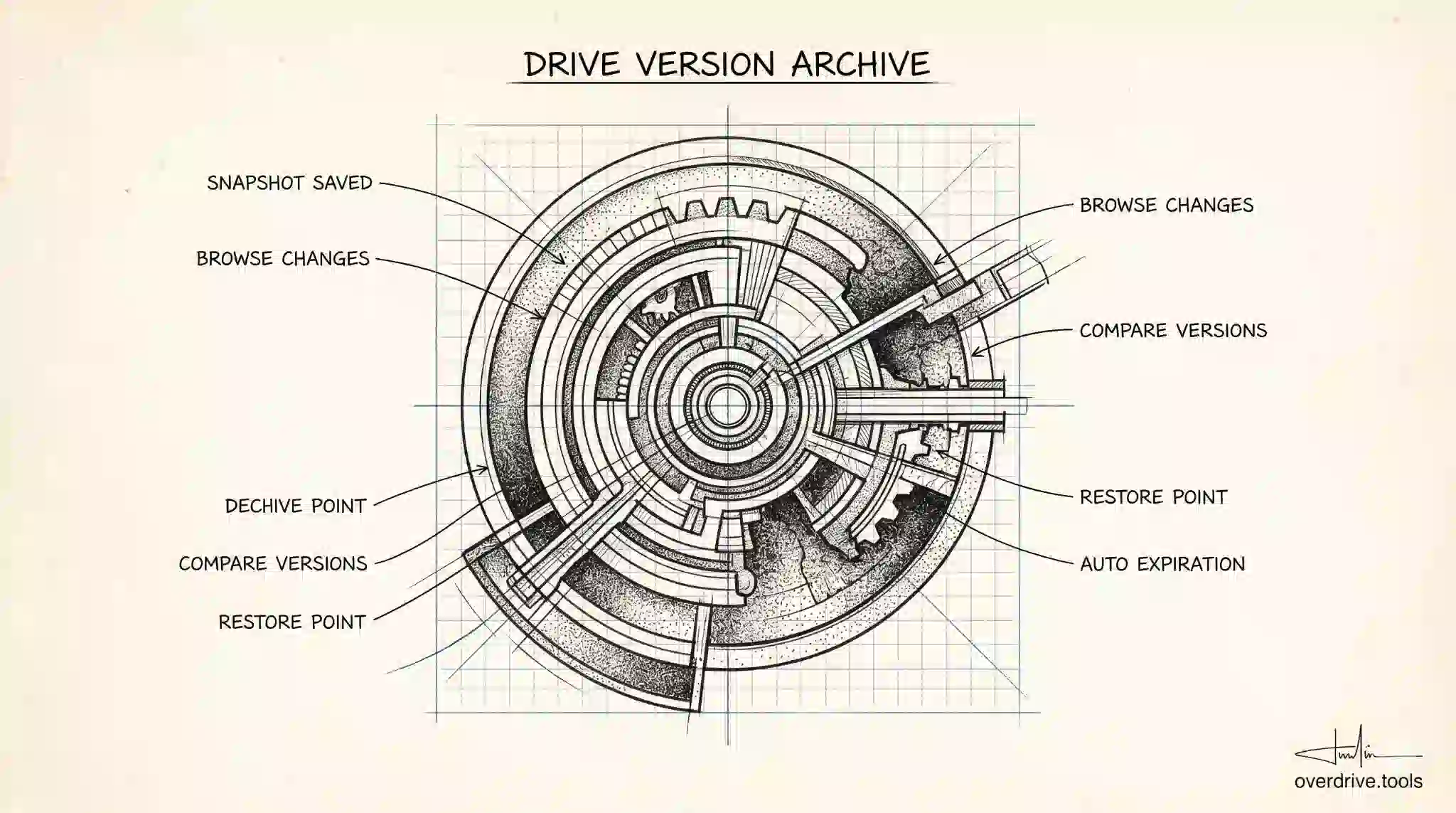
Every time you edit a file in Google Drive, the previous version doesn't disappear. Drive keeps a history of changes automatically, which you can browse, compare, and restore at any point. The system works slightly differently depending on whether you're working with a Google-native file or an uploaded document — and knowing the difference matters when you actually need to recover something.
How Version History Works for Google Docs, Sheets, and Slides
For files in Google's native formats — Docs, Sheets, Slides, and Forms — version history is on by default and runs continuously. Drive saves a new version snapshot each time the file is modified, capturing who made which changes and when.
To view version history, open the file and go to File > Version history > See version history. A sidebar opens on the right showing a chronological list of saved versions, each with a timestamp and the name (or email) of the person who last edited during that period. Clicking a version in the list shows you a preview of the file as it looked at that point.
To restore a version, click it and select Restore this version at the top. The file returns to that state immediately. Your current version isn't deleted — it becomes another entry in the version history, so you can always go back again if needed.
You can also name specific versions for easier reference. Selecting Name this version from the version history panel lets you label a snapshot — useful for marking milestones like "Approved by legal" or "Final draft v2" rather than relying on timestamps.
How Long Google Keeps Version History
For Google-native files, Drive keeps version history indefinitely as long as the file is active and owned by an account in good standing. There is no hard expiration date.
However, older versions may be consolidated. If a file has hundreds of edits over years, Drive may group edits that happened within a short time window into a single entry rather than keeping every individual keystroke as a separate version. This is more of a display compression than an actual deletion — the substantive changes remain accessible.
For uploaded files — PDFs, Word documents, Excel spreadsheets, images, or any non-Google-native format — the rules are stricter. Drive keeps a maximum of 100 revisions per file, and revisions older than 30 days are deleted automatically. After 30 days, if you uploaded a new version of a PDF, the older copy is gone.
Keeping Specific Versions Permanently
For uploaded files where version history would otherwise expire, you can mark individual versions to be kept permanently. In the version history panel, right-click a specific version and select Keep forever. That version won't be deleted after 30 days.
Each file can have up to 200 versions marked as Keep forever. These permanent versions do count toward your storage quota, unlike Google-native file revisions.
Uploaded Files vs. Google-Native Files: A Key Difference
When you upload a new copy of an existing file — say, you download a Word document, edit it locally, and re-upload — Drive treats each upload as a new revision. You'll see both versions in the history and can switch between them.
This is different from what happens in Google Docs, where editing directly in the browser creates continuous tracked changes. If you're working on something important, editing directly in Google Docs (rather than uploading and re-uploading a Word file) gives you a much richer and longer version history.
What You Can't Recover
Version history doesn't protect against everything. If a file is permanently deleted — either by emptying the trash or after the 30-day trash retention period — its version history is deleted along with it. There's no way to access version history for a file that no longer exists in Drive.
Similarly, if a file is moved to a Shared Drive and then permanently deleted there, version history goes with it. Overdrive can help you identify files that may be at risk — old large files sitting in trash or in locations where they might be accidentally purged — before the recovery window closes.
Comparing Two Specific Versions
Beyond just viewing a single past version, Google Docs lets you compare any two named versions directly. In the version history panel, click More actions (the three dots) next to any version and select Compare with current. This opens a tracked-changes view showing exactly what's different between the version you selected and the current state of the document — additions highlighted in one color, deletions in another.
This is useful when you need to understand what changed between a draft that was sent out for review and the current state after revisions. It's also helpful when multiple editors have been working and you want to attribute specific content changes to specific people without reading through every individual edit.
Downloading a Specific Version
You can download a specific version of a Google Doc, Sheet, or Slides file to share it externally or archive it as a standalone file. In the version history panel, click the three dots next to any version and select Download this version. It will download in whatever format is native to that file type.
For uploaded files like Word documents or PDFs, right-clicking a version entry gives you the option to download that specific revision — useful when you need to share an earlier approved version without overwriting the current working file.
Version History in Team Collaboration
In a document with multiple editors, version history gives you a useful accountability trail. Each version entry shows who was editing during that period. Clicking into a version highlights changes in color coded by person — the same colors shown next to their name in the editor.
This matters in a few practical scenarios: when a mistake was introduced and you need to know who made it, when content was added that nobody remembers writing, and when a collaborator claims to have made a change that doesn't appear in the current version. The version history is the authoritative record.
One note: if the document is shared via "anyone with the link" and an anonymous user makes edits, their changes appear in the history but are attributed to "Anonymous Animal" (e.g., "Anonymous Panda") rather than a real name, because Drive can't identify users who aren't logged into a Google account.
Frequently Asked Questions
Can I restore a version of an uploaded file (like a Word doc)? Yes, but only within the 30-day window for uploaded files unless you've marked a version as "Keep forever." Restoring an older revision replaces the current version in Drive with the selected one — the file keeps its original name and location. The displaced current version also remains in version history.
Does version history survive if I move a file to a different folder? Yes. Moving a file within Drive — even between My Drive and Shared Drive — preserves its version history. History is attached to the file, not its location.
Can I prevent collaborators from viewing version history? No. Anyone with at least Commenter access to a file can view its version history. There is no setting to hide it. If version history visibility is a concern — for example, a document that went through controversial revisions — the only way to create a clean history is to copy the document (which starts a fresh history) and share the copy instead of the original.
How does version history interact with Google Docs add-ons? Add-ons that make changes to a document do create version entries, typically attributed to the add-on or to the user who ran it. This is useful for tracking when automated tools modified content.
Is version history stored separately from the file itself? Version history does not count toward your Google storage quota for Google-native files. Only the current version of a Doc, Sheet, or Slide counts. Historical versions of uploaded files that are marked "Keep forever" do count toward quota, since they're stored as separate file objects.
Shared Drive Version History
Version history works the same way in Shared Drives as in My Drive. Any member with the appropriate access can view and restore versions. Drive tracks which team member made each change, which is useful in collaborative environments where accountability for edits matters.
Related Articles
- Google Drive Naming Conventions
- How to Organize Google Drive
- Smart Google Drive Cleanup: Archive First