How to Move Google Drive Files in Bulk
Moving hundreds of Google Drive files at once is possible, but the method matters. Here's how to do it without breaking links or losing anything.
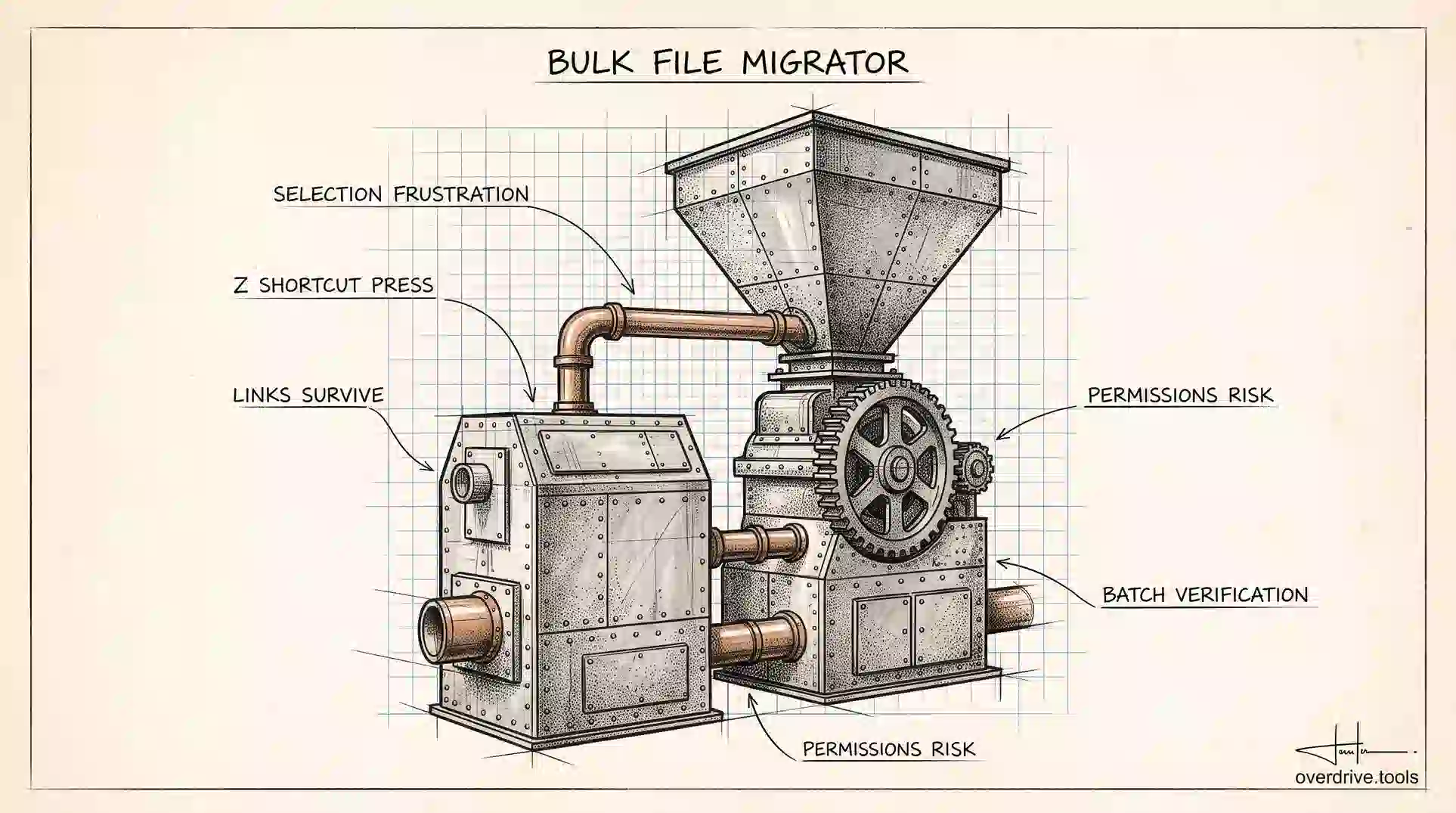
Moving a few files in Google Drive is trivial. Moving several hundred, spread across folders, without breaking anything, is where people get stuck: the browser gets slow, selections get lost, and it's never quite clear whether moving a file changes who can see it.
The good news is that bulk moves are safer than they feel. File links survive a move, so nothing you've shared stops working. The risks lie elsewhere, in permissions and in the handful of things Drive quietly refuses to move. Here's how to do it properly at each scale.
The fastest way to select a lot of files
Most bulk-move frustration is really selection frustration, and three keyboard techniques solve it.
Select everything in a folder with Ctrl+A on Windows or Cmd+A on Mac, after clicking once inside the file area so Drive knows where your focus is.
Select a range by clicking the first file, then holding Shift and clicking the last. This is the one to reach for most often, since it lets you sort a folder by name, type, or date and then grab a contiguous block that shares a property.
Select scattered items by holding Ctrl or Cmd and clicking each one. Slower, but it's how you handle a selection that doesn't sort neatly.
Sorting before selecting is the trick that makes the range method powerful. Sort by file type and every PDF is adjacent. Sort by modified date and everything from a finished project sits together. A good sort turns a scattered selection into two clicks.
Moving the selection
With files selected, you have three routes.
Drag and drop onto a folder in the left sidebar. Fast and visual, and genuinely fine for moderate numbers, though a slipped mouse over a long list is easy to do and hard to notice.
Right-click and choose Organize, then Move. This opens a folder picker, which is more reliable than dragging because you confirm the destination explicitly. For anything above a few dozen files, use this.
Press Z, the keyboard shortcut for move, with files selected. Same picker, no menu navigation. This is the fastest method once you know it exists, and almost nobody does.
Drive processes the move in the background. On large selections the interface may lag while it works, and refreshing mid-move is a reliable way to confuse yourself about what actually completed.
What changes and what doesn't
Two things people worry about, one justified and one not.
Links don't break. A file keeps its ID when it moves, so every URL you've shared keeps working and every embedded link keeps resolving. This is the single most reassuring fact about bulk moves, and it means you can reorganize freely without notifying everyone you've ever shared with.
Permissions can change, and this is the real risk. Moving a file into a shared folder gives everyone with access to that folder access to the file. Moving it out of one can remove access people were relying on. Drive usually warns you when a move changes sharing, but on a bulk move that warning covers the whole batch rather than showing you which specific files are affected.
So before moving a large selection, know how the destination is shared. Moving a hundred files into a folder your whole company can read is a fast way to publish something internally without meaning to.
The things Drive won't move
A few items resist bulk moves, and hitting them mid-operation is confusing if you don't expect it.
Files you don't own can't be moved into locations you control in the normal way, because moving is an ownership-adjacent action. If someone shared a file with you, reorganizing it into your own structure means making a copy, which creates a new file with a new link, or asking them to transfer ownership.
Items in "Shared with me" behave differently from items in My Drive. Adding a shortcut is usually what you actually want there, since it gives you the file in your structure without duplicating it or needing ownership.
And moving between a personal Drive and a shared drive changes ownership from you to the organization, which has consequences worth understanding before doing it in bulk rather than discovering afterwards.
Moving folders instead of files
Often the right answer is to move the container, not the contents. Moving a folder moves everything inside it in one action, which is faster and far less error-prone than selecting hundreds of individual files.
The reason people don't is that the folder structure they have doesn't match the structure they want, so they feel obliged to move files individually into a new arrangement. That's usually a sign to fix the structure first: create the destination folders you actually want, then move existing folders into them wholesale, and only hand-move the stragglers that genuinely belong somewhere else.
Before a big reorganization
If you're moving files in bulk, you're usually reorganizing, and the mistake is moving before deciding what deserves to move.
A Drive that's accumulated for a few years contains duplicates you'll now have in two places, superseded versions nobody needs, and files still shared with people from finished projects. Bulk-moving all of that produces a tidier arrangement of the same problems, and you'll have spent an afternoon achieving it.
Drive shows you one folder at a time, which makes taking stock genuinely hard. Overdrive scans your whole Drive and visualizes the structure at once, surfacing duplicate files and folders, large old items, empty folders, and what's shared externally, so you can delete and archive first and move only what's worth keeping. Cutting the volume before you start is what makes a reorganization an afternoon rather than a week.
Using search to build the selection
The most efficient bulk moves don't start in a folder at all. They start in the search bar, because search can gather files that share a property regardless of where they currently sit.
Search by file type to collect everything of one kind. Typing type:pdf or type:spreadsheet returns matches across your whole Drive, and you can select the results and move them in one action. This is how you consolidate scattered material without hunting folder by folder.
Search by date to gather a period. Combining a date operator like before:2024-01-01 with a type or keyword surfaces old material that belongs in an archive folder, which is one of the most common reasons to bulk-move in the first place.
Search by owner with owner:me when you want to act only on files you actually control, which avoids the frustration of selecting items you can't move.
The one caveat is that search results span folders, so a move from search results relocates files out of contexts other people may be relying on. That's fine when you're consolidating your own material and worth a second thought when the files are shared. Check what you've selected before confirming the destination, rather than trusting that a search returned exactly what you pictured.
Doing it in batches
For very large moves, batch by category rather than attempting everything at once.
Sort by a property, select the block, move it, and confirm it landed before starting the next. This is slower in theory and faster in practice, because a failed bulk move of two thousand files leaves you unsure which ones made it, whereas a failed batch of two hundred is easy to verify and repeat.
Between batches, check both the source and the destination. Drive's background processing means the interface can show you a state that isn't final yet, and confirming each batch prevents the situation where you assume something moved and discover months later that it didn't.
If your Drive is synced to a computer with Drive for Desktop, be aware that large moves generate a lot of sync activity, and it's worth letting sync settle between batches rather than stacking operations on top of each other.
The short version
Bulk-moving Google Drive files is safe for links, since files keep their IDs and shared URLs keep working, but it can change permissions, so check how the destination folder is shared before moving anything into it. Select efficiently by sorting first and using Shift-click for ranges, then move with right-click Organize, or the Z shortcut, rather than dragging. Move folders instead of files where you can. Files you don't own can't be moved normally, and moving between personal and shared drives changes ownership. For large reorganizations, audit and delete before you move, and work in verified batches rather than one enormous operation.
Related Articles
- Google Drive Folder Structure: A Simple System That Actually Works
- How to Finally Organize Your Google Drive (2026 Guide)
- How to Find and Delete Duplicate Folders in Google Drive