Google Workspace Marketplace: Drive Apps Explained
The Google Workspace Marketplace has hundreds of apps that extend what Google Drive can do. Here's how it works, what Drive apps actually do, and what to look for.
Overdrive Team//7 min read
Google Drive is a capable file storage and collaboration tool, but it has real limitations when it comes to managing what's inside it — finding large files, detecting duplicates, auditing who has access, or visualizing how your storage is distributed. These gaps exist because Drive is built for creating and sharing, not for maintaining and auditing.
The Google Workspace Marketplace exists to fill those gaps. It's an official directory of third-party apps that integrate directly with Google's products — including Drive, Docs, Sheets, Gmail, and Calendar. Some apps are simple utilities that add a button or menu to a Google Doc. Others are standalone tools that connect to your Drive account and do work outside the document interface.
What the Google Workspace Marketplace Is
The Marketplace (workspace.google.com/marketplace) is Google's official app store for tools that extend the Google Workspace suite. It's not a collection of random browser extensions — apps listed there have gone through Google's review process, agreed to Google's developer policies, and meet specific security and privacy standards to be listed.
Apps in the Marketplace fall into several categories: productivity tools (project management, CRM integrations, e-signature), communication tools (video conferencing, messaging), and utilities — which is where most Google Drive management tools live.
You can browse, install, and remove Marketplace apps from within Drive by clicking the gear icon → Get add-ons, or by going directly to the Marketplace website. Installation takes a few clicks and connects the app to your Google account via OAuth — the same authorization mechanism Google uses for any third-party service.
What Drive Apps in the Marketplace Actually Do
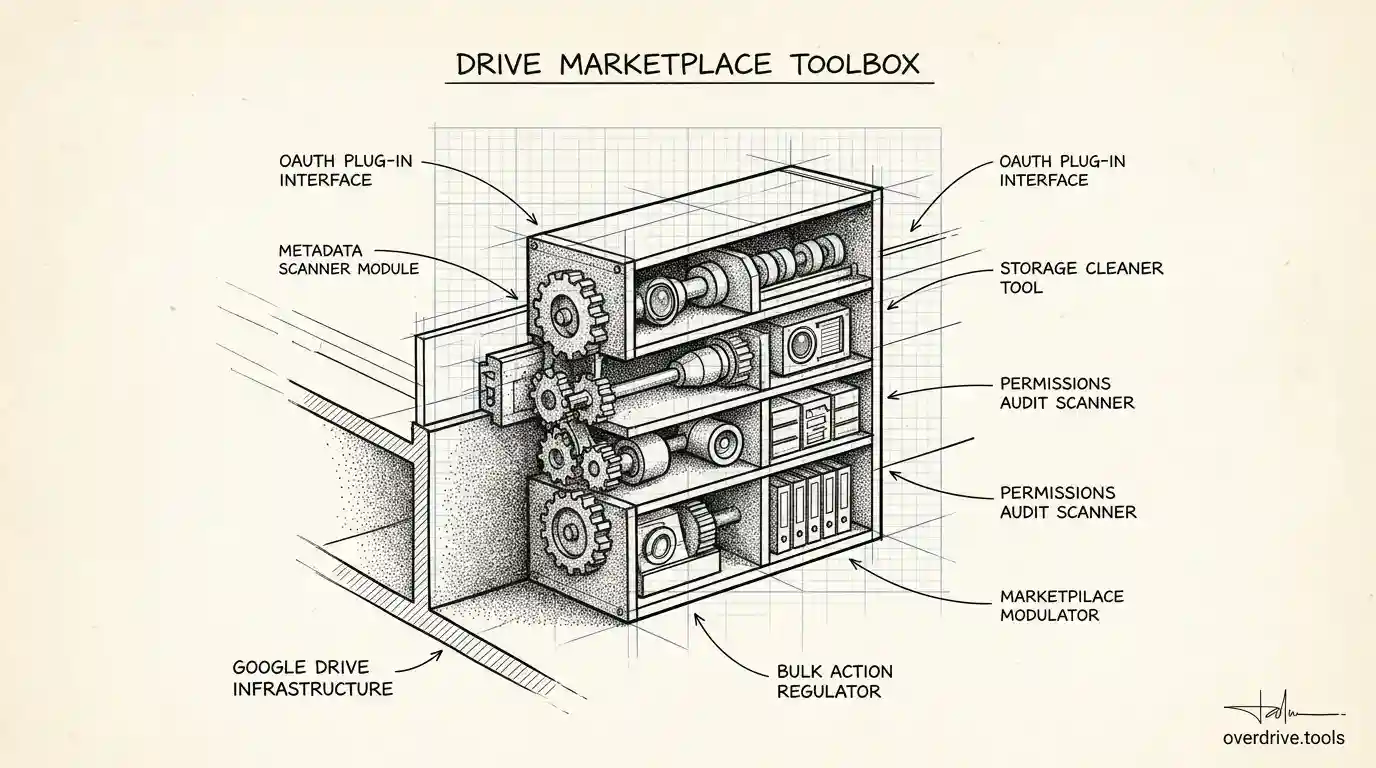
Drive-focused apps in the Marketplace generally fall into two categories: apps that add functionality inside Google Docs, Sheets, or Slides (like citation managers or mail merge tools), and apps that work at the Drive account level — analyzing your files, storage, and permissions across your entire Drive rather than inside a single document.
Drive account-level apps are where the more powerful tools live. They typically connect to your Google account and can read your file metadata — file names, sizes, types, dates, sharing settings — without reading the actual content of your files. This is an important distinction: well-built Drive management apps don't need to see what's inside your files. They work on the structure and metadata, not the content.
What to Look For in a Drive Management App
Not all Marketplace apps are equally trustworthy or capable. Before installing any app that connects to your Drive, a few things are worth checking.
Permissions requested. During installation, every app shows you what permissions it's asking for. A Drive cleaner app legitimately needs permission to see your Drive files (to find large files and duplicates) and potentially to delete files (if it does cleanup). Be cautious of apps that ask for access to things unrelated to their stated purpose — like Gmail access for a tool that only claims to manage Drive files.
Privacy policy. Check whether the app stores your file data, and if so, for how long and what for. A well-built tool works on your data in real time and doesn't retain it. Look for explicit statements about data handling.
Developer identity. The Marketplace listing shows who built the app and links to their website. Established developers with real websites and support channels are a better bet than apps with no external presence.
Reviews. The Marketplace displays user ratings and reviews. While not foolproof, consistent positive reviews from real-sounding accounts are a reasonable signal.
Drive Cleaner & Duplicate Finder: A Practical Example
One of the more comprehensive Drive management apps in the Marketplace is Overdrive's Drive Cleaner & Duplicate Finder, which covers both storage management and permissions auditing in one tool.
On the storage side, it surfaces duplicate files and groups them automatically (so you're not comparing files manually), identifies large files that are consuming disproportionate storage, finds empty folders and untitled files, and shows a visualization of how storage is distributed across your Drive — broken down by file type and folder.
On the permissions side, it audits who has access to what across your entire Drive, surfaces files shared with external accounts or former collaborators, identifies "anyone with the link" shares, and allows bulk permission changes — adjusting or revoking access across many files at once rather than file by file.
The tool works on file metadata and never reads file contents. It's OAuth 2.0 verified, which means it uses Google's standard authorization system, and the permissions it requests are scoped to what it actually needs to function.
How to Install a Drive App from the Marketplace
Installing from the Marketplace is straightforward:
- Go to workspace.google.com/marketplace and search for the app you want, or go directly to the app's listing URL
- Click Install on the app's page
- Review the permissions the app is requesting — read them, don't just click through
- Click Allow to authorize the connection via Google OAuth
- The app is now connected to your Google account
For apps that work at the Drive account level (rather than inside a specific document), the experience typically opens in a separate browser tab or window — not as a sidebar inside a Doc. After installation, you'd open the tool from its own URL or from within the Marketplace interface.
Removing a Marketplace App
If you install an app and decide you don't want it connected to your account, removing it takes two steps: uninstalling the app from the Marketplace, and revoking its access in your Google account settings.
Uninstalling from the Marketplace (going to the app's listing and clicking Uninstall) removes the app from your list, but the OAuth token may still exist. To fully revoke access, go to myaccount.google.com/permissions, find the app in the list of connected apps, and click "Remove Access." This ensures the app can no longer read or interact with your Drive data.
This is a good practice not just for Drive apps but for any third-party tool connected to your Google account. Periodic review of myaccount.google.com/permissions shows you everything that has authorization, including apps you may have forgotten about.
When a Marketplace App Makes Sense vs. Doing It Manually
For occasional one-off tasks — deleting a specific large file you know about, checking the sharing settings on a specific document — doing it manually in Drive is perfectly reasonable. The built-in tools handle individual file operations fine.
Marketplace apps become useful when the task involves your entire Drive rather than specific files: finding all duplicates across thousands of files, getting a storage breakdown by folder or file type, auditing all sharing permissions across everything you own, or bulk-changing access for hundreds of files at once. These are tasks where the manual approach involves opening and checking files one by one — which isn't practical at scale.
The right time to look for a Marketplace app is when you find yourself thinking "there must be a faster way to do this" and the task involves your Drive at a level that Google's native interface doesn't support directly.
Frequently Asked Questions
Is the Google Workspace Marketplace free? The Marketplace itself is free to browse and install apps from. Individual apps have their own pricing — some are completely free, some offer a free tier with paid upgrades, and some are paid-only. Pricing is listed on each app's Marketplace page.
Do Workspace Marketplace apps work with personal Gmail accounts? Most apps in the Marketplace work with personal Google accounts (gmail.com), not just Google Workspace business accounts. The listing page for each app will indicate compatibility. Apps installed on personal accounts have the same OAuth-based authorization as Workspace accounts.
Can my IT admin restrict which Marketplace apps I can install? Yes. Google Workspace admins can control whether users in their organization can install Marketplace apps, and can whitelist or block specific apps. If you're on a managed Workspace account and can't install apps, check with your admin.
Does installing a Marketplace app give it access to all my Google services? Only the services listed in the permissions request during installation. An app that asks for Drive access doesn't automatically get Gmail access or Calendar access. Each app's permissions are scoped to what it declared during setup, and you can review these anytime at myaccount.google.com/permissions.
How is a Workspace Marketplace app different from a Chrome extension? Chrome extensions run in your browser and can be installed without interacting with Google's app review process. Marketplace apps are reviewed by Google, listed officially, and use the standard OAuth authorization flow. From a trust standpoint, a Marketplace app has gone through more vetting than a random Chrome extension, though neither is a substitute for reading the privacy policy.
Can I use a Marketplace Drive app on mobile? Apps that work at the Drive account level (rather than inside Docs or Sheets) typically run as web apps accessed from a browser, not as mobile app integrations. You'd access them from a mobile browser, but the experience may vary depending on how the app is built.
Related Articles
- How to Clean Up Google Drive
- Who Has Access to My Google Drive?
- How to Find All Externally Shared Files in Google Drive