Does "Shared With Me" Use Google Drive Storage?
Files in "Shared with me" don't count against your Google Drive storage. Only files you own do. Here's how it works and the one exception to watch for.
Overdrive Team//7 min read
No. Files that appear in your "Shared with me" section do not count against your Google Drive storage. They count against the storage of the person who owns them. In Google Drive, storage is charged to the owner of a file, not to everyone who can see it, so no matter how many files other people share with you, your own quota stays untouched.
This surprises people, because "Shared with me" can hold hundreds of documents, folders, and large files, and it seems like all of that must be using space somewhere in your account. It is using space, just not yours. Understanding this one rule clears up a lot of confusion about why your storage is full, and points you toward what's actually to blame.
The rule that governs Drive storage
Google Drive counts storage by ownership. Every file has exactly one owner, and that file's size counts against that one person's storage quota. When someone shares a file with you, you get access to it, but ownership doesn't change, so the storage cost stays with them.
That's why your "Shared with me" area is effectively free as far as your quota is concerned. You could have a colleague share a 10 GB folder of video with you, open it, watch it, even work in it, and your own storage number wouldn't move an inch. The 10 GB is counted against your colleague, because they own it.
The same logic runs in the other direction. Files you own and share with other people still count fully against your storage, not theirs, no matter how many people you've shared them with or how much they use them. Sharing a file doesn't split its storage cost across everyone with access. The owner carries the whole weight.
Why your storage might still be full
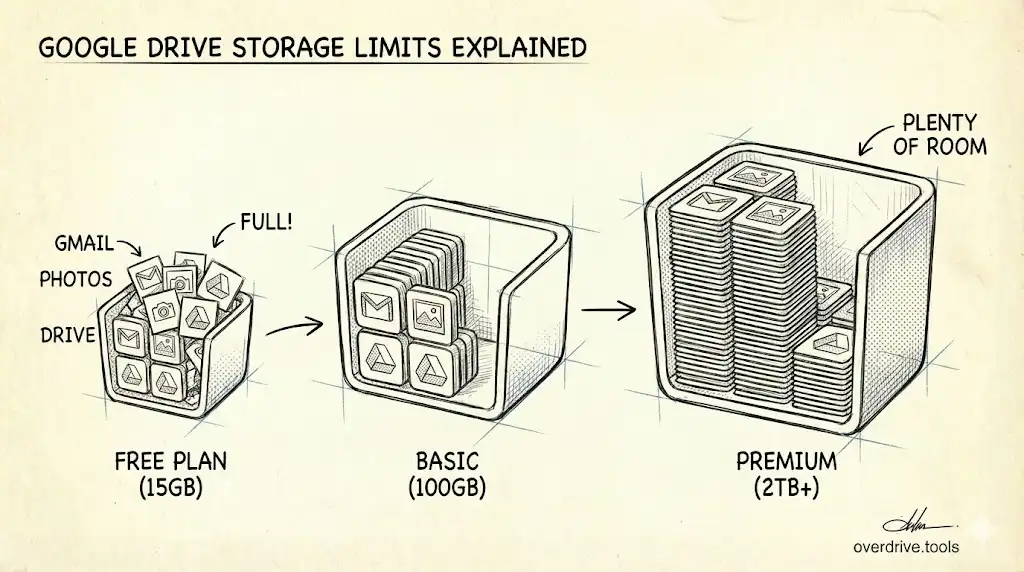
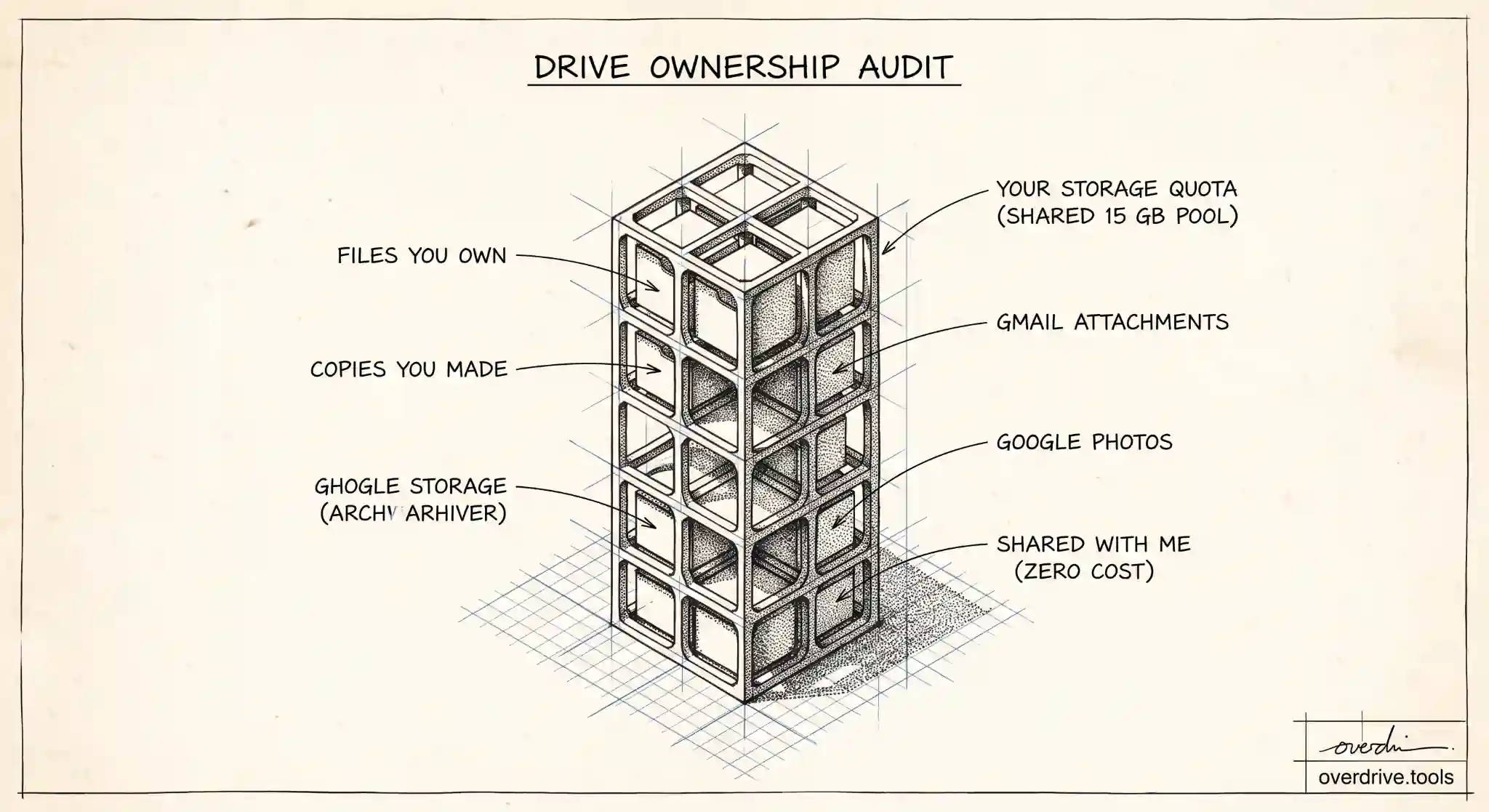
If "Shared with me" isn't the problem, what is? When your Google storage is full, the space is being used by things you own, spread across three services that share a single storage pool (5 GB free by default since May 2026, up to 15 GB with a verified phone number): Google Drive, Gmail, and Google Photos.
In Drive, it's the files you own, including ones you've shared out to others. In Gmail, it's your messages and, especially, their attachments, which quietly add up over years. In Photos, it's your backed up images and videos. Add device backups from Android, which also bill to the same pool, and you have four sources all drawing from the same shared allowance, none of which is "Shared with me."
So the mental shift is this: to free up space, look at what you own, not what's been shared with you. Deleting things from "Shared with me" does almost nothing for your quota, because those files were never counted against you in the first place.
The one exception to watch for
There's a single important wrinkle. If you make a copy of a shared file, the copy is a new file that you own, and it does count against your storage.
This happens more than people realize. You open a document someone shared, choose Make a copy so you can edit your own version, and now there are two files: the original, still owned and counted by the other person, and your copy, owned and counted by you. The same applies if you download a shared file and re-upload it, or use Add to My Drive in a way that creates a copy rather than a reference.
So while simply having files in "Shared with me" costs you nothing, duplicating them into your own Drive does. If you've built a habit of copying shared files to keep your own versions, those copies are yours in every sense, including the storage bill.
How to see what you actually own
Because storage is all about ownership, the useful question isn't "what's shared with me," it's "what do I own that's taking up space." That's not something Google Drive makes easy to answer at a glance. The standard Drive view mixes files you own with files shared with you, and it doesn't clearly separate them by size or highlight the heavy items.
Here are your options for getting to the truth.
Option 1: Visualize what you own by size and type. To free space you need to see your own largest files, not the shared ones cluttering the view. A tool like Overdrive can scan and visualize your Drive by owner, size, type, and age, so you can focus on the files that actually count against your quota and clean up the biggest ones, while ignoring the shared items that cost you nothing.
Option 2: Filter and sort inside Drive. Google Drive lets you narrow the view to files you own and sort by size using the storage view. This is more manual, but it helps you separate your real storage footprint from the shared files that don't count.
Option 3: Check the other services too. Since Gmail and Photos share your quota, don't stop at Drive. Clear large email attachments and review your Photos library, because for many people those two hold more of the used space than Drive files do.
Shared folders and shared drives
Two related cases are worth a quick note. When you're added to a shared folder in My Drive, the files in it are still owned by whoever created them, so they don't count against you, same rule as individual shared files.
Shared drives, used in Google Workspace, work differently again. Files in a shared drive are owned by the organization rather than any individual, so they count against the organization's pooled storage, not your personal quota. For everyday personal accounts, though, the simple takeaway holds: if you didn't create it and haven't copied it, it isn't using your storage.
How to tell who owns a file
Since ownership decides who pays for a file's storage, it helps to know how to check who owns something. In Google Drive, you can add an Owner column or open a file's details panel to see the owner listed. Files you own show your own name, while files in Shared with me show someone else's. Sorting or filtering by owner lets you quickly separate your real storage footprint from everything that's merely shared with you.
This is especially useful when your Drive feels cluttered. A view that mixes owned and shared files makes it look like you're storing far more than you actually are. Once you filter down to just the files you own, the picture of what's really using your quota becomes much clearer, and usually much smaller than it first appeared.
What happens to a shared file if the owner deletes it
Because a shared file belongs to its owner, they control its fate. If the owner deletes a file that was shared with you, it disappears for you too, since there was only ever one copy and it lived in their account. The same is true if the owner removes your access: the file vanishes from your Shared with me, even though nothing changed on your side.
This is the flip side of shared files not using your storage. You get access without the storage cost, but you also don't have ultimate control. If a shared file matters to you, the safe move is to make your own copy, which puts a version in your Drive that you own, that counts against your storage, and that no longer depends on the original owner keeping theirs.
This is also why relying on someone else's shared file as your only copy of something important is risky. People clean up their Drives, leave companies, or simply change their minds, and when they do, anything they owned and shared can vanish from your view without warning. If a document, spreadsheet, or folder genuinely matters to you, take a moment to make it yours: open it, choose Make a copy, and store that copy in your own Drive. It costs a little of your storage, but it puts the file under your control, where no one else's cleanup can take it away.
The short version
"Shared with me" does not use your Google Drive storage. Storage is charged to the owner of each file, so files other people share with you count against them, not you, no matter how many there are. The one exception is copies: the moment you duplicate a shared file into your own Drive, that copy is yours and counts against your quota. To actually free space, ignore the shared files and focus on what you own across Drive, Gmail, and Photos, starting with your largest files.
Related Articles
- Why Is My Google Drive Full But Empty? (Solved)
- How Much Free Storage Does Google Drive Give You, and What Counts Against It?
- Does Google Photos Use Google Drive Storage?