Can You See Who Accessed Your Google Drive Link?
The short answer is: partially. Google Drive shows some viewer activity — but with important limits. Here's exactly what you can and can't see.
Overdrive Team//3 min read
You shared a Google Drive link a few days ago. Now you're wondering: did they actually open it? Did anyone else?
The short answer is: it depends — on the file type, how you shared it, and whether the person was logged into a Google account when they opened it. Google Drive does give you some visibility into who's viewed your files, but there are real limits to what it can tell you.
What You Can See
View activity on Google Docs, Sheets, and Slides
For native Google files — Docs, Sheets, Slides, and Forms — Google Drive tracks who has viewed the file and shows it in the activity panel.
To check it:
- Open the file in Google Docs, Sheets, or Slides
- Click the upward arrow icon in the top-right corner (next to the Share button) to open the activity panel, or go to Tools → Activity dashboard
- Click Viewers to see a list of people who have opened the file
This shows you the names and Google accounts of people who viewed the file, along with the approximate date of their last view.
Who shows up here
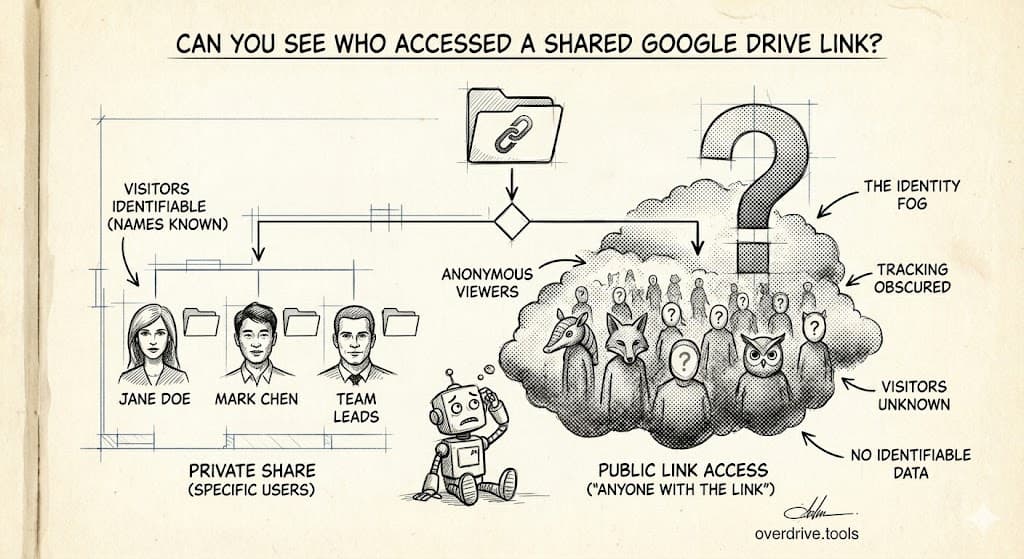
Only people who were logged into a Google account when they opened the file appear in this list. If you shared a file via "anyone with the link" and someone opened it without being signed in — or in a private browser window — they won't appear. You'll have no record of that visit.
People you've named directly in the sharing settings (added by email) and who opened the file while logged in will show up.
What You Cannot See
Anonymous viewers. If your file is set to "anyone with the link" and someone opens it without a Google account, or while not logged in, there is no record of that view. This is the most common gap — many link shares go to people who aren't signed in.
Exact timestamps. The activity dashboard shows approximate dates, not precise times.
Whether someone downloaded or copied the file. View activity doesn't tell you if someone made a copy or downloaded the content.
Activity on uploaded files. If you uploaded a PDF, image, or other non-Google file to Drive and shared it, the activity dashboard isn't available. View tracking only works on native Google file types.
Old activity. Google doesn't retain view history indefinitely. Older activity may no longer appear.
If You Need to Know Whether Someone Opened It
If knowing who accessed a file matters — for a contract, a sensitive document, a client deliverable — the most reliable approach is to share it directly with the person's Google account rather than using "anyone with the link." Named sharing means any view from that account is logged, and you can see it in the activity panel.
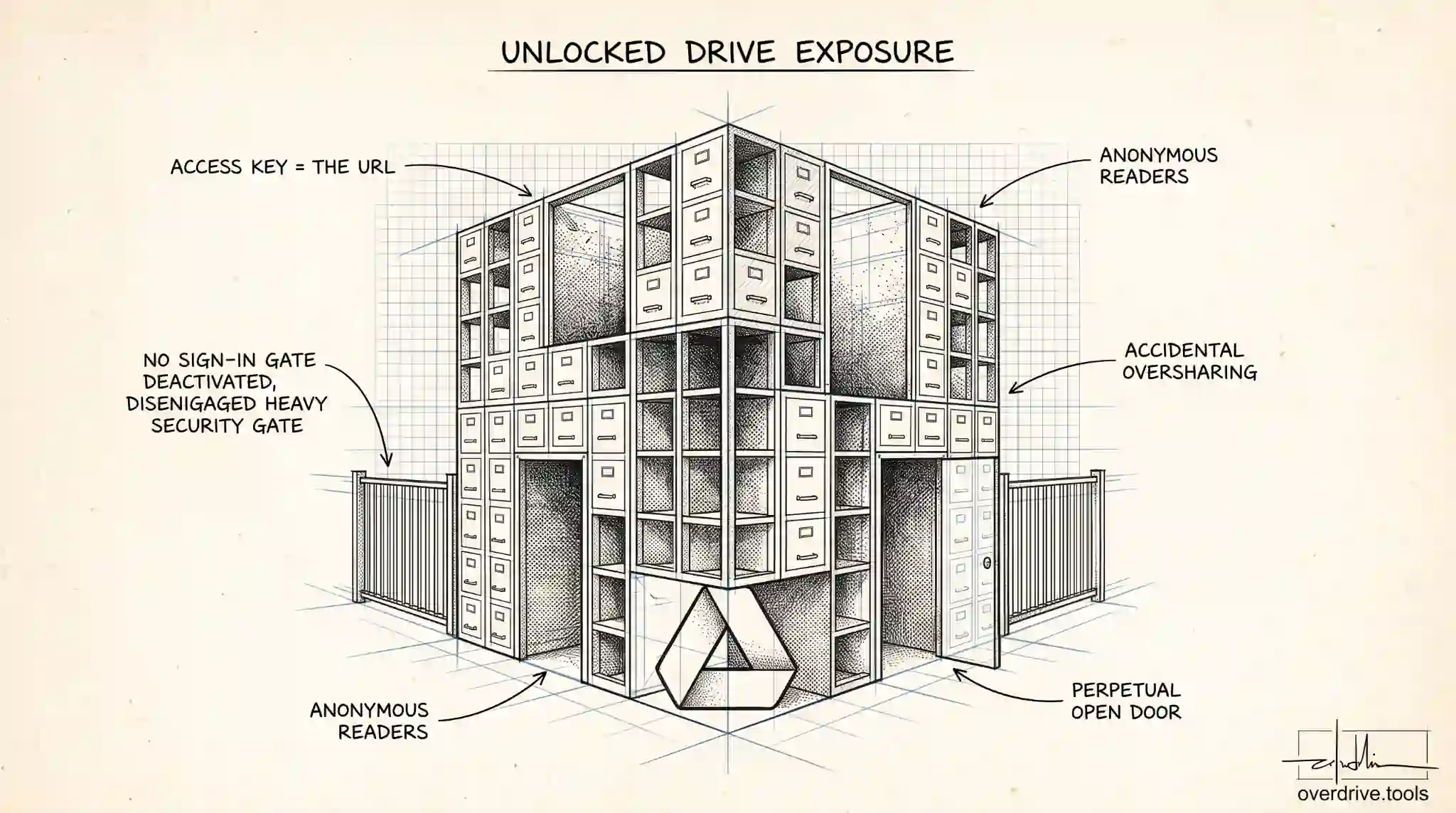
With "anyone with the link," you're essentially sending an open door — useful for convenience, but not for accountability.
What About Knowing Who Has Access (vs. Who Viewed)?
These are two different questions. Knowing who has access (who currently holds a permission to view or edit) is separate from knowing who actually opened the file.
If you want a clear picture of who has access to your files across your entire Drive — not just one file at a time — Overdrive can scan your Drive and show you all active permissions in one dashboard. That won't tell you who clicked, but it will tell you who could — which is often the more actionable question.
Google Workspace Users Have More Options
If you're on a Google Workspace account (work or school), your organization's admin has access to more detailed audit logs through the Admin Console. These can show file access events, including who opened what and when, across the organization. Individual users on Workspace can also see more detailed activity depending on how the admin has configured visibility settings.
If you need this level of detail and you're on a personal Google account, it isn't available without upgrading to a Workspace plan.
Related Articles
- Google Drive Permissions: How to Review and Remove Access
- How to Remove "Anyone With the Link" in Google Drive
- Who Has Access to Your Google Drive? Here's How to Find Out