How to Find All Externally Shared Files in Google Drive
Find every file you've shared outside your organization. Locate public files, 'anyone with the link' shares, and files accessible to external users in your Google Drive.
Overdrive Team//8 min read
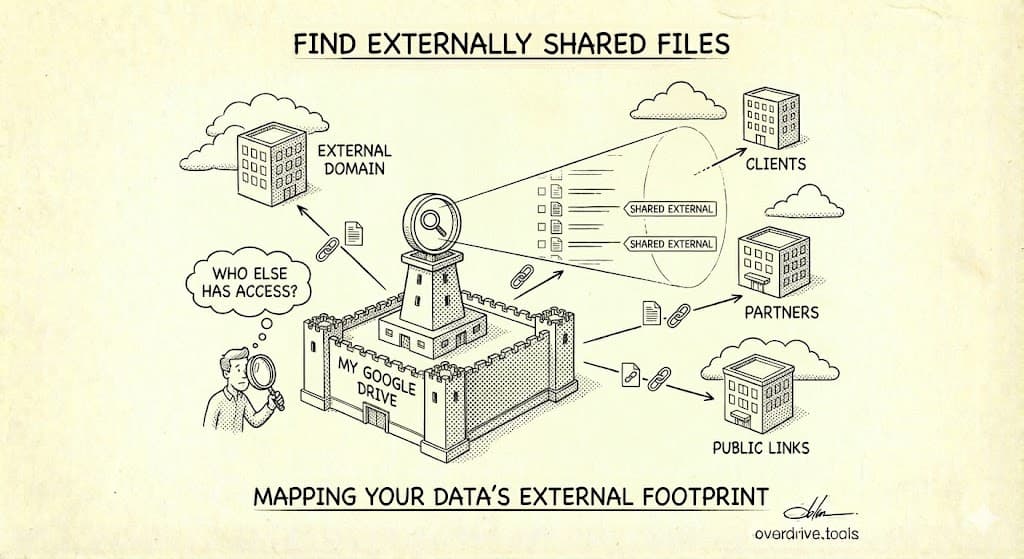
To find externally shared files in Google Drive, use the search operator visibility:anyoneWithLink to locate all files with link sharing enabled. For files shared with specific external email addresses, search to:@gmail.com or to:@domain.com to find shares to those domains. Google Drive doesn't have a single "show all external shares" button, so you'll need to run multiple searches to get the complete picture.
External shares are the files most likely to cause security problems. They're accessible to people outside your organization—or in the case of link sharing, accessible to anyone who gets the URL. This guide shows you exactly how to find every type of external share in your Drive.
What Counts as "Externally Shared"
Before hunting for external shares, understand what you're looking for. External sharing falls into three categories:
1. Anyone With the Link
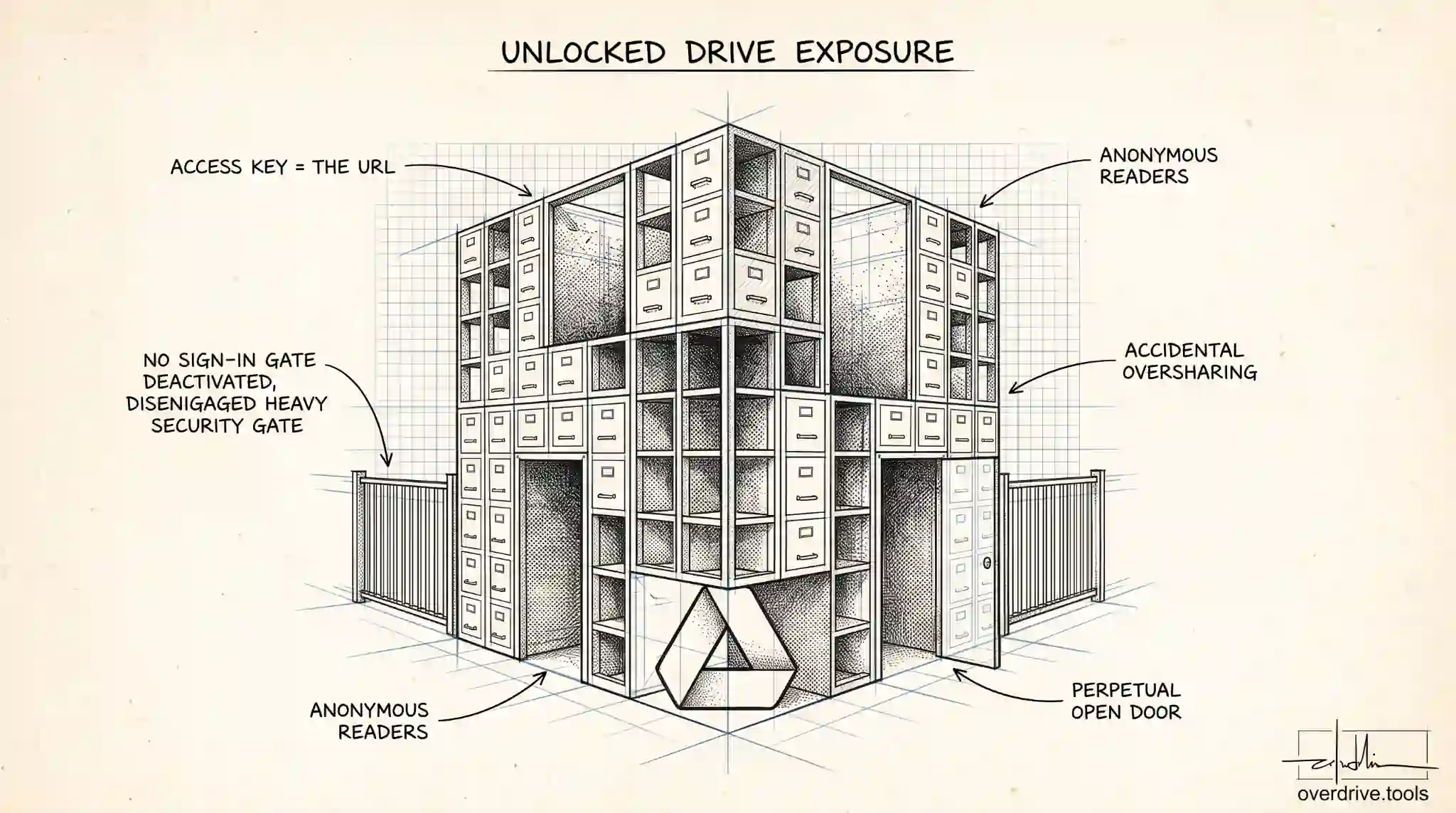
These files can be accessed by anyone who has the URL. No login required, no permission needed—just the link.
- Risk level: High
- Common cause: Quick sharing that was never changed back
- The problem: Links get forwarded, saved in emails, indexed by search engines (if set to public), or leaked
2. Anyone on the Internet (Public)
These files are not only accessible via link but also indexed by search engines. Someone could find them through a Google search.
- Risk level: Very high
- Common cause: Intentional publishing that should have been temporary, or accidental setting
- The problem: Anyone can discover these files without even having the link
3. Shared With Specific External Users
These files are shared with specific email addresses outside your organization (for Workspace users) or outside your own account (for personal users).
- Risk level: Medium to high (depending on who and why)
- Common cause: Collaboration with clients, contractors, partners, vendors
- The problem: Access persists after the relationship ends
Finding "Anyone With the Link" Files
These are your highest priority. Every file with link sharing is potentially exposed.
Search Method
- Go to drive.google.com
- Click in the search bar
- Enter:
owner:me sharedwith:public - Press Enter
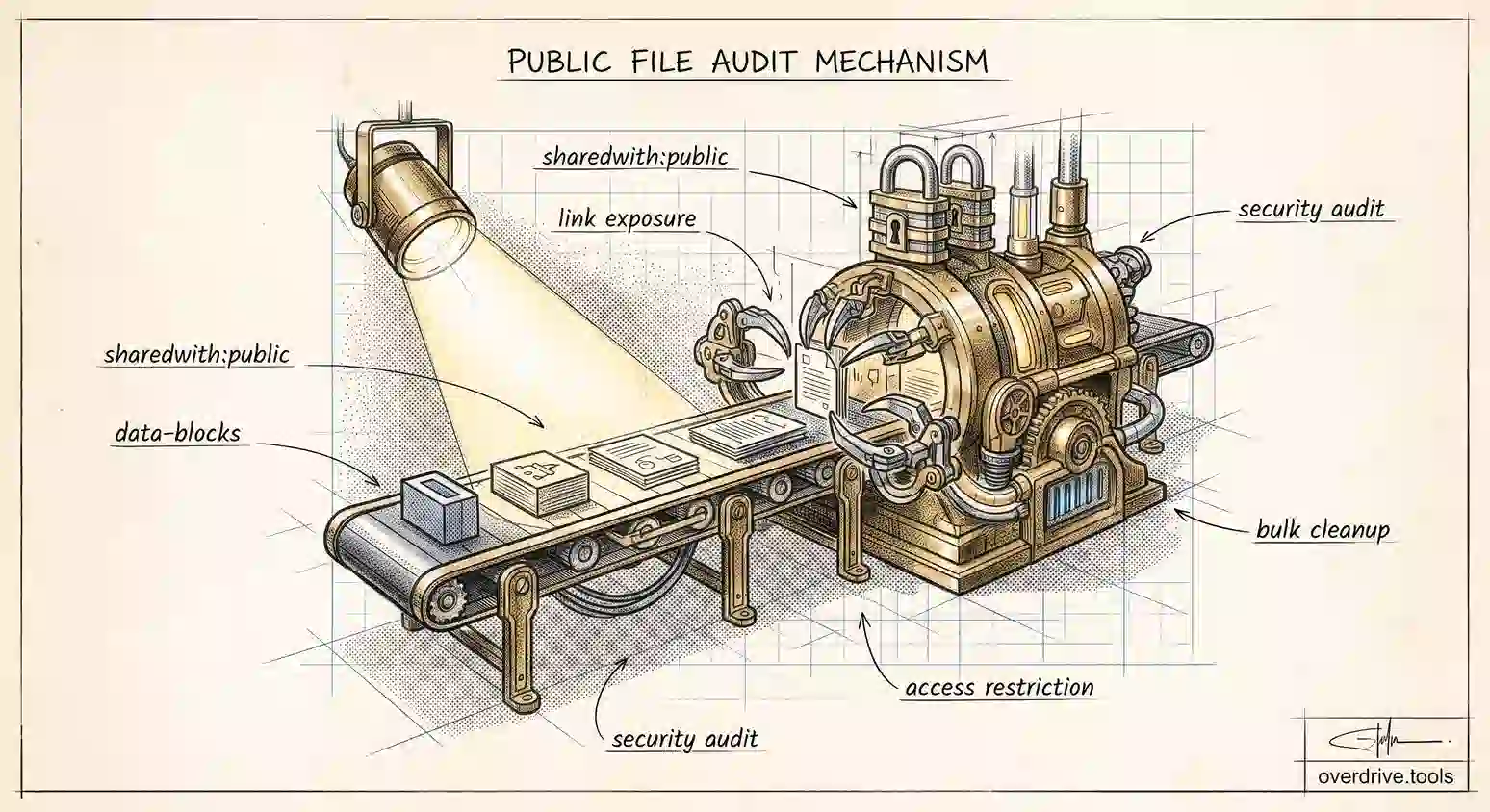
Every result is a file you own that's accessible to anyone with the URL or publicly.
What to Do With Each Result
For every file in the results, ask:
| Question | If Yes | If No |
|---|---|---|
| Does this need to be publicly accessible? | Document why, keep as-is | Restrict it |
| Is this current/relevant? | Review sharing level | Consider deleting |
| Does it contain sensitive information? | Restrict immediately | Evaluate case-by-case |
To restrict a file:
- Right-click the file
- Select "Share"
- Under "General access," change from "Anyone with the link" to "Restricted"
- Add specific people who need access by email
Common "Anyone With the Link" Offenders
In most Drives, you'll find these file types with link sharing enabled:
- Old presentations shared for a meeting that happened years ago
- Documents sent to prospects who never became clients
- Images and assets shared quickly via link instead of properly
- Spreadsheets with data that shouldn't be public
- PDFs of contracts, proposals, or reports
The older the file, the more likely it was shared via link and forgotten.
Finding Publicly Indexed Files
These files appear in Google search results. This is almost never intentional.
Search Method
- In Google Drive search, enter:
sharedwith:public - Review every result—check which ones are set to "Anyone" (public/indexed) vs just "Anyone with the link"
To check if a specific file is publicly indexed, right-click it, select "Share," and look at the General access setting. "Anyone" means it's publicly discoverable; "Anyone with the link" means only people with the URL can access it.
Why This Happens
Files become publicly indexed when:
- "Anyone with the link" is enabled AND the visibility is set to "Anyone" (public)
- The file was published to the web (File > Share > Publish to web in Google Docs/Sheets/Slides)
- Certain Google Sites embeds make linked files discoverable
Immediate Action Required
If you find publicly indexed files:
- Check if public indexing is intentional (rare, but possible for public resources)
- If not intentional, change "General access" to "Restricted"
- For published files, go to File > Share > Publish to web > Stop publishing
Note: Even after you restrict a file, it may take time to disappear from search engine caches.
Finding Files Shared With External Email Addresses
For Google Workspace users, there's now a dedicated operator for finding externally shared files.
Method 1: Use sharedwith:external (Workspace)
If you use Google Workspace, this is the fastest method:
sharedwith:external
This returns all files shared with anyone outside your organization's domain.
Method 2: Search by Domain
If you know which external domains might have access (clients, vendors, partners), search for each:
to:@clientcompany.com
to:@vendorname.com
to:@gmail.com
The to:@gmail.com search catches personal email addresses that often belong to contractors, freelancers, or employees using personal accounts.
Important limitation: The to: operator only finds files shared after February 2021. For older shares, you'll need other methods.
Method 4: Search by Specific Email
If you're looking for files shared with a specific person:
to:jane@example.com
This shows every file you've shared with that email address.
Method 5: Check High-Value Folders Manually
For your most sensitive folders, check sharing manually:
- Right-click the folder
- Select "Share"
- Look at the list of people with access
- Note any external email addresses (not from your domain)
Since folder access grants access to all contents, checking top-level folders catches many external shares at once.
Method 6: Use Overdrive (Complete Picture in 2 Minutes)
The manual searches above work, but they have gaps:
- You might not think to search every domain
- You'll miss typos in email addresses
- You won't catch shares you've forgotten about
- It takes 30+ minutes to be thorough
Overdrive scans your entire Drive and shows every externally shared file in one view—every "anyone with the link" file, every external email with access, organized and filterable. The scan is free, takes about two minutes, and catches things manual searches miss.
For Google Workspace Users: Additional Options
If you're using Google Workspace (business/enterprise), you have more tools available.
Admin Console Reports
Workspace admins can access sharing reports:
- Go to admin.google.com
- Navigate to Reporting > Audit and investigation > Drive log events
- Filter by "Visibility change" to see sharing changes
- Export for detailed analysis
Drive Audit Logs
Admins can see a history of who shared what with whom:
- In Admin Console, go to Reporting > Audit and investigation
- Select "Drive log events"
- Filter by event type, user, or date range
- Look for "Change user access" and "Change visibility" events
Third-Party Security Tools
Many security and compliance tools integrate with Workspace to provide:
- Dashboards showing all external sharing across all users
- Alerts when files are shared externally
- Automatic policy enforcement (e.g., block sharing to personal email)
- Compliance reporting for regulations like GDPR, HIPAA, SOC 2
These enterprise tools serve different needs than personal Drive management, but for organizations with compliance requirements, they're often necessary.
Building a Complete Picture
No single search catches everything. Here's a systematic approach to find all external shares.
Step 1: Find All Link-Shared Files
Run these searches and record the count:
owner:me sharedwith:public
Count: ___
sharedwith:external
Count: ___ (Workspace only)
Step 2: Find Shares to Common External Domains
Run searches for domains you've likely shared with (note: only finds shares after Feb 2021):
to:@gmail.com
Count: ___
to:@outlook.com
Count: ___
to:@yahoo.com
Count: ___
Add searches for known client/vendor domains.
Step 3: Check Key Folders Manually
For your most sensitive folders, manually review the sharing panel and list any external users.
Step 4: Compile Your External Sharing Inventory
Create a simple document:
External Sharing Audit - [Date]

Link-shared files (anyone with link): [X]
Publicly indexed files: [X]
Files shared with external emails: [X]

High-risk items identified: [List]
Action items: [List]
This becomes your baseline. Future audits can compare against it.
The Search Operators Cheat Sheet
Keep this reference handy when auditing external shares:
| Search Operator | What It Finds |
|---|---|
sharedwith:public |
Files shared with "anyone with the link" or public |
sharedwith:external |
Files shared outside your organization (Workspace) |
to:email@example.com |
Files you've shared with a specific email (post-Feb 2021) |
to:@domain.com |
Files shared with any email at that domain (post-Feb 2021) |
owner:me |
Files you own (combine with other operators) |
owner:me sharedwith:public |
Link-shared files that you own |
Combining Operators
You can combine operators for more specific searches:
Files you own that are publicly shared:
owner:me sharedwith:public
Files shared with Gmail addresses that you own:
owner:me to:@gmail.com
Publicly shared files modified in the last year:
sharedwith:public after:2024-01-01
Note: Some operator combinations may not work as expected. Google Drive search has limitations, and complex queries sometimes return incomplete results. This is another reason why dedicated tools can be more reliable for comprehensive audits.
What to Do After Finding External Shares
Finding external shares is step one. Now you need to act on them.
Triage by Risk
Immediate action (today):
- Publicly indexed files with sensitive content
- Link-shared files containing financial, personal, or confidential data
- Shares to unknown or unrecognized email addresses
This week:
- Link-shared files that don't need link sharing
- Shares to former clients/contractors
- Old files that should be restricted or deleted
Ongoing:
- Review remaining external shares
- Establish a regular audit schedule
The Fix Is Usually Simple
For most files, fixing external sharing takes seconds:
- Right-click > Share
- Change "Anyone with the link" to "Restricted"
- Remove external email addresses that don't need access
For detailed steps on removing access, see How to Revoke Google Drive Access When Employees Leave.
Prevent Future External Sharing Creep
After cleaning up, prevent the problem from recurring:
- Default to restricted: Only enable link sharing when truly necessary
- Set expiration dates: For temporary shares, add an expiration (available in some Workspace plans)
- Regular audits: Schedule quarterly reviews using the searches above
- Use folders strategically: Share folders with specific people rather than individual files via link
For a complete security framework including ongoing practices, see The Complete Google Drive Security Audit Checklist.
Frequently Asked Questions
Why can't I just see all external shares in one place?
Google Drive wasn't designed with security auditing as a primary feature. The sharing system is optimized for easy collaboration, not comprehensive oversight. This is a known limitation that affects both personal and business users—and why third-party tools like Overdrive exist to fill the gap.
Do files in Trash still show up in these searches?
Yes. Trashed files with external sharing enabled are still accessible to those users until you permanently delete them. Include Trash in your audit by checking it separately.
What about files in Shared Drives?
Shared Drive files require separate consideration. The search operators work within Shared Drives, but you may need to search each Shared Drive individually or use the "location:SharedDriveName" operator. Shared Drive membership is managed separately from individual file sharing.
Can external users see who else has access?
No. External users only see the file content, not the sharing panel or list of other users with access. However, in Google Docs, Sheets, and Slides, they can see the names of others currently viewing or editing the document.
How do I find files others have shared externally?
If you're not the owner, you generally can't audit someone else's sharing. Google Workspace admins can see this through Admin Console audit logs, but regular users can only audit files they own or have Editor access to.
Will restricting a file notify the people who lose access?
No. Google Drive doesn't send notifications when you remove access or change a file from link-shared to restricted. The person simply won't be able to open the file next time they try.
Keep Reading
- The Complete Google Drive Security Audit Checklist — Full framework for auditing all aspects of Drive security
- How to Revoke Google Drive Access When Employees Leave — Step-by-step guide to removing access