How to Handle Your Google Drive Before Leaving a Job
What to save, what to transfer, and what happens to your files when you leave a company that uses Google Workspace.
Overdrive Team//5 min read
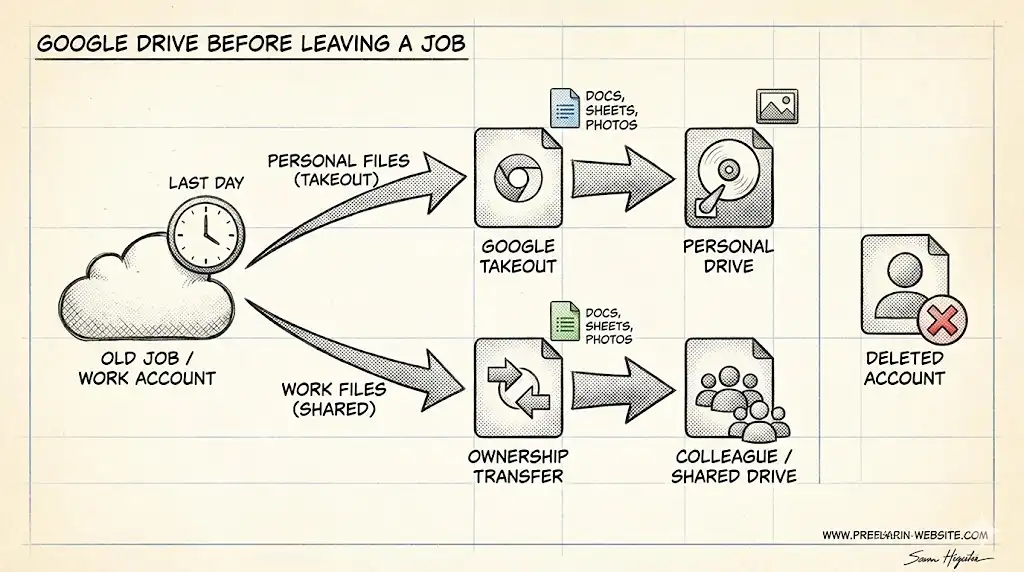
When you leave a job, your Google Workspace account gets deleted—and everything in it goes with it. Your emails, your Drive files, your Google Photos backups, your saved passwords in Chrome. All of it.
This isn't theoretical. Once your IT admin deletes your account (usually within days of your departure), you lose access permanently. There's no "download my data" email coming. No grace period where you can log in one more time.
Here's how to handle your Google Drive before that happens.
What You Can and Can't Take
Let's be clear about the legal and ethical boundaries first.
You can take:
- Personal files you stored in your work Drive (tax documents, personal photos, etc.)
- Files you created before joining that you uploaded to Drive
- Your own notes, templates, or resources you developed independently
- Contact information for professional connections (with discretion)
You should not take:
- Proprietary company documents
- Client data or contact lists
- Projects, code, or creative work you were paid to produce
- Internal communications or strategy documents
When in doubt, ask HR or your manager. Taking company intellectual property can have legal consequences, and it's not worth the risk.
Step 1: Identify What's Actually Yours
Before your last day, audit your Drive to separate personal files from work files.
Search for files you uploaded before your start date or that are clearly personal:
- Tax documents, insurance paperwork
- Personal photos accidentally backed up
- Side project files
- Resumes, cover letters, job search materials
Also identify files that might be in a gray area—templates you created, notes from conferences, professional development materials. Discuss these with your manager if you're unsure.
Step 2: Download What You Need
Use Google Takeout for bulk downloads:
- Go to takeout.google.com (while still logged into your work account)
- Click Deselect all to start fresh
- Select only Drive (and any other services you need)
- Under Drive, click All Drive data included to select specific folders
- Choose your delivery method (download link or transfer to personal Drive)
- Select file size and format
- Click Create export
Google will email you when the export is ready. This can take hours or days depending on how much data you have.
Important notes about Takeout:
- Google Docs, Sheets, and Slides convert to Microsoft Office formats (or PDF if you choose)
- Folder structure is preserved
- "Shared with me" files are NOT included—only files you own
- Version history and comments don't transfer
For individual files: Right-click → Download. Faster for small numbers of files.
Step 3: Handle Files You've Shared With Coworkers
Files you created and shared with colleagues are owned by you. When your account is deleted, those files disappear for everyone—including your team.
Before you leave:
Transfer ownership of important shared files to a colleague
- Right-click the file → Share
- Click the dropdown next to their name → Transfer ownership
- They must accept the transfer
Move files to Shared Drives if your organization uses them
- Files in Shared Drives are owned by the organization, not individuals
- Once moved, they persist regardless of what happens to your account
Notify collaborators about files that will disappear
- Give them time to make copies if needed
Your manager or IT admin may also do a bulk transfer of your files after you leave, but don't count on this happening or being done thoughtfully.
Step 4: Check for Files in Unexpected Places
Your work data might be scattered across Google services:
Google Photos: If you enabled backup from your phone, personal photos might be mixed with work screenshots. Download what you need.
Google Keep: Notes you've saved. Export or copy to your personal account.
Gmail: Important emails, especially with attachments. Forward to personal email or download via Takeout.
Chrome bookmarks and passwords: If you use Chrome signed into your work account, your bookmarks and saved passwords are tied to that account. Export them:
- Bookmarks: Chrome → Bookmarks → Bookmark Manager → ⋮ → Export bookmarks
- Passwords: Chrome → Settings → Passwords → ⋮ → Export passwords
Google Calendar: Personal appointments mixed in with work meetings. Create a personal calendar and move events, or export the calendar.
Step 5: Clean Up Before You Go
This is professional courtesy, not a requirement—but it helps.
Organize files for your successor:
- Move project files into clearly labeled folders
- Add a README document explaining what's where
- Update shared documents with any context needed
Remove personal clutter:
- Delete personal files you've downloaded
- Clear your Trash (deleted files still take up quota until emptied)
Revoke unnecessary access:
- Remove yourself from shared folders you no longer need
- This is cleaner than leaving your deleted account as a "ghost" collaborator
What Happens After You Leave
Once IT deletes your account:
Immediate: You can't log in. Password resets don't work.
Your files: Deleted, unless ownership was transferred or they were moved to Shared Drives. Collaborators see "file is in owner's trash" briefly, then the file is gone.
Shared files you had access to: Nothing happens to them. You simply lose access.
Links you shared: Any sharing links to your files stop working.
Your email: Depending on company policy, may be forwarded to your manager briefly or just deleted.
The 20-Day Window
Google Workspace admins can restore a deleted account within approximately 20 days. After that, the data is permanently gone.
If you realize you forgot something critical shortly after leaving, you could ask your former IT admin to temporarily restore your account. Whether they'll do this depends on your relationship with the company and their policies.
Don't count on this. Handle everything before your last day.
Timeline: When to Do What
Two weeks before leaving:
- Start auditing your Drive for personal files
- Begin downloading via Takeout (it takes time)
- Identify files that need ownership transferred
One week before:
- Complete downloads and verify the files work
- Transfer ownership of shared files
- Export Chrome bookmarks and passwords
- Download Google Photos
Last day:
- Final check that you have everything
- Delete remaining personal files
- Organize work files for your successor
- Log out of all devices
If You've Already Lost Access
If you've already left and can't access your account, your options are limited:
- Ask IT to restore temporarily: May or may not work depending on timing and company policy
- Check other devices: You might still be logged in somewhere with cached files
- Ask collaborators: If you shared files with people, they can share copies back with your personal account
- Check local sync: If you used Drive for Desktop, files might still be on your computer
For future reference, consider keeping your personal files in a personal Google account from the start. It's cleaner and you never risk losing access.
Quick Checklist
- Audit Drive for personal vs. work files
- Start Google Takeout export (allow several days)
- Download personal photos from Google Photos
- Export Chrome bookmarks and passwords
- Transfer ownership of shared files to colleagues
- Move important shared files to Shared Drives
- Export Google Calendar events
- Save Google Keep notes
- Forward important emails to personal account
- Delete personal files after downloading
- Verify downloads work before your last day
If you have years of files and aren't sure what's worth keeping, a tool like Overdrive can help you quickly see what's in your Drive—organized by size, type, and sharing status—so you can make informed decisions about what to download before you lose access.
Related Articles
- What Happens to Shared Files When You Delete Your Google Account
- Understanding Google Drive "Shared with Me"
- Google Drive Permissions Explained