How Gmail Is Using Your Google Drive Storage
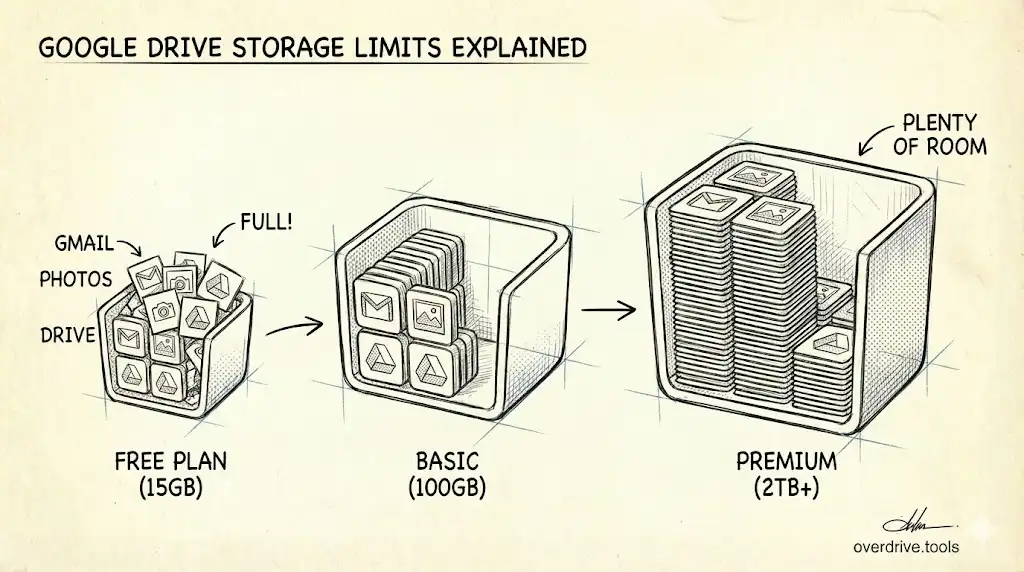
Gmail, Google Drive, and Google Photos share one pool: 5 GB free by default, up to 15 GB with a phone number. Here's how Gmail eats into that limit.
Overdrive Team//4 min read
If you've ever checked your Google storage and found it nearly full—despite feeling like you barely use Google Drive—Gmail is probably a bigger culprit than you'd expect.
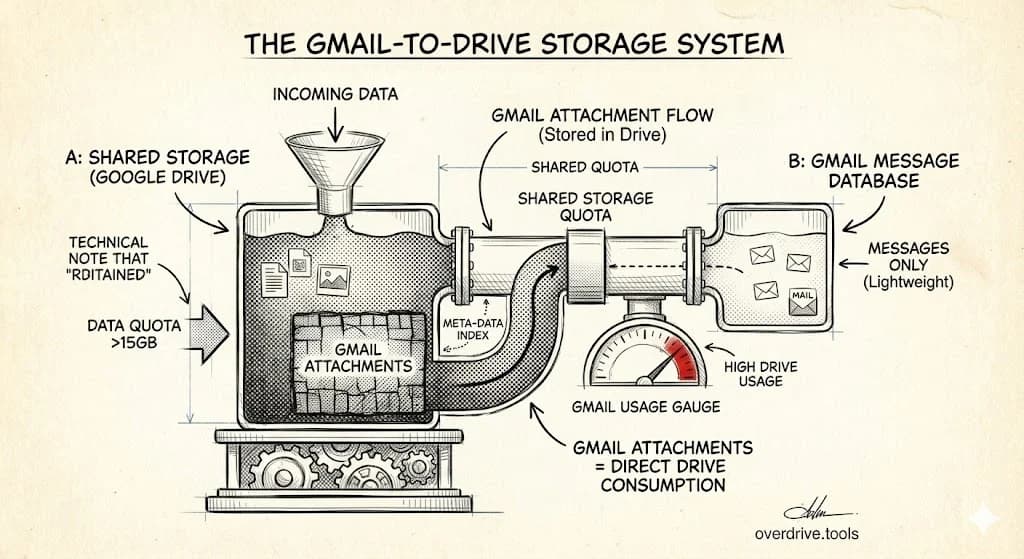
Your free Google storage, 5 GB by default since May 2026 or up to 15 GB with a verified phone number, isn't split between services. It's one shared pool, and Gmail, Google Drive, and Google Photos all draw from it simultaneously. That means a cluttered inbox and years of email attachments can quietly fill your Drive quota, preventing you from uploading files, creating new documents, or even receiving new emails.
Here's how the shared storage actually works, what counts and what doesn't, and how to get it under control.
The Shared Pool: What Counts Against It
Every Google Account comes with up to 15 GB of free storage (5 GB by default since May 2026, with the rest unlocked by verifying a phone number). That limit applies collectively to:
- Gmail — all messages, including those in Spam and Trash
- Google Drive — uploaded files like PDFs, images, videos, and ZIP files
- Google Photos — photos and videos backed up to your account
- Google Docs, Sheets, and Slides — files created or edited after June 1, 2021
- WhatsApp backups (on Android)
- Google Meet recordings
The one thing that doesn't count: files other people have shared with you. If a colleague shares a 2 GB video file to your Drive, it doesn't touch your quota—it counts against theirs. Only files you own consume your storage.
How Gmail Emails Count Against Storage
Every email you receive and send in Gmail takes up storage. That includes the message body, any inline images, and any attachments. There are a few things worth knowing about how this works in practice.
Attachments under 25 MB stay in Gmail. When someone sends you a 5 MB PDF, it lives in Gmail and counts against the Gmail portion of your storage. Same with anything you send—your sent messages with attachments count too.
Large attachments over 25 MB get stored in Drive. When you attach a file that exceeds Gmail's attachment limit, Google automatically stores it as a Drive link instead. That file counts against your Drive storage, not Gmail's allocation—though since it's all one pool, the distinction doesn't really matter in practice.
Spam and Trash count. This surprises a lot of people. Emails sitting in your Spam folder and deleted emails in your Trash are still consuming storage. They won't disappear until you permanently empty those folders.
Archiving doesn't help. Archiving an email removes it from your inbox and puts it in "All Mail," but it doesn't delete it and doesn't free any storage. The email is still there, still counted.
What Happens When You Run Out
If your shared pool fills up, Google applies restrictions across all three services at once. You won't be able to upload new files to Google Drive, back up photos to Google Photos, or—critically—send and receive new emails in Gmail. Google typically gives you about two weeks after hitting the limit before incoming emails start bouncing back to senders.
This is why storage management matters even for people who use Google Drive lightly. A full inbox can lock you out of your entire Google account's functionality.
How to Check What's Using Your Storage
To see the breakdown by service, go to one.google.com/storage. This shows you exactly how much Gmail, Drive, and Photos are each consuming. It's often a useful reality check—many people find Gmail is using far more than they assumed.
Google's Storage Manager (also accessible from that page) surfaces the biggest offenders: large email attachments, spam, items in Trash, and large Drive files. It's a good starting point for a cleanup.
Reclaiming Gmail Storage
The highest-impact places to start:
1. Find and delete emails with large attachments. In Gmail's search bar, use has:attachment larger:10M to surface emails with attachments over 10 MB. You can adjust the threshold—larger:25M, larger:50M—to find the biggest ones first. Download any attachments you actually need before deleting.
2. Empty Trash and Spam. In Gmail, go to Spam and click "Delete all spam messages now." Then go to Trash and click "Empty Trash now." This is often the single fastest way to reclaim a meaningful chunk of storage, since deleted emails can sit in Trash for 30 days before being auto-purged.
3. Search by age. The query older_than:3y has:attachment finds old emails with attachments you probably no longer need. Combined with bulk select, this makes it easy to delete hundreds of messages at once.
4. Check Sent Mail. Every email you've sent with an attachment counts against your quota. Sent Mail is easy to forget but can be a significant storage drain over several years.
Reclaiming Drive Storage
Once you've tackled Gmail, the Drive side of the equation is worth auditing too. Large video files, old backups, and forgotten downloads can sit there for years without anyone noticing.
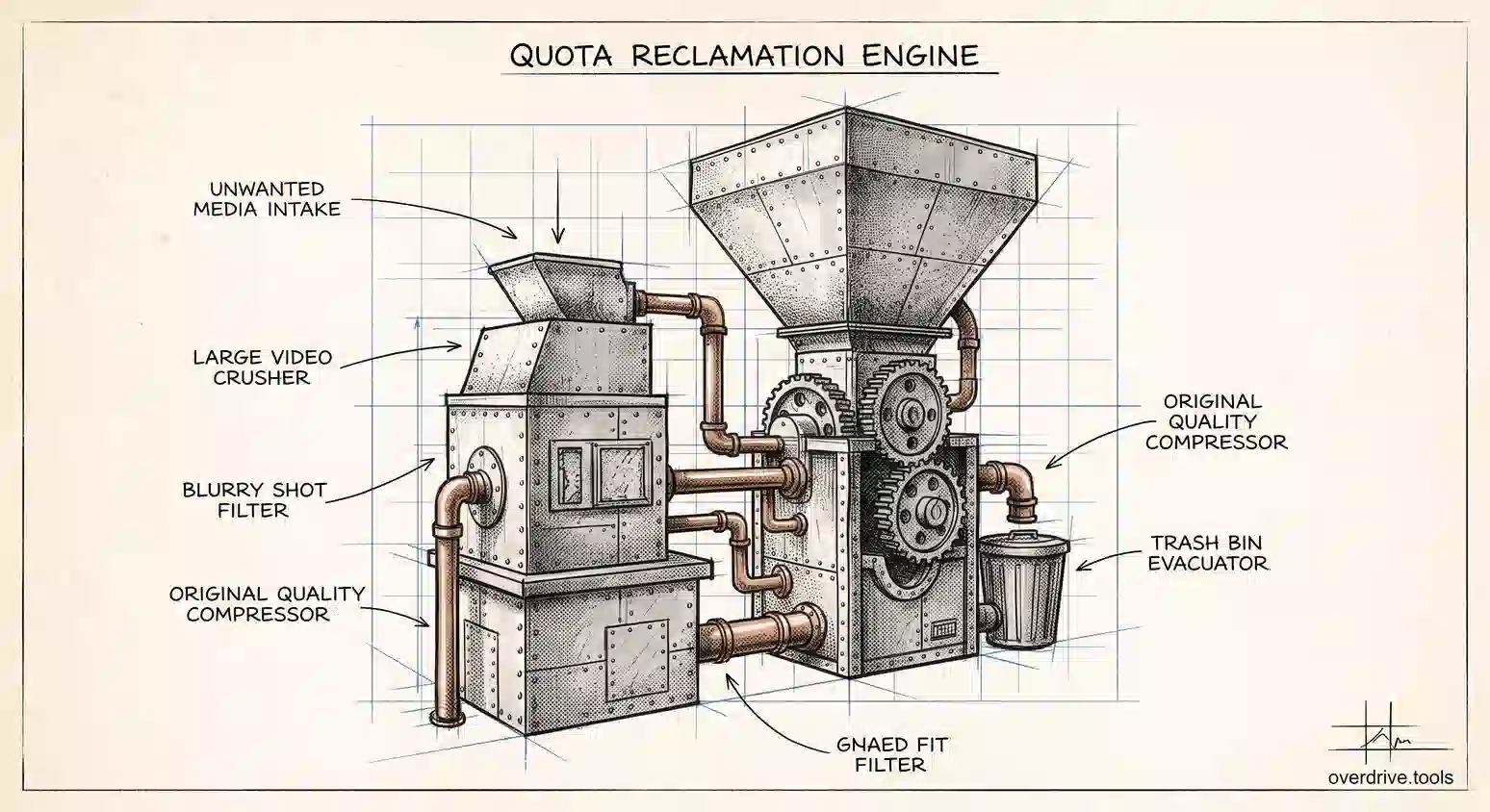
Option 1: Overdrive can scan your Drive and surface large files, old files, and duplicates grouped by size—so you can see at a glance what's actually worth deleting rather than clicking through folders manually.
Option 2: In Google Drive, click the Storage indicator in the left sidebar. This sorts your files by size and gives you a rough picture of what's taking up the most space. It's less thorough than a dedicated scan but requires no setup.
Should You Upgrade to Google One?
Google One starts at 100 GB for around $3/month. If Gmail genuinely serves as your primary email platform and you regularly send and receive large files, it's often worth it—especially if you're also backing up photos. The math is usually easier than ongoing storage management.
That said, it's worth doing one thorough cleanup first. Most people find they've been holding onto years of email they'd never look at again, and a single pass through Trash, Spam, and large attachments can recover several gigabytes quickly.
Related Articles
- Why Is My Google Drive Storage Full?
- How to Find Large Files in Google Drive
- Google Drive Storage Limit Explained