Google Drive Naming Conventions: A Simple System That Actually Sticks
A simple, repeatable file naming framework that makes files findable by anyone on the team—not just the person who saved them.
Overdrive Team//5 min read
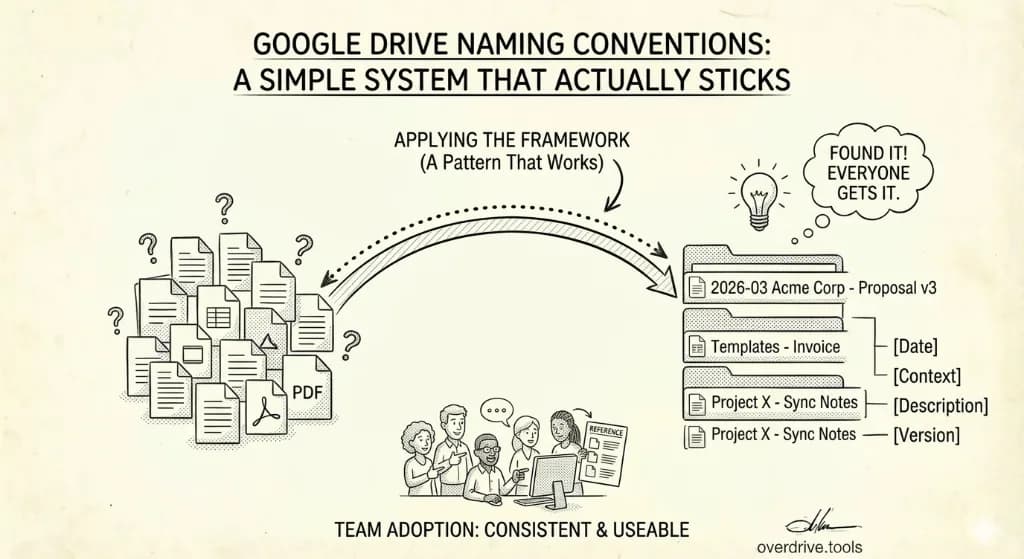
Most Google Drive problems aren't storage problems. They're naming problems. Files get named whatever seemed obvious in the moment—"Final," "Final v2," "FINAL FINAL," "Use This One"—and six months later nobody can find anything.
The fix isn't complicated. A naming convention is just an agreed-upon pattern that you use consistently. Pick one that works, write it down, and follow it. This post covers a practical framework that works for individuals and teams, with enough flexibility to handle different file types without becoming a bureaucratic nightmare.
Why Naming Conventions Break Down
Two failure modes are common. The first is naming files for yourself in the present: you know exactly what "deck" means right now, so why write more? The second is over-engineering: elaborate systems with six-digit codes and abbreviation tables that nobody actually uses.
A good convention sits between those extremes. It should be specific enough to be unambiguous and simple enough that the right name comes to mind without consulting a reference sheet.
One more problem worth naming: when teams don't have a shared convention, everyone defaults to their own. The result is a shared Drive that looks like five different people organized it—because it was.
The Core Pattern
For most files, this pattern covers what you need:
[Date] [Category or Project] - [Description] [Version]
Examples:
2026-03-24 Q1 Review - Budget Assumptions v1
2026-03 Acme Corp - Contract Draft v2
Proposal - Website Redesign FINAL
Template - Weekly Status Report
Not every component is required for every file. The pattern is a toolkit, not a checklist.
Dates
Use ISO format: YYYY-MM-DD or YYYY-MM. This format sorts chronologically in any file list, in any application. "03-24-2026" and "24-03-2026" both sort incorrectly when you have files from multiple months or years.
Include a date when chronology matters—meeting notes, reports, versioned deliverables. Leave it out for templates, reference documents, or anything that isn't inherently time-stamped.
Category or Project
This is context that tells you what area of work the file belongs to. For a freelancer it might be a client name: Acme Corp. For a team it might be a project code or initiative name: Brand Refresh. For personal files it might be a life area: Finance or Health.
Keep this consistent. If you call a client "Acme" in some files and "Acme Corp" in others, your search results will be incomplete and sorting won't group them correctly.
Description
Plain language. "Budget Assumptions" is better than "Bgt Assmptn" and better than "Q1 2026 Budget Planning Assumptions for Executive Review." Say what the file is without abbreviating to the point of ambiguity or expanding to the point of redundancy.
Versions
Use v1, v2, v2.1 for documents that go through review cycles. Use FINAL for the version that was actually delivered or approved—not a version you hope will be final.
One convention worth adopting: once something is marked FINAL, treat that file as locked. Any subsequent edits create a new version. "FINAL v2" defeats the entire point.
For Google Docs, Sheets, and Slides, you should generally use version history instead of creating multiple copies. Version naming is most useful for files that are exported and sent outside Drive—PDFs, slide exports, Excel files.
Folder Names vs. File Names
The naming rules for folders are similar but simpler. Folders rarely need dates or versions. They need to be unambiguous and consistent.
Use title case for folder names: Active Clients not active clients. Avoid abbreviations that aren't universally understood by your team. Don't include the word "folder"—it's redundant.
One useful trick: prefix folders you want to appear at the top of a sorted list with a special character. An underscore (_) or a number (00 -) forces the folder above alphabetical entries. This is useful for folders like _Inbox or 00 - Templates.
For a detailed look at how to structure the folders themselves, see Google Drive Folder Structure: Best Practices.
Adjustments by File Type
The core pattern handles most files. A few types have specific quirks worth addressing.
Meeting notes work well with a date-first, subject-second approach:
2026-03-24 Team Sync - Notes
2026-03-17 Client Kickoff - Notes
Sorted by date, you can scan back through the timeline easily. If you have meetings from multiple projects, include the project name before the description.
Templates should be named with the word "Template" first, so they group together when sorted alphabetically:
Template - Invoice
Template - Project Brief
Template - Weekly Status Report
Never put a date on a template unless it's version-specific. Templates are living documents and dates make them feel stale.
Reports and recurring deliverables should include the period they cover, not the date they were created:
Q1 2026 - Marketing Report
March 2026 - Financial Summary
The distinction matters. A report about Q1 created in April should say Q1, not April.
Client deliverables should include the client name and revision status so external recipients can identify them immediately, even outside your Drive:
Acme Corp - Website Proposal v3
Acme Corp - Website Proposal FINAL
This is especially important for files sent over email—the recipient's Downloads folder shouldn't contain a file called "Proposal.pdf."
Getting a Team to Actually Use It
The biggest challenge with naming conventions isn't designing them—it's getting consistent adoption. A few things help.
Write it down in one place and link to it from your team's Shared Drive. A conventions doc doesn't need to be long: one or two examples for each file type is enough. Long documents get ignored; a reference card with examples gets used.
Do a short review as part of any file-filing moment, not as a correction exercise afterward. When someone saves a file and shares the link in Slack, that's when the name matters. Making naming feel like a natural step in the sharing workflow beats retroactive audits.
When inconsistencies accumulate—and they will—a periodic tidy-up is easier than constant policing. Scheduling a quarterly Drive review where the team renames obvious outliers and files loose files is more realistic than expecting perfection day-to-day. Overdrive can speed this up by surfacing files that are clearly mislabeled or sitting outside your folder structure, so you're not hunting through Drive manually.
What to Do With Old Files
If you're implementing a convention on an existing messy Drive, don't try to rename everything at once. The effort is enormous and the interruption to your workflow isn't worth it.
Instead, adopt a clean-cut approach:
- Start using the convention for all new files immediately.
- Rename files when you actively open and work on them.
- Don't rename files you're unlikely to need again—they'll get archived or deleted eventually.
This way, the convention gradually takes hold without a disruptive migration project.
The One Rule
If you take nothing else from this: include enough context in the filename that someone unfamiliar with the project could identify the file in a folder of 50 others.
That test—"could someone else find this?"—is the whole point of a naming convention. It's not about personal organization. It's about shared understanding. Files don't stay with their creators, and good names are the thing that survives the handoff.
Related Articles
- Google Drive Folder Structure: Best Practices for 2026
- How to Finally Organize Your Google Drive
- Smart Google Drive Cleanup: Archive First, Delete Second