What Happens When You Delete a Shared File in Google Drive?
Find out what happens to shared files when you delete them—whether you own the file or it was shared with you. Plus how to safely remove files without affecting collaborators.
Overdrive Team//5 min read
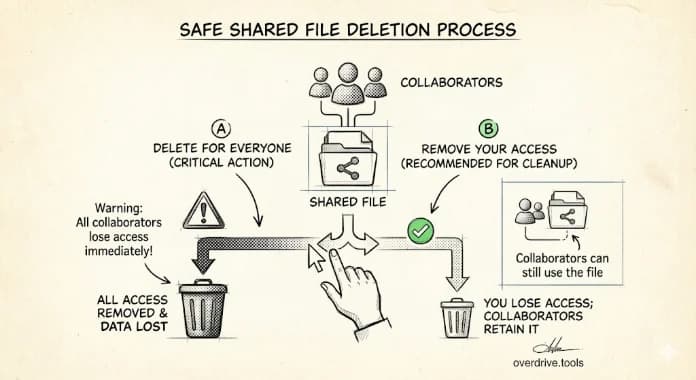
When you delete a shared file in Google Drive, what happens depends entirely on whether you own the file or someone shared it with you. If you own the file, deleting it removes access for everyone. If someone else owns the file, deleting it only removes it from your view—the file remains intact for everyone else.
This distinction trips up a lot of people. You might think you're cleaning up your Drive, only to discover you've deleted files your team was actively using. Or you might worry about deleting a file shared with you, not realizing it won't affect the owner at all.
Here's exactly what happens in each scenario.
Quick Reference: Who Can Delete What
| Scenario | What happens when you delete |
|---|---|
| You own the file, others have access | File goes to YOUR Trash. Everyone loses access immediately. |
| Someone shared a file with you | File disappears from your "Shared with me." Owner and others keep the file. |
| You own a folder, others added files to it | The folder goes to Trash. Files others added become "orphaned" in their Drive. |
| Someone shared a folder with you | Folder disappears from your view. Owner keeps everything. |
If You Own the File
When you delete a file you own, everyone who had access loses it immediately. The file moves to your Trash and stays there for 30 days before permanent deletion.
What collaborators see:
- The file disappears from their "Shared with me"
- If they had it open, they'll see an error on their next action
- They receive no notification that you deleted it
- Any links they saved to the file will show "File not found"
What you can do:
- Restore the file from Trash within 30 days (this restores everyone's access)
- Permanently delete from Trash to remove it immediately
- Empty entire Trash to permanently delete everything at once
Important: If you want to remove the file from your Drive without affecting others, transfer ownership first. See our guide on transferring file ownership.
If Someone Shared the File With You
When you delete a file someone else shared with you, you're only removing it from your view. The file continues to exist for the owner and everyone else with access.
What happens:
- The file disappears from your "Shared with me"
- The owner keeps the file exactly as it was
- Other collaborators keep their access
- The owner isn't notified that you removed it
What you're actually doing: You're not deleting the file—you're removing your access to it. Think of it like taking a shortcut off your desktop; the original file is unaffected.
Can you get it back? If you need access again, you'll need to ask the owner to reshare it with you, or find the original sharing link if one exists.
Shared Folders Are More Complicated
Folders add complexity because they can contain files owned by different people.
If you own the folder and delete it:
The folder and all files you own inside it go to your Trash. But files that collaborators added to your folder (files they own) become "orphaned"—they still exist in the collaborator's Drive, just without a parent folder.
Example:
- You create "Project Folder" and share it with Alex
- Alex adds "Alex's Notes.docx" to your folder
- You delete "Project Folder"
- Result: Your folder is gone. Alex's Notes.docx still exists in Alex's Drive, but it's no longer in any folder.
If someone shared a folder with you and you delete it:
The folder disappears from your view. The owner keeps the folder and everything in it. If you added files to their folder, those files now belong to them (they inherited ownership when placed in their folder).
Wait—files I added belong to them? Yes. When you add a file to someone else's folder, they become the owner of that file. This is a common source of confusion. If you want to keep ownership, add a shortcut instead of moving the actual file.
Before You Delete: Find What You've Shared
If you're doing a Drive cleanup, it's easy to forget which files others depend on. Deleting a file you shared two years ago could break someone's workflow without warning.
Overdrive shows you all your shared files in one view—who has access to what, and which files are actively shared versus forgotten. This helps you identify files that would affect others if deleted, so you can transfer ownership or warn collaborators before removing anything.
How to Safely Remove Shared Files
If you want to stop sharing but keep the file:
Don't delete it. Instead, remove everyone's access:
- Right-click the file → "Share"
- Click on each person's name
- Select "Remove access"
- Change "General access" to "Restricted" if link sharing is on
The file stays in your Drive, but no one else can access it. See our guide on removing access for details.
If you want to give the file to someone else:
Transfer ownership before deleting:
- Right-click the file → "Share"
- Click the dropdown next to the person's name
- Select "Transfer ownership"
- They accept via email, then you can safely delete your access
If you want to remove a file shared with you:
Just delete it. This only affects your view—you're not harming anything. The owner keeps the file.
Common Scenarios
"I deleted a shared folder and my team lost their files"
If you owned the folder, yes—deleting it removed everyone's access. Check your Trash immediately and restore the folder. If it's been more than 30 days or you emptied Trash, the files are gone (unless you have a Google Workspace admin who can recover within 25 additional days).
"I added files to a shared folder, then the owner deleted it"
Your files become orphaned but still exist. Search for them by name, or look in "My Drive" root. They're not deleted—just folder-less.
"I accidentally deleted something. Can collaborators still see it?"
If you own the file, no—it's gone for everyone until you restore it from Trash. If someone else owns it, they still have it; you just removed your own access.
"Will people know I deleted a shared file?"
No. Google Drive doesn't send notifications when you delete files, whether you're the owner removing a file or a collaborator removing your own access.
Related Articles
- What Happens to Shared Files When You Delete Your Google Account
- Who Has Access to Your Google Drive?
- How to Revoke Google Drive Access When Employees Leave