Hidden App Data Is Eating Your Google Drive Storage
Third-party apps can store gigabytes of invisible data in your Google Drive. Here's how to find hidden app data, see which apps are using storage, and delete what you don't need.
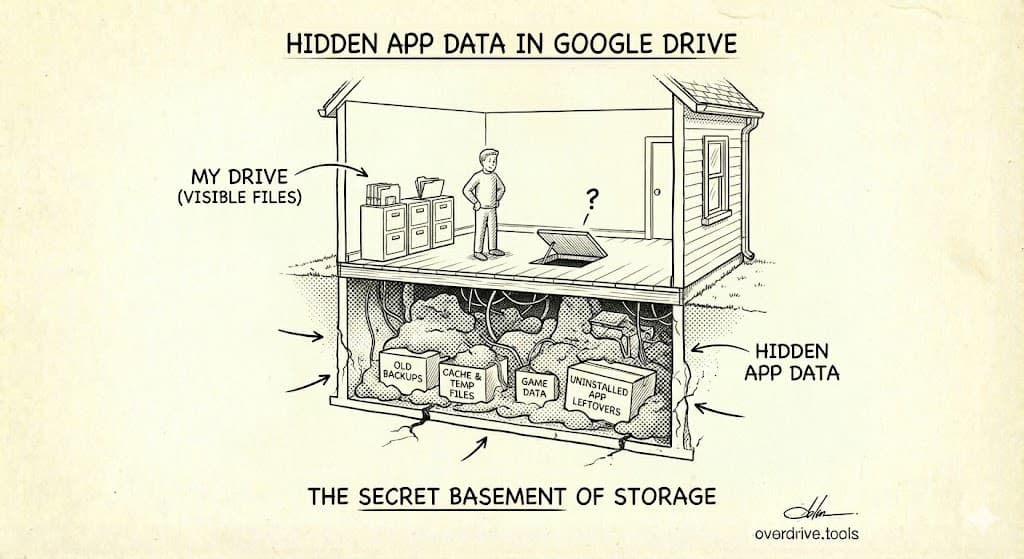
Hidden app data is storage used by third-party apps connected to your Google account that doesn't appear in your normal Google Drive file list. Apps like WhatsApp, games, and backup services can store gigabytes of data invisibly. To find it, go to Google Drive Settings → Manage apps, where you'll see each connected app and its storage usage.
If you've ever wondered why your Google Drive storage is full when your files barely add up to half the total, hidden app data is likely the culprit. This guide shows you exactly how to find it, understand what's using space, and safely delete what you don't need.
What Is Hidden App Data?
When you connect a third-party app to your Google account—like a mobile game, a backup service, or a productivity tool—that app can store data in your Google Drive. But unlike regular files, this data is hidden from your normal Drive view.
You won't see it when you browse "My Drive." It won't appear in search results. But it absolutely counts against your 15 GB storage quota.
Why Apps Store Data This Way
Apps use hidden storage for legitimate reasons:
- Backup and sync: WhatsApp stores chat backups here
- Save files: Games store progress and save data
- App settings: Productivity apps save preferences and configurations
- Cache and data: Some apps store working files temporarily (that become permanent)
The problem isn't that apps store data—it's that they often store more than you'd expect, and you can't see it without knowing where to look.
How to Find Hidden App Data
Step 1: Access Drive Settings
- Go to drive.google.com
- Click the gear icon (⚙️) in the top right
- Select "Settings" from the dropdown
Step 2: View Manage Apps
- In the Settings panel, click "Manage apps" in the left sidebar
- You'll see a list of all apps connected to your Drive
Step 3: Check Storage Usage
Each app entry shows:
- App name and icon
- Storage used (this is the key information)
- Options dropdown for managing the app
Look for apps using significant storage—anything over 100 MB deserves attention, and apps using 1 GB+ are major culprits.
If you want a faster way to see your complete storage picture—including hidden app data, duplicates, and large files you've forgotten about—Overdrive scans your entire Drive in about two minutes and surfaces everything using your storage. The scan is free.
The Biggest Hidden Storage Offenders
Based on common patterns, these apps typically use the most hidden storage:
WhatsApp (Often 1-10+ GB)
WhatsApp backs up your chat history, photos, and videos to Google Drive. If you've used WhatsApp for years, this backup can be enormous.
What's stored:
- Complete chat history
- Photos and videos sent/received
- Voice messages
- Documents shared in chats
Should you delete it?
Only if you're okay losing your WhatsApp chat history. If you delete this data, your next WhatsApp restore won't have your old messages.
How to reduce it:
- In WhatsApp, go to Settings → Chats → Chat backup
- Exclude videos from backup (often the largest component)
- Reduce backup frequency
- Delete chats you don't need before backing up
Mobile Games (100 MB - 2+ GB)
Games often store save data, progress, and downloaded content in Google Drive.
What's stored:
- Game saves and progress
- Downloaded game content
- Achievement data
- In-game purchases/unlocks
Should you delete it?
If you no longer play the game, yes. If you might return to the game, deleting this data means starting over.
Backup Apps (Varies Widely)
Third-party backup services may store copies of your phone data, photos, or files.
Common backup apps:
- SMS backup apps
- Contact backup apps
- Third-party photo backup
- Device backup utilities
Should you delete it?
Check if you still use the app and if the backup is current. Old backups from apps you no longer use are safe to delete.
Productivity and Note Apps (Usually Small, But Can Grow)
Apps like note-taking tools, document scanners, and task managers may store data here.
What's stored:
- Notes and documents
- Scanned files
- App sync data
Should you delete it?
Only if you no longer use the app. Active apps may lose data if you delete their storage.
How to Delete Hidden App Data
Once you've identified apps using significant storage, here's how to remove their data.
Step 1: Disconnect and Delete
- In Drive Settings → Manage apps
- Find the app you want to remove
- Click "Options" (three dots or dropdown)
- Select "Delete hidden app data"
- Confirm the deletion
Step 2: Disconnect the App (Optional)
If you want to prevent the app from storing data again:
- Click "Options" for the app
- Select "Disconnect from Drive"
This removes the app's access to your Drive entirely.
Step 3: Verify Storage Update
After deleting:
- Wait a few minutes
- Check your storage at one.google.com/storage
- Verify the storage was reclaimed
Note: Large deletions may take up to 24 hours to fully reflect in your storage quota.
Before You Delete: Important Warnings
Deleting hidden app data is permanent. Consider these risks:
WhatsApp Backup
- Risk: Deleting means losing your ability to restore chat history
- Before deleting: Ensure you don't need old WhatsApp messages
- Alternative: Reduce backup size by excluding videos rather than deleting entirely
Game Saves
- Risk: You'll lose all game progress
- Before deleting: Check if the game has cloud saves through another service (many games use their own servers)
- Alternative: Only delete data for games you've finished or abandoned
Productivity Apps
- Risk: May lose notes, documents, or settings
- Before deleting: Export data from the app first if possible
- Alternative: Check if the app stores data elsewhere as well
Unknown Apps
If you don't recognize an app:
- Google the app name to understand what it does
- Check if you have it installed on any device
- If truly unknown, it's probably safe to delete—but check first
Finding Apps You've Forgotten
Your Manage apps list might show apps you don't remember connecting. This happens because:
- You connected an app years ago and forgot
- An app on your phone auto-connected without prominent notification
- You tried an app once and never used it again
- The app changed names since you connected it
Audit Your Connected Apps
Beyond just checking storage, periodically review what apps have Drive access:
- Go to myaccount.google.com/permissions
- Review all apps with access to your Google account
- Remove apps you no longer use or recognize
This is a security practice as much as a storage practice.
Preventing Future Hidden Storage Bloat
Be Selective About App Permissions
When an app asks for Google Drive access, consider:
- Does this app actually need to store data in my Drive?
- How much data might it store over time?
- Can I configure what it backs up?
Configure Backup Settings
For apps you do want backing up, configure them to minimize storage:
WhatsApp:
- Exclude videos from backup
- Back up weekly instead of daily
- Periodically clear old chats before backing up
Games:
- Many games offer options to limit cloud save size
- Delete save data for completed games
Backup apps:
- Set reasonable retention policies
- Don't back up what's already backed up elsewhere
Regular Audits
Add a quarterly reminder to:
- Check Drive Settings → Manage apps
- Review storage usage by app
- Delete data from apps you no longer use
- Disconnect apps you don't need connected
Frequently Asked Questions
Can I see exactly what files an app has stored?
No. Hidden app data is specifically designed to be invisible to users—you can only see the total storage used, not individual files. You can delete all of an app's data, but you can't browse or selectively delete specific files within it.
Will deleting app data break the app?
The app will continue to work, but it may lose stored data. For backup apps like WhatsApp, you'll lose the backup. For games, you'll lose save progress. The app itself will still function—it just won't have its stored data.
Why can some apps use so much storage?
Apps have no built-in limits on how much hidden data they can store. A chat app backing up years of photos and videos can easily use 5-10+ GB. Google doesn't restrict per-app storage—it all counts against your total quota.
How do I stop an app from storing data in Drive?
Disconnect the app from your Google account. In Drive Settings → Manage apps, click "Options" → "Disconnect from Drive." This prevents future storage but doesn't automatically delete existing data.
Is hidden app data included in Google Takeout exports?
No. When you export your data using Google Takeout, hidden app data is not included. It's only accessible through the specific app that created it or by deleting it through Manage apps.
Can hidden app data be using storage if the app isn't installed?
Yes. If you connected an app, it stored data, and then you uninstalled the app, the data remains in your Drive. The app being uninstalled doesn't delete its hidden data—you must delete it manually through Manage apps. Tools like Overdrive can help identify storage from disconnected or forgotten apps.
Keep Reading
- Why Is My Google Drive Full But Empty? (Solved) — All the hidden storage culprits, not just app data
- The Ultimate Google Drive Storage Cleanup Guide — Complete cleanup process for Drive, Gmail, and Photos.