Why Is My Google Drive Full But Empty? (Solved)
Google Drive showing full but you can't find the files? Here's where your storage is actually going and how to reclaim it—Trash, Gmail, Photos, hidden app data, and more.
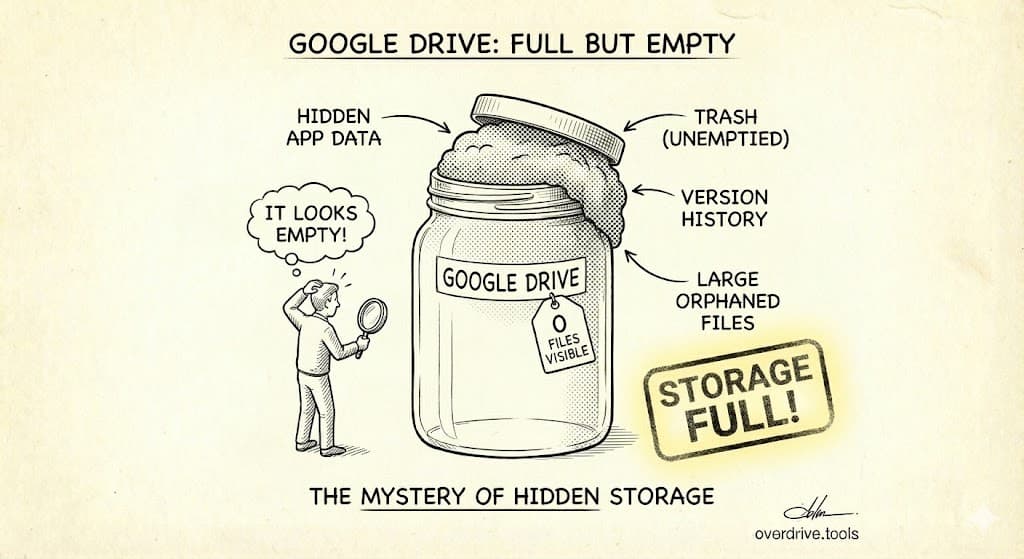
Your Google Drive appears empty but shows as full because storage is shared across Gmail, Google Photos, and hidden app data—not just the files visible in "My Drive." The most common culprits are files in Trash (which still count until permanently deleted), large Gmail attachments, Google Photos backups, and third-party app data stored invisibly in your Drive.
This is one of the most frustrating Google Drive issues. You delete files, the storage doesn't change. You look at your Drive, it seems nearly empty. Yet Google insists you're using 14.8 GB of your 15 GB. Here's exactly where your storage is hiding and how to reclaim it.
Understanding Google's Shared Storage
Your 15 GB of free Google storage isn't just for Google Drive files. It's shared across three services:
| Service | What Counts |
|---|---|
| Google Drive | Files in My Drive, including uploads and Google Docs/Sheets/Slides created after June 1, 2021 |
| Gmail | All emails with attachments (sent AND received) |
| Google Photos | Photos and videos (all qualities since June 1, 2021) |
When you look at "My Drive" and see it's nearly empty, you're only seeing one piece of the puzzle. The storage eating your quota could be anywhere across these three services.
Check Your Storage Breakdown
Before hunting for hidden files, see where your storage is actually going:
- Go to one.google.com/storage
- View the breakdown by service
- Identify which service is using the most space
This immediately tells you where to focus. If Gmail is using 10 GB and Drive only 2 GB, your problem isn't in Drive—it's in email attachments.
The 7 Hidden Storage Culprits
1. Trash (Still Counts Until Empty)
This catches most people. When you delete a file, it goes to Trash—but it still counts against your storage quota. Files in Trash are only permanently deleted after 30 days, or when you manually empty it.
The fix:
- In Google Drive, click "Trash" in the left sidebar
- Click "Empty trash" in the top right
- Confirm deletion
Check Gmail Trash too:
- In Gmail, click "Trash" (may be under "More")
- Click "Empty Trash now"
And Google Photos Trash:
- In Google Photos, click "Trash"
- Click "Empty trash"
This single step often frees up gigabytes instantly.
2. Gmail Attachments
Every email attachment counts against your storage—forever. That 25 MB presentation someone sent you three years ago? Still using 25 MB. The files you've emailed to yourself as backups? All counting.
Sent emails count too. If you emailed a 10 MB file to five people, that's 10 MB of storage used (the attachment is stored once, but many people don't realize sent attachments count at all).
The fix:
In Gmail, search for large attachments:
has:attachment larger:10MB
Review and delete emails you no longer need. The attachment is deleted when the email is deleted.
For a more aggressive cleanup:
has:attachment larger:5MB older_than:2y
This finds attachments over 5 MB that are more than 2 years old—usually safe to delete.
3. Google Photos
If you've ever backed up photos from your phone, Google Photos could be using significant storage. Since June 1, 2021, all photo uploads count against your quota regardless of quality setting.
The fix:
- Go to photos.google.com/quotamanagement
- Review "Large photos and videos"
- Delete screenshots and blurry photos
- Consider using "Storage saver" quality for future uploads
You can also compress existing original-quality photos to Storage saver quality:
- In the quota management page, look for "Recover storage"
- This converts originals to compressed versions, freeing space
4. Hidden App Data
Third-party apps connected to your Google account can store data in your Drive without it appearing in your file list. This is called "hidden app data" and it can consume gigabytes.
Common culprits:
- WhatsApp backups (often 1-5+ GB)
- Game save data
- Third-party backup apps
- Productivity apps
The fix:
- Go to drive.google.com
- Click the gear icon (Settings)
- Select "Settings" from the menu
- Click "Manage apps" in the left sidebar
- Review apps and their storage usage
- For apps you no longer use, click "Options" → "Delete hidden app data"
We cover this in detail in Hidden App Data Is Eating Your Google Drive Storage.
5. Orphaned Files
Orphaned files are files that exist but aren't in any folder. They can happen when:
- A shared folder you added files to was deleted by the owner
- Folder structure got corrupted during sync
- Files were moved out of deleted folders
These files don't appear in normal navigation but still use storage.
The fix:
In Google Drive, search:
is:unorganized owner:me
This shows files that aren't in any folder. Review and either organize them or delete them.
6. Old Google Docs, Sheets, and Slides
Before June 1, 2021, Google Docs/Sheets/Slides didn't count against storage. After that date, any new files or edits to existing files started counting.
If you have many Google Docs files created or edited after June 2021, they're now using storage—even though they didn't before.
The fix:
Use Google Drive's Storage Manager:
- Go to drive.google.com/settings/storage
- Review large files
- Delete old documents you no longer need
7. Shared Drive Confusion
Files in "Shared with me" don't count against YOUR storage—they count against the owner's storage. However, if you've made copies of shared files to your own Drive, those copies count against your quota.
The fix:
Search for copies you may have made:
owner:me "Copy of"
If you have duplicates of files that are still available in the original shared location, you can delete your copies.
The Complete Troubleshooting Checklist
Work through this checklist systematically to find and reclaim your hidden storage.
Step 1: Check Where Storage Is Going
- Go to one.google.com/storage
- Note the breakdown: Drive ___ GB, Gmail ___ GB, Photos ___ GB
- Focus on the largest category first
Step 2: Empty All Trash
- Google Drive: Trash → Empty trash
- Gmail: Trash → Empty Trash now
- Google Photos: Trash → Empty trash
- Wait a few minutes and recheck storage
Step 3: Clean Gmail Attachments
- Search:
has:attachment larger:10MB - Delete old emails with large attachments
- Search:
has:attachment larger:5MB older_than:2y - Delete old emails you don't need
Step 4: Review Google Photos
- Go to photos.google.com/quotamanagement
- Delete large videos you don't need
- Remove screenshots and blurry photos
- Consider compressing to Storage saver quality
Step 5: Check Hidden App Data
- Go to Drive Settings → Manage apps
- Review storage used by each app
- Delete data from apps you no longer use
Step 6: Find Orphaned Files
- Search:
is:unorganized owner:me - Organize or delete orphaned files
Step 7: Verify Results
- Recheck storage at one.google.com/storage
- Note: Storage updates can take a few minutes to several hours
When Storage Doesn't Update
Sometimes you delete files but storage doesn't immediately reflect the change. This is normal:
- Trash must be emptied: Deleted files count until permanently removed
- Propagation delay: Storage calculations can take minutes to hours to update
- Cache issues: Try logging out and back in, or checking from a different device
- Server sync: Large deletions may take up to 24 hours to fully reflect
If you've emptied all trash and storage still hasn't updated after 24 hours, try:
- Clear your browser cache
- Check storage from the mobile app
- Verify at one.google.com/storage rather than in Drive
The Faster Way: See Everything at Once
Manually checking Drive, Gmail, Photos, and hidden app data takes time—and you might still miss things.
Overdrive scans your entire Google Drive in about two minutes and shows you exactly what's using your storage: large files, duplicates, hidden app data, and files you may have forgotten about. The scan is free, and you'll see things the manual search misses.
Prevention: Keep Your Drive Clean
After reclaiming your storage, prevent the problem from recurring.
Regular Maintenance
- Monthly: Empty Trash across all services
- Quarterly: Review large Gmail attachments
- Quarterly: Check for hidden app data from new apps
- Annually: Full storage audit
Change Your Habits
- Delete email attachments after downloading them locally
- Use Google Drive links instead of email attachments when possible
- Set Google Photos to "Storage saver" instead of "Original quality"
- Disconnect apps you no longer use
- Periodically review and delete old files
Consider Upgrading
If you consistently need more than 15 GB, Google One plans are affordable:
| Plan | Storage | Monthly (US) |
|---|---|---|
| Basic | 100 GB | $1.99 |
| Standard | 200 GB | $2.99 |
| Premium | 2 TB | $9.99 |
But always clean first—you might not need to pay.
Frequently Asked Questions
Why does my storage show full immediately after deleting files?
Files moved to Trash still count against your quota. You must empty the Trash to actually free the space. Also, storage updates can take a few minutes to several hours to reflect changes.
Do files in "Shared with me" count against my storage?
No. Files shared with you count against the owner's storage, not yours. However, if you make a copy of a shared file to your own Drive, that copy counts against your storage.
Why is Gmail using so much storage?
Every email attachment—both received and sent—counts toward your storage permanently. Years of emails accumulate significant storage, especially if you receive or send large files regularly.
How do I find what's using my Google Photos storage?
Go to photos.google.com/quotamanagement. This shows large photos and videos, blurry photos, and screenshots—the main storage consumers in Photos.
Can hidden app data really use gigabytes?
Yes. WhatsApp backups alone can use 5+ GB. Game saves, productivity app data, and other backups add up. Check Drive Settings → Manage apps to see which apps are using storage.
How long until deleted files actually free up space?
After emptying Trash, storage usually updates within a few minutes. Occasionally it can take up to 24 hours for large deletions to fully reflect in your storage quota.
Keep Reading
- Hidden App Data Is Eating Your Google Drive Storage — Deep dive into finding and removing hidden app data
- The Ultimate Google Drive Storage Cleanup Guide — Complete cleanup process for Drive, Gmail, and Photos.