How to Find and Delete Duplicate Files in Google Drive
Google Drive doesn't have built-in duplicate detection. Here's how to find duplicate files manually, with search tricks, and with tools that identify identical files automatically.
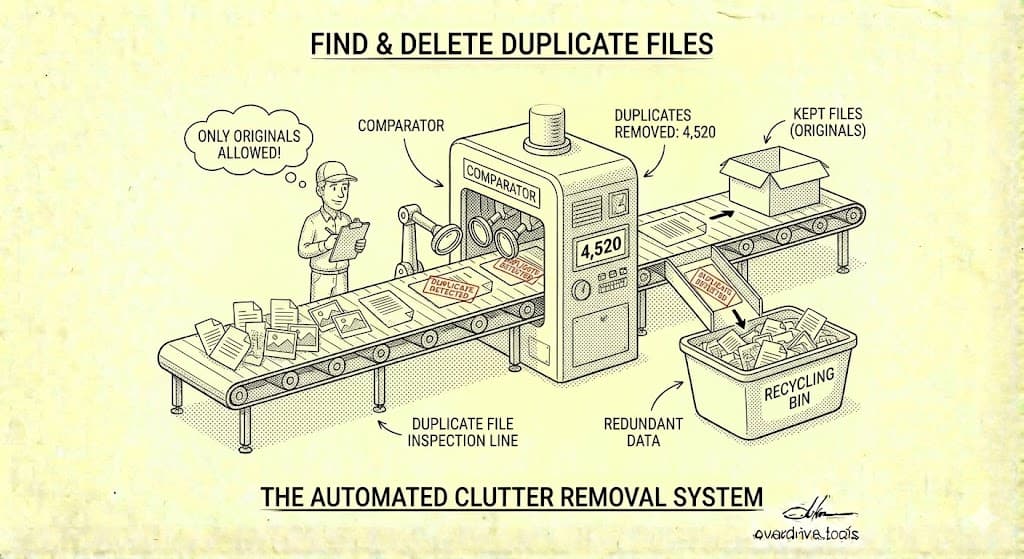
Google Drive has no built-in duplicate file finder. To find duplicates manually, search for files with the same name using the search bar, then compare file sizes and dates to identify copies. For thorough duplicate detection—including files with different names but identical content—you'll need a third-party tool that compares files by content rather than just filename.
Duplicates are one of the biggest storage wasters in Google Drive. They accumulate silently: you download the same attachment twice, copy a file "just in case," sync from multiple devices, or save versions instead of using version history. Over time, duplicates can consume gigabytes of your 15 GB quota.
Why Duplicates Accumulate
Understanding the sources helps you prevent future duplicates.
Common Duplicate Sources
| Source | How It Happens |
|---|---|
| Email attachments | Downloading the same attachment multiple times |
| Manual copies | Creating copies "for backup" or "just in case" |
| Sync conflicts | Desktop sync creating conflict copies |
| Version saves | Saving "v2," "v3," "final," "final2" instead of using version history |
| Device uploads | Uploading photos/files from multiple devices |
| Shared file copies | Making copies of shared files to your own Drive |
| Failed uploads | Upload interruptions creating partial duplicates |
The Hidden Cost
Duplicates don't just waste storage—they create confusion:
- Which version is current?
- Which copy should I edit?
- Did I share the right one?
- Why do search results show the same file three times?
Cleaning duplicates improves both storage and sanity.
Method 1: Search by Filename
The simplest approach—search for files with identical or similar names.
Exact Name Search
If you suspect duplicates of a specific file:
- Go to drive.google.com
- In the search bar, type the filename (or part of it)
- Review results for duplicates
Search for "Copy of" Files
When you duplicate a file in Google Drive, it's named "Copy of [original name]":
"Copy of"
This search reveals all files created by duplicating within Drive.
Search for Common Duplicate Patterns
Version-style duplicates:
"v2" OR "v3" OR "final" OR "Final"
Date-appended duplicates:
"(1)" OR "(2)" OR "(3)"
Backup copies:
"backup" OR "Backup" OR "copy" OR "Copy"
Limitations of Name-Based Search
This method only finds duplicates with obvious naming patterns. It misses:
- Files renamed after copying
- Files with identical content but different names
- Photos uploaded multiple times (usually have different auto-generated names)
- Documents edited then saved as new files
Method 2: Compare by File Size
Files with identical content have identical sizes. Use this to spot potential duplicates.
Using List View
- Navigate to a folder you suspect has duplicates
- Switch to List view (grid icon in top right → List)
- Click the "File size" column header to sort by size
- Look for files with identical sizes near each other
Files with the exact same size in bytes are candidates for being duplicates.
Using Storage Manager
- Go to drive.google.com/settings/storage
- Review large files
- Look for similar-sized files with similar names
This works for spotting large duplicates but doesn't scale to your entire Drive.
Method 3: Check Specific Folders
Duplicates often cluster in certain locations.
Downloads Folder
If you have a Downloads folder in Drive (from syncing your computer), check it first. Downloads folders are duplicate magnets—same files downloaded multiple times over months or years.
Photo Folders
Photos uploaded from multiple devices or apps often duplicate. Check folders like:
- Camera uploads
- Phone backup folders
- App-specific photo folders
Project Archive Folders
Old project folders often contain multiple versions of the same deliverable saved at different stages.
Shared File Copies
Search for files you might have copied from shared sources:
owner:me "Copy of"
This shows copies you made that you own (excluding shared files themselves).
Method 4: Use Overdrive (Automated Detection)
Manual methods are tedious and incomplete. They can't detect duplicates with different names, and checking thousands of files by hand isn't practical.
Overdrive scans your entire Google Drive and identifies duplicates by comparing actual file content—not just names. This catches:
- Files renamed after copying
- Photos uploaded multiple times with different names
- Documents with identical content but different filenames
- Sync conflict copies
The scan takes about two minutes and is free. You'll see all duplicates grouped together, with file sizes and locations, so you can decide which copies to keep and which to delete.
Deciding Which Duplicate to Keep
Once you find duplicates, you need to decide which to delete.
Keep the Original, Delete the Copy
Generally, keep:
- The oldest version (usually the original)
- The one in the correct folder location
- The one with the better filename
- The one that's shared with others (if applicable)
Check Before Deleting
Before deleting a duplicate:
- Verify they're truly identical: Open both files to confirm same content
- Check sharing: Is one shared with people who need it?
- Check location: Is one in a folder structure that makes sense?
- Check edit history: For Google Docs/Sheets/Slides, check version history—one might have edits the other lacks
For Google Docs/Sheets/Slides
Google Workspace files show version history (File → Version history → See version history). If you have two copies of a Doc:
- Check if one has more recent edits
- Check if one has edits from collaborators
- Consider merging important changes before deleting
Deleting Duplicates Safely
One at a Time
For a few duplicates:
- Identify the copy to delete
- Right-click → Move to trash
- Verify the original still exists and works
Bulk Deletion
For many duplicates:
- Hold Shift and click to select multiple files
- Or hold Ctrl/Cmd and click individual files
- Right-click → Move to trash
- Or press Delete key
Empty Trash to Reclaim Space
Files in Trash still count against storage. After deleting duplicates:
- Click "Trash" in the left sidebar
- Review the files (last chance to recover mistakes)
- Click "Empty trash" to permanently delete
Preventing Future Duplicates
Use Version History Instead of Copies
For Google Docs, Sheets, and Slides:
- Don't save "document v2"—just edit the original
- Version history tracks all changes automatically
- You can restore any previous version if needed
- Name versions if helpful: File → Version history → Name current version
Use "Add Shortcut" Instead of Copy
When you need a file accessible from multiple folders:
- Don't copy the file to each folder
- Instead: Right-click → Organize → Add shortcut
- Shortcuts reference the original—no duplicate storage
Be Intentional About Downloads
Before downloading a file:
- Check if you already have it (search first)
- Consider if you really need a local copy
- Use a consistent download location so duplicates are obvious
Clean Up Sync Conflicts Promptly
If Google Drive for Desktop creates conflict copies (files ending in "conflict" or with device names), address them immediately:
- Keep the correct version
- Delete the conflict copy
- Investigate why conflicts are happening
Periodic Duplicate Audits
Add a quarterly reminder to check for duplicates:
- Search for "Copy of"
- Review your Downloads folder
- Check photo upload folders
- Run an automated scan
Special Cases
Duplicate Photos
Photos are the worst duplicate offenders. Same photo uploaded from:
- Phone backup
- Desktop sync
- WhatsApp backup
- Photo editing apps
- Manual uploads
Photo duplicates often have completely different filenames (IMG_1234.jpg vs. Screenshot_2024_01_15.png for the same image), making them nearly impossible to find manually.
For photos specifically, consider:
- Google Photos' built-in duplicate detection (limited but helpful)
- Storage management at photos.google.com/quotamanagement
- Tools that compare images by visual content, not just file data
Duplicates in Shared Drives
In Google Workspace Shared Drives:
- You may not be able to delete others' duplicates
- Coordinate with team members before cleanup
- Consider designating someone responsible for periodic cleanup
Duplicates Across Drive and Photos
Google Drive and Google Photos can both store images, and they're not always deduplicated. A photo might exist in:
- Google Photos (backed up from phone)
- Google Drive (synced from desktop)
- Email attachments (in Gmail, counting against storage)
These cross-service duplicates are hard to find manually.
Frequently Asked Questions
Does Google Drive automatically detect duplicates?
No. Unlike some cloud storage services, Google Drive has no built-in duplicate detection. You can upload the same file 100 times and Drive will store all 100 copies.
Do duplicates in "Shared with me" use my storage?
No. Files shared with you count against the owner's storage, not yours. However, if you make a copy of a shared file, that copy counts against your storage.
What happens to sharing when I delete one duplicate?
Deleting a file removes its sharing. If you delete a duplicate that was shared with someone, they lose access to that copy. Make sure you keep the copy that people are actually accessing.
Can I recover a duplicate I deleted by mistake?
Yes, for 30 days. Check your Trash, find the file, right-click → Restore. After 30 days (or if you empty Trash), the file is permanently gone.
Are "shortcut" files duplicates?
No. Shortcuts are pointers to the original file—they don't duplicate content or use additional storage. Use shortcuts when you want a file accessible from multiple locations.
Do Google Docs/Sheets/Slides duplicates take up much space?
Less than other files, but they still count since June 2021. A Google Doc might be small (kilobytes), but thousands of duplicate Docs add up. And unlike binary files, you can't compare Docs by file size—two Docs with different content might be similar sizes.
Keep Reading
- The Ultimate Google Drive Storage Cleanup Guide — Complete storage cleanup process
- How to Find Large Files in Google Drive — Find what's using the most space
- Why Is My Google Drive Full But Empty? — All the hidden storage culprits