The Ultimate Google Drive Storage Cleanup Guide (2026)
Free up Google Drive storage fast. Find what's using your space, delete duplicates, clean up Gmail attachments, and reclaim gigabytes with this complete cleanup guide.
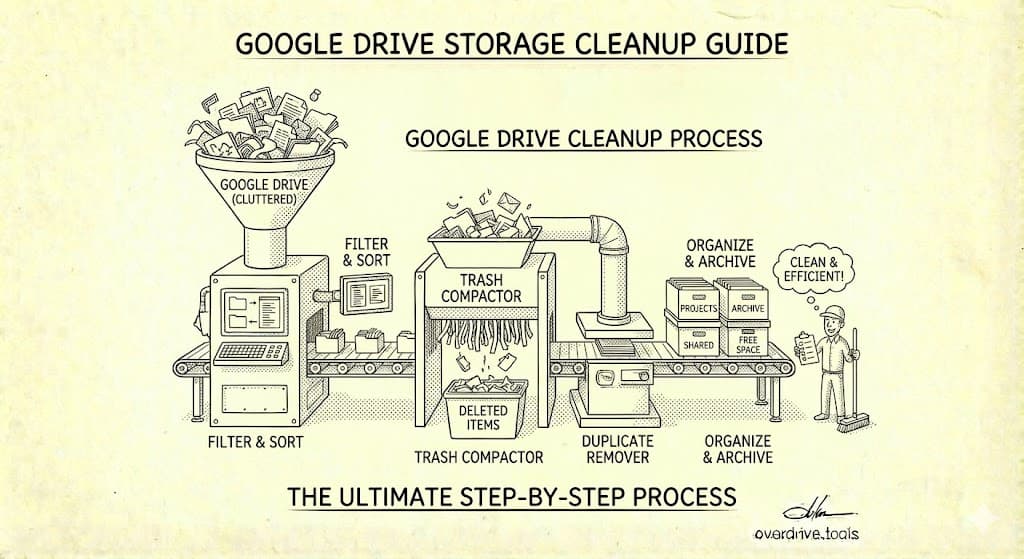
To clean up Google Drive storage, start with Google's Storage Manager at drive.google.com/settings/storage—it shows your largest files and makes deletion easy. Then empty your Trash (trashed files still count against your quota), delete large Gmail attachments, and remove duplicate files. Most users can free up 40-60% of their used storage in under an hour using these methods.
Your 15GB of free Google storage fills up faster than you'd expect. It's shared across Google Drive, Gmail, and Google Photos, and years of accumulated files, email attachments, and forgotten backups add up quickly. This guide walks you through the complete cleanup process—from quick wins that free gigabytes in minutes to deep cleaning that reclaims everything you're wasting.
What's Actually Using Your Google Storage
Before cleaning, understand what counts against your quota. Google's 15GB (or whatever plan you have) is shared across three services:
Google Drive
Everything in "My Drive" counts:
- Documents, spreadsheets, presentations you create
- Files you upload (PDFs, images, videos, etc.)
- Files in folders others shared with you that you've added to your Drive
- Backups from apps (WhatsApp, phone backups, etc.)
- Hidden app data from third-party services
What doesn't count: Files in "Shared with me" that you haven't added to your Drive. Google Docs, Sheets, and Slides created before June 1, 2021 also don't count (legacy exemption), but anything created after that date does count.
Gmail
Every email with attachments counts:
- Attachments on received emails
- Attachments on sent emails (this surprises many people)
- Emails in Trash and Spam (until permanently deleted)
- Large email threads with multiple attachments
A single email with a 25MB attachment uses 25MB of your storage forever—unless you delete it.
Google Photos
Photos and videos stored in "Original quality" count fully against your quota. Photos stored in "Storage saver" quality (previously called "High quality") also count, but use less space per photo.
Note: The free unlimited "High quality" storage ended in June 2021. Everything uploaded after that date counts against your quota, regardless of quality setting.
Check Your Current Storage Usage
Before cleaning, see where your storage is going.
Method 1: Storage Breakdown Page
Go to one.google.com/storage
This shows:
- Total storage used vs. available
- Breakdown by service (Drive, Gmail, Photos)
- Links to manage storage for each service
Method 2: Drive Storage Manager
Go to drive.google.com/settings/storage
This shows:
- Large files you can review and delete
- Files in Trash (taking up space until emptied)
- Suggested items to clean up
Method 3: Gmail Storage Check
In Gmail, search: larger:10MB
This shows all emails with attachments larger than 10MB—often the fastest Gmail cleanup.
Quick Wins: Free Up Space in 10 Minutes
Start with actions that have the biggest impact for the least effort.
1. Empty Your Trash (30 Seconds)
Files in Trash still count against your quota. They're automatically deleted after 30 days—but why wait? Empty it now.
In Google Drive:
- Click "Trash" in the left sidebar
- Click "Empty trash" at the top right
- Confirm deletion
In Gmail:
- Click "Trash" (you may need to click "More" to see it)
- Click "Empty Trash now" at the top
- Confirm
In Google Photos:
- Click "Trash" in the left sidebar
- Click "Empty trash"
- Confirm
This alone often frees several gigabytes.
2. Delete Large Files (5 Minutes)
Use Storage Manager to find and delete your largest files:
- Go to drive.google.com/settings/storage
- Files are sorted by size—largest first
- Review each file: Do you need it? Is there a copy elsewhere?
- Select files to delete, click the trash icon
- Empty Trash to actually free the space
Target files over 100MB first. A few large videos or backups can consume gigabytes.
3. Delete Large Email Attachments (5 Minutes)
In Gmail, search: has:attachment larger:10MB
Review the results. Old emails with large attachments are usually safe to delete:
- Received files you've since downloaded elsewhere
- Sent files you have copies of locally
- Old project files from years ago
- Duplicate files you emailed to yourself
Delete the emails to remove the attachments from your storage.
Deep Cleaning: Drive Files
After quick wins, systematically clean your Drive.
Find and Delete Duplicate Files
Duplicates waste storage and create confusion. They accumulate from:
- Downloading the same file multiple times
- Copying files between folders
- Syncing issues with desktop apps
- Keeping "backup" copies manually
How to find duplicates manually:
Sort by name—duplicates often have "(1)" or "Copy of" in the name:
- In Google Drive, click "Name" column header to sort alphabetically
- Look for files with similar names in sequence
- Compare file sizes and dates to identify duplicates
- Keep the newest or most complete version, delete others
Search for common duplicate patterns:
"Copy of"
name contains "(1)"
These searches surface files that were explicitly copied.
For large Drives with thousands of files, manual duplicate finding doesn't scale. Overdrive scans your entire Drive and groups identical files automatically—finding duplicates you'd never catch manually, including files with different names but identical content. The scan is free and takes about two minutes.
Clean Up Old and Unused Files
Files you haven't opened in years are candidates for deletion.
Find old files by date:
In Google Drive, you can filter by modification date:
- Click the search filters icon in the search bar
- Under "Date modified," select a timeframe (e.g., "Before" and set a date 2+ years ago)
- Review the results
Questions to ask for old files:
- Would I notice if this disappeared?
- Could I find this elsewhere if I needed it?
- Is this still relevant to anything I'm doing?
- Did this project/task/job end years ago?
If the answers are "no," "yes," "no," and "yes"—delete it.
Remove Empty and Untitled Files
Empty documents waste space and clutter your Drive.
Find untitled documents:
name:Untitled
This finds "Untitled document," "Untitled spreadsheet," etc.—files created and abandoned. Most can be deleted without consequence.
Find empty files:
Files with 0 bytes are empty:
- Go to Storage Manager (drive.google.com/settings/storage)
- Sort through files and look for very small file sizes
- Open to verify they're empty or useless
- Delete
For help organizing these files, see How to Find and Delete Empty Folders in Google Drive.
Review App Data and Backups
Third-party apps store data in your Drive, often without you realizing it.
Find hidden app data:
- Go to drive.google.com/settings
- Look for "Manage apps" in the settings
- Review which apps are using storage (shown next to each app)
- For apps you no longer use, click "Options" and "Delete hidden app data"
Common storage hogs:
- WhatsApp backups (can be multiple gigabytes)
- Phone backup apps
- Third-party sync services
- Old apps you no longer use
We cover this in detail in Hidden App Data Is Eating Your Google Drive Storage.
Handle Files You Want to Keep But Not Store
Some files are worth keeping but don't need to live in Google Drive:
Option 1: Download and delete
- Download the file to your computer or external drive
- Delete from Google Drive
- Keep the local copy for archives
Option 2: Move to another cloud service If you have storage on Dropbox, OneDrive, iCloud, or elsewhere, move files there to balance usage.
Option 3: Compress files ZIP or compress large folders before uploading. This works well for archives you rarely access.
Deep Cleaning: Gmail
Gmail attachments are silent storage killers. Every photo, PDF, or document attached to an email counts against your quota—forever, unless you delete the email.
Find Emails With Large Attachments
Use Gmail search operators to find storage-heavy emails:
| Search | Finds |
|---|---|
has:attachment larger:10MB |
Emails with attachments over 10MB |
has:attachment larger:5MB |
Emails with attachments over 5MB |
has:attachment larger:25MB |
Maximum-size attachments (Gmail's limit) |
older_than:2y has:attachment |
Old emails with attachments |
from:me has:attachment larger:5MB |
Large attachments you sent |
Delete Strategically
Before mass-deleting, consider:
Safe to delete:
- Attachments you've downloaded elsewhere
- Files from completed projects years ago
- Duplicate files emailed multiple times
- Marketing emails with large images/PDFs
- Order confirmations with PDF attachments (after you've saved any important receipts)
Review before deleting:
- Contracts and legal documents (archive locally first if needed)
- Tax documents (keep required years—typically 7 years for tax-related items)
- Important correspondence (may have sentimental/legal value)
Empty Spam Folder
Spam emails with attachments count against your quota until deleted.
- Click "Spam" in Gmail sidebar (may be under "More")
- Click "Delete all spam messages now"
Gmail auto-deletes spam after 30 days, but emptying it immediately frees that space now.
Remove Promotional Emails in Bulk
Marketing emails with images and attachments accumulate quickly.
Search: category:promotions older_than:1y
These are promotional emails over a year old—usually safe to delete in bulk:
- Click the checkbox to select all visible
- Click "Select all conversations that match this search" (link that appears)
- Delete
This can remove thousands of emails instantly.
Deep Cleaning: Google Photos
If you use Google Photos, it might be your biggest storage consumer.
Check Photos Storage Usage
Go to one.google.com/storage and look at the Photos breakdown. If it's significant, focus here.
Delete Obvious Waste
Screenshots and screen recordings: These pile up quickly and rarely have lasting value. In Google Photos on mobile, tap Search > Screenshots to find and bulk delete.
Duplicate photos: Google Photos has a review utility:
- Go to photos.google.com/quotamanagement
- Review "Large photos and videos," "Blurry photos," and "Screenshots"
- Delete what you don't need
Blurry and low-quality photos: Google Photos identifies these automatically in the quota management tool. Review and delete.
Compress Existing Photos
If you uploaded photos in "Original quality," you can convert them to "Storage saver" quality to reduce space:
- Go to photos.google.com/quotamanagement
- Look for "Recover storage" option
- This converts existing original-quality photos to storage-saver quality
This can significantly reduce photos storage with minimal visible quality loss for most photos.
Export Before Deleting
If you're deleting photos to free space but want to keep them:
- Use Google Takeout to export photos
- Download to your computer or external drive
- Then delete from Google Photos
What's Still Taking Up Space? Troubleshooting
Sometimes you've cleaned everything obvious but storage is still full.
The "Full But Empty" Problem
If your Drive seems empty but storage is full, several hidden culprits might be responsible:
- Trash not emptied: Files in Trash count until permanently deleted
- Gmail attachments: Not visible in Drive but count against quota
- Google Photos: Especially if you have years of photos
- Hidden app data: Third-party apps storing data invisibly
- Orphaned files: Files from deleted Shared Drives or removed sharing
For a complete troubleshooting guide, see Why Is My Google Drive Full But Empty? (Solved).
Hidden App Data
Apps connected to your Google account can store data in Drive. This data doesn't appear in your normal file list.
How to find it:
- Go to drive.google.com
- Click the gear icon > Settings
- Click "Manage apps" in the left sidebar
- Review connected apps and their storage usage (shown next to each)
- Delete data from apps you no longer use
Common hidden storage hogs:
- WhatsApp (chat backups, can be 5GB+)
- Phone backup services
- Game save data
- Productivity app backups
For detailed instructions, see Hidden App Data Is Eating Your Google Drive Storage.
The Complete Storage Cleanup Checklist
Use this checklist for a thorough cleanup.
Quick Wins (10 minutes)
- Empty Google Drive Trash
- Empty Gmail Trash
- Empty Gmail Spam
- Empty Google Photos Trash
- Delete top 10 largest files in Storage Manager
Drive Deep Clean (30 minutes)
- Find and delete duplicate files (search "Copy of" and similar)
- Search and delete "Untitled" documents
- Review files not opened in 2+ years
- Check hidden app data in Drive settings
- Delete old backups you don't need
Gmail Deep Clean (20 minutes)
- Delete emails with attachments over 10MB (
has:attachment larger:10MB) - Delete old promotional emails (
category:promotions older_than:1y) - Delete sent emails with large attachments you have copies of
- Search
older_than:3y has:attachmentand review
Google Photos Clean (15 minutes)
- Delete screenshots
- Remove duplicate and blurry photos via quota management
- Consider converting to Storage saver quality
- Export and delete photos you want to archive elsewhere
Final Verification
- Check storage at one.google.com/storage
- Verify Trash is empty in all services
- Note storage recovered for future reference
Preventing Future Storage Problems
After cleaning, keep your Drive clean.
Set Up Regular Maintenance
Add calendar reminders:
- Monthly: Empty Trash across all services, delete large new files you don't need
- Quarterly: Full cleanup using this checklist
- Annually: Deep review of old files and major organization
Change Your Habits
Small changes prevent accumulation:
- Don't email files to yourself: Use Drive sharing or links instead
- Clean as you go: Delete files when projects end
- Use Storage saver for photos: Good enough quality for most purposes, smaller size
- Download and delete: For files you need to keep but not access often
Consider Upgrading
If you consistently need more than 15GB, Google One plans are relatively affordable:
| Plan | Storage | Monthly Cost (US) |
|---|---|---|
| Free | 15 GB | $0 |
| Basic | 100 GB | $1.99 |
| Standard | 200 GB | $2.99 |
| Premium | 2 TB | $9.99 |
Before paying, always clean first—you might not need to upgrade.
Connecting Storage to Security and Organization
Storage cleanup overlaps with broader Drive management.
Storage and Security
While cleaning storage, you'll often find security issues:
- Old files shared with people who don't need access anymore
- "Anyone with link" files you forgot about
- Sensitive files that should be restricted
Address these as you find them. For a complete security audit, see The Complete Google Drive Security Audit Checklist.
Storage and Organization
Disorganized Drives have more storage waste:
- Duplicates exist because you couldn't find the original
- Old files persist because you don't know what's safe to delete
- Clutter accumulates because there's no system
Organizing your Drive prevents future storage problems. See How to Finally Organize Your Google Drive for a complete system.
Frequently Asked Questions
How long does it take for deleted files to free up space?
Immediately—if you permanently delete them. Files moved to Trash don't free space until you empty Trash (or wait 30 days for auto-deletion). After emptying Trash, storage updates within a few minutes, though occasionally it can take up to 24 hours to fully reflect.
Do Google Docs count against my storage?
Yes, since June 2021. Google Docs, Sheets, and Slides created after June 1, 2021 count against your storage quota. Files created before that date are exempt (grandfathered in), but any edits to old files don't change their exempt status.
What happens if I exceed my storage limit?
You can't upload new files to Drive, send or receive emails with attachments (emails without attachments still work), or back up new photos. Existing files remain accessible—you can view, download, and delete them. You need to free space or upgrade to resume normal use.
Does sharing a file with someone use their storage too?
No. When you share a file, it only uses your storage (as the owner). The person you share with doesn't have their storage affected unless they make a copy of the file to their own Drive.
Can I see exactly what's using my storage?
Go to one.google.com/storage for a breakdown by service (Drive, Gmail, Photos). For detailed file-by-file analysis in Drive, use drive.google.com/settings/storage. For the most comprehensive view including duplicates and hidden data, try a free Overdrive scan.
Is it safe to delete old emails?
Generally yes, but review before bulk deleting. Consider keeping: emails with legal significance (contracts, important correspondence), tax documents for required retention periods (typically 7 years), and anything with sentimental value. When in doubt, download/archive before deleting.
Keep Reading
- The Complete Google Drive Security Audit Checklist — Security issues often surface during cleanup
- How to Finally Organize Your Google Drive — Organization prevents future storage problems