Google Drive vs. SharePoint: Which Is Better for Small Teams?
Honest, practical comparison of both platforms to help small teams decide which one actually fits their workflow.
Overdrive Team//8 min read

If your team is evaluating cloud storage and collaboration tools, you'll eventually end up comparing Google Drive and Microsoft SharePoint. Both are mature, widely-used platforms. Both integrate with their respective productivity suites. And both are capable of handling the file storage and sharing needs of a small team.
The problem is that most comparisons treat them as equivalent options with slightly different feature lists. They're not. They're built on fundamentally different philosophies—and for small teams especially, that difference matters more than any individual feature.
This is an honest look at both platforms: what each one is actually good at, where each one creates friction, and how to make the right call for your specific situation.
What You're Actually Choosing Between
Google Drive is a file storage and sharing layer that sits beneath Google Workspace (Docs, Sheets, Slides, Gmail, Meet). Files live in Drive. You work on them using Google's apps. The model is simple: files in folders, folders shared with people, people working in real time.
SharePoint is a content management platform that happens to include file storage. It's designed to create structured, hierarchical document libraries inside "Sites"—essentially mini-intranet portals that can include pages, lists, calendars, and wikis alongside files. OneDrive for Business is Microsoft's personal-drive layer that feeds into SharePoint.
When people compare "Google Drive vs. SharePoint," they often mean Google Drive vs. SharePoint document libraries accessed through OneDrive—which is a reasonable practical comparison, but it helps to understand that SharePoint is actually a much bigger platform than Drive. You may not be using most of it.
Where Google Drive Wins
Simplicity out of the box
Drive's model is immediately intuitive: files, folders, sharing. There's no configuration required to create a shared workspace. You create a Shared Drive, add members, and your team is up and running in minutes.
SharePoint requires more setup. You create a Site, configure its document library, manage permissions through SharePoint groups or Microsoft 365 groups, and—for teams using Teams—navigate the relationship between Teams channels and their underlying SharePoint document libraries. It's not impossible, but it's not instant either.
For small teams without dedicated IT support, this difference is significant. Drive is something a non-technical team lead can configure confidently. SharePoint typically benefits from someone who knows what they're doing.
Real-time collaboration
Google's real-time collaboration is genuinely best-in-class. Multiple people editing a Google Doc simultaneously, seeing each other's cursors, with changes syncing instantly and a complete version history available—it works reliably and has for over a decade.
Microsoft has improved real-time co-authoring in Office 365 considerably, but it's still not as seamless, particularly in desktop apps. Browser-based Office editing (Word Online, Excel Online) is closer to the Google experience, but many users still prefer working in the desktop apps, which introduces sync delays and occasional conflicts.
If live collaboration on documents is central to how your team works, Drive has the better experience.
Search
Drive's search is fast, deep, and understands natural language. It indexes the content of documents, not just file names—and the search operators (covered in our power user search guide) give you precise control when you need it.
SharePoint's search has improved but remains more complex and less reliable, particularly for finding content across multiple sites or document libraries. Many SharePoint users report that they navigate to files rather than search for them—which is fine if your folder structure is good, but a problem when it isn't.
Price at small scale
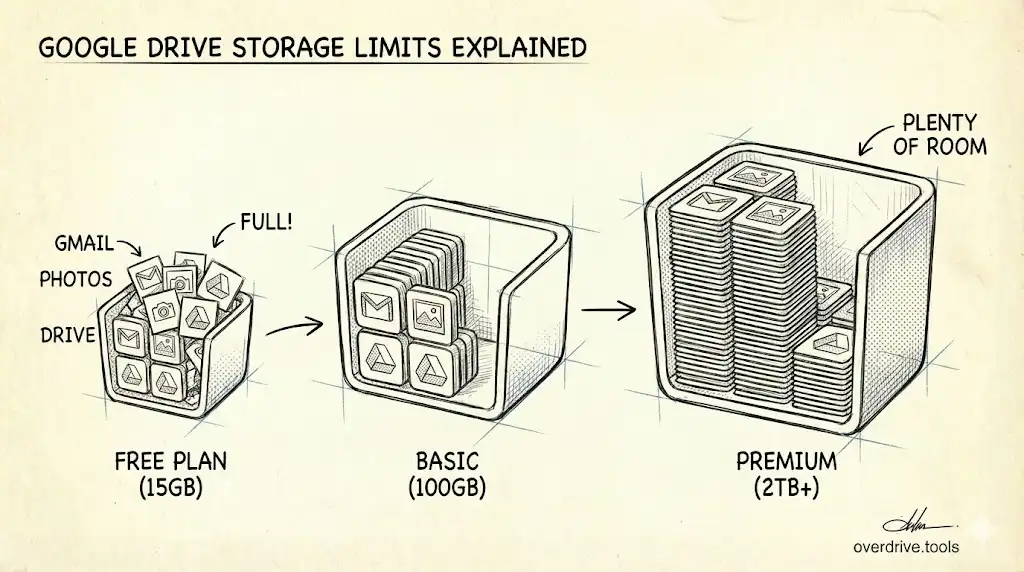
Google Workspace Business Starter is $7/user/month and includes 30 GB of pooled storage per user, Drive, and the full Google apps suite. For a five-person team, that's $35/month.
Microsoft 365 Business Basic is $6/user/month and includes SharePoint, Teams, and Office web apps. For file storage alone, Microsoft is comparable or cheaper. But if your team needs the full desktop Office apps (Word, Excel, PowerPoint), you're looking at Microsoft 365 Business Standard at $12.50/user/month.
If your team already uses Google Workspace for email, Drive is essentially free as an add-on. If your team already uses Microsoft 365 for Office apps, SharePoint comes included.
Where SharePoint Wins
Structure for complex organizations
SharePoint's Site model—separate document libraries for different departments or projects, with their own permissions, pages, and metadata—is genuinely powerful for organizations that need structured content management.
If you're managing an employee handbook that needs version control, a project library with custom metadata fields, and a client portal with restricted access, SharePoint can handle all of this in a coherent way. Drive can approximate most of it, but with more workarounds.
For small teams, this usually doesn't matter yet. For teams that expect to grow, or that operate in regulated industries with document management requirements, SharePoint scales more gracefully.
Integration with Microsoft 365
If your team lives in Outlook, Teams, and Office apps, SharePoint is the more natural home for files. The integration is tight: files in SharePoint document libraries surface directly in Teams channels, Outlook attachments can be saved to SharePoint automatically, and the Office desktop apps open and save SharePoint files natively.
For teams already committed to the Microsoft ecosystem, fighting this integration by introducing Google Drive creates more friction than it solves.
Desktop Office apps
This isn't really a SharePoint feature, but it's a real consideration: if your team uses Excel seriously—pivot tables, complex formulas, macros, VBA—Excel Online and Google Sheets are not adequate replacements. SharePoint plus desktop Office is the better choice for teams with heavy spreadsheet work.
Same logic applies to complex Word documents with advanced formatting, track changes workflows, or mail merge—and to PowerPoint presentations with animations, embedded media, or complex slide masters.
Metadata and document management
SharePoint document libraries support custom metadata columns—fields you add to every file that make filtering and managing documents more powerful. You can tag every contract with a client name, status, and expiry date, then filter and sort the library by those fields.
Drive doesn't have this. Folder structure is the only organizational tool. For small teams with simple needs, that's usually fine. For teams managing large volumes of similar documents—contracts, invoices, compliance records—SharePoint's metadata is genuinely useful.
The Honest Trade-offs
Google Drive's real weaknesses
Permissions can get messy. Drive's permission model is flexible, which makes it easy to overshare by accident. Files shared via link, documents with "anyone at the company can view," folders with inheritance exceptions—it accumulates over time and becomes difficult to audit. For growing teams, this is a real governance problem. (It's also why tools like Overdrive exist—to give you a clear view of who actually has access to what across your Drive.)
Folder structure is the only organization. No metadata, no document libraries, no taxonomy beyond folders and file names. For small teams with modest file volumes, this is fine. For teams that need to manage structured document collections, it becomes a limitation.
Google Docs format lock-in. Files created in Google Docs, Sheets, and Slides exist in Google's native formats. Exporting to Office formats works, but often introduces formatting issues. If you collaborate regularly with external partners who use Office, this creates ongoing friction.
SharePoint's real weaknesses
Complexity. SharePoint is a powerful platform, and that power comes with complexity. Permissions management involves Sites, SharePoint groups, Microsoft 365 groups, and sometimes Azure AD groups—and understanding how they interact is not intuitive. Small teams often configure SharePoint incorrectly and create security or access issues they don't realize exist.
The Teams/SharePoint relationship confuses people. Every Teams channel has a corresponding SharePoint folder. Files shared in Teams live in SharePoint. Most users don't know this, which means files get scattered and duplicated without anyone realizing it.
Slower iteration. Microsoft's release cycle for SharePoint is slower than Google's release cycle for Drive. Features that feel basic (like a usable mobile experience) took years to arrive. This is improving, but Drive still feels more modern and nimble.
How to Actually Decide
Rather than scoring each platform on a list of features, answer these questions about your team:
What do you already use for email? If Gmail, Drive is the easier choice. If Outlook, SharePoint is the easier choice. The collaboration suite you use for email typically anchors the whole stack.
How technically sophisticated is your team? If no one on your team would be comfortable acting as an informal IT admin, Drive is more manageable. SharePoint rewards investment in setup and administration.
How collaborative is your work? If your team frequently writes, edits, and comments on documents together in real time, Drive's collaboration experience is better. If most people work on files independently and share finished versions, this matters less.
Do you need the full Office desktop suite? If yes, you're probably better served by the Microsoft ecosystem. If your team can work in browser-based apps, both platforms are viable.
How structured does your file organization need to be? If folders are enough, either platform works. If you need metadata, custom views, or document-level properties, SharePoint handles this better.
Are you in a regulated industry? Both platforms offer enterprise compliance features, but SharePoint has a longer history with regulated industries (finance, healthcare, legal) and more established compliance tooling. If your industry has specific document retention or audit requirements, verify which platform meets them before deciding.
For Most Small Teams: Drive Wins on Simplicity
All else being equal, Google Drive is the better default choice for small teams. It's faster to set up, easier to maintain, more intuitive for new members, and has the better real-time collaboration experience.
The calculus changes if:
- Your team is already on Microsoft 365 for Office apps
- You need structured document management with metadata
- You're in an industry with specific compliance requirements
- You anticipate significant growth and want to invest in a platform that scales with organizational complexity
In those cases, SharePoint is worth the steeper initial learning curve.
The worst outcome—which is more common than it should be—is a team that picks SharePoint because it sounds more "enterprise," configures it incorrectly, ends up with a confusing folder structure and broken permissions, and eventually stops using it in favor of emailing files around. If that's a risk for your team, Drive's simplicity is a feature, not a limitation.
Managing Whichever Platform You Choose
Both platforms share a common challenge: permissions sprawl. Files get shared broadly, access accumulates over time, and eventually you're not sure who has access to what.
For Google Drive specifically, Overdrive gives you a clear audit of sharing permissions across your organization—who can access which files, what's been shared externally, and what needs to be cleaned up. It's the kind of visibility that's hard to get from Drive's native admin tools alone.